

Winhance’s latest update does something more than add rounded corners: it migrates the app to WinUI 3 so the interface now looks and behaves like the native Windows Settings app, while also tightening up memory use, improving startup resilience, and exposing advanced deployment tools that shift the conversation about “debloaters” from risky hack to deliberate deployment utility.
Winhance began as an open-source PowerShell GUI project aimed at simplifying common Windows optimizations: removing unwanted preinstalled apps, toggling privacy and telemetry settings, and bundling a set of tweaks that many power users apply manually. Over roughly the last year the project has matured rapidly, adding installer and ISO-building tooling, an Autounattend XML generator for unattended installs, and — most visibly — a UI migration that brings the app’s look and feel in line with Windows 11.
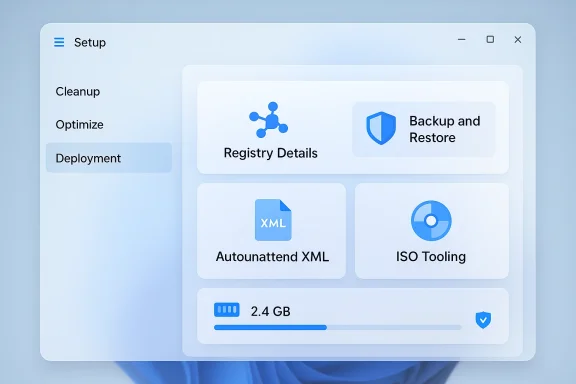
That migration is significant. Where the app once used WPF and felt like a third‑party tool slapped onto Windows, Winhance now uses Microsoft’s WinUI 3, the same modern native UI framework used by Windows 11 system surfaces. The change is cosmetic on the surface — native rounded corners, accent color awareness, acrylic/transparency behavior — but also practical: the UI was restructured so each sub-feature is rendered on its own page, which the developer says reduces peak memory usage and speeds navigation.
At the same time, the project’s toolset has grown beyond a “one-click debloater” into a small suite of deployment and provisioning features suitable for enthusiasts, IT pros, and people rebuilding multiple machines. That expansion is what makes Winhance worth examining in depth: it’s not only about removing apps; it’s about automating how Windows is installed and maintained.
Why this matters:
Expected effects:
What Winhance does to protect you:
Why open source helps:
How Winhance helps on such devices:
Why IT pros should pay attention:
That said, the tool is not a magic bullet. It reduces clutter and automates decisions many power users make manually, but it cannot fully replace cautious testing, backups, and an understanding of what each toggle does. The biggest non‑technical risk is distribution: always obtain the software from the project’s official release channel and verify release artifacts when possible.
If your goal is to streamline a single machine and you understand the changes you’re making, Winhance provides a safer, more transparent path than many one‑click debloaters. If your goal is to provision many machines consistently, its autounattend and ISO features are compelling — provided you adopt a disciplined test/pilot/deploy approach.
Winhance trades the click‑and‑forget mentality of many “debloaters” for clearer controls, rollback mechanisms, and deployment tools. For users who prefer visibility and repeatability over convenience alone, that’s a meaningful evolution. Conscientious use — backed by verified downloads and standard backups — makes Winhance a valuable addition to the modern Windows toolbox.
Conclusion
Winhance’s UI refresh to WinUI 3 is more than cosmetic: it signals a shift from hobbyist utility to an integrated provisioning and optimization suite that respects Windows 11 conventions. The addition of deployment features and explicit backup behavior reduces the risk traditionally associated with “debloaters,” while preserving the benefits of automation. Use it carefully, verify where you download it from, and treat its restore point and registry backups as helpful layers — not a guaranteed safety net.
Source: Windows Central https://www.windowscentral.com/microsoft/windows-11/winhance-debloat-update-winui-3-framework/
 Background / Overview
Winhance began as an open-source PowerShell GUI project aimed at simplifying common Windows optimizations: removing unwanted preinstalled apps, toggling privacy and telemetry settings, and bundling a set of tweaks that many power users apply manually. Over roughly the last year the project has matured rapidly, adding installer and ISO-building tooling, an Autounattend XML generator for unattended installs, and — most visibly — a UI migration that brings the app’s look and feel in line with Windows 11.That migration is significant. Where the app once used WPF and felt like a third‑party tool slapped onto Windows, Winhance now uses Microsoft’s WinUI 3, the same modern native UI framework used by Windows 11 system surfaces. The change is cosmetic on the surface — native rounded corners, accent color awareness, acrylic/transparency behavior — but also practical: the UI was restructured so each sub-feature is rendered on its own page, which the developer says reduces peak memory usage and speeds navigation.
At the same time, the project’s toolset has grown beyond a “one-click debloater” into a small suite of deployment and provisioning features suitable for enthusiasts, IT pros, and people rebuilding multiple machines. That expansion is what makes Winhance worth examining in depth: it’s not only about removing apps; it’s about automating how Windows is installed and maintained.
What’s new in the UI and why it matters
WinUI 3 migration: a modern shell for familiar controls
The most obvious change in the recent Winhance builds is the UI migration from WPF to WinUI 3. That migration brings a native Windows 11 visual language into the app: rounded window corners, fluent acrylic where appropriate, and automatic respect for your system accent color and animation preferences.Why this matters:
- The app no longer feels like a foreign object on Windows 11; it visually blends with Settings and other modern system apps.
- Visual parity reduces accidental clicks and cognitive friction — users can more easily find and compare settings because the UI metaphors match what Windows already shows.
- The codebase benefits from WinUI’s modern control set, which can simplify future maintenance and feature additions.
Memory and responsiveness improvements
A practical reason for the migration was performance. Winhance’s prior UI rendered many controls on a single long page, which could temporarily spike RAM usage and produce jank on lower‑RAM devices. The redesign splits those views into sub‑pages and adopts more lifecycle-aware control rendering.Expected effects:
- Lower peak memory use during navigation and when loading the app.
- Smoother UI response on devices with constrained RAM (8 GB systems and below).
- Fewer rendering artifacts (e.g., white trails when dragging the window) and better scaling at non‑100% display DPI.
Features that move Winhance beyond “simple debloater”
Winhance’s functionality can be thought of in three layers: user-facing cleanup tools, system‑level optimization toggles, and deployment/provisioning features. Together they make the app useful both for a single machine owner and for someone preparing many devices.1) Cleanup and app management (the “debloat” core)
- Batch uninstall of default Microsoft apps and optional features.
- Reinstall or selectively restore certain apps if you change your mind.
- Install external software via WinGet or configured installers.
- Prevent vendors/OEMs from re‑installing bloat during initial setup or provisioning.
2) Optimize: settings parity with Windows Settings
- A wide set of toggles that mirror or extend the Windows Settings experience: telemetry, privacy, UAC, scheduled tasks, power plans, and more.
- A “technical details” mode that reveals registry keys and recommended values, letting advanced users see exactly what changes will be applied.
- The app’s Optimize section now behaves like Settings: small incremental pages and searchable options.
3) Advanced tools: Autounattend XML and ISO customization
- The app can generate an autounattend.xml answer file reflecting your Winhance selections. That file can be embedded into Windows installation media so your tweaks and app removal scripts run during setup.
- Integrated tooling to build replacement ISOs (WIM/ISO tooling) with driver injection and the generated autounattend file included; useful for deploying the same configuration to many devices.
- A mechanism to save and export Winhance configs, and a “review import” flow that forces you to confirm each setting before applying it on a new system.
Safety nets, backups, and rollback behavior
One of the main criticisms of third‑party debloaters is the risk of breaking the OS or removing essential components without an obvious undo. Winhance addresses this with built‑in safeguards, but understanding their scope is essential.What Winhance does to protect you:
- On first launch (and when necessary), the app will enable System Restore if it’s disabled and create a System Restore point labeled as an initial Winhance restore point.
- It also saves registry hive backups to a local folder so you can import or double‑click .reg files to restore specific parts of the registry.
- Many changes expose toggles for easy reversal; some removals can be reinstalled via the app if the package is still available.
- System Restore and registry rollbacks revert most configuration changes but do not reinstall every removed UWP app automatically. Users may need to reinstall certain built‑in apps manually or via the app’s reinstall flows.
- Backups created by Winhance are a strong safety net, but they are not an absolute guarantee. Always keep independent backups of user data and a full disk image if you must preserve an exact pre‑tweak system state.
Security and trust considerations
Winhance is an open‑source project. That brings both benefits and risks.Why open source helps:
- The code is publicly viewable; technically competent users can audit what the app does before running it.
- Public repositories and release tags let you verify release artifacts against source commits and signatures if you choose.
- Malicious actors sometimes create fake installers or look‑alike projects to distribute malware. Downloading from unofficial mirrors or social‑media links increases the risk of picking up a compromised binary.
- Even well‑intentioned open‑source projects can contain errors or incomplete edge‑case handling that cause instability on some hardware or Windows builds.
- Always download Winhance from the official project channels (official repository or the developer’s announced release channels). Verify release signatures when available.
- Avoid third‑party repackaged installers from random websites or social posts.
- Treat any “one‑click” system modification tool with healthy skepticism: read what settings will change and take the provided restore point or an independent system image first.
- If using the autounattend capabilities or building custom ISOs, test in a virtual machine before applying to production hardware.
Real‑world use case: why this matters on constrained hardware (Surface Pro X example)
Devices with limited RAM — such as some Surface Pro X configurations with 8 GB of RAM — benefit disproportionately from software that reduces background memory pressure and streamlines startup behavior.How Winhance helps on such devices:
- Reducing the number of resident apps and scheduled removal scripts lowers the number of background processes that consume RAM.
- Optimizations to the Optimize page and the overall UI reduce the memory footprint of the tool itself while letting you make targeted changes.
- The autounattend approach lets you prepare a fresh, minimal installation that avoids preinstalled OEM bundles entirely, which is useful when provisioning older, low‑RAM machines.
Deployment and automation: when Winhance is not just for tinkerers
If you administer multiple machines — whether in a small office, a lab, or a family tech setup — the Autounattend XML and ISO customization tools in Winhance are where the project becomes genuinely useful.Why IT pros should pay attention:
- You can generate an autounattend.xml that runs removal scripts and applies registry and system-level settings during the Windows setup process.
- Winhance embeds a PowerShell script in the answer file to perform post‑install configuration automatically, ensuring consistency across machines.
- Combining driver injection with a custom ISO reduces post‑install friction (useful for older devices that need specific storage or network drivers).
- Build and test a custom ISO in a virtual machine, applying the full Winhance profile.
- Validate that all expected apps are removed, and critical apps run successfully.
- Use the autounattend approach with a pilot group before wider rollout.
- Keep an uninstall/rollback checklist handy so you can revert or patch issues discovered post‑deploy.
Strengths, limitations, and risk assessment
Notable strengths
- Transparent controls: many toggles expose the underlying registry keys and the app lets you inspect what will change.
- Modern UI and usability: the WinUI 3 migration reduces friction for users accustomed to the Windows 11 Settings flow.
- Provisioning features: autounattend generation and ISO tooling are powerful for scale.
- Built‑in backups: automatic restore point and registry backups make experimentation safer.
Potential risks and limitations
- App reinstalls & System Restore limits: System Restore won’t always reinstall removed UWP apps automatically; you may need manual steps to fully restore the pre‑Winhance state.
- Edge cases & hardware quirks: some devices or driver combinations might react poorly to certain toggles; testing is essential.
- Download supply‑chain risk: unofficial mirrors and repackaged installers can be malicious; verify sources and signatures.
- User expectations vs. reality: some users expect a 100% reversible tool; the reality is that some removals are semi‑permanent and require manual reinstallation.
How to use Winhance safely (concise checklist)
- Create a full disk image before major changes (preferred) or at minimum ensure System Restore is enabled and your documents are backed up.
- Download Winhance from the official project release channel and verify any available signatures.
- Review each change in the app’s technical details or config review mode before applying.
- Use the built‑in restore point for initial rollback testing; know which items require manual reinstallation.
- For multi‑machine deployments, test autounattend + ISO in a VM, then roll out to a pilot group before mass deployment.
Final analysis: is Winhance a tool worth using?
For power users and small‑scale IT operators, Winhance has matured into a notable tool that balances usability, transparency, and automation. The WinUI 3 migration reduces friction for Windows 11 users, and the autounattend/ISO features transform Winhance from a one‑machine cleanup utility into a legitimate provisioning assistant.That said, the tool is not a magic bullet. It reduces clutter and automates decisions many power users make manually, but it cannot fully replace cautious testing, backups, and an understanding of what each toggle does. The biggest non‑technical risk is distribution: always obtain the software from the project’s official release channel and verify release artifacts when possible.
If your goal is to streamline a single machine and you understand the changes you’re making, Winhance provides a safer, more transparent path than many one‑click debloaters. If your goal is to provision many machines consistently, its autounattend and ISO features are compelling — provided you adopt a disciplined test/pilot/deploy approach.
Winhance trades the click‑and‑forget mentality of many “debloaters” for clearer controls, rollback mechanisms, and deployment tools. For users who prefer visibility and repeatability over convenience alone, that’s a meaningful evolution. Conscientious use — backed by verified downloads and standard backups — makes Winhance a valuable addition to the modern Windows toolbox.
Conclusion
Winhance’s UI refresh to WinUI 3 is more than cosmetic: it signals a shift from hobbyist utility to an integrated provisioning and optimization suite that respects Windows 11 conventions. The addition of deployment features and explicit backup behavior reduces the risk traditionally associated with “debloaters,” while preserving the benefits of automation. Use it carefully, verify where you download it from, and treat its restore point and registry backups as helpful layers — not a guaranteed safety net.
Source: Windows Central https://www.windowscentral.com/microsoft/windows-11/winhance-debloat-update-winui-3-framework/
