

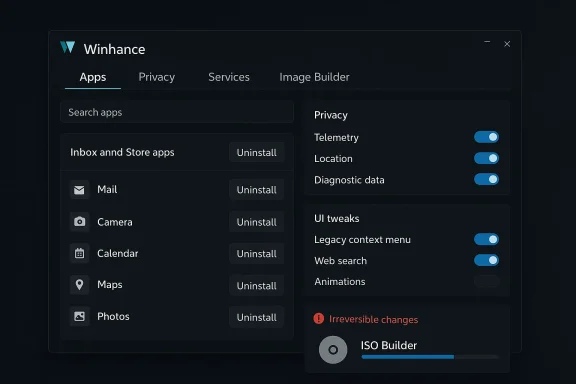
Winhance arrives like a compact control panel for Windows 10 and Windows 11 — a free, open‑source tool that centralizes app removal, privacy toggles, service management, and installer/image tools so you can strip away background processes and promotional cruft without reinstalling the OS.
Windows has long shipped with a growing set of inbox apps, promotional surfaces, and optional services that quietly run in the background. These pieces of software — from system-integrated features to preinstalled OEM utilities and promotional apps — can consume RAM, spawn background tasks, and increase attack surface without delivering value for every user. For many people, trimming them is the single most cost‑effective way to reclaim responsiveness and reduce startup noise.
The community around Windows debloating has matured from one‑off PowerShell scripts into polished GUI utilities that prioritize transparency, reversibility, and automation. Winhance sits squarely in that lineage: a GUI wrapper that exposes known registry changes, uninstall sequences, and service tweaks in a searchable, auditable interface. That evolution aims to give everyday users most of the benefits of manual debloating — without hours of registry spelunking.
That said, it’s not an automatic fix — the best results come from incremental application, sound backups, and validating core workflows after each change. If you follow a measured approach (backup, test, revert if needed) you can safely get the responsiveness gains so many users report — and avoid the “debloat regret” that comes from removing something important by accident.
Use Winhance as a well‑documented, auditable tool in your optimization toolkit — not as a blind one‑click cure — and the chances are high you’ll finish with a quieter, leaner, and more privacy‑respectful Windows machine.
Source: MakeUseOf I wish I'd used this free tool to debloat Windows 11 sooner
 Background
Windows has long shipped with a growing set of inbox apps, promotional surfaces, and optional services that quietly run in the background. These pieces of software — from system-integrated features to preinstalled OEM utilities and promotional apps — can consume RAM, spawn background tasks, and increase attack surface without delivering value for every user. For many people, trimming them is the single most cost‑effective way to reclaim responsiveness and reduce startup noise.The community around Windows debloating has matured from one‑off PowerShell scripts into polished GUI utilities that prioritize transparency, reversibility, and automation. Winhance sits squarely in that lineage: a GUI wrapper that exposes known registry changes, uninstall sequences, and service tweaks in a searchable, auditable interface. That evolution aims to give everyday users most of the benefits of manual debloating — without hours of registry spelunking.
What Winhance does — at a glance
Winhance bundles several capabilities into a single application window. The most important features are:- App discovery and mass uninstallation: a searchable list that surfaces Microsoft inbox apps, Store apps, and third‑party installations you can remove from one place.
- Privacy and telemetry toggles: a set of one‑click changes that adjust diagnostics, activity history, and tailored experiences to reduce background data collection.
- Service and background‑task management: an interface for disabling nonessential services or scheduled tasks that cause persistent CPU/RAM usage.
- Visual and UX tweaks: taskbar, Start menu, and Explorer adjustments to hide promoted content or reduce UI clutter.
- Gaming & performance options: a collection of toggles to favor responsiveness for games (CPU/GPU priority, some network throttling features, and other play‑focused changes).
- Image/installer tooling: utilities that can bake chosen settings into replicable ISOs or setup images for repeatable, pre‑tweaked deployments.
How it works in practice
Getting started is straightforward: install Winhance, run it with administrator privileges, and let it enumerate installed apps and available optimizations. The main workflow users report is:- Launch Winhance elevated so it can make system‑level changes.
- Review the Software & Apps list and select only the items you’re sure you don’t need. Uninstall selected items in batch to reclaim storage and reduce background services.
- Move to the Optimizations tab and pick targeted toggles (privacy, speed, UI) while reading the built‑in warnings and restart notes.
- If you plan to deploy the same baseline on multiple machines, use the image/ISO builders to bake the chosen configuration into a reproducible installer.
Why users report meaningful gains
There are two practical reasons people notice faster, snappier systems after using a debloat utility like Winhance:- Many inbox apps, background tasks, and scheduled services run continuously or check for updates/notifications frequently; removing or disabling them reduces RAM and I/O activity.
- Consolidating startup and service tweaks reduces context switching and lowers the number of autonomous processes competing for CPU, which can improve perceived responsiveness during light to medium loads.
Safety, reversibility, and the risk profile
No debloat tool is risk‑free. Winhance reduces many hazards with built‑in safeguards, but you must still treat system‑level changes with care.- Restore points and backups: Winhance reportedly creates a system restore point on first run to allow a straightforward rollback for many changes. That’s a useful safety net, but it’s not a substitute for a full image backup if you require stronger guarantees.
- Supply‑chain hygiene: because the tool performs powerful modifications, download only official release artifacts from the project's repository or trusted distributor. Community threads repeatedly warn about forks and unofficial mirrors — these can contain altered binaries.
- Service and driver fragility: some toggles touch services or components other tools and drivers rely upon. Removing or disabling certain inbox components can break features (for example, removing the default browser or components integrated into enterprise configurations). The UI’s warning icons are meaningful: read them.
- Anti‑cheat and game compatibility: aggressive system tweaks or removing components can sometimes clash with anti‑cheat systems used by some games. If you game on competitive titles, test changes carefully and retain a way to revert them quickly.
How Winhance compares with alternatives
The ecosystem of debloat tools is broad, and each project targets a slightly different audience and risk tolerance.- PowerShell scripts (e.g., Windows10Debloater / Win11Debloat): lean, scriptable, and flexible tools that require manual edits and more expertise. Good for automation and auditors but less user‑friendly for newcomers.
- GUI wrappers (Winhance, Winslop, Winpilot, FlyOOBE): add discoverability, previews, and rollback features to common debloating operations. Winhance is one of the more feature‑rich GUI options because it pairs debloat with image/ISO tooling.
- Image‑level builders (Nano11, Tiny11 variants): these provide extreme slimming by producing minimal installer images, trading serviceability and compatibility for ultra‑small footprints. They are powerful but also highest risk for breakage in real‑world usage.
- Commercial tune‑up suites: packaged consumer products offer one‑click maintenance and support but often lack the transparency and reversibility of open‑source options. Winhance’s open‑source model is a competitive advantage for transparency-conscious users.
Best practices: a safe debloat checklist
Follow a disciplined sequence to minimize the chance of disruption.- Back up first — create a full image or at minimum a system restore point before any bulk change. Winhance creates a restore point on first run but combine that with your preferred backup approach for critical systems.
- Inventory what’s installed — make a list of apps or features you want to keep; many items appear multiple times under different names.
- Start light — first apply privacy and nonessential UI tweaks. Defer app removals until you’ve verified day‑to‑day needs.
- Remove noncritical inbox apps — remove Suggests, trialware, and apps you literally never open. Keep at least one browser installed before uninstalling any browser component.
- Test for side effects — reboot and run your common workflows (email, browser extensions, printers, games) to catch breakage early.
- Use reversible toggles — prefer options that can be undone or that Winhance backs up; avoid destructive operations without a tested fallback.
Step‑by‑step: using Winhance responsibly (practical walkthrough)
- Install Winhance from the official project release artifact. Verify signatures/hashes if provided.
- Right‑click → Run as administrator to grant the tool permission to make system changes.
- When prompted, confirm a system restore point is created on first run (or create one manually through Windows System Protection).
- Open Software & Apps and scan the list; use the search box to locate well‑known inbox apps and OEM utilities. Hover over warning icons to see notes about irreversibility.
- Select a few noncritical apps to uninstall and click Uninstall Selected Items. Let the process finish and reboot if prompted.
- Visit the Optimizations tab; apply privacy toggles (diagnostics, activity history), UI tweaks (hide recommendations), and any performance‑focused switches you need. Read the explanation for each toggle before applying it.
- Reboot, then validate your primary workflows. If you notice issues, use the restore point or the app’s rollback features (where present) to revert changes.
Troubleshooting and rollback options
- Use the restore point: for many registry and component changes, reverting a restore point will undo the majority of user‑level changes. Confirm that System Protection is enabled for the system drive.
- Manual reinstallation: items removed from the system (for example, certain inbox apps) can often be reinstalled from the Microsoft Store or by installing an alternative browser first. The red‑X warnings in the UI highlight cases where reinstalling will be less convenient.
- Rebuild from an image: if you used Winhance’s image/ISO features to create a custom installer and later need a clean baseline, rebuild an ISO with default settings or use your saved factory image.
What Winhance gets right — and where to be careful
Strengths:- Auditable, open‑source model: transparency reduces supply‑chain worry and lets technically inclined users inspect exact changes.
- Unified control surface: pairing app‑removal, privacy toggles, and installer image building in one tool saves time and reduces the need for multiple utilities.
- User safeguards: the restore point creation, warning icons, and clear UI make dangerous operations easier to avoid for less experienced users.
- Not a magic performance cure: expect tangible but variable improvements; the biggest wins come from removing genuinely unnecessary background services and OEM trialware.
- Potential compatibility issues: some changes can interfere with enterprise policies, drivers, or anti‑cheat systems. Test before rolling out at scale.
- Need for disciplined use: because the tool touches many layers of Windows, avoid “one‑click” blanket removals unless you have reliable backups and a plan to revert.
Community perspective and the larger picture
The rise of GUI debloaters like Winhance reflects broader user frustration with platform default behavior: increased telemetry, promoted experiences, and an expanding set of inbox services. Community projects emphasize giving users the tools to reclaim control — but they also highlight a tension: the more power a tool gives a user, the more responsibility it places on them to understand the tradeoffs. Winhance sits in the middle ground by offering a friendly UI without hiding what it changes; that combination is why many reviewers and forum posts recommend it as a sensible first‑line tool for cautious power users.Final assessment
Winhance is a mature example of the modern, community‑driven Windows debloat movement: open‑source, feature‑rich, and oriented toward transparency. For users who want to reclaim system resources, reduce background noise, and unify privacy and installer customizations under one hood, it’s a practical and often effective choice when used carefully.That said, it’s not an automatic fix — the best results come from incremental application, sound backups, and validating core workflows after each change. If you follow a measured approach (backup, test, revert if needed) you can safely get the responsiveness gains so many users report — and avoid the “debloat regret” that comes from removing something important by accident.
Use Winhance as a well‑documented, auditable tool in your optimization toolkit — not as a blind one‑click cure — and the chances are high you’ll finish with a quieter, leaner, and more privacy‑respectful Windows machine.
Source: MakeUseOf I wish I'd used this free tool to debloat Windows 11 sooner