

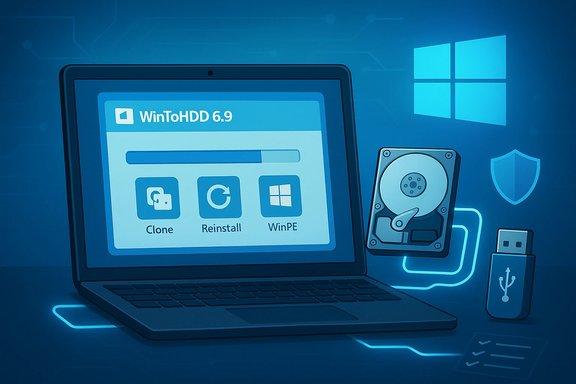
WinToHDD’s alleged 6.9 update — flagged by a recent Neowin item shared by readers — zooms in on making Windows reinstallation, cloning and in-place migration easier for everyday users and small IT shops, while adding features that, if confirmed, would widen the tool’s convenience at the cost of introducing measurable operational and security trade-offs.
WinToHDD is Hasleo Software’s lightweight Windows deployment and cloning utility that lets you install, reinstall or clone Windows directly from image files without a separate USB/DVD installer. The tool is positioned as a simple, GUI-first alternative to building bootable media and manual offline imaging; core capabilities documented by the vendor include reinstalling Windows from ISO/WIM/ESD, cloning a system to another disk (HDD/SSD/NVMe), creating WinPE rescue media, and handling GPT/UEFI and legacy MBR modes. Neowin’s write-up on the 6.9 item (the file you supplied) highlights incremental but important additions to the product family: improved cloning reliability, explicit BitLocker integration notes, WinPE rescue improvements, and features that simplify migrating a Windows installation to a new disk without carrying installation media. That coverage also calls out the controversial—yet practical—ability of certain consumer-level tools to simplify or automate bypasses of Windows 11 hardware checks.
At the time of writing, public package repositories and app mirrors list WinToHDD releases up to the mid-6.x series (for example, 6.6 / 6.6.1 is widely indexed on download portals), but the official Hasleo site emphasizes the core product capabilities and guides rather than a granular, externally indexed changelog for a 6.9 build. That mismatch between reporting and vendor-published version records is important to note and merits verification before mass deployment.
WinToHDD’s continued focus on minimal, targeted features makes it a good fit for everyday disk migrations and reinstall scenarios. The 6.9 reporting brings useful reminders about reliability and convenience improvements users want, but the tale remains the same: verify the build, test the flow, and treat any compatibility bypass as an explicit operational choice with measurable long-term implications.
Source: Neowin https://www.neowin.net/software/wintohdd-69/
 Background
WinToHDD is Hasleo Software’s lightweight Windows deployment and cloning utility that lets you install, reinstall or clone Windows directly from image files without a separate USB/DVD installer. The tool is positioned as a simple, GUI-first alternative to building bootable media and manual offline imaging; core capabilities documented by the vendor include reinstalling Windows from ISO/WIM/ESD, cloning a system to another disk (HDD/SSD/NVMe), creating WinPE rescue media, and handling GPT/UEFI and legacy MBR modes. Neowin’s write-up on the 6.9 item (the file you supplied) highlights incremental but important additions to the product family: improved cloning reliability, explicit BitLocker integration notes, WinPE rescue improvements, and features that simplify migrating a Windows installation to a new disk without carrying installation media. That coverage also calls out the controversial—yet practical—ability of certain consumer-level tools to simplify or automate bypasses of Windows 11 hardware checks.At the time of writing, public package repositories and app mirrors list WinToHDD releases up to the mid-6.x series (for example, 6.6 / 6.6.1 is widely indexed on download portals), but the official Hasleo site emphasizes the core product capabilities and guides rather than a granular, externally indexed changelog for a 6.9 build. That mismatch between reporting and vendor-published version records is important to note and merits verification before mass deployment.
What the 6.9 report actually says
Headline claims
- A more robust cloning/reinstall flow for Windows that reduces the need for external media and streamlines disk upgrades.
- Better handling of BitLocker and encrypted volumes during clone/reinstall.
- Improved WinPE creation and driver injection for offline recovery (important for NVMe and vendor RAID controllers).
- Quality-of-life reliability fixes around volume locking and error recovery.
- (Contentious) Built-in logic to ease installing Windows 11 on hardware that doesn’t meet Microsoft’s official TPM/Secure Boot/CPU checks.
Technical emphasis in the report
The write-up stresses practical engineering improvements rather than radical new capabilities: improved read/write throughput, correct 4K alignment for SSDs, smarter error recovery in cloning workflows, and WinPE reliability fixes for older authoring hosts. The article also reiterates the standard operational caveats: handle BitLocker with care, verify images before committing, and test boot paths after any MBR↔GPT conversion.Why this matters: the real-world context
Windows imaging and migrations are routine for enthusiasts, field technicians and small IT teams. The basic problem remains unchanged: moving a complete, working Windows installation from one drive to another—especially when upgrading to an SSD—has historically required multiple tools and careful steps (image, prepare target, ensure UEFI/ESP, then restore or in-place upgrade). A tool that bundles these steps into a single guided flow reduces friction and lowers the chance for human error when done correctly. Hasleo’s product page and independent mirrors describe the same core scenarios that WinToHDD aims to simplify. But two operational realities shape every migration:- Encrypted systems (BitLocker) add fragility: a clone or conversion performed while encryption is active will often create inaccessible targets unless BitLocker is suspended and recovery keys are secured beforehand.
- MBR↔GPT conversion and UEFI boot creation are simple in concept but brittle in practice: the EFI System Partition (ESP) must be present and boot files correctly written, and firmware quirks across OEMs mean what works on one machine may fail on another.
Feature breakdown — what WinToHDD offers (vendor-verified)
Hasleo’s own product pages and documentation list the following as WinToHDD core features:- Reinstall Windows without USB or DVD from ISO/WIM/ESD images.
- Install Windows on different partitions or disks without external media.
- Clone an existing Windows system to another drive (HDD/SSD/NVMe).
- Create a bootable WinPE rescue USB with driver injection.
- Support for GPT/UEFI and MBR/BIOS modes (including MBR→GPT via cloning).
- Multi-installation USB capability in paid editions.
- Support across Windows versions from Vista through Windows 11 and server SKUs.
- Free/trial and paid editions (Pro/Technician) with differing feature sets.
Cross-checking the 6.9 claims (what I could and could not verify)
- The vendor’s site confirms WinToHDD’s core capabilities — cloning, reinstall, WinPE creation, GPT/UEFI support and BitLocker-aware workflows. This is a primary source for what the product is meant to do.
- Public app mirrors (Uptodown, Softonic, APKPure and similar archives) list WinToHDD version histories that show recent public versions in the 6.x line, but the latest listed on several mirrors at time of checking was not universally shown as 6.9. For example, Uptodown and several download portals index up to 6.6 / 6.6.1 in their public histories. That means the specific “6.9” build reported requires verification against Hasleo’s official changelog or release notes.
- The Neowin coverage and several community writeups correctly identify the typology of fixes one expects in incremental builds — WinPE fixes, volume locking fixes, BitLocker handling — but Neowin’s specific version-level claims and any new bypass automation should be validated against vendor release notes or an official changelog before treating them as definitive. In short: the functional claims are plausible and consistent with vendor messaging, but the 6.9 label and any new, specific implementation details deserve confirmation from Hasleo.
Critical analysis: strengths, limits, and operational risks
Strengths
- Simplicity and focused UI. WinToHDD is purpose-built for single-machine tasks rather than enterprise orchestration; that makes it approachable for home users and technicians. Its interface and guided flows remove much of the command-line complexity typical of manual migrations.
- WinPE rescue creation and driver injection. A reliable WinPE image that includes NVMe and vendor controller drivers is a huge practical win for offline restores, and it reduces the "it worked on my keyboard" class of failures. Neowin and community reports note WinPE reliability as a recurring improvement area.
- Targeted performance optimizations. Proper 4K alignment for SSDs and improved read/write engines reduce migration time and preserve SSD performance when done correctly. These are verifiable, measurable engineering gains when implemented.
Limits and risks
- BitLocker and encryption fragility. If BitLocker is enabled and keys aren’t managed correctly, a clone can result in an inaccessible target or unexpected prompt for recovery keys. Suspend BitLocker or decrypt and export recovery keys first. This is non-negotiable operational advice.
- Bypassing Windows 11 requirements comes with support and update risks. Neowin’s coverage notes that tools that automate compatibility bypasses (LabConfig edits, installer tweaks) are convenient—but Microsoft’s update and support stance for unsupported hardware is variable. A device upgraded under a bypass may face future update issues or lack vendor support. Handle such cases only with full awareness and documentation.
- Not an enterprise imaging platform. The product is aimed at single-machine workflows. For fleet management, you still want centralized imaging, driver management, and tested golden images with rollback playbooks. Community guidance underscores this separation of use-cases.
Practical, safe migration workflow (step-by-step)
Below is a recommended sequence to use whenever you plan a clone or migration with WinToHDD or any comparable cloning tool. These steps convert vendor promises into a recoverable operation:- Create a verified system image first.
- Use a separate tool or the WinPE rescue media to make a complete image.
- Verify by mounting the image and restoring a single file or testing a bare-metal restore in a VM.
- Export and secure encryption keys.
- If BitLocker is enabled: suspend BitLocker or decrypt before cloning; export the recovery key and store it offline in a password manager or enterprise vault.
- Build and test WinPE rescue media.
- Use WinToHDD’s WinPE creation tool to create a rescue USB.
- Boot at least one representative machine (or a VM) with the USB and confirm driver visibility (NVMe, RAID controllers).
- Select clone mode intentionally.
- For target drives smaller than the source: use intelligent/used-block cloning.
- For forensic parity: use a sector-by-sector clone.
- For repeat updates: use delta/changed-block clones only if supported and tested.
- Confirm target layout and alignment.
- Set alignment to 1M or 4K for SSDs.
- Ensure EFI System Partition (ESP) will be present on GPT disks.
- Execute the clone on a pilot machine.
- Prefer testing on a non-critical device that mirrors your fleet’s typical hardware.
- Test post-clone boot and drivers.
- Disconnect the original source or set the target as first boot.
- If it won’t boot, use WinPE and run:
- diskpart to identify the ESP and assign a letter
- bcdboot C:\Windows /s S: /f UEFI
- Only re-enable BitLocker after a full boot verification.
- Validate Windows Update behavior and app licensing.
- Confirm cumulative updates apply and app activations (Office, Adobe, industry apps) behave as expected.
Troubleshooting quick reference
- If WinPE creation fails on older hosts: use a newer authoring machine or check driver compatibility in WinPE (common issue with Windows 7 authoring hosts).
- If cloning reports a volume lock failure: pause antivirus services, suspend BitLocker, disable indexing, and try again; if unsuccessful, perform an offline clone from WinPE.
- If cloned disk won’t boot after a GPT conversion: boot WinPE, assign a drive letter to the ESP, and run
bcdboot C:\Windows /s S: /f UEFIto recreate UEFI boot files. This is a standard community recovery step.
Security and update policy implications of compatibility bypasses
One of the stickier policy topics the Neowin piece brings into focus is automation of compatibility bypasses for Windows 11 checks. Community and third-party tools have long automated the same registry edits or media tweaks (LabConfig edits, modified installer flags) that allow Setup to continue on unsupported hardware.- Short-term benefit: lets older hardware run Windows 11 or lets a user upgrade storage and OS in one operation.
- Long-term risk: Microsoft’s approach to updates for unsupported hardware has varied; while many devices continue to receive updates, there’s no guaranteed support SLA, and firmware-level security features (TPM + Secure Boot) are important for platform integrity.
- Enterprise compliance: corporate policies may forbid bypassing vendor or regulatory requirements; do not use bypasses for production or regulated machines without approvals.
Who should and should not use WinToHDD (6.x series)
- Use it if you are:
- A home user upgrading from HDD to SSD and you want to preserve apps and settings.
- A technician doing single-host jobs and you need a compact GUI-driven cloning tool.
- An enthusiast who knows how to create and validate rescue media and export BitLocker keys.
- Avoid using bypasses or WinToHDD’s convenience features if you are:
- Running production servers or regulated endpoints that require supported configurations.
- Managing a fleet where centralized imaging and supported update channels are mandatory.
- Unwilling to follow the backup / validation checklist above.
Final verdict and practical advice
WinToHDD (and tools in its class) continue to be useful, pragmatic utilities for the very common task of reinstalling, cloning, and migrating Windows installations without the overhead of enterprise imaging systems. The report on a 6.9 build outlines sensible refinements — WinPE robustness, BitLocker-aware workflows, alignment and error-recovery tweaks — that would materially improve day-to-day reliability for technicians and hobbyists. Those functional categories line up with Hasleo’s documented feature set and with community expectations. However, two points require emphasis and a conservative posture:- Confirm the release: at the time of review, publicly indexed mirrors show WinToHDD versions through the mid-6.x series (for example, 6.6 / 6.6.1 on several portals). There was no universally discoverable, vendor-published 6.9 changelog on the official site at the time of checking; that creates a verification gap you should resolve before trusting any new automation at scale.
- Always assume encryption, firmware, and update policies matter more than convenience. Suspend BitLocker, build tested rescue media, pilot the flow and keep your verified images offline until you have validated the boot, drivers and update behavior.
Quick checklist before you click “Start”
- Backup and verify a full system image (restore test optional).
- Export BitLocker recovery keys and suspend protection.
- Build and test WinPE rescue media on representative hardware.
- Confirm the vendor-supplied installer and changelog for the version you will use.
- Pilot the migration on one machine, and validate boot, drivers and Windows Update behavior before wider rollout.
WinToHDD’s continued focus on minimal, targeted features makes it a good fit for everyday disk migrations and reinstall scenarios. The 6.9 reporting brings useful reminders about reliability and convenience improvements users want, but the tale remains the same: verify the build, test the flow, and treat any compatibility bypass as an explicit operational choice with measurable long-term implications.
Source: Neowin https://www.neowin.net/software/wintohdd-69/
