

YASB is the kind of small, focused tool that changes how you look at your desktop: a top-mounted, highly configurable status bar that surfaces the data you actually want — system health, media controls, clocks, a Pomodoro timer, an audio visualizer and shortcuts — all without hunting through the tray, toggling menus, or leaving the window you’re working in. What started as several independent forks and experiments has become a community-driven project with an installer, a theme gallery, and a documented widget ecosystem. The result feels like the macOS menu bar reimagined for power users who prefer their information composable, compact, and styled their way. (docs.yasb.dev)
YASB — short for Yet Another Status Bar — is not a single monolithous app with one authoritative lineage. The idea has been implemented as multiple Python-based projects and forks. One original project framed the concept as a cross-platform, Python + Qt6 status bar aimed at bringing Wayland-like polybar/waybar experience to Windows, while a later community effort packaged a more Windows-native experience with installers and package-manager support. Both strands embrace the same core philosophy: YAML-driven layout, CSS-like styling, and an extensible widget model.
At its best, YASB turns your display’s unused real estate into a functional, glanceable dashboard. At present the project ecosystem offers:
YASB fills that gap with three core affordances:
At the same time, fragmentation between forks means the landscape will continue to require attention: read install notes, check config paths, and prefer releases that match your risk tolerance.
Conclusion: YASB is what happens when a simple idea — put useful controls and live data where you can actually see them — is executed with a community-first, configurable mindset. It won't replace Windows' core shell for everyone, but for power users who enjoy intentional, glanceable UI, YASB is the sort of small project that pays back attention with daily convenience and delight.
Source: MakeUseOf YASB is the Windows status bar that Microsoft forgot to build
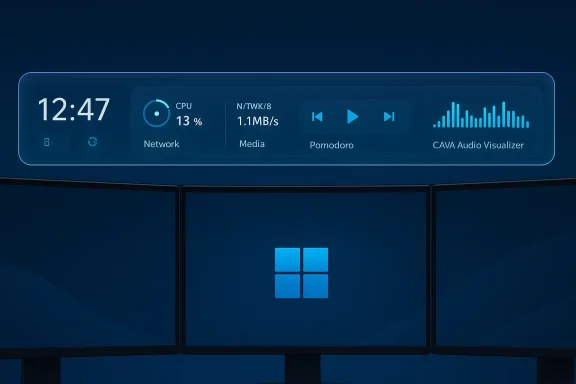 Background / Overview
YASB — short for Yet Another Status Bar — is not a single monolithous app with one authoritative lineage. The idea has been implemented as multiple Python-based projects and forks. One original project framed the concept as a cross-platform, Python + Qt6 status bar aimed at bringing Wayland-like polybar/waybar experience to Windows, while a later community effort packaged a more Windows-native experience with installers and package-manager support. Both strands embrace the same core philosophy: YAML-driven layout, CSS-like styling, and an extensible widget model.At its best, YASB turns your display’s unused real estate into a functional, glanceable dashboard. At present the project ecosystem offers:
- A documented widget catalog covering system metrics, media, weather, productivity tools and integrations. (docs.yasb.dev)
- Live reload for configuration and themes so you can iterate without restarting the bar.
- Multiple install pathways: source (Python), packaged installers (MSI), and package-manager delivery (winget / Chocolatey / Scoop depending on the build).
Why YASB? The problem it solves
The missing Windows status bar
Windows has a decades-old taskbar and notification area that works, but it’s not meant to be a designer’s, tinkerer’s, or power-user’s canvas. The default system tray is click-first: you need to open menus or alt-tab to see status beyond a tiny icon badge. macOS’s menu bar, and Linux users’ polybar/waybar setups, show how useful a persistent, top-level status surface can be when it’s composable and scriptable.YASB fills that gap with three core affordances:
- Glanceability: persistent, live data without context clicks.
- Composability: widgets are modular and placed via YAML, so you choose which data lives on which monitor.
- Theming: styles are driven by a CSS-inspired stylesheet so design-savvy users can craft visually cohesive bars. (docs.yasb.dev)
Real users want both utility and polish
The community traction around themes, widget contributions, and forks shows a clear appetite: users want the status bar concept to be both functional and beautiful. There’s a hosted gallery and a dedicated theme repository so you can import complete looks rather than hand-code everything. That lowers the barrier to entry for people who care about visual consistency.How YASB works: architecture and components
Config + Styles: YAML and CSS, the twin engines
YASB uses two plain-text artifacts as the control plane:- A YAML configuration (commonly named config.yaml) defines the bars, which screens they attach to, the widgets used, and layout regions (left/center/right). This is the behavioral layer.
- A stylesheet (styles.css) controls the visual details — typography, spacing, opacity, rounded corners, colors and widget-level styling. This is the presentation layer.
Widgets and integrations
The widget catalog is extensive and growing. The official documentation and project wikis list first-party widgets such as:- Clock, Weather, CPU/GPU/Memory, Network traffic, Battery and Disk monitors
- Media controls & now-playing (Spotify/Media), Volume and Power Menu
- Productivity tools like Pomodoro and Todo
- Niche integrations: OBS monitoring, Komorebi / GlazeWM bindings, Libre Hardware Monitor, and a CAVA audio visualizer widget. (docs.yasb.dev)
Implementation: Python, Qt, and native hooks
Different forks emphasize different technical trade-offs:- The original Python + Qt6 approach favored cross-platform portability and quick iteration. That variant expects users to run the Python source and required modules.
- The community “Reborn” distribution packages the app with Windows-native delivery, MSI installers and Win32 integrations to feel more like a first-class Windows app while still exposing the same YAML/CSS customization. The site explicitly references Win32 APIs and native integration for smooth multi-monitor support.
Getting started: installation and the configuration surface
Install options — pick your comfort level
There are two practical routes for installation:- Packaged installer / package manager — MSI, winget (AmN.yasb), Chocolatey and Scoop packages are available from community builds. This is the recommended route for most users because it creates a proper Windows app experience (start menu entry, autostart, etc.).
- Run from source (Python + pip) — clone the repository, install dependencies and run main.py. This route is more hands-on and appeals to contributors and people who want to tinker with the code. The original repo recommends Python 3.10+ and Qt6.
Where are the files?
Documentation and different README files show a small but important divergence in default paths: some forks expect configuration under%USERPROFILE%/.config/yasb while others use %USERPROFILE%/.yasb or C:/Users/{username}/.yasb/. This is a genuine place where you should check your installed build’s docs before assuming a path — the same filename patterns (config.yaml and styles.css) are used, but the folder can be different between releases and forks. Always check the installer notes and the application’s “Open config” menu option.First-run checklist
- Install required icon fonts (Nerd Fonts are commonly recommended for bundled icon glyphs). Missing fonts are the number one cause of broken icon displays.
- Copy or edit config.yaml and styles.css for your initial layout. Start small (clock + CPU + memory + media) then expand.
- Add YASB to startup (the packaged installer often provides this) so it appears after login.
Real-world setup examples and workflows
Multi-monitor enthusiasts
YASB’s bar model supports per-monitor bars with independent widget sets. Power users commonly:- Put system stats and media controls on the primary top bar.
- Put clocks, Pomodoro timers or purely aesthetic widgets on secondary displays.
You can define multiple bars in YAML and attach each to a specific monitor identifier. The bar can be top or bottom aligned and supports centering per the config. These features are precisely what makes YASB compelling for people juggling multiple displays or hybrid workflows.
Example widget stack (left → center → right)
- Left: Win button / language / quick-launch
- Center: Active window title
- Right: Network traffic / CPU / Memory / Weather / Volume / Power Menu
Custom automations
Because the bar supports custom script widgets and a CLI, you can:- Add a widget that runs a Python or PowerShell script and displays its output.
- Bind click actions to launch applications or toggle Power Plans.
- Use the launcher to surface an OBS control panel or integrate with server-monitoring endpoints in your workflow. Documentation and the widget wiki include examples for custom widgets. (docs.yasb.dev)
Visual theming and design
CSS-powered styling
YASB’s styles are written in a CSS-like syntax. You can:- Change fonts, paddings, backgrounds, borders and opacity.
- Create widget-specific classes to produce boxed, pill or glass containers.
- Toggle light/dark variants and tune theme colors down to individual widget padding.
Design considerations
- Keep the bar height modest (20–40 px typically) to avoid stealing vertical real estate from apps.
- Favor icons + concise labels rather than long text for quick glances.
- Use contrast and subtle opacity to separate the bar from the desktop wallpaper without creating a heavy visual anchor.
Strengths: where YASB shines
- Extensible widget ecosystem — the docs and repo list dozens of ready-made widgets, plus clear APIs for custom ones. That flexibility is the project’s strongest asset. (docs.yasb.dev)
- Rapid iteration via hot reload — tweak YAML or CSS and see changes immediately; this encourages experimentation.
- Cross-pollination across forks — community themes, packaged installers and the original Python project coexist, giving users choices based on their technical comfort.
- Native-feeling packaged builds — installers and winget packages reduce the friction for non-developers while retaining the configuration-first model.
Risks and caveats: what to watch out for
Fragmentation between forks and configs
Because multiple forks exist, behavioural assumptions can diverge: config file location, default widget names, or theme class names can differ between builds. That makes blindly copying a theme or a config from the web risky — you may need to adapt identifiers and paths. The safest path is to consult the documentation for your installed build before paste-clobbering configs.Permissions and third-party code
- The bar can execute external scripts and widgets can call system utilities. That capability is powerful but creates an attack surface if you download untrusted themes or widgets. Treat any third-party plugin as executable code and inspect it before using it on a work machine.
- If you use the source / development build, be aware of Python dependency chains and the usual supply-chain risks of pip-installed packages. Prefer packaged MSI/winget builds in conservative environments.
Performance and stability
- The project is written in Python and uses a GUI framework (Qt), so performance depends on the build and your machine. On modern hardware it’s lightweight, but expect some memory overhead compared to a native C++ app.
- Community threads show occasional breakage after updates or configuration mistakes (indentation errors in YAML, missing fonts). Keep backups of config files and use the project’s troubleshooting notes if things fail to start.
Accessibility and enterprise policy
- YASB is a user-space UI customization tool. In locked-down enterprise environments it may be blocked by policy or not permitted by IT, and some installations that modify shell behavior or autostart might be flagged by endpoint protection. Check policy before deploying widely.
Security checklist before you install
- Verify the build: prefer the official GitHub releases page or vetted Winget/Chocolatey packages rather than random downloads.
- Inspect themes and custom widgets before using them—treat them as executable code.
- Install fonts from trusted sources (Nerd Fonts are widely used; however, install them from the official repo or package manager).
- Back up your current Windows configuration and any existing taskbar or shell customizations so you can revert quickly.
Comparison: YASB vs. alternatives
- Rainmeter — Rainmeter is the veteran toolkit for deeply custom desktop widgets and skins. It’s highly extensible but requires a different mind-set: Rainmeter skins live on the desktop and are not necessarily integrated as a system bar. YASB fills the niche for a top-mounted status bar rather than arbitrary desktop widgets.
- Nilesoft Shell — Nilesoft Shell customizes the right-click context menu and adds visual polish to Explorer. It’s a different problem space but shares the customization spirit; Nilesoft focuses on context menus while YASB focuses on persistent status.
- TaskbarX and other taskbar-centric tools — These target the taskbar’s position and behavior. YASB is complementary: it dresses the top of the screen and provides structured widgets that the taskbar doesn’t.
Practical tips and short recipes
Move media controls into a tiny center widget
- Add the media widget to the center region in config.yaml.
- Style it with a compact font size in styles.css.
- Bind left-click to open your preferred player and right-click to open the player’s menu.
Make a second bar for clocks and Pomodoro on a secondary monitor
- Define a second bar in your YAML, set its screens property to the second monitor ID, and add the clock and Pomodoro widgets to the left region. Hot reload will update the UI immediately.
Add a CAVA visualizer to the right side for ambient feedback
- Install CAVA (the audio visualizer engine) separately if your build doesn’t provide it.
- Add the Cava widget and style its container for transparency and minimal height to keep the visualizer unobtrusive. The docs include a Cava widget entry as a first-class option. (docs.yasb.dev)
The community and long-term prospects
YASB lives and grows in the community: theme authors, widget contributors, and multiple forks mean momentum is not tied to a single maintainer. The existence of packaged installers, a theme gallery, and a growing docs site suggests the project has matured from prototype into a stable ecosystem for enthusiasts. That’s a healthy sign for anyone considering YASB as part of their desktop toolkit.At the same time, fragmentation between forks means the landscape will continue to require attention: read install notes, check config paths, and prefer releases that match your risk tolerance.
Final verdict — who should try YASB (and how)
YASB is an excellent fit if you:- Are a customization-minded user who likes to control layout and aesthetics.
- Want a persistent, glanceable status bar without jumping into the Windows tray.
- Enjoy composing UIs from tiny building blocks and iterating quickly with CSS and YAML.
- You’re on a tightly managed corporate machine where installing community packages or running third-party scripts is restricted.
- You need rock-solid, certified enterprise software behavior without any tweaks to the shell.
- Use the packaged installer or Winget for the smoothest experience.
- Install recommended fonts first.
- Back up your Windows personalization and keep a copy of your original taskbar settings.
- Start with a community theme and a small set of widgets, then expand.
Conclusion: YASB is what happens when a simple idea — put useful controls and live data where you can actually see them — is executed with a community-first, configurable mindset. It won't replace Windows' core shell for everyone, but for power users who enjoy intentional, glanceable UI, YASB is the sort of small project that pays back attention with daily convenience and delight.
Source: MakeUseOf YASB is the Windows status bar that Microsoft forgot to build
