

Zorin OS’s recent ascent has forced a re-think of a long‑standing recommendation: for many Windows users seeking a drop‑in replacement, Linux Mint is no longer the obvious first pick — and the reasons are as much about design and onboarding as they are about raw technical compatibility.
For the better part of a decade Linux Mint’s Cinnamon edition was the default referral for people migrating off Windows. Its conservative design, familiar layout, and emphasis on stability made it the safest “first distro”: a predictable, well‑documented path that minimizes surprises for nontechnical users. Practical workflows — create a Live USB, test hardware, install, enable automatic snapshots with Timeshift, then use Software Manager for apps — have become the standard Mint onboarding pattern. This pragmatic, step‑by‑step approach has been codified across Mint guides and community checklists. a polished but more niche distro aimed at Windows switchers, released an updated line that combines polish, migration tooling, and packaging choices in ways that directly target the “Windows‑user” pain points: one‑click install of many Windows installers, an elegant Zorin Appearance tool for instant desktop layout changes, integrated phone pairing, and an installer that can include modern NVIDIA drivers during the OS install process. Zorin’s own documentation and recent coverage make these features central to its pitch.
This article breaks down the claims, verifies the technical details, evaluates real‑world impact, and provides a pragmatic migration playbook for people weighing Zorin OS against Linux Mint today.
Source: How-To Geek Linux Mint isn't the best Windows replacement anymore
 Background
For the better part of a decade Linux Mint’s Cinnamon edition was the default referral for people migrating off Windows. Its conservative design, familiar layout, and emphasis on stability made it the safest “first distro”: a predictable, well‑documented path that minimizes surprises for nontechnical users. Practical workflows — create a Live USB, test hardware, install, enable automatic snapshots with Timeshift, then use Software Manager for apps — have become the standard Mint onboarding pattern. This pragmatic, step‑by‑step approach has been codified across Mint guides and community checklists. a polished but more niche distro aimed at Windows switchers, released an updated line that combines polish, migration tooling, and packaging choices in ways that directly target the “Windows‑user” pain points: one‑click install of many Windows installers, an elegant Zorin Appearance tool for instant desktop layout changes, integrated phone pairing, and an installer that can include modern NVIDIA drivers during the OS install process. Zorin’s own documentation and recent coverage make these features central to its pitch.This article breaks down the claims, verifies the technical details, evaluates real‑world impact, and provides a pragmatic migration playbook for people weighing Zorin OS against Linux Mint today.
What changed — a feature‑by‑feature reality check
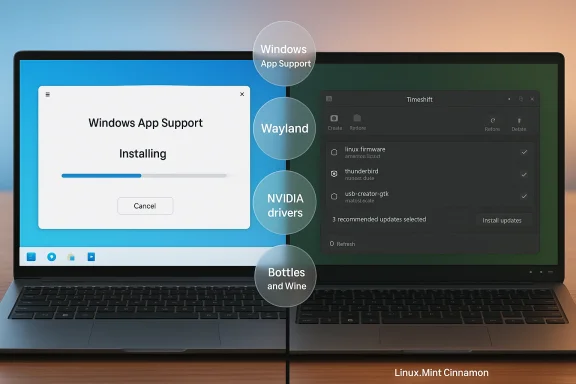
1) Windows App Support: one click or one rabbit hole?
- Zorin OS includes a user‑facing component named Windows App Support. Double‑clicking a .exe or .msi can trigger a guided installation flow that installs Bottles/Wine components as needed and attempts to run the installer. Zorin’s help pages explicitly document this behavior.
- This is not magic; under the hood Zorin is provisioning Wine/Bottles and related libraries. That tooling simplifies the first‑time experience and can make small utilities or older installers work with minimal intervention. Coverage from distro reviewers and technical writeups confirm Bottles is used as an opinionated wrapper around Wine.
- Caveat: real‑world reports show mixed results. Community threads and recent user reports indicate that some Windows installers install but do not run reliably, or that certain complex Windows apps remain unworkable without deep compatibility tweaks or a VM. That variability is expected — Wine compatibility is application‑specific and never guaranteed. Users should treat Zorin’s Windows App Support as a convenience that reduces friction for many lightweight apps, not as a universal replacement for a native Windows runtime.
- Linux Mint: Mint does not include an integrated, guided Wine/Bottles flow out of the box. Running Windows installers on Mint typically requires manually installing Wine, Bottles, or using community tools (or running a Wiers who expect “double‑click to install .exe,” Mint requires more manual steps than Zorin. Where Mint wins is transparency and conservative defaults: it avoids bundling experimental compatibility layers into the default, stable setup that many users depend on.
2) Wayland, crisp fonts, and modern scaling
- Zorin OS ships a GNOME‑based desktop with Wayland available and widely used as the default session on recent releases (Zorin 17/18 era). Wayland’s compositor model enables improved fractional scaling and reduces some of the rendering artifacts associated with X11 integer scaling. Independent reviews and the Zorin release notes list fractional scaling and improved HiDPI handling as features. Forums and hands‑on reports also indicate Wayland is the default session in many Zorin images, with Xorg available as a fallback.
- Why that matters: Wayland/GNOME’s compositor can allocate fractional scale factors per output, giving sharper text and smoother scaling transitions on mixed‑DPI setups. This generally translates into crisp font rendering and smoother animations compared with many X11 setups that still settle for integer scaling or desktop‑wide hacks. GNOME/Wayland fractional scaling has matured substantially and is now a tangible UX advantage for HiDPI laptops and 4K displays.
- Linux Mint and Cinnamon: Mint’s Cinnamon remains primarily an Xorg/X11 experience (Wayland is experimental in Cinnamon). The Cinnamon team has worked on Wayland sessions, but for the mainstream Mint experience X11 remains the default and best‑supported path. That means Mint users on HiDPI devices often must rely on manual scaling tweaks, which can yield less consistent results than a Wayland session.
3) NVIDIA: installer‑time driver support
- Zorin’s installer explicitly offers a “Try or install Zorin OS (modern NVIDIA drivers)” boot option that installs and activates proprietary NVIDIA drivers during inaller flow is designed to detect and provision the correct driver stack for modern NVIDIA cards. Zorin’s documentation describes the process and post‑install driver activation steps.
- Mint also has strong NVIDIA support, but the conventional flow is post‑install: use Mint’s Driver Manager to select the proprietary driver after the OS is installed. That approach is reliable but adds a manual post‑install step for users who need NVIDIA drivers active immediately.
- Important operational note: Wayland + NVIDIA still has corner‑case issues for some GPUs and workflows (suspend/resume, screen tearing, and certain compositing features). Many users with NVIDIA hardware still use an Xorg session for maximum stability; Zorin acknowledges this in its docs and provides Xorg fallback options.
4) App ecosystem, packaging, and store behavior
- Zorin ships with broad packaging support out of the box: APT/.deb, Snap, Flatpak/Flathub, and the Zorin Software store. Its store is designed to present multiple sources and suggest native alternatives when a Windows installer is detected. Zorin’s release notes and help documentation highlight bundled Flathub and Snap access as part of the out‑of‑box experience.
- Linux Mint intentionally disables Snap by default (it blocks snapd via the nosnap.pref mechanism) on the grounds of package management philosophy and control of software sources. Users who need Snap support on Mint can enable it, but Mint’s conservative default distinguishes it from Zorin’s multi‑source convenience. Multiple distro guides and Mint documentation explain how to re‑enable snapd if desired.
5) Phone integration and workflow sync
- Zorin Connect (a variant/packaging of KDE Connect functionality tuned for Zorin) is integrated into the desktop and supports notifications mirroring, SMS, file sharing, clipboard sync, and remote input. This is a direct functional analogue to Microsoft’s Phone Link and is highlighted across Zorin help resources and tutorials. Zorin Connect is a practical, well‑documented feature that smooths the “phone on my desk” workflow for Android users.
- Linux Mint offers third‑party alternatives (e.g., KDE Connect) and can replicate similar functionality, but it’s not as visibly positioned in the default Mint tour for first‑time Windows switchers. That makes Zorin feel more integrated for mixed‑device households out of the gate.
Strengths and risks — a balanced assessment
Strengths (where Zorin currently outshines Mint for Windows switchers)
- Lower time‑to‑familiarity: Zorin’s Appearance layouts let users pick a Windows‑like or macOS‑like look in one click. That psychological comfort matters for adoption and for users whose tolerance for “learning another OS” is low.
- Integrated compatibility tooling: The Windows App Support path, Bottles integration, and the store’s suggested alternatives reduce the initial friction for users who insist on a specific Windows app. For many light‑weight utilities, this works well and can be the difference between giving Linux a real try and abandoning it.
- Modern visuals and scaling: Wayland by default plus GNOME/Mutter fractional scaling produces crisper text and smoother animations on HiDPI hardware — a perceptual win that newcomers immediately notice.
- Simplified NVIDIA install path: The installer’s “modern NVIDIA drivers” option removes a common stumbling block for gaming and GPU‑accelerated users.
- Device pairing out of the box: Zorin Connect makes phone‑desktop workflows feel natural; for users migrating from Windows Phone Link this is an immediate replacement.
Risks and caveats
- Wine isn’t a perfect translation: Zorin’s Windows App Support helps but doesn’t guarantee success. Wine compatibility is app‑by‑app; enterprise or tightly integrated native Windows software often still needs virtualization or a Windows VM. Expect debugging, alternate tooling (Proton/Winonfig), or a VM for complex apps. Community reports reflect these failures; treat them as normal.
- Wayland + NVIDIA corner cases: While Wayland and Wayland GPUs have matured, there remain GPU driver edge cases — especially suspend/resume, screen sharing, and some professional GPU features — that push users back to Xorg. Zorin exposes the ability to switch to Xorg, but this can be confusing for newcomers who expect “it just works” regardless of GPU.
- Store and packaging fragmentation: More packaging sources are convenient, but they also increase cognitive load and potential for duplicate or inconsistent app versions (Flatpak vs Snap vs APT). Zorin surfaces these choices; Mint’s constrained defaults are safer for users who prefer “one way to install” and system uniformity.
- Polish vs. power: Zorin’s centralized settings and safety‑first simplicity are excellent for newcomers, but power users who prefer granular control and older paradigms (Mint’s Update Manager, Timeshift workflows, and deep Cinnamon tweaks) may find Zorin’s simplified defaults restrictive. Mint’s “classic” control panel remains a powerful tool for advanced customizations.
Who should choose which distro — practical guidance
Choose Zorin OS if:
- You are migrating from Windows or macOS and want the least intrusive visual and interaction change.
- You have a HiDPI laptop and want crisp fonts and smooth fractional scaling out of the box.
- You want integrated phone‑to‑desktop features and a guided, low‑friction path to try Windows installers.
- You prefer a modern look and are willing to accept occasional Wine troubleshooting or Xorg fallback for NVIDIA edge cases.
Choose Linux Mint if:
- You prioritize battle‑tested stability, long‑running conservative updates, and an experience that will rarely surprise you.
- You prefer a more hands‑on, power‑user desktop with granular controls (Timeshift snapshots, Update Manager).
- You have legacy hardware or workflows that are sensitive to display server differences and you prefer the stability of Xorg/Cinnamon.
- You want tighter control over packaging sources and prefer Mint’s cautious stance on snaps by default.
Migratevaluate and switch safely
- Backup first. Create a full disk image or at least export your documents, bookmarks, and critical app data. Never skip this step.
- Create Live USBs for both distributions. Boot each in “try” mode and validate hardware: Wi‑Fi, printers, webcam, fingerprint readers, and suspend/resume. Mint and Zorin both provide Live images for testing.
- Test your critical Windows apps:
- Try native Linux alternatives first (Zorin will suggest these during installer detection).
- On Zorin, double‑click the .exe/.msi to test Windows App Support; on Mint, prepare to install Wine/Bottles manually or use a Windows VM for complex apps.
- Check GPU path: If you have NVIDIA hardware, try Zorin’s installer “modern NVIDIA drivers” boot option or plan to install drivers post‑install via Mint’s Driver Manager. Reboot and test multimedia, video playback, and sleep/wake cycles.
- Evalua open documents, code editors, and the browser on both distros and compare text rendering and fractional scaling behavior. If crispness matters, favor the Wayland path and test both Wayland and Xorg sessions for edge‑case apps (screen sharing, remote desktop).
- Keep an escape hatch: create a small Windows VM (or a dual‑boot with a small Windows partition) for one‑off apps that simply won’t run under Wine/Bottles. This lowers pressure to force compatibility where it doesn’t belong.
Final analysis: is Linux Mint overtaken?
It depends on your definition of “best Windows replacement.”- If “best” means lowest friction to look and act like Windows immediately, with built‑in guides, one‑click Windows installer attempts, Wayland crispness, and integrated phone pairing, then Zorin OS is the stronger candidate today. The distribution explicitly targets Windows migrants and backs that claim with UI choices and out‑of‑the‑box tooling. Independent reviews and release notes corroborate this strategy; Zorin’s rapid growth in downloads since Windows 10 end‑of‑life is evidence that the market is noticing.
- If “best” means the most predictable, stable, and conservative workhorse — the distro you can hand to a business user and expect long‑term stability with minimal surprises — Linux Mint remains an excellent choice. Its philosophy is to avoid surprises and give users explicit control over upgrades, drivers, and package sources. That tradeoff still matters for many workplaces and for users who prefer to tune everything themselves.
Bottom line — recommendation checklist
- Want a Windows‑like desktop and minimal setup friction? Start with Zorin OS, test your hardware and Windows apps in its Live USB session, and use its Windows App Support as a convenience layer — but be prepared to use VMs for mission‑critical Windows software.
- Want maximal predictability and a conservative upgrade path? Stick with Linux Mint, keep Timeshift enabled, and be ready to manually configure Wine, Snap (if you need it), or a VM for Windows apps.
- NVIDIA users: try Zorin’s “modern NVIDIA drivers” boot option during installation for a smoother out‑of‑box setup; if you encounter Wayland issues, switch the session to Xorg.
- Always validate with a Live session and keep a Windows escape hatch (VM or small partition) during the transition.
Source: How-To Geek Linux Mint isn't the best Windows replacement anymore
