

Microsoft introduced QR detection to Windows Insiders in Snipping Tool version 11.2404.40.0 in May 2024, initially describing it as a way to follow links in a screenshot. Microsoft’s current Windows learning material says the tool can also expose contact or Wi‑Fi information carried by a QR code. The practical limit is that Microsoft has not published a clear compatibility table showing which payload types work in every Snipping Tool release, so treat the app—not just your Windows 11 version—as the deciding factor.
For the common case—a QR code in a web page, PDF, message, slide, or image—the process takes less than a minute.
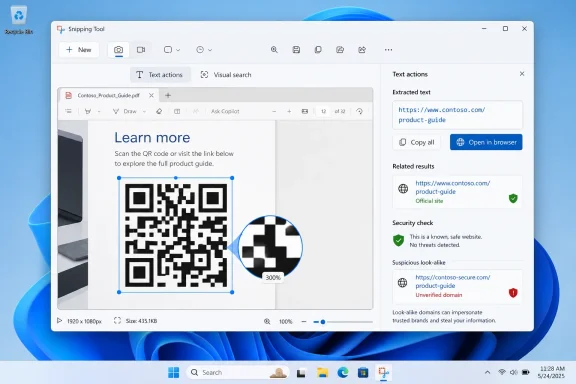 Capture the QR Code and Run Text Actions
Put the QR code on screen at a readable size. If it is inside a browser or PDF, enlarge it before capturing; a tiny code squeezed into a low-resolution screenshot is more likely to fail detection.
Press Windows key + Shift + S to open the Snipping Tool capture bar. Choose the rectangular capture mode if it is not already selected, then drag around the entire QR code. Include a slim border of plain space around all four sides rather than cutting directly through the black squares.
That margin is not cosmetic. DENSO WAVE, the company behind the QR Code standard, calls it the quiet zone: clear space that helps a decoder distinguish the symbol from nearby text, borders, graphics, or other codes. A capture that leaves out the quiet zone can turn a valid QR code into one that software cannot recognize.
After releasing the mouse button, select the screenshot notification to open the capture in Snipping Tool’s editing window. Then select Text actions from the toolbar. The app analyzes the image for selectable text and QR content; if it detects a supported QR code, it displays the decoded result.
For a URL QR code, verify the address shown before selecting it. When the domain is the site you expected—such as a company’s official name, a known event provider, or an internal organization address—select the result to open it in your default browser.
Do not confuse this with scanning a QR code through a webcam. Snipping Tool works from pixels already displayed or saved on the PC. It is particularly useful when a QR code appears in:
- A screenshot somebody sent in Teams, Outlook, Slack, or another messaging app.
- A PDF, presentation, support document, or product manual.
- A web page that asks you to scan a code with a separate device.
- A saved image from a flyer, label, conference badge, or social-media post.
If the QR code is in an image file rather than on screen, open the image in Snipping Tool first. In File Explorer, right-click the image, choose Open with, and select Snipping Tool. Once the image is in the editing canvas, select Text actions as you would for a new capture.
Read the Destination Before You Open It
A QR code is simply a machine-readable container. It does not establish that its destination is trustworthy. The convenience of decoding it on a PC is that you can inspect what it contains on a larger screen before handing it to a browser.
The Federal Trade Commission has warned that attackers use QR codes to lead people to spoofed websites that harvest passwords, payment information, or other personal data. The agency has specifically highlighted codes placed over legitimate parking-payment codes and unexpected QR codes delivered in messages or packages. The same risk applies to a QR code embedded in a screenshot: its appearance says little about where it leads.
Use the decoded result as an opportunity to pause:
- Check the actual domain name, not merely the brand name in the page title or QR image.
- Look for misspellings, swapped characters, extra words, or unusual country-code endings in addresses that claim to belong to a familiar company.
- Treat shortened links and addresses that redirect several times as a reason to investigate rather than a reason to proceed quickly.
- If the code claims to be from a bank, delivery service, government office, software vendor, or employer, open a new browser tab and go to the known official site yourself instead of using the QR destination.
- Never enter a password, payment details, recovery code, or multi-factor authentication approval after arriving through an unexpected QR code.
This is where Snipping Tool has an advantage over reflexively pointing a phone camera at a code. You can decode the content while remaining in the screenshot editor, decide whether the displayed destination makes sense, and use a known-good route if it does not.
Microsoft’s current guide also says Snipping Tool may surface contact or Wi‑Fi information. Exercise the same caution with those results. A QR code offering Wi‑Fi setup can direct a device toward a network you do not recognize; a contact card can contain a misleading name, phone number, or email address. Verify the organization through a trusted channel before acting on unexpected information.
When Snipping Tool Does Not Detect the Code
The most frequent failure is not a broken QR reader. It is an image quality problem: the captured code is too small, blurry, partially cropped, heavily stylized, covered by an overlay, or crowded against adjacent graphics.
Start by retaking the capture. Enlarge the source content first, capture the entire square code, and leave more blank margin around it. If the code sits on a busy background, capture a wider area rather than trying to trim it perfectly. Avoid marking up, blurring, or cropping the QR code before running Text actions.
If the code came from a compressed chat image or screenshot, look for the original image or PDF. Repeated re-saving and message-app compression can soften the edges of the tiny square modules that a QR decoder needs to read. A clean image opened directly from File Explorer usually has a better chance than a screenshot of a thumbnail.
Next, make sure you are using the current Microsoft Store release of Snipping Tool. Open Microsoft Store, select Library, and choose Get updates. Microsoft distributes Snipping Tool updates through the Store, which means a fully patched Windows 11 installation can still have an older app version if Store updates are disabled or delayed. In Microsoft Store settings, turn on automatic app updates to keep built-in apps current.
If Text actions itself is missing, close Snipping Tool and reopen it after updating. Microsoft’s support guidance for Store apps also recommends checking Windows Update, then repairing the app if it continues to misbehave. In Windows 11, go to Settings > Apps > Installed apps, find Snipping Tool, open its advanced options, and use Repair before considering Reset. Repair is the safer first step because it attempts to fix the installation without removing app data.
A failed result does not prove the QR code is invalid. Snipping Tool’s QR capability is connected to its text-recognition workflow, and Microsoft’s original announcement focused on link detection. Highly customized codes, very dense codes, codes carrying unusual data formats, and low-quality images may not produce a useful result even if another dedicated decoder can read them.
A Faster Routine for Screenshot-Based Codes
For codes you encounter on-screen, the simplest repeatable workflow is:
- Enlarge the code until its squares are crisp and distinct.
- Press Windows key + Shift + S and capture the code with a little clear space around it.
- Open the capture in Snipping Tool and select Text actions.
- Read the detected destination before choosing to open it.
- Use a known official website instead when the code is unexpected or the destination looks wrong.
The key point is that Text actions is the QR reader. Capturing the screenshot alone only puts an image on the clipboard or in the editor; scanning begins when you ask Snipping Tool to analyze that image.
For routine work—reviewing documentation, processing screenshots from colleagues, testing user instructions, or extracting a QR destination from a PDF—this eliminates a needless device switch. It also creates a safer pause between seeing an opaque square of pixels and opening whatever it contains.