

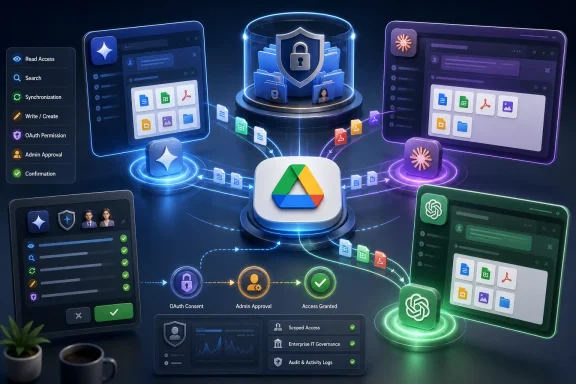
The Zero Net’s guide correctly identifies the broad split between Gemini’s built-in Drive experience and third-party connections from Claude and ChatGPT. But several of its central limitations are already out of date: Gemini can do more than folder analysis, Claude’s Drive support now reaches beyond Docs and Slides, and ChatGPT has added Google Docs and Sheets write actions for managed workspaces. The useful distinction is no longer simply native versus connector. It is search and sync versus approved actions.
For Windows users and IT admins, that changes the deployment question. The risk is less that a model will mysteriously rummage through a folder after one prompt, and more that an organization enables a broad sync or write-capable integration without understanding which Google OAuth scopes, Drive locations, and workspace policies apply.
Gemini in Drive has moved beyond read-only analysis
Gemini remains the least complicated route for organizations already standardized on Google Workspace. Google’s current Drive documentation says the Ask Gemini workspace can take files, folders, and emails as sources; pull information from Drive, Gmail, Chat, and Calendar; save those source collections as Drive Projects; and create new Google documents and images from the results.
The submitted guide describes Gemini folder analysis as limited to text documents, PDFs, spreadsheets, and presentations, excluding images and video. Google’s current help material does not support that blanket limitation. Its Drive documentation lists text documents, spreadsheets, presentations, PDFs, videos, and images among the common supported file types, while separately warning that Gemini may not incorporate every item when a folder contains many files or subfolders. That is a more consequential constraint than file type alone: a folder-wide answer may be based on a subset of the material unless the user narrows the source set and checks the cited source files in Gemini’s response.
Gemini can also take action inside Drive. Google documents capabilities to create files and folders, export generated material to Docs or Sheets, and move up to five files to an existing folder after presenting an action-preview card. That does not make it an autonomous filing clerk: the user must review and confirm the proposed move, and Google warns that changing a file’s location can affect access or ownership. Still, the claim that Drive AI cannot reorganize material is no longer accurate for Gemini.
The privacy control is also more nuanced than simply toggling Drive on Android. When a new Ask Gemini conversation begins from a blank workspace, Google says Drive, Gmail, Chat, and Calendar search settings are on by default, while web search is off. Users can select or remove individual source files and folders, but a prompt started without a narrow source set may draw from a wider Workspace context than expected. For sensitive project work, starting from the intended folder or manually specifying sources is safer than opening Ask Gemini from Drive’s home screen and assuming it will stay inside one document.
Gemini in Drive still requires an eligible Google Workspace or Google AI plan. It is not a universal feature for every personal Google account, and its availability is also subject to Workspace edition, administrator settings, language support, and rollout status.
Claude now reads more Drive content, but it does not see every layer of a file
Claude’s Google Workspace connector is materially broader than the older Google Docs-only integration described in much of the online guidance. Anthropic’s May 2026 documentation says Claude can search and retrieve Google Docs, inspect file metadata, read Sheets, Slides, PDFs, images, and Microsoft Office files, upload files, create folders, review permissions, list recent Drive changes, and save Claude-generated files back to Drive when code execution and file creation are enabled.
That is a meaningful advance for teams using Claude as a research or drafting tool. A project manager can ask Claude to find a recent roadmap, compare spreadsheets, pull action items from notes, and save a new report without manually downloading or re-uploading files. Google Docs supplied to chats and private Claude Projects stay synchronized with their current Drive version, rather than becoming a one-time attachment.
Yet “read” does not mean full-fidelity interpretation. Anthropic says Claude extracts text content only from Drive files. Images embedded inside a Google Doc, comments, and suggested edits are not visible to the connector. A document that appears complete in Google Docs may therefore produce an incomplete AI analysis if key evidence lives in review comments, tracked suggestions, charts, diagrams, or screenshots.
Claude’s current public connector page also says Google Sheets data is exported as CSV and Slides content as plain text for analysis. That gives Claude access to values and text, but it is not the same as understanding a spreadsheet’s live formulas, conditional formatting, named ranges, or a presentation’s visual hierarchy. The useful work is extracting and comparing information, not administering a complicated workbook.
Anthropic requires explicit approval for each action Claude takes on a user’s behalf and says the connector mirrors the person’s existing Google permissions. On Team and Enterprise, an Owner or Primary Owner must first enable the connectors at the organization level. The connector is also unavailable when adding files to a shared Claude Project; Drive additions work only in private projects. That restriction deserves attention from collaboration-heavy teams, because it blocks the obvious use case of attaching shared Drive material to a shared Claude workspace.
Anthropic says connector data is retained with the associated Claude chat and can be deleted by deleting that chat. It says it does not train its models on Gmail, Drive, or Calendar connector data, though consumer users who have opted into training can still expose material by copying it into a chat or by allowing content from Claude’s response into the training-eligible conversation flow.
ChatGPT’s Google Drive connection is no longer read-only
The biggest factual problem in The Zero Net guide is its description of ChatGPT’s Drive connection as a per-file, read-only feature with no connector access for free users and no ability to write back. OpenAI has changed the product model and terminology. Since December 2025, OpenAI calls connectors “apps,” and the Google file integrations have since been consolidated under the Google Drive app.
For ChatGPT Pro users, and Business, Enterprise, and Edu workspaces with appropriate administration, the Google Drive app can sync content into ChatGPT’s searchable knowledge layer. OpenAI says a full indexing run can take hours or days in a large organization, after which new Drive changes continue to sync. That means a synced Drive deployment is not a per-file picker in the narrow sense: it can require authorization to see and download all Drive files available to the connected account.
ChatGPT’s March 2026 release notes also introduced write actions for Google apps. OpenAI specifically says users can use Google Docs and Sheets actions to create documents or spreadsheets. In Business workspaces, the unified Google Drive actions are enabled by default; in Enterprise and Edu, administrators must enable them. Existing users may need to disconnect and reconnect the Google Drive app to obtain the newer actions.
OpenAI’s published wording confirms document and spreadsheet creation, but it does not clearly promise unrestricted, in-place editing of every existing Drive file. Administrators should not interpret “write actions” as permission to let an AI bulk-rewrite years of documents without review. OpenAI’s admin controls permit workspaces to allow all actions, allow only read actions, or choose a custom set, while app permissions determine when ChatGPT asks users for confirmation.
The June 15, 2026 scope change is real and operationally important. OpenAI says new Drive-file, BigQuery, and Google Meet-related actions require additional Google OAuth scopes. Existing connections are not automatically removed, but users can encounter authorization errors when they connect, reconnect, or invoke an enabled action whose required scope has not been approved in Google Workspace. A “connection failed” help-desk ticket after June 15 may therefore be a policy mismatch, not a user-side authentication problem.
Broad Drive authorization is the admin issue to solve first
A popular piece of advice says Drive access can never be constrained to a particular folder because drive.readonly covers the entire Drive. That is true for the broad Google Drive API scope itself: Google describes it as permission to view and download all Drive files. But it is not the only authorization design available.
Google’s drive.file scope is specifically designed for an app to work with files opened through that app or shared with it through the Google Picker. Google recommends it where possible because it provides per-file access rather than full-Drive access. The catch is that an AI product’s actual consent request determines the available boundary; an administrator cannot simply assume a product using full indexing is secretly limited by a folder the user had in mind.
For ChatGPT sync, OpenAI explicitly documents that the authorization flow can request access to see and download all files. In an admin-managed deployment, OpenAI also documents controls to include all Shared Drives, exclude selected Shared Drives, or exclude most Shared Drives and include only specified ones. That is a useful organizational boundary, but it is different from granting a consumer connector a folder-only view of an employee’s personal My Drive.
The sensible deployment pattern is to separate exploratory AI access from the company’s complete document archive:
- Put AI-appropriate material in a dedicated Shared Drive or specifically governed repository rather than connecting a privileged executive or administrator account.
- Start with read-only actions and a small pilot group before enabling Drive write actions or broad synchronization.
- Test whether the AI can see comments, images, formulas, permissions, and revisions before relying on its summaries for policy, legal, finance, or incident-response work.
- Require users to verify source documents, because semantic search can find the right topic while still omit a relevant file, subfolder, chart, or revision.
The practical answer is yes: Google Drive now works well with major AI assistants for discovery, synthesis, drafting, and controlled creation. But the product category has already moved past the simple “AI can read Drive but cannot write” rule. Gemini can create and move Drive items with confirmation; Claude can search, read, upload, create folders, and save generated files; and ChatGPT’s managed Google Drive app now supports write actions subject to workspace approval.
For most organizations, the first decision should be where the assistant is allowed to look, not which model writes the best summary.
References
- Does Google Drive Work With an AI Tool? Real Answer The Zero Net · 2026-08-08T22:43:59+00:00