
For PC users, the immediate practical issue is not another search field. It is three overlapping Google entry points now competing for taskbar space, notification-area presence, and keyboard shortcuts: the Google app for desktop, Search in Chrome, and Gemini in Chrome. Google has documented the first and third products; the new taskbar behavior for Search in Chrome remains a Canary-only observation, with no public rollout commitment from the company.
Windows Report says the taskbar icon is a standalone multicolor Google “G,” and its Windows context menu identifies it as “Search in Chrome.” That naming matters. A taskbar menu with options such as Close window, End task, and Pin to taskbar means Windows is treating the floating interface as a visible application window, even if the function itself is still supplied by Chrome.
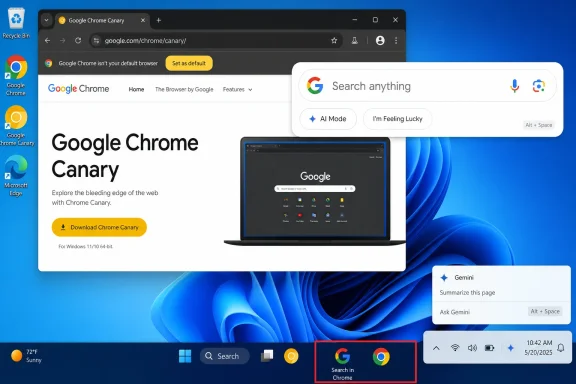 Chrome’s experiment has moved beyond the Omnibox
Chrome’s Omnibox Everywhere work began as an experimental attempt to lift Google search out of the browser’s address bar and into a floating prompt. Earlier testing used a Ctrl+Shift+Space shortcut on Windows. In the current Canary implementation described by Windows Report, Chrome places a “Search in Chrome” configuration area under Settings > Search engine, with a configurable shortcut and a setting for notification-area access.
The newer default shortcut reported for the feature is Alt+Space. The floating interface includes a conventional Google search box and an AI Mode option; conventional searches still open their results in a Chrome tab, according to Windows Report’s earlier testing. In other words, it is not a separate local-search engine or a new Windows shell. It is a quicker front door to Google Search and AI Mode that leads back into Chrome.
That distinction is important for administrators and power users evaluating what the feature actually changes. Search in Chrome does not appear to replace the Windows Search index, query Microsoft 365 content, or present itself as a system search provider. Chrome is adding a persistent Windows-facing launcher for browser-backed Google search.
The taskbar change is also more meaningful than the proposed system-tray integration. A tray icon can stay out of the way until needed. A dedicated taskbar identity gives users a second visual representation of Chrome itself: one for the browser and another for a search overlay that opens browser results. That is familiar territory for progressive web apps and browser-created windows, but potentially confusing when both surfaces use Google branding rather than distinct icons.
Google has not announced Search in Chrome in a Chrome release post or support article. The feature should therefore be treated as experimental, subject to removal or redesign before it reaches Chrome’s Dev, Beta, or Stable channels. The supplied evidence also does not establish whether the separate taskbar icon appears for every Canary user, whether it depends on a feature flag, or whether the behavior is limited to particular Chrome versions.
Google already owns Alt+Space on Windows
The complication is that Google’s standalone Google app for desktop already uses Alt+Space as its default invocation shortcut. Google launched that application as a Labs experiment in September 2025, then made it globally available for Windows 10 and later in April 2026.
Google’s documentation describes the desktop app as a floating search box that can search the web, installed applications, local files, and Google Drive. It also includes AI Mode, Google Lens-based screen selection, and the ability to share either a selected window or an entire screen for a query. The company says the app indexes files and apps locally, and says that local index is not sent to Google’s servers.
That makes the standalone app materially different from the Chrome experiment. The Google app is a Windows desktop program intended to search the machine as well as the web. Search in Chrome is, based on the available testing, a browser extension of Google Search that launches results in Chrome.
Yet the user-facing separation is weak. Both put Google’s multicolor “G” in Windows UI. Both open floating search interfaces. Both expose Google Search and AI Mode. And, at least in the reported Canary configuration, both can be invoked with Alt+Space.
For anyone installing the Google desktop app and testing Chrome Canary on the same PC, that shortcut collision is the first thing to check. Google’s desktop-app support documentation says its keyboard combination can be changed in the app’s Configurations settings. Chrome’s new Search in Chrome settings reportedly offer a shortcut control as well. Users should change one of them rather than assume Windows will reliably decide which process receives the same global hotkey.
Alt+Space also comes with Windows baggage. It has historically opened the system menu for the active window, although modern applications and Windows shell behavior often obscure that older shortcut. Assigning it to multiple Google tools adds another layer of uncertainty for users who rely on keyboard-driven window management, especially on systems with utilities such as PowerToys Run, AutoHotkey scripts, launcher software, remote-control agents, or OEM keyboard software.
Gemini in Chrome is a third, separate control surface
Gemini in Chrome adds the third component. Google’s Chrome support documentation confirms that Windows users can choose whether to show Gemini in Chrome in the system tray and whether to enable its keyboard shortcut. The product is designed to provide Gemini assistance tied to Chrome, including access to page context and, where available, Google Workspace content that a user has shared with Chrome.
This is distinct from both the Google desktop app and Search in Chrome. Gemini in Chrome is the assistant layer associated with the browser and its content; Search in Chrome is a search-and-AI launcher intended to send queries into Google Search; and the Google app for desktop combines web search with local files, installed apps, Drive, Lens, and screen sharing.
Google’s documentation makes those boundaries understandable only when a user reads separate support pages. Windows itself will not explain them. A taskbar thumbnail may reveal whether a particular interface belongs to Chrome, but that is a poor substitute for clear product naming and distinct iconography when several Google surfaces can be running at once.
The practical concern is not that Google has released too many AI buttons. It is that the products have different data scopes. A user launching the desktop app may be searching local files, installed apps, Drive, or an on-screen selection. A user launching Gemini in Chrome may be working with browser-page context and enabled Workspace connections. A user launching Search in Chrome appears to be issuing a web search that returns to a Chrome tab.
Those are different privacy, support, and troubleshooting paths. Help-desk staff should not treat all Google “G” icons in the taskbar or tray as equivalent, particularly where browser profiles, Workspace access, screen-sharing permissions, or data-handling expectations are relevant.
The Windows 11 framing is narrower than Google’s own requirements
The story is framed around Windows 11, but Google’s own support material says the desktop app is available on Windows 10 and later. Search in Chrome’s latest visible development has been reported on Windows, but neither Google nor Chrome’s public documentation currently establishes Windows 11 as an exclusive requirement for the feature.
That is a useful correction for organizations still operating Windows 10 under extended-support arrangements or on specialized devices. The Google desktop app may be available to them, though the exact availability of AI Mode still depends on account, country, and language support. Google explicitly says AI Mode is not supported for every account, region, or language.
The enterprise picture is also incomplete. Google has published consumer-facing setup instructions for the desktop app, including how it searches local content and how to quit it from the notification area. It has not, in the documentation reviewed for this report, laid out an equivalent Windows enterprise deployment, policy, auditing, or coexistence guide for the combined desktop-app, Chrome Search, and Gemini-in-Chrome experience.
That omission matters more as Google shifts these functions from a browser tab toward persistent Windows entry points. IT teams need to know which executable owns a shortcut, which Chrome policies affect the functionality, whether a feature is experimental or supported, and what happens when it collides with existing launchers and accessibility tools.
What Windows users should do now
There is no need for most users to change anything: Search in Chrome remains a Canary experiment. But users who deliberately run Canary alongside Google’s desktop app should keep the interfaces separate rather than letting Google’s defaults overlap.
- Change one Alt+Space assignment before enabling Search in Chrome and the Google app for desktop on the same PC.
- Use the standalone Google app when the task is finding local files, installed apps, Drive material, or information visible on screen.
- Use Search in Chrome only if the goal is a fast browser-backed Google query or AI Mode prompt that will continue in Chrome.
- Review Gemini in Chrome’s system-tray and shortcut settings separately, because it is the product most closely associated with browsing context and connected Google services.
The immediate consequence of Chrome’s new taskbar presence is a more visible Google search launcher on the Windows desktop. Unless Google unifies the names, shortcuts, and icons before a wider Chrome rollout, Windows users will be left to distinguish three similar-looking Google controls by what they might search rather than by what they clearly say they do.