
Five shortcuts promoted by TheRadar—open a tab, restore a closed one, move between tabs, focus the address bar, and reload—are supported across Chrome, Microsoft Edge and Firefox on Windows. They are worth learning, but the article’s promise that they will “double” browsing speed is a headline claim rather than a measured result: neither TheRadar nor the browser makers publishes timing data showing a twofold gain.
The practical payoff is narrower and more useful. These keys remove repeated pointer trips to the tab strip, address bar and browser controls. For anyone handling tickets, comparing documentation, triaging alerts or working through a research-heavy task, that can reduce interruption and make a browser feel noticeably less cumbersome.
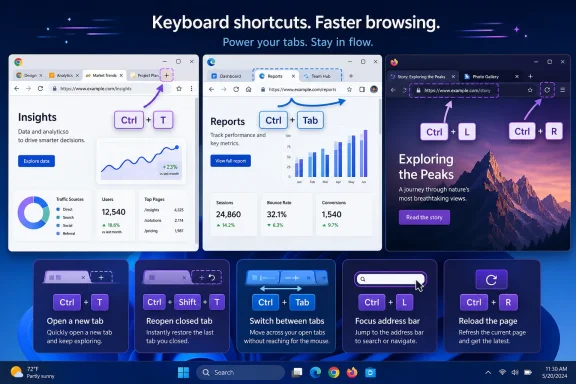
The common Windows set is:
Opening a tab with
Chrome documents that repeated presses reopen closed tabs in the order they were closed. Microsoft’s Edge documentation says the command reopens the last closed tab and switches to it. Mozilla says Firefox can restore tabs or windows with the same shortcut; if there are no recently closed tabs or windows remaining, Firefox can restore the prior session.
That difference is important for Windows users moving among browsers. The command is usually safe to try after an accidental close, but it is not a substitute for understanding what happened to the browser window. If a session was closed, restarted or cleared, a restored tab may not be available. Private-browsing sessions also have different history behavior and should not be treated as recoverable workspaces.
For day-to-day browsing, this shortcut is better understood as an undo function for tab management. It avoids the slower process of opening History, identifying the lost page among many entries, and guessing which result is the right one. In an incident-response or support context, it can preserve the exact state of a search, management portal or internal knowledge-base page that was dismissed by mistake.
Firefox supports those familiar tab-navigation shortcuts too, but its behavior can change with a setting. Mozilla offers an option called “Ctrl+Tab cycles through tabs in recently used order.” When enabled,
That can be genuinely faster for a two-tab workflow—for example, toggling between a ticket and a device-management console. It can be disorienting when a user expects to move from tab three to tab four and instead lands on the last page they used. Firefox users who want predictable sequential navigation should check the Tabs settings and turn that option off.
TheRadar’s guidance correctly presents
The most transferable shortcut in the list is
For Windows administrators and power users, this removes a surprisingly common source of friction. Instead of dragging a pointer to the omnibox, selecting part of an existing address, and then typing,
It also pairs well with browser search behavior. Type a hostname to go directly to a site, paste a case number or error code to search, or enter an internal service address without first opening a new tab. If the current tab is disposable,
There is a more subtle benefit: it reduces misclicks. A page can contain text fields, embedded dashboards, pop-ups and interactive controls that catch keyboard focus or pointer clicks.
That distinction matters when testing a website deployment, checking whether a dashboard has updated, or troubleshooting stale JavaScript and CSS. Chrome documents
Firefox’s documented alternatives differ:
Even then, a hard reload is not a magic fix for every stale page. It cannot force a server to serve a newer file when the server, CDN, enterprise proxy or web application is still presenting the old version. It is a client-side diagnostic step, not proof that a deployment has reached users.
The private-window shortcut deserves more care.
Private browsing also should not be described as anonymity. It generally limits local history and session traces in that browser mode; it does not conceal activity from a website, network operator, employer-managed device, internet provider or endpoint-monitoring tools. The shortcut is useful for separating sessions or avoiding local history retention, not for bypassing organizational controls.
For regular tab work, the more powerful extension to the five-command list is
The evidence supports a modest conclusion: these shortcuts can reduce the physical overhead of browsing, especially in tab-heavy Windows work. They do not double page-load time, network speed or the rate at which a person can read and decide. What they can do is remove repeated mouse-driven transitions from the work that happens between those constraints—and
The common Windows set is:
Ctrl+Topens a new tab and moves focus to it.Ctrl+Shift+Trestores the most recently closed tab.Ctrl+TabandCtrl+Shift+Tabmove forward and backward through tabs in Edge and Chrome.Ctrl+Lselects the address bar, ready to replace the current address or search text.Ctrl+RorF5reloads the current page.
Ctrl+Shift+T is the shortcut with the highest recovery value
Opening a tab with Ctrl+T is routine. Restoring a tab with Ctrl+Shift+T is the command that can save an actual work interruption.Chrome documents that repeated presses reopen closed tabs in the order they were closed. Microsoft’s Edge documentation says the command reopens the last closed tab and switches to it. Mozilla says Firefox can restore tabs or windows with the same shortcut; if there are no recently closed tabs or windows remaining, Firefox can restore the prior session.
That difference is important for Windows users moving among browsers. The command is usually safe to try after an accidental close, but it is not a substitute for understanding what happened to the browser window. If a session was closed, restarted or cleared, a restored tab may not be available. Private-browsing sessions also have different history behavior and should not be treated as recoverable workspaces.
For day-to-day browsing, this shortcut is better understood as an undo function for tab management. It avoids the slower process of opening History, identifying the lost page among many entries, and guessing which result is the right one. In an incident-response or support context, it can preserve the exact state of a search, management portal or internal knowledge-base page that was dismissed by mistake.
Tab switching has one Firefox exception
Ctrl+Tab and Ctrl+Shift+Tab do exactly what most users expect in Chrome and Edge: they move to the next and previous tab in the tab strip. Both vendors document the keys that way, along with Ctrl+1 through Ctrl+8 for jumping to a numbered tab and Ctrl+9 for the rightmost tab.Firefox supports those familiar tab-navigation shortcuts too, but its behavior can change with a setting. Mozilla offers an option called “Ctrl+Tab cycles through tabs in recently used order.” When enabled,
Ctrl+Tab works more like an application switcher, cycling through the tabs a user visited most recently rather than simply moving left-to-right across the strip.That can be genuinely faster for a two-tab workflow—for example, toggling between a ticket and a device-management console. It can be disorienting when a user expects to move from tab three to tab four and instead lands on the last page they used. Firefox users who want predictable sequential navigation should check the Tabs settings and turn that option off.
TheRadar’s guidance correctly presents
Ctrl+Tab as a useful general command, but “next tab” is not identical across every configuration. This is the kind of detail that makes keyboard workflows either dependable or frustrating: memorizing the chord is only half the job; knowing whether the browser has reassigned its behavior is the other half.Ctrl+L turns the address bar into a command line
The most transferable shortcut in the list is Ctrl+L. Chrome documents it as a way to jump to the address bar; Edge calls the result selecting the URL for editing; Firefox lists it among several ways to focus the address bar. In practice, each wording describes the same useful effect: the current address is selected so a user can immediately type a URL, hostname, search phrase, or pasted identifier.For Windows administrators and power users, this removes a surprisingly common source of friction. Instead of dragging a pointer to the omnibox, selecting part of an existing address, and then typing,
Ctrl+L produces a clean input state from almost anywhere in the browser window.It also pairs well with browser search behavior. Type a hostname to go directly to a site, paste a case number or error code to search, or enter an internal service address without first opening a new tab. If the current tab is disposable,
Ctrl+L is often faster than Ctrl+T because it avoids creating another tab that must later be closed or sorted.There is a more subtle benefit: it reduces misclicks. A page can contain text fields, embedded dashboards, pop-ups and interactive controls that catch keyboard focus or pointer clicks.
Ctrl+L targets the browser chrome rather than the page itself. That makes it dependable on cluttered web applications where a mouse click near the top of the page may not do what it appears to do.
Reloading is simple; bypassing cache is not
TheRadar groupsCtrl+R and F5 as refresh commands, and that is correct for Chrome, Edge and Firefox on Windows. A normal reload asks the browser to refresh the page, but it does not guarantee that every asset will be fetched anew from the network. Caching rules, service workers, proxies and the application itself can all affect what a user sees.That distinction matters when testing a website deployment, checking whether a dashboard has updated, or troubleshooting stale JavaScript and CSS. Chrome documents
Ctrl+Shift+R and Shift+F5 as reload commands that ignore cached content. Edge documents the same two Windows shortcuts for reloading while ignoring cached content.Firefox’s documented alternatives differ:
Ctrl+F5 and Ctrl+Shift+R reload while overriding cache. So Ctrl+Shift+R is the most portable hard reload habit across the three major Windows browsers, while Shift+F5 should not be assumed to work identically in Firefox.Even then, a hard reload is not a magic fix for every stale page. It cannot force a server to serve a newer file when the server, CDN, enterprise proxy or web application is still presenting the old version. It is a client-side diagnostic step, not proof that a deployment has reached users.
The bonus commands are useful, but browser labels matter
TheRadar also recommendsCtrl+N for a new window, Ctrl+F for Find, Ctrl+D for bookmarking, and Ctrl+W for closing a tab. These are well-established Windows browser commands, and Edge, Chrome and Firefox document them.The private-window shortcut deserves more care.
Ctrl+Shift+N opens an Incognito window in Chrome and an InPrivate window in Edge. Firefox uses Ctrl+Shift+P for a new Private Window. Confusing those shortcuts does not create a privacy failure—Firefox will not silently open a normal window because the Chrome key combination was pressed—but it will interrupt the workflow users were trying to speed up.Private browsing also should not be described as anonymity. It generally limits local history and session traces in that browser mode; it does not conceal activity from a website, network operator, employer-managed device, internet provider or endpoint-monitoring tools. The shortcut is useful for separating sessions or avoiding local history retention, not for bypassing organizational controls.
For regular tab work, the more powerful extension to the five-command list is
Ctrl+1 through Ctrl+8, with Ctrl+9 for the final tab. Chrome, Edge and Firefox all document these direct tab jumps. They become valuable once a workflow has stable tab positions—such as email in the first tab, a ticket queue in the second, documentation in the third and a management console in the fourth. Cycling is efficient for nearby tabs; numbered jumps are faster when the destination is known.The evidence supports a modest conclusion: these shortcuts can reduce the physical overhead of browsing, especially in tab-heavy Windows work. They do not double page-load time, network speed or the rate at which a person can read and decide. What they can do is remove repeated mouse-driven transitions from the work that happens between those constraints—and
Ctrl+Shift+T, Ctrl+L, and a correctly understood hard reload are the three most likely to pay off immediately.
References
- Primary source: theradar.ng
Published: 2026-08-04T15:00:24.331981
Loading…
theradar.ng - Related coverage: support.microsoft.com
Loading…
support.microsoft.com - Related coverage: support.mozilla.org
Loading…
support.mozilla.org - Related coverage: support.mozilla.org
Loading…
support.mozilla.org - Related coverage: support.microsoft.com
Keyboard shortcuts in Windows - Microsoft Support
Learn how to navigate Windows using keyboard shortcuts. Explore a full list of taskbar, command prompt, and general Windows shortcuts.support.microsoft.com - Related coverage: support.apple.com
Loading…
support.apple.com - Related coverage: support.apple.com
Loading…
support.apple.com - Related coverage: support.google.com
Loading…
support.google.com