
Steam game shortcuts that turn into blank white icons on the Windows desktop are usually not a game-installation failure. They are a broken reference between a Windows Internet Shortcut and the local
The fastest way to separate a Windows-wide display fault from a Steam shortcut fault is simple: look at the scope. If ordinary apps, folders, and other desktop shortcuts are also blank, restart Explorer and rebuild the Windows icon cache. If only Steam games have lost their artwork, treat the affected files as Steam-created
Steam’s “Add desktop shortcut” command commonly creates a
The filename is deliberately opaque: it is a hash, not the game’s title. A shortcut can therefore remain fully functional while appearing blank if that individual
Microsoft’s documentation on Internet Shortcuts supports the underlying mechanism. A
For a single broken shortcut, right-click it and choose Properties. On the Web Document tab, use Change Icon and browse to Steam’s
For a more precise diagnosis, open the
If that refresh does not help and the problem extends beyond Steam, Microsoft recommends clearing the icon cache after ending Explorer. The supported process is more targeted than randomly deleting files while the shell is running: end Explorer, open an elevated Command Prompt from Task Manager, remove the cache, then start
That distinction is important for Steam users. A cache rebuild can make Windows redraw a valid icon reference. It cannot recreate a missing file such as:
Guiding Tech suggests deleting the
In practical terms, do not start editing the registry because one Steam game icon is blank. Confirm whether the icon file exists first.
But recreating shortcuts is not magic. If Steam’s icon store is empty after a Steam reinstall, migration, or cleanup, the new shortcut can point to the same nonexistent resource as the old one. Steam community reports describe this exact pattern: users can add fresh desktop shortcuts, yet every one remains blank because the icon files themselves were not restored.
This exposes the weak point in the “verify integrity of game files” recommendation. Steam verification is designed to compare installed game files against Valve’s manifests. A desktop shortcut icon stored under the Steam client’s own
That makes verification a poor first-line response to a graphics-only shortcut issue. It can be worthwhile if a game also fails to launch, reports missing files, or has recently been interrupted during an update. If the only symptom is a blank desktop image, inspect the shortcut’s
A Steam reinstall or a manually restored library deserves special attention. Backing up
That should be viewed as an association repair for a specific configuration, not a universal Steam icon remedy. Windows 11 users have repeatedly reported that
If the Steam icons are blank but games still open, manually assigning the existing
The distinction matters after a drive migration:
The immediate consequence is straightforward: blank Steam desktop icons do not justify reinstalling games or repairing Windows wholesale. Start with the scope of the failure, then verify the shortcut’s local icon path. Rebuild Explorer’s cache only when the problem is broader than Steam; recreate shortcuts only when Steam still has an icon to reference; and use Storage settings to repair library detection, not as a substitute for restoring Steam’s missing
.ico file Steam uses to decorate it. The game may still launch normally, which is the key clue: fix the desktop shortcut’s icon path before spending time verifying tens or hundreds of gigabytes of game data.
Guiding Tech’s August 5 guide, updated August 7, correctly identifies Windows Explorer and the icon cache as possible causes. Microsoft’s own troubleshooting guidance also confirms that blank desktop, Start menu, and taskbar icons can be a Windows shell problem even when the underlying application still opens. But several of the proposed Steam-specific remedies address the wrong layer, and one — changing browser defaults — is not a reliable Windows 11 repair path.The fastest way to separate a Windows-wide display fault from a Steam shortcut fault is simple: look at the scope. If ordinary apps, folders, and other desktop shortcuts are also blank, restart Explorer and rebuild the Windows icon cache. If only Steam games have lost their artwork, treat the affected files as Steam-created
.url shortcuts with missing or invalid icon references.
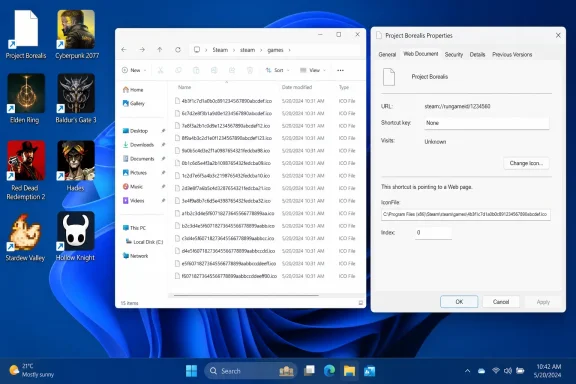 Steam desktop shortcuts rely on a separate local icon file
Steam’s “Add desktop shortcut” command commonly creates a .url Internet Shortcut, not a conventional .lnk Windows shortcut. Its contents point Windows at a steam://rungameid/ launch address and, separately, at an IconFile path. Steam community posts consistently show that path leading to a hashed .ico file under the Steam installation folder, usually:C:\Program Files (x86)\Steam\steam\gamesThe filename is deliberately opaque: it is a hash, not the game’s title. A shortcut can therefore remain fully functional while appearing blank if that individual
.ico file is gone, if Steam itself was relocated, or if the path embedded in the .url file still points to an old drive letter.Microsoft’s documentation on Internet Shortcuts supports the underlying mechanism. A
.url file can name an IconFile, and Windows needs that local file — or an accessible network location — to render the custom icon. This is why Steam titles can continue to open through the steam:// protocol even after their desktop art disappears: launching and drawing the icon are separate operations.For a single broken shortcut, right-click it and choose Properties. On the Web Document tab, use Change Icon and browse to Steam’s
steam\games folder. If the expected .ico file exists, assigning it again is the cleanest repair. If it does not, pick the main game executable from the game’s install folder instead; it will normally supply a usable icon even if it is not the exact Steam library artwork.For a more precise diagnosis, open the
.url file in Notepad and inspect its IconFile= line. Do not edit its launch URL unless you understand the Steam AppID format. The useful question is whether the icon path exists on disk. If it points to a drive or Steam folder that no longer exists, Explorer is behaving as expected by falling back to a generic white page.
Rebuilding the icon cache is for a Windows-wide symptom
Restarting Windows Explorer is a harmless first response when multiple desktop icons are wrong. Open Task Manager withCtrl+Shift+Esc, locate Windows Explorer, and select Restart. The taskbar and desktop will briefly disappear while Explorer reloads.If that refresh does not help and the problem extends beyond Steam, Microsoft recommends clearing the icon cache after ending Explorer. The supported process is more targeted than randomly deleting files while the shell is running: end Explorer, open an elevated Command Prompt from Task Manager, remove the cache, then start
explorer.exe again.That distinction is important for Steam users. A cache rebuild can make Windows redraw a valid icon reference. It cannot recreate a missing file such as:
C:\Program Files (x86)\Steam\steam\games\[hash].icoGuiding Tech suggests deleting the
iconcache_*.db files from the Explorer cache directory, which can work as a broader cache reset. Microsoft’s current troubleshooting document instead identifies %userprofile%\AppData\Local\IconCache.db and adds an IconHandler check for conventional Windows shortcuts. The latter registry guidance is specifically for the lnkfile class, however. It should not be treated as a direct fix for Steam’s .url shortcuts.In practical terms, do not start editing the registry because one Steam game icon is blank. Confirm whether the icon file exists first.
Recreating a shortcut only works when Steam still has the artwork
Deleting the broken desktop item and selecting Manage > Add desktop shortcut in Steam is sensible when the original.url file is corrupted or still contains an obsolete path. It is also the least invasive first fix after confirming that the Steam steam\games folder contains the game’s .ico file.But recreating shortcuts is not magic. If Steam’s icon store is empty after a Steam reinstall, migration, or cleanup, the new shortcut can point to the same nonexistent resource as the old one. Steam community reports describe this exact pattern: users can add fresh desktop shortcuts, yet every one remains blank because the icon files themselves were not restored.
This exposes the weak point in the “verify integrity of game files” recommendation. Steam verification is designed to compare installed game files against Valve’s manifests. A desktop shortcut icon stored under the Steam client’s own
steam\games directory is not necessarily part of a game’s installed content. Community reports conflict on whether validation causes Steam to repopulate the relevant .ico files, and Valve does not appear to publish a dedicated support procedure promising that result.That makes verification a poor first-line response to a graphics-only shortcut issue. It can be worthwhile if a game also fails to launch, reports missing files, or has recently been interrupted during an update. If the only symptom is a blank desktop image, inspect the shortcut’s
IconFile path and the Steam icon folder before launching a lengthy validation pass.A Steam reinstall or a manually restored library deserves special attention. Backing up
steamapps preserves installed games, while userdata preserves much of the local account state. Neither folder is the same as Steam’s steam\games icon store. Users who restore only their library can end up with games that Steam recognizes and launches, alongside desktop shortcuts that have no local artwork to load.
Browser defaults are an unreliable Windows 11 fix
The browser-association suggestion is the guide’s least dependable step. It is true that Steam desktop items commonly use the.url format, and the program associated with Internet Shortcuts can affect how Windows opens them. On Windows 10, some users have reported that restoring the .url association to an Internet Browser also restored their shortcut icons.That should be viewed as an association repair for a specific configuration, not a universal Steam icon remedy. Windows 11 users have repeatedly reported that
.url is absent from the Choose defaults by file type interface. Telling them to set HTTP and HTTPS to a browser instead changes broad web-link behavior without proving that the Steam shortcut’s local IconFile is reachable. It can also mask the actual issue: a missing icon file cannot be repaired by changing the default browser.If the Steam icons are blank but games still open, manually assigning the existing
.ico file or a game executable is more direct. If the icons have become generic browser icons and double-clicking them no longer opens Steam correctly, then the .url association becomes relevant. Those are different failures and should not be handled as though they are the same thing.Moving a library is not the same as moving Steam
Steam’s Storage settings and Add Drive command are the proper tools for registering an existing game library. They help Steam locate installed content, avoid unnecessary downloads, and restore the client’s understanding of where a game lives. They do not, by themselves, repair a desktop shortcut that references a missing icon under the Steam client installation directory.The distinction matters after a drive migration:
- Moving a game library changes where the game’s data resides and may require Steam Storage to recognize that library.
- Moving or reinstalling the Steam client can invalidate the
IconFilepaths embedded in existing desktop.urlfiles. - Recreating desktop shortcuts after Steam recognizes the library is worthwhile, but only if the icon files are present in the Steam installation’s
steam\gamesfolder.
.lnk shortcut to steam.exe with the game’s AppID passed through Steam’s -applaunch option, then assign an icon from the game executable. Valve documents -applaunch-style Steam shortcut configuration for client launch options, although it does not present this as an official blank-icon workaround. This approach avoids relying on the .url file’s hashed Steam icon asset, but it requires one shortcut per game and manual maintenance if Steam is moved again.The immediate consequence is straightforward: blank Steam desktop icons do not justify reinstalling games or repairing Windows wholesale. Start with the scope of the failure, then verify the shortcut’s local icon path. Rebuild Explorer’s cache only when the problem is broader than Steam; recreate shortcuts only when Steam still has an icon to reference; and use Storage settings to repair library detection, not as a substitute for restoring Steam’s missing
.ico files.