
The useful distinction is that Vanguard has two Windows-facing pieces: the vgc service, which should be available through the Services console, and a driver that loads as part of the Windows boot process. A game can be installed perfectly and still refuse to launch if Vanguard did not come up correctly after the last restart.
Start with a real Windows restart. Close the Riot Client, reboot from the Start menu, wait for the desktop to settle, then open the Riot Client and try again. Do not use this error as a reason to begin changing Secure Boot, TPM, HVCI, or motherboard firmware settings unless the actual message names one of those requirements.
Riot has separate codes and support paths for those security-baseline failures. Its recent support material, for example, treats VAN 9002 as an Exploit Protection configuration issue, while Riot’s 2025 Vanguard security update discusses hardware-level VAN:Restriction prompts tied to motherboard firmware and boot security. VAN 57 is not evidence, by itself, that Secure Boot or TPM is misconfigured.
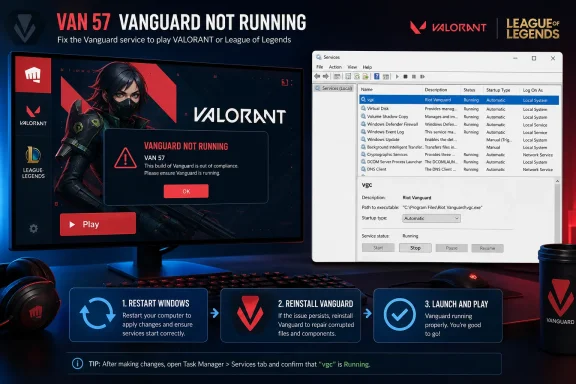 Check whether the vgc service survived startup
If the reboot does not clear VAN 57, open services.msc from the Run dialog and look for the service named vgc.
If it exists but is stopped, open its Properties page, set its Startup type to Automatic, apply the change, and start the service. Then restart Windows once more before launching either Riot game. This is a reasonable check because a stopped vgc service maps directly to Riot’s description of the error: Vanguard is not running.
There are two outcomes that should change the next step:
- If
vgcstarts and remains running after the reboot, launch the game and see whether VAN 57 is gone. - If
vgcis absent, refuses to start, or stops again when the Riot game opens, treat Vanguard’s local installation as the immediate suspect.
Community reports can help identify patterns, but they are not a substitute for the error code’s official meaning. Several recent player reports describe vgc being set to Automatic yet stopping during launch; that shows the problem can persist beyond a simple incorrect startup setting, but it does not establish a single universal software conflict.
Reinstall Vanguard before reinstalling a Riot game
The supplied guide is right about one practical priority: reinstalling VALORANT or League of Legends first is often unnecessary. The failure identified by VAN 57 is Vanguard’s availability, so repair the anti-cheat installation before committing to a much larger game download.
Uninstall Riot Vanguard from Windows Settings under Installed apps, restart Windows, then open the Riot Client and launch the affected game. The client should reinstall Vanguard. Restart again when the installation completes, even if the client’s prompt is easy to dismiss, because Vanguard’s driver component needs a fresh boot to load normally.
Riot’s own VAN 57 instructions are more conservative than a Vanguard-only repair. Its League support documentation says to restart first and, if that fails, uninstall Riot Vanguard and the game, then reinstall. That remains Riot’s supported clean-reset path when a narrower Vanguard reinstall does not work. But it should be the second escalation, not the first one, because a missing or damaged Vanguard service can be corrected without removing game files.
If a Vanguard reinstall succeeds but vgc is still missing or will not stay running after a reboot, do not repeatedly reinstall the game in a loop. Capture the behavior and move to Riot Support with logs.
Skip the boot-status-file deletion advice
One detail in the submitted troubleshooting is not ready for publication as a reliable repair step. It names C:\Windows\vg0kbootstatus.dat in one place and instructs readers to delete vgkbootstatus.dat in another. Those are different filenames, and Riot’s official VAN 57 instructions do not include deleting either file.
That discrepancy matters because a system-folder deletion has no verified place in the vendor’s repair workflow here. A file called vgkbootstatus.dat may appear on some Vanguard installations, but its presence does not prove it is responsible for VAN 57, and deleting it does not address the more observable failure: Vanguard or vgc did not initialize.
Do not use registry edits, command-line service deletion, or manual removal of Vanguard folders as a first-line fix. Those workarounds are widely copied in forums, but they can leave Windows service registrations and the anti-cheat installation out of sync. Use Windows’ normal uninstaller, then let the Riot Client reinstall Vanguard.
Treat alleged software conflicts as a test, not a diagnosis
The supplied reporting says some players resolved recurring VAN 57 errors by removing FACEIT Anti-Cheat. That is a plausible category of issue: both products operate at a privileged level of Windows, and Riot Vanguard is explicitly designed to enforce a high-integrity environment. But the claim is supported by anecdotal player reports rather than a Riot or FACEIT compatibility advisory.
No official Riot documentation reviewed for this report names FACEIT Anti-Cheat as a known, general cause of VAN 57. Readers should not uninstall anti-cheat packages, security products, overclocking utilities, RGB-control tools, driver monitors, or virtualization software merely because a forum post names them.
A safer diagnostic sequence is straightforward:
- Note any low-level utility, anti-cheat package, endpoint-security tool, or driver utility installed immediately before VAN 57 began.
- Temporarily exit or uninstall one identified candidate through its normal uninstaller, restart Windows, and test the Riot game.
- Restore or reinstall the software if the test changes nothing, rather than making broad changes to unrelated drivers.
A Windows clean boot can also separate Riot Vanguard from background software, but it should be used as a diagnostic test. If the game works in a clean boot, re-enable startup software in groups until the conflict is identified. That produces evidence; random driver removal does not.
Windows Update is maintenance, not the primary VAN 57 fix
Installing pending Windows updates and current chipset drivers is sensible for a PC running kernel-level anti-cheat software. It is especially important after an interrupted update or a substantial hardware change. But Windows Update should not displace the basic Vanguard checks: reboot, confirm vgc, reinstall Vanguard, reboot again.
Riot’s current Vanguard guidance also shows why error-code specificity matters. In 2025, Riot began discussing stricter boot-security enforcement for some affected systems through its VAN:Restriction mechanism, including motherboard firmware updates for particular pre-boot security flaws. That is a serious and separate issue, but it is not a justification to tell every VAN 57 player to update BIOS firmware.
Firmware updates carry their own risk and should follow the motherboard maker’s instructions when Riot’s actual prompt identifies a firmware or boot-security requirement. A plain VAN 57 message does not do that.
When to stop troubleshooting locally
If vgc remains running but VAN 57 appears every time the game launches, or if it stops immediately when VALORANT or League opens, the simple service-startup scenario is over. Run any repair option offered in the Riot Client, reboot after it finishes, and document what happens to vgc before and after launch.
Then submit a Riot Support request with Riot Repair Tool logs and the exact Windows version, the game affected, whether Vanguard was freshly reinstalled, and the service state observed in services.msc. Riot’s own error-code page directs unresolved VAN 57 cases to support after the restart and clean reinstall path.
The concrete priority is to restore Vanguard’s normal startup, not to rebuild the entire PC around an error code that says the anti-cheat is simply not running.
