
edit.
That distinction changes the advice for users and administrators. A guide that starts with winget install Microsoft.Edit is not wrong for older or unmanaged installs, but it can create duplicate versions and needless package-management drift on machines where Edit arrived through Windows Update. Microsoft’s current documentation explicitly says to test the command first; only install it separately if it is unavailable.
The submitted how-to correctly identifies Edit as Microsoft’s lightweight, open-source terminal editor, but it understates the deployment story. This is now an in-box Windows capability on supported, updated Windows 11 releases—not merely a GitHub utility for people who want an alternative to Vim or Nano.
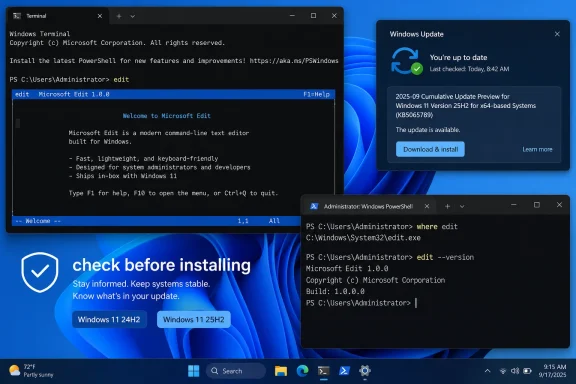 Check the command before installing anything
The practical test is short:
edit
If Microsoft Edit opens, or if edit filename.txt opens that file in a text user interface, no separate installation is necessary. The command works from the usual Windows shells, including Windows Terminal, PowerShell, and Command Prompt.
Microsoft’s September 29, 2025 preview-update record lists Edit as a new command-line feature and later clarified that it was included in KB5065789. The same release record says that update applied to Windows 11 versions 24H2 and 25H2. Microsoft’s newer Edit documentation repeats the broader availability statement: the editor is included from the September 2025 optional update onward, as well as in the Windows 11 2025 Update, version 25H2.
For a PC that does not recognize the command, first check the Windows release and patch level rather than assuming the editor failed to install. A Windows 11 24H2 machine that has been held back from cumulative updates, a newly imaged device using outdated media, or a deliberately stripped-down environment may not yet have the in-box executable.
Use these commands to establish what you are working with:
winver
where edit
winver identifies the installed Windows release. where edit shows which executable Windows will actually launch, which matters if an administrator, third-party tool, or older script has placed a different edit.exe earlier on the PATH.
WinGet remains useful for older Windows 11 installations
Microsoft continues to publish Edit through WinGet under the package identifier Microsoft.Edit:
winget install Microsoft.Edit
That is the cleanest route when the command is missing and Windows Update cannot bring the device to a supported servicing level. It is also useful for users who want the newest standalone release rather than waiting for Windows image servicing.
But the command should be treated as an installation path, not a reflex. In managed environments, adding a separately packaged copy of a tool that is now delivered through the OS can complicate troubleshooting. Help-desk staff may see different executable paths and versions across otherwise identical PCs; endpoint-management teams may also need to account for a user-scoped WinGet install that is not present for another user on the same device.
After a WinGet installation, close and reopen the terminal before testing edit. A shell that was open before a PATH change may not see the newly installed executable. Verify the result with:
edit --version
Then use where edit again to confirm which copy is winning command resolution.
Microsoft also provides release binaries through the project’s GitHub repository. That option is appropriate for offline packaging, lab systems, or controlled deployments where WinGet is unavailable. It is not automatically a better enterprise choice: copying edit.exe into a shared folder or arbitrary PATH location shifts update tracking, provenance checks, and version control onto the administrator.
Windows 10 is an installation caveat, not a documented target
The source article says Edit “works too” on Windows 10. Microsoft’s public Edit documentation does not make that promise. It consistently frames Edit as a Windows 11 command-line editor and identifies the Windows 11 servicing updates that made it in-box.
WinGet itself supports Windows 10 version 1809 and later, so a Windows 10 device may be able to download a package through the command. That only establishes that the package manager can run there; it does not establish Microsoft support for the Edit binary on every Windows 10 configuration.
For an individual who wants to try it on Windows 10, a WinGet installation and a local test may be reasonable. For fleet deployment, though, the documented support boundary matters more than a successful one-off launch. Treat Windows 10 use as a separately validated configuration, especially if the editor will be used in scripts, remote-support procedures, or regulated administration workflows.
The same caution applies to Windows Server. Microsoft’s current Edit page does not list Windows Server as an in-box target. A portable or WinGet-installed copy may be technically workable in some environments, but that is not the same as a supported replacement for an organization’s established server-console tooling.
What Edit does well—and where it stops
Edit exists to restore a basic capability that 64-bit Windows lacked for years: a first-party console editor that does not require launching Notepad, installing a large code editor, or learning Vim’s modal workflow.
Microsoft’s Command Line team introduced the project in May 2025 as an open-source Rust application designed to stay under roughly 250 KB for Windows image footprint purposes. Its core design is modeless editing: type text immediately, select text normally, use menus or visible shortcuts, and exit without learning separate insert and command states.
For quick configuration work, the useful commands are straightforward:
edit notes.txt
edit C:\path\to\script.ps1
edit C:\Windows\System32\drivers\etc\hosts
The last example requires permissions sufficient to modify the hosts file. Launching an elevated Terminal or PowerShell session remains the conventional approach. Windows 11’s sudo feature can also elevate a command where it has been enabled, but Edit itself does not bypass NTFS permissions or UAC.
The editor supports multiple open files, with Ctrl+P used to switch among them. Its current Microsoft documentation lists Ctrl+F for find and replace, including Match Case, Whole Word, and regular-expression options, while Alt+Z toggles word wrap. It also supports mouse navigation, selection, and scrolling—features that make it much friendlier in a local terminal session than traditional console editors.
There is one small documentation wrinkle worth noting. Microsoft’s original May 2025 announcement described Ctrl+R for replacement, while the current Microsoft Learn documentation identifies Ctrl+F as the combined Find & Replace entry point. The newer documentation should be treated as the operational reference, and the editor’s visible menus provide the safest way to discover the active bindings in the installed version.
It is a console editor, not a VS Code substitute
Edit is deliberately narrow. Microsoft describes it as “a simple editor for simple needs,” and that accurately sets expectations. It does not aim to compete with Visual Studio Code, Notepad++, Vim, Neovim, or a full PowerShell development workflow.
There is no plugin platform, language server integration, Git interface, debugger, integrated terminal, or project-level code navigation. The absence of syntax highlighting is also intentional rather than an overlooked omission. The tool’s value is that it can be carried in the Windows image without turning a quick one-line edit into an application-launching exercise.
That focus makes it especially useful for:
- Editing a configuration or batch file while already working in a terminal.
- Viewing and correcting a short log, response file, or script without leaving a remote console session.
- Giving Windows-first users a low-friction editor when Vim is not installed and Notepad is impractical.
- Standardizing simple text-editing steps in Windows 11 support runbooks.
It is less suitable for code review, structured file transformations, lengthy source files, or automated changes. If the task is repeatable, use PowerShell, a configuration-management tool, or a purpose-built parser rather than relying on an interactive editor.
The operational choice is now simpler
For current Windows 11 24H2 and 25H2 systems, check for edit before deploying anything. If it is present, Microsoft’s supported in-box tool is ready to use. If it is absent, update Windows where practical; WinGet is the fallback, not the default.
That makes Microsoft Edit a modest but meaningful improvement to Windows administration. It will not replace Vim for experienced terminal users or Nano for people who live in Linux shells. What it does provide is a dependable, discoverable editor for the Windows command line—one that no longer needs to be installed separately on an up-to-date Windows 11 PC.
