
But its larger “just works” framing needs a harder boundary. A week of installation and daily use can tell a reviewer whether the installer is welcoming, whether the desktop makes sense, and whether routine applications are available. It cannot establish the reliability of the part that derails most real migrations: firmware quirks, suspend and resume failures, proprietary GPU drivers, printer support, disk encryption, dual-boot recovery, and several months of kernel and application updates on one specific PC.
The winner may still be Mint. The missing test methodology means readers should treat the conclusion as a recommendation for a type of user, not as evidence that Mint will automatically be the least troublesome Linux installation on every machine.
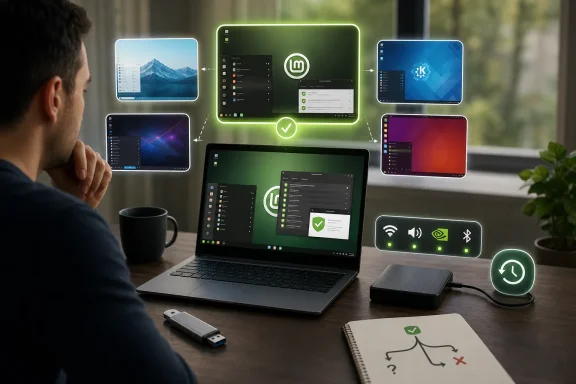 Linux Mint’s advantage is maintenance, not merely a familiar desktop
Mint’s main advantage over the other four distributions is not that Cinnamon vaguely resembles Windows. Desktop familiarity gets a first-time user through the first hour; it does not help much after an audio device vanishes following a kernel update or an application upgrade goes wrong.
What Mint has built is a desktop distribution that exposes ordinary maintenance in ordinary language. Its Update Manager distinguishes software, security, and kernel updates, and Mint ships Timeshift as its system snapshot tool. The project explicitly recommends configuring daily and boot snapshots, while retaining old kernels alongside newer ones so a user can boot a previous kernel if a regression appears.
That is an important, concrete distinction from the article’s broad claim that Mint’s updates are simply “uneventful.” Linux Mint itself warns that regressions happen and that an operating system can never be tested against every hardware specification. Mint’s practical value is that it gives a less technical user a visible recovery route when an update does cause trouble.
There is a limitation that deserves equal prominence: Timeshift protects the operating system, not personal data. Restoring a snapshot is not a replacement for backing up documents, photos, browser profiles, or a Windows partition. A newcomer who hears “snapshots” and concludes that all of their files are protected can still lose work.
That combination—conservative packages, a conventional desktop, graphical update handling, old-kernel retention, and a recovery tool—is what makes Mint the best default candidate in this group. It lowers the cost of an error after installation, which matters more than a polished first boot.
The review does not identify the hardware or releases tested
How-To Geek does not state which laptop or desktop was used, whether it had Intel, AMD, or NVIDIA graphics, whether Wi-Fi and Bluetooth were tested, whether Secure Boot was enabled, or whether the systems were installed beside Windows. It also does not identify the exact releases of Mint, Fedora KDE, Ubuntu, or EndeavourOS used in the trial.
Those omissions are material. “Hardware detection worked well” is useful personal experience, but it is not reproducible reporting unless readers know the hardware. A Lenovo ThinkPad with Intel graphics, a recent AMD desktop, an older Dell with a Broadcom wireless adapter, and a gaming PC with an NVIDIA RTX card can produce four very different Linux setup stories.
The distribution releases matter as well. Linux Mint 22.3, for example, is a current stable release line, while Zorin OS 18.1 is based on Ubuntu 24.04 LTS and supported through June 1, 2029. Fedora changes more rapidly, and EndeavourOS tracks Arch’s rolling package stream. Evaluating all of them without recording their version numbers turns what should be a useful comparison into an impressionistic one.
For Windows users planning a switch, the meaningful pre-install checklist is more mundane than distribution rankings:
- Boot the live USB on the actual target machine and verify Wi-Fi, sound, sleep, external displays, Bluetooth, and webcam behavior before changing the disk.
- If the PC uses NVIDIA graphics, test the proprietary driver path rather than assuming an open driver will meet gaming, CUDA, or multi-monitor needs.
- Confirm that disk encryption, BitLocker, Secure Boot, and dual-boot arrangements are understood before repartitioning a Windows installation.
- Make a separate backup of personal files and Windows recovery media before treating any Linux installer as a reversible experiment.
Mint can simplify the desktop experience after that point. It cannot make unsupported hardware supported.
Fedora KDE and EndeavourOS fail the same test for different reasons
The review is right to separate Fedora KDE from EndeavourOS rather than placing both in a vague “advanced Linux” category. They create friction for newcomers in very different places.
Fedora KDE is a polished, current platform built around KDE Plasma and Wayland, but Fedora’s packaging policies mean a fresh install does not include every proprietary driver or patent-encumbered multimedia codec a typical consumer expects. Fedora’s own multimedia documentation says that some popular formats are excluded from default installations and directs users toward third-party repositories with broader licensing policies.
That does not make Fedora unstable or unfriendly. It means the first-day experience may include an explanation of repositories, codecs, and driver choices—exactly the administrative work a person asking for “just works” is trying to avoid. Fedora’s official documentation also cautions that third-party repositories can introduce compatibility problems, a warning that is technically sound but hardly reassuring to a first-time Linux desktop user.
EndeavourOS is more straightforward about its trade-off. Its developers describe it as a basic system kept close to Arch Linux, and the project’s update notices periodically flag cases where manual intervention is required. The project recently documented a manual-intervention case connected to the Linux firmware split and NVIDIA firmware packages.
That is normal operating reality for a rolling-release distribution close to Arch, not evidence of a failed product. EndeavourOS makes modern packages and the Arch ecosystem accessible; it does not promise that updates will always be a click-and-forget task. For an enthusiast willing to read release notices, that is a fair exchange. For someone moving from Windows because they want fewer maintenance decisions, it is the wrong exchange.
Zorin OS offers the most curated Windows exit ramp
Zorin OS is arguably the closest competitor to Mint for the specific reader How-To Geek had in mind. Its design is more intentionally transition-focused, with a curated visual experience and desktop layouts aimed directly at former Windows users. The current Zorin OS 18.1 also supports APT, Flatpak, Snap, AppImage, and optional Windows App Support, which can reduce the early “how do I install this?” confusion.
The article correctly identifies its Ubuntu LTS base as a stability-oriented choice. Yet “conservative packages” no longer automatically means an outdated desktop: Zorin OS 18.1 uses Ubuntu 24.04 LTS underneath and a Linux 6.17 kernel. For a buyer of a recent laptop, the kernel version and graphics stack can matter more than the age of the base distribution’s desktop packages.
Zorin’s complication is product positioning. The free Core edition supplies four basic desktop layouts, while a wider selection of Windows- and macOS-like layouts is reserved for Zorin OS Pro. That is a legitimate commercial model, but it changes the recommendation. A user choosing Zorin primarily for a particular Windows-like presentation should verify that the desired layout belongs to the edition they intend to install.
Mint avoids that question by making its default desktop experience the product. Zorin provides more curated onboarding and visual polish; Mint provides a more traditional free desktop distribution with fewer edition decisions. Neither is objectively better, but the difference should be explicit.
Ubuntu’s Snap criticism is real, but overstated
The review’s Ubuntu section identifies a genuine source of friction: Canonical’s decisions about application packaging are more visible to desktop users than they are on Mint or Zorin. Ubuntu’s App Center presents Snap packages ahead of Debian packages where both are available, and Ubuntu has used Firefox as a Snap by default since Ubuntu 21.10. On Ubuntu 24.04 LTS, Thunderbird is also supplied only as a Snap package.
Still, the claim that “many desktop applications are now installed as Snaps by default” goes farther than the documented default Ubuntu 24.04 experience supports. A fresh 24.04 desktop install does not turn every familiar application into a Snap. Firefox and Thunderbird are the prominent user-facing defaults, while Ubuntu continues to use conventional Debian packages extensively.
For many people, this distinction will not matter. Firefox opens, updates, and browses the web. For users who care about startup behavior, storage use, filesystem locations, desktop integration, or controlling exactly how an application is packaged, it matters a great deal. Ubuntu’s issue is not that Snap is universally broken; it is that the distribution makes a packaging choice on the user’s behalf, and some Windows migrants will discover that choice only when following a generic Debian or Ubuntu command-line guide.
That is why Ubuntu remains a defensible recommendation for supported hardware and mainstream software, especially where commercial Linux instructions are needed. It is no longer the neutral baseline against which every desktop Linux distribution is judged.
The useful takeaway from How-To Geek’s trial is narrower and more valuable than the headline suggests: Linux Mint is the safest first recommendation among these five for a user who wants a familiar desktop, conventional package management, and a graphical path back from a bad update.
Before committing, boot Mint’s live USB on the machine that will actually run it, test the hardware that matters, configure Timeshift to a separate drive, and create a real data backup. If those tests pass, Mint offers the best odds that Linux will stay in the background—where an everyday operating system belongs.
References
- Primary source: How-To Geek
Published: August 9, 2026 at 11:30 AM UTC
I tried 5 Linux distros in a week to find one that "just works"
I did the distro hopping so you don't have to. Your weekend can thank me! www.howtogeek.com
- Related coverage: tomshardware.com
Linux Mint team considers longer gaps between releases in attempt to accelerate development efforts — current six-month cycle means ‘we spend more time testing, fixing, and releasing than developing’ | Tom's Hardware
Renowned for its slow and steady approach, Mint’s pace of change may become even slower and steadier.www.tomshardware.com - Related coverage: tomshardware.com
Linux Mint 22.2 ‘Zara’ released with native fingerprint support – also has a new syncing sticky note system | Tom's Hardware
Supported until 2029, Zara also delivers improved update management.www.tomshardware.com
