
BGR’s new MacBook Pro battery-life guide correctly points users toward display brightness, keyboard backlighting, shorter screen-off timers, and better ventilation—but its proposed 60Hz setting comes with an important limitation: it exists only on MacBook Pro models with a ProMotion display. On other MacBook Pros, there is no 120Hz mode to turn off, so hunting through Display settings will not produce the promised battery-saving switch.
Apple’s own Mac documentation supports the core advice. Its energy-saving guidance recommends lowering the display to a comfortable brightness, shortening “Turn display off on battery when inactive” in Lock Screen settings, and enabling Low Power Mode in Battery settings. Apple also confirms that keyboard backlighting can be reduced or disabled and that a MacBook should be used on a stable surface with unobstructed ventilation. Cult of Mac has separately made the same broad case for reducing unnecessary display and system load when a longer unplugged session matters.
The practical issue is priority. A MacBook Pro that suddenly falls far short of its normal runtime is unlikely to be rescued by dimming the keyboard alone. First establish whether the power is going to the panel, a workload, an app that refuses to sleep, a peripheral, or a battery that has lost capacity. The advice that will deliver the biggest improvement is therefore less about changing every toggle and more about measuring the actual drain before compromising features you need.
The built-in display is usually the most predictable place to reduce power draw, particularly on current MacBook Pro models with bright Liquid Retina XDR panels. Apple’s advertised battery tests are a useful reality check: for the 14-inch M4 MacBook Pro, Apple tested web browsing with the display set only eight clicks from the bottom and with keyboard backlighting off. Those published “up to” figures are not a promise of all-day battery life at maximum brightness in sunlight, with video calls, external storage, browser tabs, and collaboration software running.
Reducing brightness to the lowest comfortable point is the first setting to change before a flight, field shift, or long meeting. Leaving automatic brightness enabled is usually more sensible than manually setting a fixed low value; Apple specifically warns that disabling automatic brightness can affect energy consumption as well as display performance over time. Users who routinely work outside will still need a brighter panel, and no setting turns a bright outdoor workflow into Apple’s controlled indoor web-browsing test.
BGR also recommends forcing the screen to 60Hz. That setting is real on MacBook Pro models equipped with ProMotion, including the 14-inch and 16-inch designs introduced from late 2021 onward and later Pro models. Apple lists fixed choices including 59.94Hz and 60Hz alongside adaptive refresh rates up to 120Hz on applicable models. On a supported system, it is available under System Settings > Displays > Refresh Rate.
But the expected gain should be treated as workload-dependent, not a guaranteed extension expressed in hours. Apple says ProMotion is adaptive—it does not state that the display drives 120Hz continuously—and it does not publish a battery-life comparison between adaptive refresh and a fixed 60Hz setting. For static documents, email, and coding, the saving may be modest because the adaptive display can already reduce refresh activity. It is more reasonable to use 60Hz as a temporary endurance setting during travel than as a universal default for someone who benefits from smoother scrolling, animation, or motion-heavy work.
One omission in BGR’s advice is that “MacBook Pro” covers a broad range of hardware. An Intel-based 2019 16-inch MacBook Pro, a 2020 M1 13-inch MacBook Pro, and a 2024 M4 Pro model have different batteries, displays, cooling behavior, and battery-life baselines. A reader needs to identify the model before concluding that a missing refresh-rate control, different Battery pane, or lower-than-advertised runtime indicates a fault.
That is a more useful starting point than trying to manually recreate a lower-power profile one setting at a time. It also makes the trade-off explicit. A MacBook Pro whose work consists of email, documentation, web administration, SSH sessions, and light office work can often tolerate a lower power envelope with little practical pain. Rendering video, compiling large projects, running virtual machines, working with local AI models, or performing data analysis may take longer, and the time cost can exceed the battery saved.
Recent macOS versions add another reason to use the documented control rather than third-party “battery optimizer” utilities. Apple says that, on supported actively cooled Macs, Low Power Mode can also reduce fan noise. That is a useful operational benefit in quiet rooms, but it is not evidence that fans themselves are a battery fault. Fans respond to heat generated by a workload; suppressing the symptom without finding the process responsible does not fix abnormal drain.
A sensible short-session configuration is therefore straightforward:
The “Preventing Sleep” column is especially valuable. A backup tool, media application, browser process, virtual-machine component, endpoint agent, or misbehaving peripheral utility can keep a Mac awake after the screen goes dark. In that scenario, tightening the Lock Screen timeout only switches off the display while the costly background work continues. The Mac looks asleep and continues draining.
This is where the difference between an observed problem and a generic optimization tip becomes material. If one app repeatedly sits at the top of Energy Impact, quit it, update it, disable an unnecessary extension, or test without the connected device or service it depends on. If the drain appears after installing a particular macOS update, security product, browser release, or device-management profile, document that timing before treating it as ordinary battery aging.
Apple also directs users of hot, quickly draining Macs to check CPU activity in Activity Monitor. A warm chassis is not proof of a hardware defect; sustained compilation, video export, cloud synchronization after setup, or background indexing can all create heat and shorten runtime. Yet persistent heat during light work is evidence worth investigating. Check CPU and GPU activity, then restart and retest under the same workload. For an organization, that comparison is more actionable than an anecdotal complaint that a unit “used to last longer.”
The reason to follow that guidance is hardware safety, temperature management, and long-term reliability. It should not be oversold as a routine way to add hours to a normal battery cycle. A healthy MacBook Pro on a desk already has the ventilation it needs; moving it to another hard table will not transform its runtime. A Mac that becomes unusually hot because it is suffocated by bedding—or because a process is consuming CPU—will draw more power and may throttle performance. Those are different problems requiring different fixes.
There is a second distinction often lost in battery-life advice: runtime and battery health are related but not interchangeable. Runtime is what one charge delivers today. Battery health is the maximum capacity the lithium-ion battery can still hold after chemical aging. Apple says Apple-silicon Mac notebooks use battery health management intended to slow chemical aging, and its Battery settings include Optimized Battery Charging and a battery-longevity management option on supported systems.
Those settings are worth leaving enabled for Macs that spend much of their lives connected to power. They will not suddenly restore a battery whose capacity has already declined. If the battery status reports service is recommended, or if a Mac’s runtime has fallen well below its own prior baseline under comparable use, troubleshooting settings should give way to a battery-health check and possible service assessment.
The best battery-life routine is therefore not an all-settings-off ritual. Use Low Power Mode when endurance matters, let the display run only as bright as the task requires, set a short battery idle timeout, and use Activity Monitor to identify workloads that are consuming power without delivering useful work. For a ProMotion-equipped MacBook Pro, 60Hz is a legitimate temporary option—but it is a fine-tuning measure, not the first diagnosis or the primary fix.
The practical issue is priority. A MacBook Pro that suddenly falls far short of its normal runtime is unlikely to be rescued by dimming the keyboard alone. First establish whether the power is going to the panel, a workload, an app that refuses to sleep, a peripheral, or a battery that has lost capacity. The advice that will deliver the biggest improvement is therefore less about changing every toggle and more about measuring the actual drain before compromising features you need.
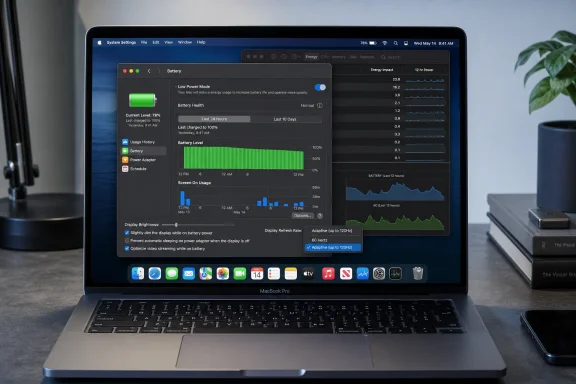 Display settings are the immediate runtime controls
The built-in display is usually the most predictable place to reduce power draw, particularly on current MacBook Pro models with bright Liquid Retina XDR panels. Apple’s advertised battery tests are a useful reality check: for the 14-inch M4 MacBook Pro, Apple tested web browsing with the display set only eight clicks from the bottom and with keyboard backlighting off. Those published “up to” figures are not a promise of all-day battery life at maximum brightness in sunlight, with video calls, external storage, browser tabs, and collaboration software running.Reducing brightness to the lowest comfortable point is the first setting to change before a flight, field shift, or long meeting. Leaving automatic brightness enabled is usually more sensible than manually setting a fixed low value; Apple specifically warns that disabling automatic brightness can affect energy consumption as well as display performance over time. Users who routinely work outside will still need a brighter panel, and no setting turns a bright outdoor workflow into Apple’s controlled indoor web-browsing test.
BGR also recommends forcing the screen to 60Hz. That setting is real on MacBook Pro models equipped with ProMotion, including the 14-inch and 16-inch designs introduced from late 2021 onward and later Pro models. Apple lists fixed choices including 59.94Hz and 60Hz alongside adaptive refresh rates up to 120Hz on applicable models. On a supported system, it is available under System Settings > Displays > Refresh Rate.
But the expected gain should be treated as workload-dependent, not a guaranteed extension expressed in hours. Apple says ProMotion is adaptive—it does not state that the display drives 120Hz continuously—and it does not publish a battery-life comparison between adaptive refresh and a fixed 60Hz setting. For static documents, email, and coding, the saving may be modest because the adaptive display can already reduce refresh activity. It is more reasonable to use 60Hz as a temporary endurance setting during travel than as a universal default for someone who benefits from smoother scrolling, animation, or motion-heavy work.
One omission in BGR’s advice is that “MacBook Pro” covers a broad range of hardware. An Intel-based 2019 16-inch MacBook Pro, a 2020 M1 13-inch MacBook Pro, and a 2024 M4 Pro model have different batteries, displays, cooling behavior, and battery-life baselines. A reader needs to identify the model before concluding that a missing refresh-rate control, different Battery pane, or lower-than-advertised runtime indicates a fault.
Low Power Mode deserves to come before cosmetic savings
Apple’s built-in Low Power Mode is the most direct system-level control for extending an unplugged session, and it is conspicuously absent from BGR’s list. In System Settings > Battery, macOS lets laptop users choose Low Power Mode behavior such as “Only on Battery” or “Always,” depending on the Mac and macOS version. Apple describes the mode plainly: it reduces energy use to increase battery life.That is a more useful starting point than trying to manually recreate a lower-power profile one setting at a time. It also makes the trade-off explicit. A MacBook Pro whose work consists of email, documentation, web administration, SSH sessions, and light office work can often tolerate a lower power envelope with little practical pain. Rendering video, compiling large projects, running virtual machines, working with local AI models, or performing data analysis may take longer, and the time cost can exceed the battery saved.
Recent macOS versions add another reason to use the documented control rather than third-party “battery optimizer” utilities. Apple says that, on supported actively cooled Macs, Low Power Mode can also reduce fan noise. That is a useful operational benefit in quiet rooms, but it is not evidence that fans themselves are a battery fault. Fans respond to heat generated by a workload; suppressing the symptom without finding the process responsible does not fix abnormal drain.
A sensible short-session configuration is therefore straightforward:
- Enable Low Power Mode while on battery if performance is not time-critical.
- Reduce panel brightness before changing refresh rate or disabling useful wireless connections.
- Set a short “Turn display off on battery when inactive” time in System Settings > Lock Screen.
- Leave automatic brightness and keyboard-backlight adjustment enabled unless a specific work environment makes manual control necessary.
Activity Monitor separates a heavy app from a tired battery
When battery life changes abruptly, Activity Monitor should be the next stop—not a general round of brightness reductions. Open Activity Monitor, select the Energy tab, and look at both “Energy Impact” and “12 hr Power.” Apple defines Energy Impact as a relative measure of an app’s current consumption and 12 hr Power as its average impact over the preceding 12 hours or since startup. Lower is better.The “Preventing Sleep” column is especially valuable. A backup tool, media application, browser process, virtual-machine component, endpoint agent, or misbehaving peripheral utility can keep a Mac awake after the screen goes dark. In that scenario, tightening the Lock Screen timeout only switches off the display while the costly background work continues. The Mac looks asleep and continues draining.
This is where the difference between an observed problem and a generic optimization tip becomes material. If one app repeatedly sits at the top of Energy Impact, quit it, update it, disable an unnecessary extension, or test without the connected device or service it depends on. If the drain appears after installing a particular macOS update, security product, browser release, or device-management profile, document that timing before treating it as ordinary battery aging.
Apple also directs users of hot, quickly draining Macs to check CPU activity in Activity Monitor. A warm chassis is not proof of a hardware defect; sustained compilation, video export, cloud synchronization after setup, or background indexing can all create heat and shorten runtime. Yet persistent heat during light work is evidence worth investigating. Check CPU and GPU activity, then restart and retest under the same workload. For an organization, that comparison is more actionable than an anecdotal complaint that a unit “used to last longer.”
Ventilation protects the machine, but it is not a battery-life trick
BGR is right that beds, pillows, blankets, and other soft surfaces are poor places to use a MacBook Pro. Apple’s January 2026 thermal guidance says to use Mac laptops on a stable work surface with good ventilation and explicitly says not to use them in bed, on a pillow, or under bedding. The company’s safety documentation similarly calls for air circulation around the MacBook Pro and its power adapter.The reason to follow that guidance is hardware safety, temperature management, and long-term reliability. It should not be oversold as a routine way to add hours to a normal battery cycle. A healthy MacBook Pro on a desk already has the ventilation it needs; moving it to another hard table will not transform its runtime. A Mac that becomes unusually hot because it is suffocated by bedding—or because a process is consuming CPU—will draw more power and may throttle performance. Those are different problems requiring different fixes.
There is a second distinction often lost in battery-life advice: runtime and battery health are related but not interchangeable. Runtime is what one charge delivers today. Battery health is the maximum capacity the lithium-ion battery can still hold after chemical aging. Apple says Apple-silicon Mac notebooks use battery health management intended to slow chemical aging, and its Battery settings include Optimized Battery Charging and a battery-longevity management option on supported systems.
Those settings are worth leaving enabled for Macs that spend much of their lives connected to power. They will not suddenly restore a battery whose capacity has already declined. If the battery status reports service is recommended, or if a Mac’s runtime has fallen well below its own prior baseline under comparable use, troubleshooting settings should give way to a battery-health check and possible service assessment.
The best battery-life routine is therefore not an all-settings-off ritual. Use Low Power Mode when endurance matters, let the display run only as bright as the task requires, set a short battery idle timeout, and use Activity Monitor to identify workloads that are consuming power without delivering useful work. For a ProMotion-equipped MacBook Pro, 60Hz is a legitimate temporary option—but it is a fine-tuning measure, not the first diagnosis or the primary fix.