
For organizations that use Microsoft 365 as the connective tissue between Outlook, Teams, SharePoint, Microsoft 365 Copilot, and other workplace services, this is not merely a cosmetic interface update. It changes the default disclosure posture for organizational data that may have been collected for HR, finance, identity, or provisioning purposes—not necessarily for broad employee visibility.
The immediate message for Microsoft 365 administrators is simple: do not treat profile cards as a minor user-interface setting. Review what information exists in Microsoft Entra ID and connected people-data sources, determine which fields should be visible internally, and make the required configuration changes before the August deadline.
 What Is Changing in Microsoft 365 Profile Cards?
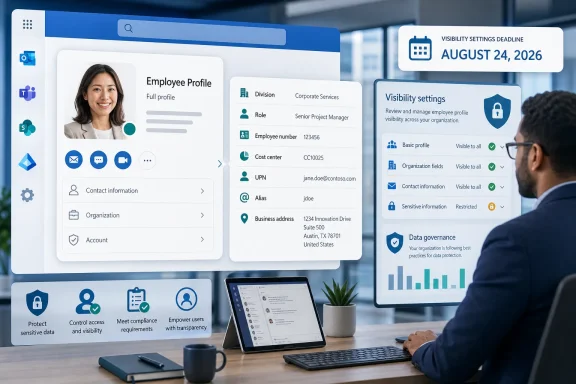
A Microsoft 365 profile card is the contextual identity panel that appears when a user selects or hovers over a colleague’s name or photo in services such as Outlook, Teams, OneDrive, SharePoint, and other Microsoft 365 applications. Microsoft describes these cards as a way to display organizational and contact information, working details, relationship information, shared files, and communication context. Microsoft’s support documentation confirms that profile cards are broadly integrated throughout the Microsoft 365 experience, including Outlook, Teams, OneDrive for Business, Office.com, SharePoint Online, and Teams web and mobile.
Until now, many of the attributes involved in this update were available but hidden by default. Administrators could choose to expose them when that made sense for the organization. The upcoming change reverses that model: Microsoft will display the listed properties by default if they are populated, while administrators who do not want them shown will need to explicitly disable them. The reported Microsoft 365 admin center advisory identifies the affected properties and establishes August 24, 2026 as the key action date.
The new default-visible information includes:
- Division
- Role
- Employee number
- Employee type
- Cost center
- User principal name (UPN)
- Alias
- Fax
- Street address
- State
- Postal code
That is a meaningful expansion. Some entries are ordinary directory information, while others can reveal internal payroll, employment-status, organizational, or location details that businesses may not intend to make broadly visible to every employee.
Microsoft’s currently published profile-card documentation lists these same fields as configurable, optional properties and notes that they appear in the Contact area of profile cards when enabled. It also confirms that users viewing their own profiles and users viewing other people’s profiles can see enabled attributes. Microsoft Learn’s profile-card customization guide identifies Division, Role, Employee number, Employee type, Cost center, UPN, Alias, Fax, Street address, State, and Postal code as the relevant optional fields.
Why Microsoft Is Making the Change
Microsoft’s rationale is understandable. Profile cards are increasingly central to finding the right person, understanding reporting structures, and connecting across hybrid organizations. A clearer employee identity card can reduce uncertainty when a colleague has a common name, works in another region, belongs to a similarly named team, or is part of a large, decentralized enterprise.
According to the advisory quoted in Neowin’s coverage, the change is intended to surface relevant employee information more consistently and reduce administrative effort for attributes that organizations commonly use. That is a reasonable product goal: an administrator should not need to build a separate profile-card policy just to show a basic role or division label.
The usability case is real
There are strong practical arguments for putting selected attributes directly on a Microsoft 365 profile card:
- Division and role can help employees identify the right subject-matter expert.
- Employee type can distinguish employees, contractors, contingent workers, and other workforce categories where that context matters operationally.
- Cost center can be useful in organizations where staff routinely collaborate across finance, procurement, professional services, or internal chargeback processes.
- UPN and alias may help IT, service-desk, and administrative teams identify the correct account when display names are duplicated.
- Business location details can support regional routing, onsite coordination, and office-based services.
Profile cards are also not isolated pages that employees must seek out. Microsoft notes that they appear when people select or hover over names and pictures inside everyday apps. Microsoft’s profile-card support page describes the experience as available across major Microsoft 365 apps and services, meaning a visibility decision can have a far wider practical effect than administrators may assume.
The update may therefore improve discoverability and make the Microsoft 365 people experience feel more complete. In a large company, a profile card that shows only a name, title, department, and email address can be insufficient. A card that also makes organizational placement clearer could save time and reduce misrouted requests.
The administrative case is also persuasive
The prior opt-in approach created a subtle inconsistency: organizations may have populated valuable data in Entra ID or HR-connected systems, but left it inaccessible in the Microsoft 365 user experience because profile-card settings were never configured. The new default can close that gap.
Microsoft’s documentation explains that profile-card data may come from multiple sources, including Microsoft Entra ID, organizational data managed in Microsoft 365, people-data connectors, and user-provided details. Microsoft Learn’s administration guide also makes clear that profile-card attributes map to Microsoft 365 profile data rather than existing as a separate, self-contained information store.
That integration is a strength, but it is also the reason the change deserves governance attention. A field that was created for one purpose may be about to become visible in many more day-to-day contexts.
Why Some Organizations Should Act Before August 24
The core risk is not that Microsoft is introducing unknown data fields. The attributes already exist in many tenants. The issue is that Microsoft is changing who sees them by default and how broadly they may appear inside the productivity suite.
A cost center, employee number, UPN, alias, or address may be harmless in one business and sensitive in another. A multinational organization may have different rules by country, division, worker type, bargaining agreement, or regulatory environment. An enterprise that treats employee numbers as routine internal identifiers may be comfortable with visibility; another may use them in HR workflows, timekeeping, help-desk verification, printed badges, or finance systems and prefer not to expose them casually.
Employee numbers deserve special attention
An employee number can appear innocuous because it is not a password, security token, or payment-card number. Yet its exposure can still change internal risk assumptions. Organizations commonly use employee IDs to correlate records across HR, payroll, benefits, facilities, learning, travel, and support systems.
The profile-card change does not mean an employee number becomes public to the internet. But internal visibility is not the same as no visibility. The appropriate question is whether every person able to discover another employee in Microsoft 365 should also see that identifier by default.
Security teams should not assume that employee numbers are sensitive in every environment. Instead, they should classify the field according to their own workflows:
- Is the number used as a user-verification factor by internal service desks?
- Does it appear on physical badges or printed documents?
- Is it included in payroll, HR, timekeeping, or benefits processes?
- Can it be combined with other readily available information to support social-engineering attempts?
- Are contractors, temporary workers, subsidiaries, or guests handled differently?
If the answer to any of those questions raises concern, hiding the property from Microsoft 365 profile cards is the prudent default.
Cost center can reveal more than finance teams expect
Cost center data can be valuable in heavily matrixed organizations. It may reveal which business unit funds a role, whether a team is associated with a confidential initiative, or how the organization segments operations internally. It can also create needless confusion when employees are charged to administrative, transitional, acquisition-related, or shared-services cost centers that do not match the team they consider themselves part of.
This does not make cost-center display inherently wrong. It means that the decision should be deliberate. A professional-services organization may benefit from cost-center transparency. A company going through reorganization, restructuring, or sensitive program work may reasonably decide that cost-center information should remain limited to business systems where it is needed.
Addresses and regional data need a careful review
Street address, state, and postal code may appear beneath the Business address attribute when enabled. Microsoft’s profile-card customization guidance explicitly notes that these fields are grouped in that business-address presentation.
For an office-based workforce, the information may simply show a headquarters or campus location. For remote, mobile, field-based, or globally distributed employees, however, administrators should verify what the source data actually represents. A directory field that was populated inconsistently during onboarding might contain a personal address, a mailing address, an old office, a regional office, or an incomplete placeholder.
This is a data-quality issue as much as a privacy issue. Users will naturally assume information displayed prominently on a Microsoft 365 profile card is authoritative. Incorrect addresses and stale state or postal-code data can misdirect deliveries, onsite support, regional compliance workflows, or employee contact attempts.
UPN and alias are operationally useful—but not always user-friendly
A user principal name is often similar to an email address, but it is not necessarily the same thing. In many tenants, the UPN reflects an older naming scheme, a migration history, an acquired company domain, or an internal account convention. An alias can likewise expose legacy identifiers and naming patterns that are useful to IT but less meaningful to end users.
Microsoft’s Microsoft Graph documentation maps these profile-card properties to underlying directory attributes: UserPrincipalName maps to userPrincipalName, while Alias maps to mailNickname. Microsoft Learn’s Microsoft Graph profile-card API documentation provides the relevant attribute mappings along with the mapping for fax and address-related fields.
For IT operations, visibility can make account troubleshooting easier. For most employees, however, an alias may add clutter or create confusion when it differs from the email address displayed elsewhere. Administrators should consider whether the operational benefit outweighs the added complexity in the employee-facing interface.
Microsoft 365 Profile Cards Are a Visibility Layer, Not a Data-Cleanup Tool
One of the most important distinctions in this change is the difference between hiding a property and removing the underlying data.
Microsoft states that hiding a property removes it from profile cards but does not delete the underlying data from Microsoft 365 profiles or prevent it from appearing elsewhere in Microsoft 365. To permanently remove the data, an organization must update or remove it at the source system. Microsoft’s profile-card customization documentation makes this separation explicit.
That distinction should shape the response plan. Disabling visibility before the deadline is an effective way to prevent unwanted broad display on profile cards. It is not a substitute for data governance, lifecycle management, or accuracy remediation.
Trace the source before fixing the value
Microsoft notes that profile-card data may originate in Entra ID, Microsoft 365 organizational data, Copilot connectors, or user-provided details. Microsoft Learn also explains that users can export profile-card data to identify source IDs associated with properties.
That is useful for a common enterprise problem: IT can see a bad field but cannot immediately identify the system that owns it. The source may be:
- A cloud-managed Microsoft Entra ID user object
- An on-premises Active Directory attribute synchronized through identity tooling
- An HR information system
- A payroll or workforce-management platform
- A custom people-data connector
- A migration-era directory process that is no longer actively maintained
The correct remediation path depends on the source of truth. Updating the profile-card setting controls visibility, but updating a stale employee type, cost center, or address requires correcting the system responsible for the value.
Profile card data is organizational data
Microsoft’s Graph documentation emphasizes that the values shown through these directory-backed user properties are stored and managed by the organization. Microsoft Learn’s Graph profile-card guide also notes that removing a profile-card configuration does not remove the actual Entra ID attribute.
That is why the profile card should be regarded as a presentation layer for enterprise identity data. The card may be where employees notice the information, but the data governance decision begins elsewhere.
A Practical Response Plan for Microsoft 365 Administrators
The August 24, 2026 deadline leaves limited room for an unstructured review, particularly in larger tenants with separate identity, HR, privacy, security, and collaboration teams. The most effective approach is to divide the work into visibility decisions, data validation, implementation, and user communication.
1. Inventory the affected fields
Start by determining whether the eleven attributes are populated and where they originate. Do not assume that an unused field is blank across the tenant; directory data is often inherited from prior migrations, HR exports, or sync rules.
Build a simple inventory that identifies:
- Whether the property is populated
- Which business populations have data
- The system of record
- The data owner
- Whether the field is current and accurate
- Whether visibility would be appropriate internally
- Whether regional or workforce-specific exceptions apply
This step is especially important for employee number, employee type, cost center, address details, UPN, and alias, since the meaning and sensitivity of these values vary sharply between organizations.
2. Establish a default disclosure policy
Avoid making the decision property by property in isolation. Instead, decide what the organization believes a Microsoft 365 profile card should be.
A useful policy may categorize attributes into three groups:
- Broadly useful identity data
Information that supports employee discovery and collaboration, such as division or role. - Operational data with limited need
Information helpful to certain teams but not necessarily to everyone, such as UPN, alias, employee number, or cost center. - Location or contact data requiring validation
Attributes such as street address, state, postal code, and fax that need accuracy and privacy checks before they are displayed.
The most defensible result may be different in every tenant. The key is to make the default visibility posture intentional rather than accepting it accidentally.
3. Configure the Microsoft 365 admin center settings
Microsoft directs administrators to the People settings area in the Microsoft 365 admin center for people-related experiences. The documented navigation is Settings > Org settings > People settings, with profile-card configuration available from that area. Microsoft’s People settings documentation describes this as the centralized management location for profile cards, pronouns, name pronunciation, and related people-data experiences.
Microsoft’s profile-card guide identifies the relevant settings path as:
Settings > Org settings > People settings > Profile card > Contact info
Microsoft Learn’s customization article says that these settings control the visibility of the optional profile-card properties.
The practical action is to review each affected field and disable any property the organization does not want broadly displayed. The reported advisory indicates that end users do not control this tenant-level behavior themselves. Neowin’s coverage makes clear that the configuration decision rests with IT administrators.
4. Use least privilege for the review
Microsoft says that modifying People settings requires either the Global Administrator role or the more focused People Administrator role. Microsoft’s People settings guidance recommends using lower-privileged administrative roles where possible and describes People Administrator as a role designed for people-centric settings without broad Global Administrator access.
That matters because profile-card configuration is a classic task that may involve collaboration administrators, HRIT staff, or identity teams who do not need unrestricted tenant control. Delegating the review through the appropriate People Administrator role can reduce unnecessary privilege exposure.
5. Allow for propagation time and test the experience
Microsoft says profile-card visibility changes can take up to 24 hours to appear. Microsoft Learn’s profile-card customization guide and Microsoft’s Graph documentation both describe this propagation window.
Do not make the configuration change on the deadline and assume the result is immediate. Test with representative accounts after the change has propagated:
- A standard employee
- A manager
- A contractor or contingent worker
- A remote employee
- An employee in another region
- An IT or help-desk account
- A profile with populated address and finance-related fields
- A profile with legacy UPN or alias values
Testing should cover the Microsoft 365 services employees use most often. Microsoft notes that profile cards can look different across apps and expose different sections depending on the client. Microsoft Support specifically notes that profile-card appearance varies by application.
6. Communicate the change internally
A brief employee-facing notice can prevent confusion and reduce support tickets. The message does not need to be dramatic; it should simply explain that profile cards may show additional organization-managed details and clarify where employees should report incorrect role, division, address, or employment information.
Microsoft states that some organizational profile details are controlled by IT or HR systems, rather than freely editable by the employee. Microsoft’s support guidance explains that information such as name and title may be collected from systems controlled by IT or HR and should be corrected through the relevant department or administrator.
That makes a clear correction route important. If employees see stale information but do not know which team owns it, the rollout can expose years of data-management debt in a single interface.
The Longer-Term Governance Lesson
The Microsoft 365 profile-card update highlights a broader truth about modern workplace platforms: data that is technically present is increasingly likely to become visible somewhere. As Microsoft integrates directory information into collaboration tools, Copilot experiences, people search, organizational exploration, and identity-driven workflows, old assumptions about “back-end-only” fields become less reliable.
The update is therefore an opportunity to improve more than one setting. It is a chance to ask whether the organization has a defined classification model for employee data, a clear owner for each directory attribute, and a routine process for removing fields that no longer serve a business purpose.
Visibility should follow purpose
The best Microsoft 365 profile-card design is not the one with the most data. It is the one that gives employees enough context to collaborate effectively without exposing operational, financial, or personal details that are irrelevant to most viewers.
For many organizations, division, role, and a validated business location will improve everyday employee discovery. Employee number, cost center, UPN, alias, and detailed address data may demand a stronger business justification. Fax is likely to be low-value in many modern workplaces, but its relevance depends on the organization’s operational environment.
There is no universal answer. There is, however, a universal requirement: someone must make the choice before Microsoft’s new defaults make it for them.
Conclusion
Microsoft’s major Microsoft 365 profile-card change is ultimately a shift from an opt-in visibility model to an opt-out governance model. The platform will surface division, role, employee number, employee type, cost center, UPN, alias, fax, and address-related details by default when those fields contain data, unless administrators choose otherwise before August 24, 2026. The Microsoft 365 advisory as reported by Neowin frames the move as a way to create more consistent employee information and reduce administrative overhead.
That may be beneficial for organizations with clean identity data and a strong collaboration-first culture. But it can also reveal sensitive, stale, confusing, or overly granular directory attributes across the Microsoft 365 services employees use every day.
The right response is neither panic nor inaction. Review the affected fields, identify their authoritative sources, establish a visibility policy, apply the necessary profile-card settings, and verify the results with real user scenarios. Done well, the change can make Microsoft 365 profile cards more useful without turning a convenience feature into an unnecessary internal data-disclosure problem.
