
But the early reporting also exposes the hard limit of this design on Windows. As Windows Central found in its hands-on testing, Notchify can look clean and prove useful, but Windows does not reserve the top-center strip of a display for it. The app is therefore competing with browser tabs, title bars, and controls that already occupy the same pixels. Notchify is a clever desktop utility, not a new piece of Windows shell infrastructure—and buyers should judge it on that distinction.
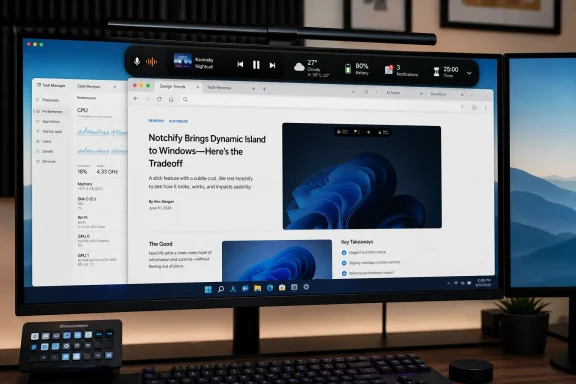 A floating control center rather than a Windows feature
Notchify starts as a compact black pill and expands when the pointer reaches it. Its developer, posting on Reddit under the name ProsperoTR, says the app supports media sessions from Spotify, browsers, and other software that publishes controls through Windows; it also advertises notifications, Bluetooth alerts, calendar and weather widgets, timers and alarms, a clipboard feature, and privacy indicators for active cameras and microphones.
Windows Central’s report says the app offers two visual modes: a detached “Island” and a connected “Notch.” Users can alter themes, blur and animation settings, choose widgets, configure volume and brightness popups, and set the program to launch with Windows. The result is a small always-on-top dashboard intended to stay out of the way until it is needed.
There is a reasonable use case here. Windows 11’s own notification system gives users limited control over where alerts appear, while system status is spread between the notification area, Quick Settings, app windows, and third-party utilities. On an ultrawide or large 4K display, the journey to a corner control can be longer than it sounds. A fixed, central control point can reduce that visual scavenger hunt.
The problem is that this convenience comes from an overlay, which is an application window with special behavior, not a reserved operating-system region. Apple can make macOS applications account for the physical notch on a MacBook display. Notchify cannot instruct Windows applications to reflow their title bars or tabs around its pill.
The top-center collision is the price of the effect
A Reddit user who tested the app identified the design issue before it became a performance discussion: Windows does not protect Notchify’s screen area, so browser tabs and title-bar buttons may sit beneath the overlay. Hovering toward a tab can activate the island instead. The developer agreed with the underlying limitation, writing that Windows does not reserve the space and that anything placed there must share it with tabs and title bars.
Windows Central independently reached much the same conclusion from use: a maximized application can block convenient access to the overlay’s functions, and the island cannot simply be dragged to some less contested point along the top edge. That is more than a cosmetic caveat. A utility whose main task is fast access has a problem if reaching it makes the user avoid or misfire on the tabs they use all day.
There are mitigations. The developer says Notchify can be hidden with a double-click, a Ctrl+Windows hotkey, or a tray control; its size is adjustable, and it can be assigned to another monitor. Windows Central’s observation that it cannot be moved refers to free placement around the display, rather than selecting a different monitor. For a dual-display desk, placing it on a secondary panel may be the best configuration: the island remains available but no longer sits over the primary browser’s tab strip.
The developer also says the overlay steps behind true fullscreen applications and that always-on-top behavior can be disabled. That should not be confused with solving the maximized-window case. Fullscreen apps and maximized desktop windows behave differently, and it is the latter—especially Chrome, Edge, Firefox, File Explorer, and IDEs with dense top bars—that creates the ordinary daily collision.
This is why Notchify will work better for a media display, a secondary monitor, or a large desktop panel with generous unused top-edge space than it will on a 13-inch laptop where every vertical pixel and every browser tab matters. The app does not steal layout space by resizing other windows; it overlays it. In practice, that is both its advantage and its central compromise.
The early build had a measurable idle CPU problem
The more consequential finding is performance. Notchify’s developer describes the app as a native C#/.NET WPF application using SkiaSharp rather than Electron, and its promotional post says it should idle below 100 MB after extended use. Yet a detailed user report on the developer’s Reddit thread measured version 4.0.6.0 consuming roughly 55% to 58% of one CPU core while hidden and idle on a 16-logical-core Windows 11 Pro system.
The tester reported that the app occupied roughly 787 MB to 799 MB of working-set memory, created 57 to 60 threads, and continued consuming CPU after blur, animation, anti-aliasing, notifications, media playback, Bluetooth popups, and all widgets had been disabled. The report attributed most of the work to a WPF render thread and concluded that Notchify appeared to be painting every frame regardless of whether anything on screen had changed.
That is a serious mismatch with the “lightweight” pitch, even allowing for one machine and one build. About 3.5% total CPU on a 16-thread system may not cripple a desktop workstation, but a permanent background render loop can mean hotter laptops, reduced battery life, fan noise, and unnecessary resource use on systems already running browsers, Teams, development tools, or virtual machines. A small status utility should be judged most harshly when it is doing nothing.
Windows Central reports that the developer responded directly to the post, acknowledged the unconditional rendering behavior, and said the renderer had been changed so it paints only for actual changes such as hover activity, animations, media updates, or popups. The developer reportedly claimed idle use fell from about 55% of one core to around 5% after the change.
That response is encouraging, but it is still a developer-reported fix. No independent retest of the updated Microsoft Store package was available at publication, and the Store’s web listing does not expose enough accessible package or changelog detail to establish which build contains the change. Anyone testing Notchify should open Task Manager or Process Explorer, hide the island, leave it alone for several minutes, and verify CPU and memory behavior on their own hardware before enabling it at startup.
A free trial changes the buying decision
Windows Central says Notchify costs $1.99 after a free trial. That trial matters more here than it would for an ordinary app because the central question is not whether the interface looks good in screenshots; it is whether the overlay belongs on a particular display.
The developer initially fielded requests for a trial on Reddit and said a trial had been submitted for Microsoft Store review. Later comments indicate it became available. Prospective users should use that window to test three concrete things: whether hovering near their browser tabs triggers the island, whether the widget mix actually replaces shortcuts they already use, and whether the app remains quiet when hidden.
There is also a compatibility detail omitted by Windows Central’s Windows 11 framing. In a separate Reddit reply, the developer said Notchify works on both Windows 10 and Windows 11. That claim has not been independently verified across display scaling, multiple-monitor, HDR, and fullscreen configurations, but it means the utility is not necessarily limited to Windows 11 users. Windows 10 users should still treat the trial as essential, particularly because older taskbar and notification behaviors make the overlay’s interaction model less predictable.
The app’s stated one-time purchase model, no subscription, and Microsoft Store distribution are positives for a narrowly focused desktop utility. Microsoft Store installation also provides automatic update delivery, which is especially relevant when the software is being adjusted rapidly in response to performance and interaction reports.
Notchify needs to earn its place at the top of the screen
Notchify’s best idea is not the fake notch. It is the attempt to combine several small, frequently consulted Windows functions into a single visual control point. For users with expansive displays, a secondary monitor, or a desire to keep a timer, media session, status indicators, and notifications within a short pointer movement, that can be more useful than the design’s Apple-inspired branding suggests.
The early release also shows why Windows has not shipped an equivalent as a built-in shell feature. A system-level implementation could reserve space, coordinate with title bars, honor fullscreen behavior consistently, and meet Windows’ power-management expectations. A third-party overlay must negotiate every one of those problems from outside the shell.
For now, Notchify is worth treating as a low-cost experiment rather than an automatic productivity upgrade. Its free trial should be used to confirm that the top-center pill does not obstruct the applications that dominate a user’s workday, and its updated CPU behavior should be verified before it earns a permanent place in Startup Apps.