
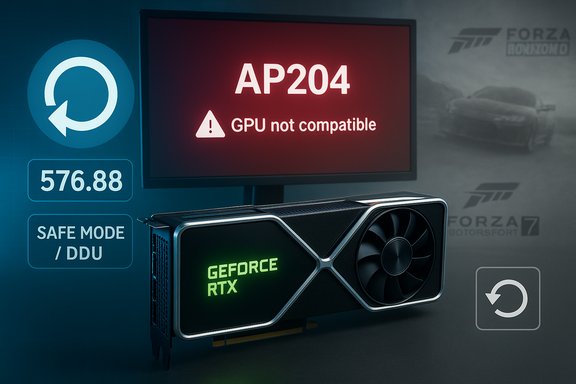
NVIDIA’s newest GeForce driver update has rendered a clutch of older Forza titles unplayable for many PC owners, with users reporting an AP204 “GPU not compatible” error when launching Forza Horizon 3, Forza Motorsport 6 Apex and Forza Motorsport 7 — and the most reliable fix so far is to roll your driver back to version 576.88.
 Background
Older PC games and modern GPU drivers have an uneasy relationship: drivers evolve to support new hardware and APIs while legacy games assume driver behaviors that may change over time. That tension surfaced again in early November 2025 when reports across manufacturer forums and tech sites documented consistent launch failures for classic Forza PC titles after installing the latest GeForce Game Ready driver family in the 580–581 range. A GeForce forum moderator confirmed NVIDIA engineering can reproduce the problem but warned a fix is not guaranteed because the underlying checks that trigger the AP204 error may be embedded in the old games themselves. NVIDIA’s earlier mid‑2025 driver 576.88 (released July 1, 2025) is repeatedly cited as the most recent driver that does not cause the AP204 error, and community troubleshooting threads and news reports say reverting to that build restores functionality. The driver binary and release notes for 576.88 remain available via NVIDIA’s driver pages and public archives.
What broke, exactly?
The symptom: AP204 — “GPU not compatible”
Players attempting to start affected Forza games see an AP204 error that claims the GPU is “not compatible.” In practice that message manifests as an immediate launch failure or a hard error box before the game can initialize its renderer, effectively blocking play. The behavior shows up on modern GeForce hardware (including RTX 50‑series cards) after users install the newer 580/581 driver families. Community posts and forum logs show reproducible failures tied to the driver version: install the newer driver, get AP204; revert to 576.88, game launches again.
Vendor response and scope
An NVIDIA staff reply on the company’s own forums acknowledged reproduction of the bug but cautioned that a fix may not be straightforward or guaranteed — primarily because the affected games are old and may contain in‑game checks or legacy GPU detection code that the company can’t modify from the driver side alone. Several independent outlets and community translations picked up and repeated that reply.
Is it only NVIDIA’s fault?
There’s nuance. While the immediate correlation points to NVIDIA driver changes, at least one reputable outlet reported that an earlier Windows update may also be implicated in similar AP204-like failures; removing that Windows update resolved the issue for some users in those reports. In short: the observable symptom is driver‑triggered for many affected users, but system‑level interactions (Windows updates, platform libraries, or even the way Microsoft’s store/launcher validates DRM/graphics) may factor into the failure on some configurations. That ambiguity is part of why NVIDIA’s response was cautious.
Why this happens: a technical perspective
Modern GPUs and drivers implement many changes — new memory managers, resource lifetime rules, stricter validation, DX12/D3D12 updates, and support for features such as DLSS frame generation. Drivers also expose a device identity to the operating system and to applications. Older games frequently include vendor‑specific GPU checks or rely on legacy driver behaviors that newer drivers no longer expose identically.
- Drivers can change how the GPU reports capabilities, which can break older title checks that expect a specific device signature or feature set.
- Changes to the Direct3D initialization path or stricter device validation in DX12/D3D12 can cause legacy renderers to fail at device creation or shader compilation.
- Interactions between Windows updates, DRM/platform launchers and driver behavior can create a three‑way dependency where a change in any component triggers a failure only seen under that particular combination.
This class of problem — a driver regression exposing latent compatibility assumptions in old games — is a known industry pattern. Past incidents have required either driver hotfixes, patches from the game developer, or rollbacks to older driver families while a permanent fix is worked on. Community troubleshooting and vendor advisories commonly recommend a clean rollback plus DDU (Display Driver Uninstaller) if necessary to restore stability.
What we verified (facts and recommendations)
- Multiple independent outlets reported the issue and the same remediation: rolling back to driver 576.88 fixes the AP204 launch errors for affected Forza titles.
- NVIDIA’s public driver page and API show 576.88 as a Game Ready driver released in mid‑2025; the binary and release notes are available from NVIDIA.
- NVIDIA staff on its official forums said the bug is reproducible internally but that a fix is not guaranteed because the games may be performing checks outside the scope of driver changes.
- Some coverage and user reports suggest a Windows update caused AP204‑style messages for some users; removing that update solved the issue for those configurations — this means not every instance is identically sourced. Treat platform updates and driver updates both as variables when troubleshooting.
Where claims are uncertain: the precise root cause (driver feature change vs Windows component vs game DRM/verification) is not publicly confirmed by NVIDIA beyond the company reproducing the error. Until NVIDIA publishes an internal post‑mortem or a driver hotfix with detailed release notes, root‑cause attribution remains partially unverified. Treat any definitive statement that “the driver intentionally disabled X” as speculative without explicit vendor confirmation.
Immediate fixes and practical workarounds
The objective is to get you back to playing with the least risk. Below are the remediation options ranked from safest to more invasive.
1. Roll back to driver 576.88 (recommended for affected users)
- Create a full Windows restore point and backup important files.
- Download the official NVIDIA 576.88 installer (keep the original file). NVIDIA’s driver archive lists 576.88 and its release notes; community sites mirror the packages too.
- Use Display Driver Uninstaller (DDU) in Safe Mode to remove the current driver cleanly. DDU wipes residual registry entries and avoids conflicts on reinstall. The DDU community and guides strongly recommend safe‑mode usage and creating a restore point beforehand.
- Install 576.88 with the NVIDIA installer (choose Custom → Clean Install). Reboot and test the affected Forza titles.
- Disable automatic driver updates from GeForce Experience and block the specific update in Windows Update until a confirmed fix is published. Community reporting shows automatic updates can reintroduce the problematic driver.
Why this works: community evidence is consistent — reverting to 576.88 removes the AP204 launch failure in first‑hand reports and across multiple user threads.
2. Try the Windows update removal (if rollback is not possible)
- Some users reported success by removing a recent Windows update that interacts with GPU detection on legacy titles. If you see AP204 and suspect the Windows side, check the most recent optional updates and try uninstalling the one that coincides with the failure window. This is situational and may not apply to everyone.
3. Short-term in‑game mitigations
- Disable overlays (GeForce Experience, Steam, Discord), which can change the renderer initialization path.
- Try launching with a compatibility flag or via a different renderer if the game supports it (for example, forcing a DX11 fallback where possible).
- Turn off DLSS/frame‑generation or other vendor upscalers temporarily; some crashes historically have been tied to upscaling paths. Community troubleshooting guides recommend testing with upscalers off.
4. Play on console or cloud
If you own an Xbox or prefer zero‑hassle gameplay, the console version is unaffected by PC driver and OS variables. For players who only occasionally revisit these older titles, the console or cloud streaming is a low‑effort fallback.
Step‑by‑step rollback checklist (detailed)
- Create a System Restore point and back up saved games/settings.
- Download NVIDIA GeForce driver 576.88 installer and save it to a known folder. Verify file size/checksum if you can.
- Download the latest DDU package and read the author’s instructions. Boot Windows into Safe Mode.
- Run DDU → choose NVIDIA → select “Clean and restart.”
- After reboot, double‑click the 576.88 installer → choose Custom → check “Perform a clean installation.” Reboot after install.
- Test the affected game(s). If stable: disable GeForce Experience auto‑update and use the Microsoft Update “view optional updates → driver updates” area to avoid automatic reinstallation. Consider renaming the newer driver installer (store it offline) so it cannot be reinstalled unintentionally.
Risks and tradeoffs
- Rolling back to 576.88 may remove optimizations and features added for newer titles and RTX 50‑series hardware. If you use DLSS 4 frame‑generation or need fixes in other new releases, you might lose those improvements until NVIDIA issues a corrected driver. Communities have noted this stability vs. feature trade‑off previously.
- Using DDU is effective but invasive. Always create a restore point and keep the replacement driver on hand. A failed driver reinstall can leave you with a low‑resolution display until you finish the recovery steps.
- If the root cause ultimately lies in an old game’s internal compatibility checks, NVIDIA may not be able to fix certain behaviors — and the only long‑term solution could be a patch from the game developer or a community mod that bypasses the outdated check. Multiple outlets highlighted that the delisted status of some of these Forza titles reduces the likelihood of a developer patch.
Broader implications for PC gaming
This episode underscores a perennial truth about PC gaming: the platform has higher variability and therefore greater fragility over long time horizons. Drivers evolve, Windows updates change platform behaviour, and older titles — especially those no longer supported — can break when one of those moving parts changes.
- For users who value long‑term playability of older titles, keeping known‑good driver installers archived is a pragmatic policy.
- For vendors and platform maintainers, these regressions show the limits of compatibility testing: as drivers are tuned for new engines and features (DLSS, frame gen, updated DX12 semantics), regressions are increasingly likely without targeted legacy tests.
- The practical reality for many players will be a temporary rollback or shifting play sessions to consoles/cloud when preserving the experience is more important than the latest driver features.
Community troubleshooting threads and consolidated guidance show a tried-and-true process: diagnose, roll back, cleanse with DDU if necessary, and then report reproducible logs to the vendor to help prioritize an official fix. The faster the vendor can reproduce the failure and correlate it with a code change, the sooner it can deliver a hotfix or confirm that a game patch is needed.
What NVIDIA, Microsoft and game publishers could — and should — do
- NVIDIA should publish a targeted hotfix if the regression stems from a driver change that can be safely reverted or patched without compromising new‑feature deliveries. Historically NVIDIA has issued hotfix drivers when a problem is widespread and reproducible.
- Microsoft and game publishers should confirm whether any Windows platform updates or DRM/launcher checks interact with the issue and publish guidance; if a Windows update is a cofactor, Microsoft’s targeted safeguard or update scheduling can prevent widespread breakage.
- Publishers of older titles should consider lightweight compatibility updates or community‑sanctioned patches where commercially feasible — or at least publish a compatibility advisory so players know the constraints.
All three stakeholders benefit when reproducible test cases and logs are shared publicly. If you can reproduce the failure, collect Windows Event Viewer logs, game crash dumps and the precise driver version numbers before filing a bug report; that materially increases the chances of a useful vendor response. Community guides emphasize capturing the Unreal Engine logs, error codes and GPU device driver traces for such reports.
Final verdict and practical takeaways
This is a classic compatibility regression: the easiest and most reliable user fix today is to roll back to NVIDIA driver 576.88 and prevent the offending 580–581 family driver from re‑installing until NVIDIA publishes a fix or an official workaround. Use DDU for a clean rollback if you encounter stubborn remnants, back up a system restore point, and keep the working driver archived. For players who cannot or will not roll back, the short-term options are limited: disable overlays and upscalers, test removing recent Windows updates if you suspect a platform interaction, or play the titles on an Xbox or cloud service. However, none of those are guaranteed solutions — and the clean rollback remains the most repeatable remedy documented across multiple independent reports. The incident is a reminder that PC gaming’s flexibility carries maintenance costs. Keep installer archives, create restore points before sweeping updates, and treat major GPU driver updates as an event that may require troubleshooting — especially when you own dated but cherished titles that may never receive another patch.
Important: If you plan to roll back, follow the safe rollback checklist above and keep a copy of the working driver and DDU on removable media before attempting changes. The combination of user reports, NVIDIA forum confirmation and archival driver information forms the best available public record of what happened and how to recover; the underlying root cause remains partially unverified until NVIDIA or the game publisher releases more detailed diagnostic notes.


