
The underlying idea is real: Rclone is a free, open-source command-line utility that connects to each service through its API and can expose a configured remote in File Explorer. It supports Google Drive, Microsoft OneDrive, and Dropbox, and its Union backend can present several upstream locations through one namespace. Windows users can mount that location with a drive letter after installing WinFsp, the file-system component Rclone uses for Windows mounts.
For people who have accumulated documents, photos, and archives across several free accounts, that can be a cleaner way to browse cloud data. But a unified view, an always-synced local folder, and a complete replacement for the vendors’ desktop clients are three different things. The Economic Times article treats them as interchangeable; Rclone’s own documentation shows where they diverge.
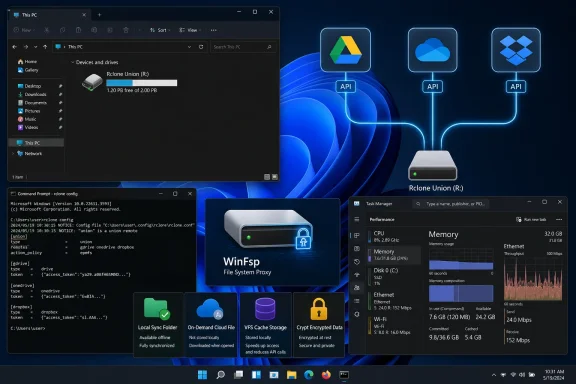 A union drive is an access layer, not pooled cloud storage
Rclone’s Union backend can combine remotes such as
gdrive:,
onedrive:, and
dropbox:into what looks like one location. A mounted union remote can then appear in File Explorer, avoiding the routine of opening separate folders or browser tabs simply to remember where a file was stored.
What it does not do is merge the storage quotas or turn three providers into one resilient storage pool. Google’s files remain under Google’s quota and policies, Microsoft’s remain in OneDrive, and Dropbox’s remain in Dropbox. If one account is full, unavailable, or locked, the union layer cannot borrow capacity from another service or mask the outage.
More importantly, the setup needs a policy for where new files go. Rclone’s Union backend distinguishes between reading existing files, modifying existing files, and creating new files. Its default create policy is designed to choose an eligible upstream based on existing paths and reported free space, while its search policy determines which upstream wins when more than one contains the same path.
That policy engine is useful for a deliberate archive design: put read-only historical folders on one provider, active work on another, and reserve a third for overflow. It is much less attractive if the goal is simply “one folder where everything goes.” Two identically named files in different cloud accounts can produce surprising results, and moving or editing a file becomes dependent on the selected action policy rather than the behavior users learned from any one provider’s native client.
In other words, Rclone can make scattered accounts easier to reach. It does not solve the organization problem by itself, and it can make provenance harder to see: the File Explorer view may no longer tell a user at a glance whether a file actually lives in Drive, OneDrive, or Dropbox.
The performance promise depends on cache settings
The strongest unsupported part of the Economic Times pitch is the performance conclusion. Removing three always-running sync clients can certainly reduce background activity on a particular PC, especially one with a huge number of files. Dropbox itself acknowledges that its desktop application can use more memory as its file count rises and says File Explorer performance begins to decline at roughly 300,000 synced files. Its client also runs background processes for syncing, updates, and monitoring.
But that does not establish a universal 1GB memory figure across Google Drive for desktop, OneDrive, and Dropbox, nor does it establish that an Rclone mount will always be faster. Those claims require a controlled comparison, and none is provided.
Rclone moves much of the trade-off from persistent local synchronization to on-demand remote access. When an application opens a file from a mounted Rclone drive, the file may need to be listed, downloaded, buffered, or cached first. The result depends on broadband speed, latency, the provider’s API response time, file count, the application involved, and the options used to mount the drive.
Rclone’s virtual file system, or VFS, is central here. In its default cache mode, some normal Windows file operations are limited: files cannot be freely opened for simultaneous reading and writing, write operations have restrictions, and failed uploads cannot necessarily be retried. Rclone documents that many applications need the more compatible
--vfs-cache-mode writesor
--vfs-cache-mode fullsettings.
Those settings improve application compatibility, but they make the “no slowdown” claim even less credible as a blanket statement. Write caching consumes local disk space. Full caching also stores downloaded file data on disk and uses memory buffers for open files. Rclone’s documentation specifically warns that memory buffering can rise with the number of concurrently open files, while full VFS caching can perform badly if its cache directory sits on a file system that does not support sparse files.
A user editing a small Word document over a stable connection may find the mount responsive and unobtrusive. A user scrubbing through a large video, indexing thousands of files, opening a database, compiling a project tree, or working through a spotty VPN may encounter the latency that native clients avoid by maintaining local metadata and local copies. The correct conclusion is narrower: Rclone can reduce idle sync-client overhead, but it exchanges that overhead for network dependence and a cache that must be configured and managed.
Rclone replaces some sync workflows, not the vendors’ full feature set
OneDrive, Google Drive for desktop, and Dropbox are not merely file browsers with tray icons. Their Windows clients are designed around continuous synchronization, offline availability controls, collaboration integrations, account notifications, conflict handling, and provider-specific recovery workflows.
Dropbox, for example, advertises automatic background sync, offline editing followed by later synchronization, backups, File Explorer status information, version recovery from Explorer, and sharing integrations. OneDrive’s Files On-Demand integration uses Windows’ cloud-file plumbing to show whether material is online-only, locally available, or always retained on the device. Google Drive for desktop similarly offers streamed and mirrored file models rather than requiring users to build a mount command and service configuration themselves.
Rclone can copy, move, synchronize, mount, encrypt, and script data across a broad set of storage providers. Those are substantial capabilities, particularly for administrators and advanced home users. It can be scheduled through Task Scheduler, run as a Windows service, and mounted at startup. But Rclone does not launch with a consumer-oriented GUI by default, and the service configuration is part of the work the official clients hide.
The distinction becomes sharper when a user wants conventional two-way sync between a local folder and cloud storage. Rclone’s
bisynccommand exists for that job, but Rclone classifies it as an advanced command and explicitly warns that misuse can cause data loss. It maintains working data under the user’s local AppData directory, requires an initial
--resyncrun, and has safeguards such as a default 50% deletion ceiling because a mistaken or unavailable source can otherwise propagate deletions.
That is responsible documentation, but it undercuts the “install it in minutes and permanently remove the resource hogs” framing. A mount is comparatively straightforward. A dependable replacement for three synchronization clients needs a design for startup, credentials, caching, offline work, conflict behavior, logging, updates, and recovery after a provider changes its API.
Client-side encryption brings a real benefit—and a recovery obligation
The Economic Times article is on solid ground in describing Rclone’s Crypt backend as client-side encryption. A Crypt remote wraps an existing cloud remote; Rclone encrypts files before upload and decrypts them locally while they are accessed through that Crypt remote. The provider then stores encrypted content rather than readable files.
That can be valuable for personal archives, sensitive exports, and backups kept in an account whose storage operator the user does not want to trust with plaintext. It can also encrypt filenames and directory names, limiting the metadata visible in the provider’s web interface.
The article overstates the result when it says this gives users “total ownership” and implies that the services can no longer see anything meaningful. Rclone’s documentation says Crypt does not conceal file length and modification times. It also does not protect a user from account loss, ransomware in the local Windows profile, a stolen Rclone configuration, or deletion commands run with valid credentials.
Encryption creates a serious recovery dependency as well. Rclone uses secret-key encryption derived from the configured passwords. Changing the password for an existing Crypt remote does not rotate the old data into a new key; it makes the old data unreadable through that configuration. Re-encrypting requires copying the data again. Rclone also says that the credentials stored in its configuration are only lightly obscured unless the user separately enables configuration-file encryption.
For that reason, a Crypt setup deserves the same operational discipline as BitLocker recovery material or a password manager vault: store the generated credentials safely, test restoration on a noncritical folder, and keep an independent backup. Encryption without a tested recovery path is merely a more complicated failure mode.
The practical case for Rclone is narrower—and better
Rclone is a strong choice for Windows users who want one Explorer-accessible view of several cloud accounts, who understand command-line configuration, and who value scripts and controlled transfers more than seamless provider integration. It is especially useful as an administration and migration tool: copying data between Drive, OneDrive, and Dropbox without first downloading everything to a local disk can be more efficient than manual browser transfers.
It is also a sensible way to mount a mostly archival cloud collection that does not need constant synchronization. In that scenario, the user gains a cleaner desktop, fewer tray processes, and an interface that can be customized around how the files are actually used.
The safer deployment is not to uninstall every vendor client immediately. Start with one account and a read-heavy folder. Install WinFsp, configure the remote with
rclone config, mount it to a spare drive letter, and test the actual Windows applications that will use it. Watch Task Manager, cache-disk use, transfer reliability, and behavior after sleep, network changes, and reboot. Use
--dry-runbefore any copy, move, sync, or bisync operation that could alter large collections.
Rclone can replace three cloud applications for a defined access workflow. It cannot replace the guarantees and conveniences of three mature sync clients merely by mounting a union drive—and the published performance claim has not earned the certainty attached to it.