
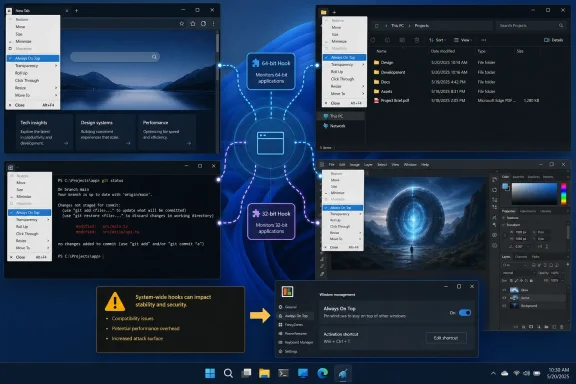
SmartSystemMenu turns the Windows system menu behind Alt + Space—or a right-click on a conventional title bar—into a compact per-window control panel, adding always-on-top, transparency, click-through input, roll-up, placement presets, tray minimization, and more. The tool is useful, but its implementation carries a consequence that MakeUseOf’s otherwise enthusiastic walkthrough only partly surfaces: this is not a lightweight shell tweak. It injects hooks into both 32-bit and 64-bit processes across the desktop and therefore deserves the same change-control caution as any other utility that attaches itself to running applications.
MakeUseOf tested the portable SmartSystemMenu release across File Explorer, browsers, Command Prompt, creative tools, and utility dialogs, calling out Always On Top, Roll Up, alignment, resizing, transparency, and Click Through as the genuinely useful controls. The project’s own documentation confirms the basic premise: it extends the standard Windows system menu, whose native commands have remained Restore, Move, Size, Minimize, Maximize, and Close for decades.
There is a practical irony here. Microsoft’s own title-bar guidance still says applications should expose that system menu when users right-click unused title-bar space. Yet Windows itself has never expanded the menu into a coherent window-management surface. SmartSystemMenu fills that gap, but it does so by reaching into applications rather than by working as a first-class Windows feature.
The system menu is not an obscure undocumented relic. Microsoft documents it as the menu intended to manipulate the current window, with Alt + Space as its keyboard shortcut. A standard Windows title bar is supposed to provide the system menu on a right-click, and Microsoft’s modern title-bar design documentation continues to treat that behavior as normal.
That makes SmartSystemMenu’s placement unusually sensible. A command such as Always On Top applies to one specific window; putting the command in that window’s own menu avoids the indirection of hunting through a separate settings application or remembering a system-wide shortcut. Resize, Alignment, Move To, Send To Bottom, Hide, and System Tray belong in the same category: they alter the object currently under the user’s hand.
The project goes well beyond that modest idea. Its menu can change a window’s opacity, let mouse clicks pass through it, keep it off Alt + Tab, alter a process priority, save a screenshot, expose the executable in File Explorer, and dim all other windows. There are also developer-oriented entries that reveal process IDs, window classes, styles, handles, and executable paths.
That breadth is both SmartSystemMenu’s attraction and its design problem. The ordinary system menu is small because it contains universal actions with obvious results. SmartSystemMenu’s default menu can expose more controls than most people need, including commands that can make a window apparently disappear or unusable until the user remembers what was changed. The first task after installing it should be pruning the menu—not treating every available command as an upgrade.
Roll Up is another old-fashioned but occasionally effective command. It collapses a conventional window to its title bar, preserving a visible reminder of a transfer dialog, terminal, or utility without having the full window cover the active task. Alignment and Resize are more valuable to users who work with repeatable layouts: a fixed 800 × 600 File Explorer window or a window anchored to the upper-left screen corner can be rebuilt faster than manual dragging and snapping.
Click Through is more specialized. It can turn a semi-transparent timer or reference display into an overlay that does not intercept the mouse, but it also creates an immediate usability trap: the window remains visible while becoming unclickable. A user needs to invoke the system menu again and disable Click Through before interacting with it. That is manageable for a known-purpose overlay and a poor default for ordinary applications.
The useful center of the product is therefore smaller than the feature inventory suggests:
For users whose real requirement is simply to pin a browser, File Explorer window, or monitoring panel above other applications, PowerToys is the lower-risk choice. It supplies an optional colored border so the pinned state is visible, supports a configurable shortcut, provides exclusions, and can avoid activating while Game Mode is enabled. Microsoft also documents limitations with other topmost windows, including Remote Desktop, Citrix, and VMware windows.
SmartSystemMenu’s advantage is not that it invented title-bar pinning. It is that it combines pinning with a much wider collection of per-window operations behind the same menu. That makes it more compelling for people who want to tune window size, placement, visibility, mouse behavior, and opacity from one location—and less compelling for everyone else.
The distinction matters in managed environments. PowerToys is a Microsoft-maintained package with a defined utility boundary. SmartSystemMenu is a community-maintained open-source utility whose stated operation depends on loading hook DLLs into every process it can reach. Those are materially different deployment choices even when both can place a window on top.
That architecture explains the User Account Control prompt noted by MakeUseOf. It also explains why an application with a custom-drawn title bar, a protected process, or a different integrity level may not show SmartSystemMenu commands at all. A program that never presents a conventional system menu has no convenient surface for the tool to extend. A higher-privilege process cannot safely be managed by a lower-privilege helper. Applications that harden against process injection may react poorly or refuse interaction altogether.
The project’s recent development record reinforces that this is an active compatibility boundary rather than a theoretical warning. Version 2.33.0, released in February 2026, included a fix for an unhandled exception involving windows such as Chrome and Firefox. The latest listed release, version 2.33.1 from March 2026, focused on configuration-file compatibility and translation updates rather than a broad compatibility overhaul.
The public issue tracker also shows unresolved reports involving the Save feature, high-DPI awareness, and claimed interaction failures in multiple applications. Those reports are not independent proof that SmartSystemMenu will break a particular workload, but they are enough to reject the idea that it is universally safe simply because it is portable and open source. The project itself provides process exclusions for a reason.
For IT professionals, the correct policy is straightforward: do not deploy SmartSystemMenu fleet-wide as an innocent productivity enhancement. Test it with browsers, line-of-business apps, remote-access clients, endpoint-security tooling, accessibility software, and any application that uses custom chrome. Exclude software that behaves unexpectedly. Keep it away from multiplayer games or anti-cheat-protected applications, where process hooks can become a support problem or trigger integrity checks.
Until that changes, SmartSystemMenu is best treated as a power-user utility rather than a universal recommendation. Install the current official release or a trusted package-manager build, reduce the menu to the commands you will actually use, and test those commands on noncritical applications first.
For users who only need a window pinned above the rest of the desktop, PowerToys already covers the job with less reach into other processes. For those who routinely manage dozens of conventional desktop windows, SmartSystemMenu earns its place precisely because Windows left this menu frozen in time—but its hooks mean the convenience comes with an operational cost.
There is a practical irony here. Microsoft’s own title-bar guidance still says applications should expose that system menu when users right-click unused title-bar space. Yet Windows itself has never expanded the menu into a coherent window-management surface. SmartSystemMenu fills that gap, but it does so by reaching into applications rather than by working as a first-class Windows feature.
 The old system menu is a real Windows control surface
The system menu is not an obscure undocumented relic. Microsoft documents it as the menu intended to manipulate the current window, with Alt + Space as its keyboard shortcut. A standard Windows title bar is supposed to provide the system menu on a right-click, and Microsoft’s modern title-bar design documentation continues to treat that behavior as normal.That makes SmartSystemMenu’s placement unusually sensible. A command such as Always On Top applies to one specific window; putting the command in that window’s own menu avoids the indirection of hunting through a separate settings application or remembering a system-wide shortcut. Resize, Alignment, Move To, Send To Bottom, Hide, and System Tray belong in the same category: they alter the object currently under the user’s hand.
The project goes well beyond that modest idea. Its menu can change a window’s opacity, let mouse clicks pass through it, keep it off Alt + Tab, alter a process priority, save a screenshot, expose the executable in File Explorer, and dim all other windows. There are also developer-oriented entries that reveal process IDs, window classes, styles, handles, and executable paths.
That breadth is both SmartSystemMenu’s attraction and its design problem. The ordinary system menu is small because it contains universal actions with obvious results. SmartSystemMenu’s default menu can expose more controls than most people need, including commands that can make a window apparently disappear or unusable until the user remembers what was changed. The first task after installing it should be pruning the menu—not treating every available command as an upgrade.
SmartSystemMenu’s strongest features are narrower than its menu
MakeUseOf’s account gets the best use cases right. Keeping a reference image, browser page, timer, or documentation window visible above a working application is a routine Windows friction point. SmartSystemMenu’s Always On Top command puts the action exactly where it is needed, and its Transparency option can reduce the distraction of that floating window.Roll Up is another old-fashioned but occasionally effective command. It collapses a conventional window to its title bar, preserving a visible reminder of a transfer dialog, terminal, or utility without having the full window cover the active task. Alignment and Resize are more valuable to users who work with repeatable layouts: a fixed 800 × 600 File Explorer window or a window anchored to the upper-left screen corner can be rebuilt faster than manual dragging and snapping.
Click Through is more specialized. It can turn a semi-transparent timer or reference display into an overlay that does not intercept the mouse, but it also creates an immediate usability trap: the window remains visible while becoming unclickable. A user needs to invoke the system menu again and disable Click Through before interacting with it. That is manageable for a known-purpose overlay and a poor default for ordinary applications.
The useful center of the product is therefore smaller than the feature inventory suggests:
- Always On Top, Transparency, Alignment, Resize, and Move To solve recurring multi-window tasks without needing to leave the window being managed.
- Roll Up and System Tray can reduce clutter, though both are more likely to surprise users who forget they enabled them.
- Click Through, Hide For Alt + Tab, process-priority changes, and caption-button controls should be tested on disposable windows before they are used in a work session.
Microsoft already supplies one piece of this idea
The claim that Windows “should have” supplied this capability needs one correction: Microsoft PowerToys already offers Always On Top, including an option to show its control in the title-bar context menu. PowerToys’ default shortcut is Win + Ctrl + T, and the current Microsoft documentation explicitly lists title-bar-menu integration and application exclusions among its settings.For users whose real requirement is simply to pin a browser, File Explorer window, or monitoring panel above other applications, PowerToys is the lower-risk choice. It supplies an optional colored border so the pinned state is visible, supports a configurable shortcut, provides exclusions, and can avoid activating while Game Mode is enabled. Microsoft also documents limitations with other topmost windows, including Remote Desktop, Citrix, and VMware windows.
SmartSystemMenu’s advantage is not that it invented title-bar pinning. It is that it combines pinning with a much wider collection of per-window operations behind the same menu. That makes it more compelling for people who want to tune window size, placement, visibility, mouse behavior, and opacity from one location—and less compelling for everyone else.
The distinction matters in managed environments. PowerToys is a Microsoft-maintained package with a defined utility boundary. SmartSystemMenu is a community-maintained open-source utility whose stated operation depends on loading hook DLLs into every process it can reach. Those are materially different deployment choices even when both can place a window on top.
The hook mechanism is the real compatibility limit
SmartSystemMenu’s GitHub documentation is unusually clear about how it works. Launching the primary executable also starts a 64-bit companion process; together, their 32-bit and 64-bit hook DLLs are loaded into target processes. When a user chooses a custom system-menu item, the hook communicates the request back to the relevant executable, which carries out the window operation.That architecture explains the User Account Control prompt noted by MakeUseOf. It also explains why an application with a custom-drawn title bar, a protected process, or a different integrity level may not show SmartSystemMenu commands at all. A program that never presents a conventional system menu has no convenient surface for the tool to extend. A higher-privilege process cannot safely be managed by a lower-privilege helper. Applications that harden against process injection may react poorly or refuse interaction altogether.
The project’s recent development record reinforces that this is an active compatibility boundary rather than a theoretical warning. Version 2.33.0, released in February 2026, included a fix for an unhandled exception involving windows such as Chrome and Firefox. The latest listed release, version 2.33.1 from March 2026, focused on configuration-file compatibility and translation updates rather than a broad compatibility overhaul.
The public issue tracker also shows unresolved reports involving the Save feature, high-DPI awareness, and claimed interaction failures in multiple applications. Those reports are not independent proof that SmartSystemMenu will break a particular workload, but they are enough to reject the idea that it is universally safe simply because it is portable and open source. The project itself provides process exclusions for a reason.
For IT professionals, the correct policy is straightforward: do not deploy SmartSystemMenu fleet-wide as an innocent productivity enhancement. Test it with browsers, line-of-business apps, remote-access clients, endpoint-security tooling, accessibility software, and any application that uses custom chrome. Exclude software that behaves unexpectedly. Keep it away from multiplayer games or anti-cheat-protected applications, where process hooks can become a support problem or trigger integrity checks.
A better window manager, but not a Windows feature
SmartSystemMenu demonstrates that Windows’ ancient system menu remains a good location for window-specific controls. Microsoft’s own design guidance still reserves title-bar space for moving, resizing, minimizing, maximizing, closing, and exposing the system menu. What Windows lacks is a restrained modern set of optional commands—pin, opacity, placement, and perhaps a reversible roll-up action—that can work reliably without injecting into the software being managed.Until that changes, SmartSystemMenu is best treated as a power-user utility rather than a universal recommendation. Install the current official release or a trusted package-manager build, reduce the menu to the commands you will actually use, and test those commands on noncritical applications first.
For users who only need a window pinned above the rest of the desktop, PowerToys already covers the job with less reach into other processes. For those who routinely manage dozens of conventional desktop windows, SmartSystemMenu earns its place precisely because Windows left this menu frozen in time—but its hooks mean the convenience comes with an operational cost.
References
- Primary source: MakeUseOf
Published: 2026-08-02T14:00:12+00:00
Every Windows title bar should have come with this hidden menu
My title bars received a promotion, a toolbox, and considerably more responsibility. www.makeuseof.com
- Related coverage: learn.microsoft.com
PowerToys Always On Top Utility for Windows | Microsoft Learn
Learn how to use PowerToys Always On Top utility to pin windows above others in Windows. Keep important windows visible with customizable shortcuts and settings.learn.microsoft.com - Related coverage: learn.microsoft.com
Menu Bar (MSAA UI Element Reference) - Win32 apps | Microsoft Learn
A menu bar is the area of a window immediately beneath the title bar that contains menu items such as File, Edit, Window, and Help.learn.microsoft.com - Related coverage: windowscentral.com
PowerToys update helps resolve shortcut chaos on Windows 11 | Windows Central
Managing shortcut conflicts on Windows just got smarter thanks to PowerToys.www.windowscentral.com
