
Notebookcheck’s August 4 review of the Lenovo ThinkPad E14 Gen 8 AMD finds a sensible office machine with unusually practical internals, two USB4 ports and 13.3 hours in its Wi-Fi battery test—but it also exposes why the exact configuration matters more than Lenovo’s generational branding. The €1,099 review unit combines a Ryzen AI 7 345, 16GB of memory, a 512GB SSD, the larger 64Wh battery and a matte 1,920×1,200 IPS panel. It ships with only one memory module installed, leaving the integrated graphics and memory-sensitive workloads short of what the hardware can deliver.
The more consequential finding is not that the E14 lasts through a working day. It is that Lenovo has retained the user-serviceable design choices that many business laptops have abandoned: two DDR5 SO-DIMM slots and two M.2 SSD slots. Lenovo’s own PSREF specification confirms support for up to 64GB of DDR5-5600 memory and two PCIe 4.0 drives, one M.2 2242 and one M.2 2280. For Windows users who keep machines in service for years, that makes the E14 Gen 8 a more defensible purchase than a thinner system with soldered RAM and a single storage bay.
But the default panel remains Lenovo’s budget cut, and the AMD version still lacks a clear retail path in the United States.
Notebookcheck recorded 13.3 hours in its Wi-Fi test on the 64Wh configuration, using the display at 150 nits—roughly half of the panel’s maximum brightness. That is a strong result for a 14-inch Windows business notebook and supports the review’s central conclusion: the E14 Gen 8 can get through a workday without a charger if the workload is browser, Office, remote-management tools and video calls rather than sustained compilation or rendering.
The review unit’s power draw also helps explain the result. It idled at 3.5W minimum and 6.4W on average in Notebookcheck’s measurements, while full-load consumption peaked below 50W. Fan noise reached roughly 37 dB(A) under load and was often absent or faint during ordinary office work. This is the profile IT departments generally want from a mobile endpoint: quiet when handling tickets, spreadsheets and collaboration apps, with enough short-burst performance for heavier tasks.
Lenovo’s own endurance claims are higher, but they should be read as vendor laboratory ceilings rather than purchase guidance. Its PSREF lists up to 15.38 hours in MobileMark 30 and more than 28 hours of local video playback for selected 64Wh configurations. Those figures use particular processors, brightness levels and power settings; Notebookcheck’s 13.3-hour Wi-Fi result is the more useful real-world reference point for a Windows user.
The caveat is simple: Lenovo also sells a 48Wh battery option. The review does not establish what that smaller-battery model can deliver. Buyers and procurement teams should treat the 64Wh pack as a requirement if all-day runtime is part of the rationale for choosing this ThinkPad.
Yet Lenovo’s current PSREF table pairs the Ryzen AI 7 345 with the weaker Radeon 820M. That is not a harmless naming variation: the Radeon 820M and 840M are different integrated graphics tiers. Lenovo’s table makes the same apparent reversal for the Ryzen AI 5 330, which AMD and Lenovo’s other materials associate with the Radeon 820M.
The primary processor record and the tested hardware settle the practical issue for the 21Y2006XGE: it has Radeon 840M graphics. But the error is still material for purchasing teams that use PSREF as the source of truth for approved configurations. A spec database is supposed to eliminate SKU ambiguity, not introduce it. Anyone ordering an E14 Gen 8 AMD should validate the GPU against the individual machine type or reseller configuration before assuming what graphics hardware will arrive.
Even with the correct Radeon 840M, this is an office-class integrated GPU. Notebookcheck’s game tests show it struggling at 1080p in modern titles, including around 10 fps in Cyberpunk 2077 at the Ultra preset and 10.5 fps in Baldur’s Gate 3 at Ultra. The ThinkPad is suitable for multi-monitor desktop work, browser applications, Office, light creative tasks and hardware-accelerated video—not for replacing a workstation or gaming laptop.
That is the E14 Gen 8’s best practical advantage. A buyer can start with a modest configuration, add memory when workloads grow, and populate the second SSD slot later for local virtual machines, field data, offline repositories or an encrypted project volume. Lenovo’s specification supports 64GB total memory and up to two 1TB SSDs under its validated configurations.
There is an operational distinction here. A second DIMM is not merely a capacity upgrade; it changes memory bandwidth available to the integrated graphics and can improve responsiveness in workloads that are sensitive to it. An organization deploying this model should avoid treating the base 16GB single-DIMM configuration as equivalent to a 16GB dual-channel model. The installed memory layout belongs on the purchase order.
Notebookcheck also reports a 512GB Western Digital PC SN7100S SSD in its sample. The drive posted competent results, but storage vendors can vary within a given Lenovo SKU. Lenovo explicitly allows component substitutions with equivalent specifications. For users planning disk-intensive workloads, the existence of the second M.2 bay matters more than the benchmark result from one reviewed drive.
Its color range is the limitation. Lenovo rates the panel at 45% NTSC, and Notebookcheck measured just 59% sRGB coverage. The review says colors appear muted and limits the panel’s suitability for color-critical editing. This is not a defect in the tested screen; it is a configuration decision that keeps a familiar low-gamut office panel in the E-series product stack.
Lenovo’s PSREF confirms a substantially better option exists: a non-touch 2.8K, 2,880×1,800 IPS screen with 500 nits, 100% sRGB, 120Hz variable refresh and a 1,500:1 claimed contrast ratio. That panel changes the E14 Gen 8 from a document-first notebook into a plausible machine for design review, presentation work and users who simply spend all day looking at text and graphics.
The trouble is that Lenovo’s regional configuration rules make a recommendation difficult. Notebookcheck reported in June that AMD E14 Gen 8 sales were then limited to Australia, East Asia and Southeast Asia, with no timing announced for other markets. Lenovo’s U.S. storefront currently promotes the Intel ThinkPad E14 Gen 8, while Lenovo’s U.S. support site already carries BIOS and driver support for the AMD machine types 21Y2 and 21Y3. In other words, the support infrastructure exists, but Lenovo has not made a corresponding U.S. AMD retail offering easy to find.
It is less convincing when bought by headline. “Ryzen AI 7,” “Copilot+ PC,” and “long battery life” do not ensure the same experience across a line that can be ordered with a 48Wh battery, 64Wh battery, 720p or 1080p camera, plastic or aluminum lower cover, single- or dual-channel memory, and two very different displays.
For Windows enthusiasts and IT buyers, the safest E14 Gen 8 AMD configuration is clear: specify the 64Wh battery, insist on two populated memory channels, choose the 2.8K 100% sRGB display if image quality matters, and verify the GPU description against AMD’s processor record rather than Lenovo’s currently inconsistent PSREF table. The machine has the hardware flexibility to remain useful for years; Lenovo’s configuration complexity is what can still turn that promise into a disappointing deployment.
But the default panel remains Lenovo’s budget cut, and the AMD version still lacks a clear retail path in the United States.
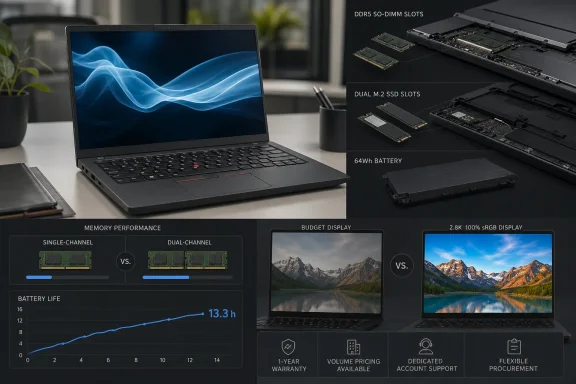 A Full-Day Battery Result, With an Important Test Condition
Notebookcheck recorded 13.3 hours in its Wi-Fi test on the 64Wh configuration, using the display at 150 nits—roughly half of the panel’s maximum brightness. That is a strong result for a 14-inch Windows business notebook and supports the review’s central conclusion: the E14 Gen 8 can get through a workday without a charger if the workload is browser, Office, remote-management tools and video calls rather than sustained compilation or rendering.The review unit’s power draw also helps explain the result. It idled at 3.5W minimum and 6.4W on average in Notebookcheck’s measurements, while full-load consumption peaked below 50W. Fan noise reached roughly 37 dB(A) under load and was often absent or faint during ordinary office work. This is the profile IT departments generally want from a mobile endpoint: quiet when handling tickets, spreadsheets and collaboration apps, with enough short-burst performance for heavier tasks.
Lenovo’s own endurance claims are higher, but they should be read as vendor laboratory ceilings rather than purchase guidance. Its PSREF lists up to 15.38 hours in MobileMark 30 and more than 28 hours of local video playback for selected 64Wh configurations. Those figures use particular processors, brightness levels and power settings; Notebookcheck’s 13.3-hour Wi-Fi result is the more useful real-world reference point for a Windows user.
The caveat is simple: Lenovo also sells a 48Wh battery option. The review does not establish what that smaller-battery model can deliver. Buyers and procurement teams should treat the 64Wh pack as a requirement if all-day runtime is part of the rationale for choosing this ThinkPad.
The Ryzen AI 7 345 Specification Record Is Wrong in Lenovo’s Own Documentation
There is a concrete mismatch in the published specifications that Lenovo should correct. Notebookcheck identifies the tested ThinkPad E14 Gen 8 21Y2006XGE as using the Ryzen AI 7 345 with AMD Radeon 840M graphics. AMD’s processor specification says the Ryzen AI 7 345 has a four-core Radeon 840M running at up to 2.9GHz. Independent retailer listings for the same Lenovo model also identify Radeon 840M.Yet Lenovo’s current PSREF table pairs the Ryzen AI 7 345 with the weaker Radeon 820M. That is not a harmless naming variation: the Radeon 820M and 840M are different integrated graphics tiers. Lenovo’s table makes the same apparent reversal for the Ryzen AI 5 330, which AMD and Lenovo’s other materials associate with the Radeon 820M.
The primary processor record and the tested hardware settle the practical issue for the 21Y2006XGE: it has Radeon 840M graphics. But the error is still material for purchasing teams that use PSREF as the source of truth for approved configurations. A spec database is supposed to eliminate SKU ambiguity, not introduce it. Anyone ordering an E14 Gen 8 AMD should validate the GPU against the individual machine type or reseller configuration before assuming what graphics hardware will arrive.
Even with the correct Radeon 840M, this is an office-class integrated GPU. Notebookcheck’s game tests show it struggling at 1080p in modern titles, including around 10 fps in Cyberpunk 2077 at the Ultra preset and 10.5 fps in Baldur’s Gate 3 at Ultra. The ThinkPad is suitable for multi-monitor desktop work, browser applications, Office, light creative tasks and hardware-accelerated video—not for replacing a workstation or gaming laptop.
Add a Second DIMM Before Judging Performance
The review unit’s 16GB DDR5-5600 memory ran in single-channel mode. Notebookcheck specifically flags that choice as a drag on performance, especially for the Radeon 840M, which shares system memory rather than having dedicated VRAM. The processor itself is soldered, but the memory is not: two SO-DIMM slots mean an owner can install a matching module and enable dual-channel operation.That is the E14 Gen 8’s best practical advantage. A buyer can start with a modest configuration, add memory when workloads grow, and populate the second SSD slot later for local virtual machines, field data, offline repositories or an encrypted project volume. Lenovo’s specification supports 64GB total memory and up to two 1TB SSDs under its validated configurations.
There is an operational distinction here. A second DIMM is not merely a capacity upgrade; it changes memory bandwidth available to the integrated graphics and can improve responsiveness in workloads that are sensitive to it. An organization deploying this model should avoid treating the base 16GB single-DIMM configuration as equivalent to a 16GB dual-channel model. The installed memory layout belongs on the purchase order.
Notebookcheck also reports a 512GB Western Digital PC SN7100S SSD in its sample. The drive posted competent results, but storage vendors can vary within a given Lenovo SKU. Lenovo explicitly allows component substitutions with equivalent specifications. For users planning disk-intensive workloads, the existence of the second M.2 bay matters more than the benchmark result from one reviewed drive.
Lenovo Still Sells an Office Display as the Default Compromise
The tested WUXGA display is good in the ways that matter for conventional business work. Notebookcheck measured an average brightness of 393.6 nits, close to Lenovo’s 400-nit claim, alongside 1,400:1 contrast, no PWM flicker and a matte surface. Text, spreadsheets, terminal sessions and indoor or shaded outdoor use should all be comfortable.Its color range is the limitation. Lenovo rates the panel at 45% NTSC, and Notebookcheck measured just 59% sRGB coverage. The review says colors appear muted and limits the panel’s suitability for color-critical editing. This is not a defect in the tested screen; it is a configuration decision that keeps a familiar low-gamut office panel in the E-series product stack.
Lenovo’s PSREF confirms a substantially better option exists: a non-touch 2.8K, 2,880×1,800 IPS screen with 500 nits, 100% sRGB, 120Hz variable refresh and a 1,500:1 claimed contrast ratio. That panel changes the E14 Gen 8 from a document-first notebook into a plausible machine for design review, presentation work and users who simply spend all day looking at text and graphics.
The trouble is that Lenovo’s regional configuration rules make a recommendation difficult. Notebookcheck reported in June that AMD E14 Gen 8 sales were then limited to Australia, East Asia and Southeast Asia, with no timing announced for other markets. Lenovo’s U.S. storefront currently promotes the Intel ThinkPad E14 Gen 8, while Lenovo’s U.S. support site already carries BIOS and driver support for the AMD machine types 21Y2 and 21Y3. In other words, the support infrastructure exists, but Lenovo has not made a corresponding U.S. AMD retail offering easy to find.
A Business Laptop That Rewards Careful Configuration
The ThinkPad E14 Gen 8 AMD succeeds because it preserves the parts of a classic ThinkPad that are useful after the unboxing: a strong keyboard, TrackPoint, Ethernet, HDMI, two USB-A ports, two USB4 ports, a privacy shutter, and accessible RAM and storage. Notebookcheck also found Wi-Fi 7 transfer rates near 2Gbps in its test setup, although real-world results will depend on the access point and network design.It is less convincing when bought by headline. “Ryzen AI 7,” “Copilot+ PC,” and “long battery life” do not ensure the same experience across a line that can be ordered with a 48Wh battery, 64Wh battery, 720p or 1080p camera, plastic or aluminum lower cover, single- or dual-channel memory, and two very different displays.
For Windows enthusiasts and IT buyers, the safest E14 Gen 8 AMD configuration is clear: specify the 64Wh battery, insist on two populated memory channels, choose the 2.8K 100% sRGB display if image quality matters, and verify the GPU description against AMD’s processor record rather than Lenovo’s currently inconsistent PSREF table. The machine has the hardware flexibility to remain useful for years; Lenovo’s configuration complexity is what can still turn that promise into a disappointing deployment.
References
- Primary source: Notebookcheck
Published: 2026-08-04T13:49:00+00:00
Loading…
www.notebookcheck.net - Related coverage: psreftest.lenovo.com
Loading…
psreftest.lenovo.com - Related coverage: psrefstuff.lenovo.com
Loading…
psrefstuff.lenovo.com - Related coverage: psref.lenovo.com
Loading…
psref.lenovo.com - Related coverage: psreftest.lenovo.com
Loading…
psreftest.lenovo.com - Related coverage: notebookcheck.net
Loading…
www.notebookcheck.net - Related coverage: lenovo.com
Loading…
www.lenovo.com - Related coverage: support.lenovo.com
Loading…
support.lenovo.com - Related coverage: notebookcheck.com
Loading…
www.notebookcheck.com - Related coverage: support.lenovo.com
Loading…
support.lenovo.com - Related coverage: pccomponentes.com
Loading…
www.pccomponentes.com - Related coverage: lap4worx.de
Loading…
www.lap4worx.de - Related coverage: lapstore.de
Loading…
www.lapstore.de - Related coverage: minaxum.it
Loading…
minaxum.it - Related coverage: lap4worx.de
Loading…
www.lap4worx.de - Related coverage: pcsupport.lenovo.com
Loading…
pcsupport.lenovo.com - Related coverage: lenovo.com
Loading…
www.lenovo.com - Related coverage: pcsupport.lenovo.com
Loading…
pcsupport.lenovo.com - Related coverage: download.lenovo.com
Loading…
download.lenovo.com