
That distinction matters. Windows 11 has accumulated a substantial set of productivity, troubleshooting, accessibility, and security features, but many remain buried behind shortcuts, optional settings, and menus that most people never revisit after initial setup. The result is a familiar paradox: users install third-party utilities for tasks Windows can already handle well.
A recent discussion among Windows enthusiasts highlighted ten features that consistently make a disproportionate difference in day-to-day use. None is universally transformative. Some require a specific Windows edition, suitable hardware, an internet connection, or a willingness to use the command line. But taken together, they show that the best Windows 11 productivity features are often the ones that reduce friction rather than add spectacle.
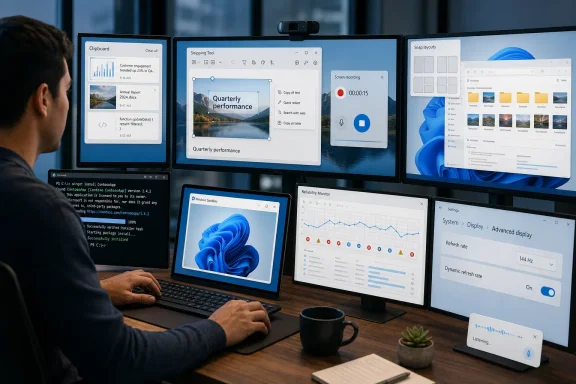 Overview: Why Small Windows 11 Features Matter More Than Big Ones
Most users develop an operating-system routine early. They learn how to open programs, copy and paste, take a screenshot, download an installer, and close a frozen app. Once those habits are established, they can persist for years—even when Windows adds a faster or safer way to complete the same job.
That is why keyboard shortcuts and low-profile utilities can feel so important after discovery. A feature that saves ten seconds does not sound dramatic in isolation. If it saves those seconds twenty times a day, however, it becomes part of a smoother working environment.
The strongest entries in this list share several traits:
- They solve a frequent, ordinary problem.
- They work across many different apps.
- They require little setup once enabled.
- They replace repetitive mouse movement or window switching.
- They avoid the need for a separate download in common scenarios.
There is also a broader lesson for Microsoft. The company has made meaningful improvements to built-in Windows tools, especially around screenshots, window management, package installation, and accessibility. Yet discoverability remains inconsistent. Features are often technically present but practically invisible.
1. Clipboard History Turns Copy-and-Paste Into a Workspace
The simplest standout is Clipboard history, opened with Windows key + V. Instead of preserving only the most recently copied item, Windows can retain a list of recent text, HTML content, and bitmap images for later reuse.
For anyone who works with links, support tickets, spreadsheet values, commands, citations, image fragments, or repeated text snippets, the benefit is immediate. A copied item is no longer lost just because something else was copied afterward.
Why It Changes Everyday Work
Traditional clipboard behavior is built around a narrow assumption: copy one thing, paste one thing. Modern work rarely operates that cleanly. A user may need to gather several URLs from a browser, copy two error messages from different windows, and insert both into a support request without returning to each original source.
Clipboard history turns this sequence into a collection process. Copy everything first, then paste the correct items in sequence.
Useful examples include:
- Collecting multiple links before composing an email.
- Reusing commands while troubleshooting a Windows issue.
- Pulling several values from a spreadsheet into a form.
- Capturing an error message before restarting an application.
- Keeping standard replies, account identifiers, or frequently used phrases available.
Pinned entries are particularly useful. They survive restarts, allowing the clipboard panel to become a lightweight repository for frequently reused content.
The Privacy Trade-Off
Clipboard history is productive, but it is not a password manager. Sensitive information copied to the clipboard can remain visible in history until removed, and cross-device clipboard synchronization introduces an additional privacy consideration.
The sensible approach is straightforward:
- Turn on Clipboard history with
Windows key + V. - Pin only non-sensitive, regularly reused content.
- Avoid copying credentials or recovery codes where possible.
- Clear individual entries or the full history after handling confidential data.
- Review cross-device sync before enabling it on shared or business-managed PCs.
For many users, this is the single best hidden Windows 11 feature because it improves almost every kind of knowledge work without demanding a new workflow.
2. Snipping Tool Has Become a Practical Capture Suite
The modern Snipping Tool is no longer merely a replacement for the old screenshot shortcut. It now covers still-image capture, annotation, text extraction through optical character recognition, screen recording, and lightweight sharing workflows.
The fastest entry point for screenshots remains Windows key + Shift + S. For recordings, Windows key + Shift + R opens the screen-recording selection workflow.
OCR Is the Feature Most People Miss
Text extraction is arguably the most useful addition. Users can capture text from an image, screenshot, scanned document, displayed dialog box, or inaccessible webpage element, then copy it without typing it manually.
That has clear practical uses:
- Extracting an error code from a screenshot.
- Copying text from an old scan or image-only PDF.
- Capturing a command shown in an online guide.
- Pulling a tracking number or serial number from an image.
- Redacting visible email addresses or phone numbers before sharing a screenshot.
The local nature of modern text extraction is also important. It reduces the need to upload screenshots to a web-based OCR service simply to retrieve a few words.
Screen Recording Without Another Utility
The built-in recorder is not a complete replacement for professional capture software. It lacks the advanced scene management, production controls, and deep audio-routing options available in dedicated tools. But for a quick software demonstration, bug report, training clip, or support request, it is often enough.
That matters because a simple recording is usually more useful than a long explanation. Showing a dialog box failing to open, a menu disappearing, or an application behaving inconsistently can speed up technical support dramatically.
A Note on Feature Availability
The Snipping Tool evolves through app updates, and capabilities can vary by Windows build, hardware class, and deployment channel. Features such as AI-assisted options or enhanced editing should not be assumed to appear on every Windows 11 PC at the same time.
Still, the central conclusion holds: before installing a screenshot utility, Windows 11 users should test the current Snipping Tool. It is considerably more capable than its modest name suggests.
3. Taskbar “End Task” Makes Frozen Apps Easier to Kill
A frozen application is one of the oldest PC frustrations. The traditional response is to open Task Manager, identify the correct process, and select End task. That works, but it adds several steps precisely when patience is already limited.
Windows 11 includes an optional End task command in the right-click menu for running taskbar applications. Once enabled, it gives users a quicker route to terminate an unresponsive program.
Where to Find It
On current Windows 11 releases, the setting is located under:
Settings > System > Advanced > End Task
Earlier releases may present the option under a developer-oriented settings area. The naming and placement have changed over time, which is part of the reason this feature remains underused.
Fast Does Not Mean Risk-Free
The command is useful, but it is deliberately forceful. Ending a task can discard unsaved work, interrupt a file operation, or cause data loss if an application was writing to a document or database.
It should be treated as an escalation path:
- Wait briefly to see whether the app recovers.
- Attempt a normal close.
- Save work elsewhere if the application is still responsive.
- Use End task only when the app has genuinely stopped responding.
For developers, testers, and multitaskers, the speed gain is substantial. For everyone else, it is a welcome quality-of-life option that makes Windows feel less obstructive when something goes wrong.
4. Windows Sandbox Provides a Disposable Test Environment
Windows Sandbox is one of the most valuable security features built into higher editions of Windows 11. It opens a clean, isolated Windows environment that is discarded when the sandbox closes.
That makes it useful for testing unfamiliar software, inspecting a questionable executable, trying a script, or evaluating a utility that does not need access to personal files.
A Better Fit Than a Full Virtual Machine—Sometimes
A traditional virtual machine remains the right choice for long-term test environments, repeatable labs, multiple operating systems, and complex configurations. It offers persistence and extensive customization.
Windows Sandbox takes a different approach. It is intended to be quick, disposable, and simple. There is no permanent guest installation to maintain, no saved environment to clean manually, and no need to dedicate dozens of gigabytes to a long-lived virtual disk.
Typical uses include:
- Trying an unfamiliar freeware installer.
- Opening a potentially risky attachment in a controlled setting.
- Testing a Registry-related utility before using it on the host.
- Checking whether a script behaves as expected.
- Demonstrating software in a fresh Windows environment.
Important Security Limits
Sandbox is not an excuse to run clearly malicious software. Isolation lowers risk; it does not eliminate it. Networking is enabled by default, which means a sandboxed program can potentially communicate with the network unless networking is disabled in its configuration.
Users should also avoid casually mapping host folders with write access into the sandbox. A read-only mapped folder is safer when transferring an installer or document for testing.
Edition and Hardware Requirements
Windows Sandbox is not available on standard Windows 11 Home installations. It is supported on editions such as Pro, Enterprise, and Education, subject to the device meeting virtualization requirements.
Users also need compatible processor virtualization support enabled in firmware, sufficient memory, disk space, and an appropriate Windows configuration. It is therefore powerful but not universal.
The key value is not that Sandbox replaces every virtual machine. It is that it offers a far lower-friction way to test something before trusting it on a primary PC.
5. WinGet Brings Package Management to Windows
The Windows Package Manager, accessed through the winget command, is among the most important Windows 11 tools for power users. It allows software discovery, installation, upgrading, removal, export, and import from a command-line interface.
At its simplest, the workflow is approachable:
winget search app-name
winget install app-name
winget upgrade
winget upgrade --all
This is especially useful after a clean Windows installation, a hardware upgrade, or a move to a new PC.
Why It Is Better Than Repeating Browser Downloads
The usual reinstall routine is inefficient: search the web, identify the official download page, dismiss promotional prompts, download an installer, approve it, and repeat. That method also creates opportunities to land on misleading download sites or bundled installer pages.
WinGet centralizes much of that process. It does not remove the need for judgment, but it reduces repetitive browsing and makes a setup more reproducible.
A stronger workflow includes:
- Use
winget searchto find the exact package. - Inspect the listed name, publisher, and package identifier.
- Prefer installation by identifier when names are ambiguous.
- Run
winget upgradefirst to preview updates. - Use
winget upgrade --allonly after understanding what will change. - Export a known-good application list before migrating to another PC.
The Risks of One-Command Updating
The convenience of winget upgrade --all should not be overstated. Some installed apps may not be recognized, some packages may be pinned, and some updates may require user interaction or elevation. A bulk upgrade can also update applications at an inconvenient time.
There is a larger operational concern: Windows software is not as standardized as packages in a tightly controlled Linux repository. Installers have different behaviors, update policies, and licensing requirements.
That does not reduce WinGet’s value. It simply means the best approach is informed automation rather than blind automation.
6. Snap Layouts Make Large Displays More Useful
Windows 11’s Snap Layouts are designed for the reality of modern multitasking. Larger monitors, ultrawide displays, high-resolution laptops, and multi-window workflows all benefit from a structured way to place applications.
Pressing Windows key + Z opens available layout options. Users can also hover over an app’s maximize button or use the familiar Windows key + Arrow keys combinations to snap windows into position.
More Than Side-by-Side Windows
Many users still drag windows manually to screen edges. That remains valid, but Snap Layouts offer more deliberate arrangements for three or four applications.
A common productivity setup might include:
- A browser on the left.
- A document editor on the right.
- A messaging or reference app in a smaller section.
- A terminal or spreadsheet occupying the remaining space.
The advantage is not aesthetic. It is cognitive. When windows stay in predictable places, users spend less time searching, resizing, and restoring context.
Snap Groups Are the Underrated Companion
Windows 11 can preserve snapped app arrangements as Snap Groups in task switching. That makes it easier to return to a project layout after temporarily opening another program.
There are limits. Not every application behaves perfectly, and complex multi-monitor setups can still produce odd results after docking or reconnecting displays. Even so, Snap Layouts remain one of Windows 11’s most useful core multitasking features.
7. Moving Windows Between Monitors Requires One Shortcut
For anyone using two or more displays, Windows key + Shift + Left Arrow and Windows key + Shift + Right Arrow are essential shortcuts.
They move the active window directly to the adjacent monitor. No dragging. No hunting for a title bar. No wrestling a window through a narrow gap between screens.
Why This Matters on Real Desks
Dragging a window is not difficult, but it becomes tedious when repeated throughout the day. It is also less reliable when displays use different resolutions, scaling levels, orientations, or physical positions.
This shortcut is especially useful when:
- Moving a video call onto a secondary display.
- Relocating a full-screen application after reconnecting a dock.
- Shifting a browser away from a presentation display.
- Managing windows across a laptop screen and ultrawide monitor.
- Recovering a window that opened on the wrong display.
It is a tiny feature with no learning curve beyond the shortcut itself. Once memorized, it becomes difficult to abandon.
8. Voice Typing Is Faster Than Many Users Expect
Pressing Windows key + H launches Voice typing in a supported text field. The feature can dictate text into many applications and includes options such as automatic punctuation and profanity filtering.
Voice typing is useful for accessibility, but its value extends well beyond accessibility. It can be an efficient way to draft a long email, capture rough notes, write a first-pass document, or enter text while hands are occupied.
Voice Typing Versus Voice Access
These tools serve different purposes.
- Voice typing converts speech into text and generally relies on online speech recognition.
- Voice access is a broader Windows accessibility feature designed to control the PC and author text by voice, with modern on-device recognition capabilities.
The distinction is important because users may expect Windows key + H to control application windows or menus. Its primary purpose is dictation.
Accuracy, Privacy, and Editing
Speech recognition is much better than it was in older versions of Windows, but it is not infallible. Background noise, microphone quality, accents, names, technical terminology, and punctuation can all affect results.
Voice typing also involves a privacy consideration because standard dictation uses online speech recognition. Users handling sensitive material should understand their organization’s policies and Windows privacy settings before using cloud-supported transcription.
The practical recommendation is to use voice typing for drafting, then edit. It is often faster to correct a few mistakes than to type a long first draft from scratch.
9. Reliability Monitor Makes Windows Troubleshooting Less Opaque
When Windows becomes unreliable, many users jump immediately to reinstalling the operating system. That can be necessary in extreme cases, but it is often premature.
Reliability Monitor, launched with perfmon /rel, presents a timeline of application failures, Windows failures, driver issues, installation events, and update-related problems. It is far more approachable than Event Viewer for identifying when a problem began.
The Value of a Timeline
Troubleshooting usually starts with a question: What changed? Reliability Monitor helps narrow the answer.
For example, a user may see that a particular application began crashing on the same day as:
- A driver update.
- A Windows cumulative update.
- The installation of a new utility.
- A failed software update.
- A recurring hardware-related error.
That does not prove causation. A timeline is evidence, not a verdict. But it can transform a vague complaint—“my PC has been unstable lately”—into a focused investigation.
How to Use It Responsibly
A useful troubleshooting sequence is:
- Open
perfmon /rel. - Find the first date on which failures began appearing.
- Review critical events and warnings around that date.
- Note application names, error types, and update events.
- Check whether the issue repeats after a specific action.
- Use that evidence before uninstalling software, rolling back a driver, or repairing Windows.
Reliability Monitor should complement, not replace, Task Manager, Event Viewer, Windows Update history, driver diagnostics, and hardware testing. Its strength is clarity, not exhaustive technical detail.
10. Advanced Display Settings May Reveal Untapped Smoothness
A high-refresh-rate monitor running at 60Hz is a surprisingly common missed configuration. Windows 11 users can inspect this under:
Settings > System > Display > Advanced display
The Choose a refresh rate setting shows the modes available for the selected display.
Why Refresh Rate Is Noticeable
Higher refresh rates can make cursor movement, window dragging, scrolling, and supported games appear smoother. A 120Hz, 144Hz, or higher-capability display can feel substantially different from a 60Hz panel when Windows, the graphics hardware, cable, and monitor configuration all support the desired mode.
However, “higher is always better” is too simple. Higher refresh rates can use more power, which matters on laptops. They can also be limited by display cables, ports, graphics hardware, resolution, docking stations, and monitor settings.
A Sensible Configuration Check
Before changing anything, users should:
- Confirm the correct monitor is selected in Display settings.
- Ensure the physical cable and port support the intended resolution and refresh rate.
- Check the monitor’s own on-screen settings.
- Install current graphics drivers from the PC or GPU manufacturer where appropriate.
- Select the highest stable mode that makes sense for the workload.
- Consider battery life when using a high-refresh laptop display.
Dynamic Refresh Rate can help compatible laptops balance responsiveness and power efficiency. But the basic audit is still worthwhile: users should verify that the display is operating at the mode they actually paid for.
The Bigger Problem Is Discoverability
These ten features expose a recurring Windows 11 weakness: Microsoft often improves a utility without making its evolution obvious. Users may remember Snipping Tool as a limited screenshot app, view the clipboard as temporary by definition, or assume Windows needs third-party software for package management and safe testing.
Some hidden features are also hidden for understandable reasons. Windows Sandbox carries security implications. End Task can cause data loss. WinGet is powerful enough to deserve care. Voice features require a clear understanding of privacy and connectivity.
But Windows could still do more to surface tools in context. If a user copies multiple items in rapid succession, a gentle Clipboard history prompt makes sense. If an app repeatedly hangs, the End Task option could be explained clearly. If a fresh Windows installation begins accumulating browser downloads, WinGet could be introduced without forcing users into an unfamiliar command-line experience.
The most meaningful Windows 11 improvements are often not new destinations. They are shortcuts to the actions people already perform every day.
Conclusion
The appeal of these Windows 11 features is not novelty for its own sake. It is the removal of tiny obstacles that accumulate across a workday: the lost copied item, the manually resized window, the unknown app installer, the unexplained crash, the monitor operating below its capabilities.
Clipboard history, Snipping Tool OCR, Taskbar End Task, Windows Sandbox, WinGet, Snap Layouts, monitor shortcuts, Voice typing, Reliability Monitor, and advanced refresh-rate controls each address a different kind of friction. Some are best suited to enthusiasts and IT professionals; others should be standard knowledge for every Windows user.
The common thread is simple. A Windows 11 PC becomes more productive not only through faster hardware or larger feature updates, but through better command of the tools already built into the operating system.
