
The new Microsoft Support page consolidates basic actions for repeated crashes: remove newly added hardware, boot into Safe Mode, inspect Device Manager, keep 10% to 15% free disk space, install Windows updates, and use System Restore or other recovery options if those steps fail. Dell’s own current Windows crash documentation independently matches the visible change: Windows 11 24H2 and later can show stop errors on black, while Windows 11 23H2 and older releases, along with Windows 10, retain the familiar blue presentation.
What the guidance does not do is introduce a new repair utility or a universal fix for blue and black screens. It is a terminology and triage update that catches Microsoft’s support documentation up with the redesigned crash screen now used by current Windows 11 releases.
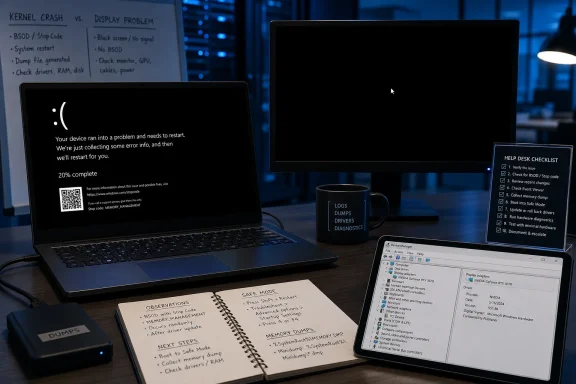 Windows 11 24H2 changed the color, not the meaning of a crash
Microsoft’s support page treats “stop code,” “bug check,” “kernel error,” “Blue Screen error,” “Black Screen error,” and BSOD as labels for the same class of failure: Windows has encountered a condition serious enough that it must stop and restart. The visible color is therefore no longer a reliable shorthand for whether the machine has crashed.
That change arrived as part of Microsoft’s broader Windows resiliency work. In June 2025, the company said Windows 11 version 24H2 had reduced the time spent collecting crash information during many unexpected restarts to roughly two seconds, while a simplified black-screen interface would preserve the technical information needed for diagnosis. The Associated Press separately reported the removal of the traditional frowning face and the addition of a restart-progress indicator when Microsoft announced the redesign.
For users, the visual overhaul is superficial. For IT teams, it creates a real classification hazard. A help-desk ticket saying “the PC went black” can now describe two very different events:
- A black screen displaying a stop code or a “what failed” module is a kernel crash and should be investigated as one.
- A black screen with no stop code, perhaps with a cursor, is a display, shell, sign-in, or boot-path problem and needs a separate diagnostic process.
Microsoft states this distinction directly, but it is easy to miss because the older phrase “Blue Screen of Death” remains deeply embedded in user vocabulary. In practice, administrators should update ticket templates, runbooks, and remote-support scripts to ask whether an error code, percentage counter, or named driver appeared on the screen before treating the incident as a graphics outage.
The basic checklist is safe, but it is not a diagnosis
Microsoft’s consumer-facing advice is deliberately conservative. Removing a recently installed peripheral or expansion device can quickly expose a hardware compatibility issue. Safe Mode limits startup components and third-party drivers, while Device Manager can identify a device Windows already recognizes as unhealthy. Ensuring available storage also matters because Windows needs working disk space for paging and crash-dump operations.
Those are good first moves, but the page’s most important qualification is “frequently due to the same stop code error.” A single stop error followed by stable operation may not justify a repair campaign. A recurring code, especially one that appears after the same action — connecting a dock, waking from sleep, starting a game, opening a VPN, or applying an update — is evidence worth preserving.
The weak point in Microsoft’s basic guide is that it tells users to act on the stop code without giving them much help capturing it. The company’s own resiliency announcement says the improved crash experience can complete in around two seconds for many devices. That is fast enough for the code and module name at the bottom of the screen to disappear before an end user can read them, particularly during a remote call or an unattended reboot.
The practical response is to record the crash evidence before making broad changes. A photo of the screen is useful, but the exact code, any named module, the time of failure, and what changed immediately beforehand are more valuable than a generic report of a “black screen.” Reinstalling Windows or repeatedly updating random drivers before preserving that information can erase the sequence that points to the cause.
Microsoft’s own data points first to third-party drivers
Microsoft’s advanced stop-code guidance gives the basic checklist more context. Its crash-root-cause analysis attributes 70% of stop errors to third-party driver code, 10% to hardware problems, 5% to Microsoft code, and 15% to cases where memory corruption prevents reliable analysis.
Those percentages are not a diagnosis for any individual machine, but they explain why the basic guide begins with new hardware and Device Manager. A newly connected USB device, storage controller, GPU driver, security product, network filter, virtualization component, anti-cheat driver, or corporate endpoint agent can operate in the kernel and trigger a system-level failure. A normal application can appear to be the trigger while merely exposing a fault in one of those lower-level components.
Microsoft also cautions in its advanced documentation that a user-mode process such as Notepad or Slack is rarely the actual root cause of a stop error. That is an important corrective to the usual support instinct of blaming whichever application happened to be open when the machine fell over. The application may be repeatable evidence; it is not necessarily the defective component.
Device Manager’s yellow exclamation mark is useful when present, but its absence does not clear installed drivers. Many problematic drivers load normally, report no visible device fault, and fail only under particular I/O, power-management, graphics, storage, network, or memory-pressure conditions. For a recurring crash that names a driver, Microsoft’s advanced guidance points toward the driver or hardware vendor, rather than assuming Windows Update can resolve it.
Repeated stop codes need a narrower response than “update everything”
For a repeatable crash, the right sequence is to isolate the change rather than stack more changes on top of it. Microsoft’s basic guide says to update, disable, or uninstall a suspect device in Device Manager; its advanced documentation additionally advises checking system logs, updating BIOS and firmware where appropriate, running relevant hardware and memory tests, and rolling back recent changes when the timeline supports it.
A disciplined first-pass workflow looks like this:
- Record the exact stop code, any module or driver name, the date and time, and the action that preceded the restart.
- Disconnect or remove hardware added shortly before the failures began, then test for stability before reconnecting it.
- Use Safe Mode when normal startup is unreliable, because it can establish whether third-party drivers and startup software are involved.
- If a particular driver or device is implicated, prefer a vendor-supported update, rollback, disablement, or removal over indiscriminate driver-updater software.
- Check whether the crash began directly after a cumulative update, firmware change, graphics-driver package, security-agent deployment, or application installation.
For administrators, Windows memory dumps are the dividing line between a reasonable first response and a real investigation. Microsoft’s advanced documentation says automatic, kernel, complete, and active memory dumps are generally stored as
MEMORY.DMPunder the Windows directory, while small dumps are stored in the
Minidumpfolder. The company recommends configuring crash-dump collection and analyzing the resulting file with WinDbg and Microsoft symbols when the fault persists.
That is also why Microsoft’s free-space recommendation deserves more attention than it usually gets. A PC operating close to full storage may be able to boot and run applications while being poorly positioned to page memory, service updates, or write useful crash evidence. Clearing capacity before a repeat test can improve both stability and post-crash visibility.
The support article leaves the hard work to the advanced guide
Microsoft’s new support page is appropriately cautious about sending ordinary users into kernel debugging. It recommends recovery options after basic remediation fails and links IT professionals and advanced users to the more detailed Microsoft Learn material. But the split means the page offers little instruction on identifying a driver that has no Device Manager warning, interpreting a dump file, or distinguishing a faulty driver from a driver merely present in a corrupted memory snapshot.
It also does not spell out a practical escalation threshold. The record supports one: one isolated restart can be monitored; a recurring stop code should be treated as an incident with evidence to preserve. Repeatedly restarting, updating, and hoping may restore a machine temporarily, but it does not establish whether the underlying problem is a driver, device, firmware interaction, damaged system state, or a known Windows issue.
The useful change here is not that Windows crashes have become easier to fix. They have become easier to misclassify because the current crash screen is black. On Windows 11 version 24H2 and later, the first task after a “black screen” report is now to determine whether Windows displayed a stop code. If it did, capture the code, preserve the dump, and investigate the crash path — not the display.