
sysdm.cpl still opens one of Windows’ most useful legacy control surfaces, but a new Microsoft document undercuts the central claim in How-To Geek’s August 17 report: Windows Settings now has a native point-in-time restore configuration page. The catch is that it is not a wholesale replacement for the older System Protection tab, and Microsoft’s own documentation labels the newer recovery workflow as preview.
That distinction matters for anyone using Windows 11 to prepare for driver changes, testing, update remediation, or other risky maintenance. sysdm.cpl remains the quickest way to reach the traditional System Properties dialog and its System Protection, Advanced, Computer Name, and Remote tabs. But it is no longer accurate to say Settings simply has no native recovery configuration at all.
Microsoft Learn now documents Settings > System > Recovery > Point-in-time restore, where users can enable the feature, set restore-point frequency and retention, and adjust storage through a slider. The documentation was updated in July 2026, a month before How-To Geek published its shortcut guide. It also describes a different recovery product with different behavior from the System Restore controls exposed through sysdm.cpl.
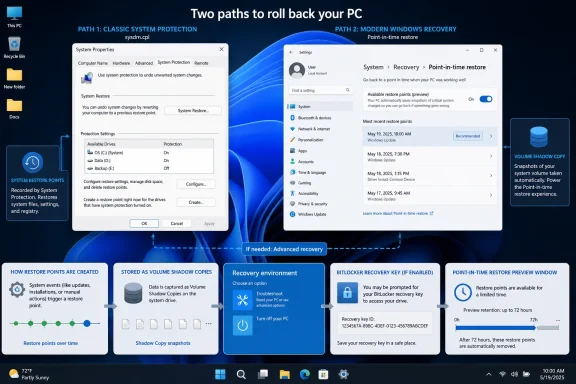 Two recovery systems now share the same Windows PC
The classic System Protection tab opened by sysdm.cpl manages System Restore. It uses restore points to roll back monitored system files, applications, drivers, and registry state following a bad change. Users can turn protection on per volume, set the maximum disk consumption, and create a named restore point immediately before an installation or configuration experiment.
Microsoft’s newer point-in-time restore feature also uses the Volume Shadow Copy Service, but its stated design is broader. According to Microsoft Learn, its restore points capture the full system state, including local files, apps, and settings, and its controls live inside Settings rather than Control Panel. Restoring is currently started through the Windows Recovery Environment, not from a normal Windows desktop session.
That makes the two features related but not interchangeable. System Restore is the familiar recovery mechanism with the on-demand “Create” button that experienced users expect. Point-in-time restore is an automatic, time-limited rollback system intended to recover a recent full device state after trouble, including scenarios where Windows may not be healthy enough to operate normally.
How-To Geek is right that opening System Protection from the familiar Settings route can still hand users off to the old dialog. Microsoft’s support pages and the Win32 documentation continue to expose System Protection as a legacy system component. But the article overlooks that Windows 11 now has a separate Settings-native recovery page with many of the same operational controls: enablement, retention, frequency, and storage allocation.
sysdm.cpl is still useful, but its tabs are not one feature
The practical value of sysdm.cpl is that it gathers several durable Windows administration pages in one place. Microsoft’s own Win32 documentation still lists distinct launch targets for System Protection, Performance, Remote access, Computer Name, and Advanced system properties. The .cpl command remains a convenient front door to the larger System Properties dialog.
For a technician or power user, the System Protection tab is usually the reason to remember it. Before installing an unsigned utility, swapping a storage driver, modifying registry-dependent software, or making system-level configuration changes, a manually named restore point remains an understandable and immediate safety measure.
The Advanced tab is also more than nostalgia. It leads to Performance Options and virtual-memory configuration, including page-file management that Settings does not present as a first-class control. The Remote tab carries controls for Remote Assistance and Remote Desktop access. The Computer Name tab still handles identity and membership tasks that matter on managed PCs.
However, it is too broad to say that Settings has no meaningful equivalent for every function represented there. Microsoft Support directs users to Settings > Accounts > Access work or school to connect devices to an organization and join Microsoft Entra ID. That is a modern management path, though it is not the same thing as joining a traditional on-premises Active Directory domain through System Properties.
This is the real reason the old dialog survives: Windows is supporting parallel management models rather than merely failing to redraw old pages. A PC enrolled in Intune and Microsoft Entra ID is administered differently from one joined to a local Active Directory domain, and the legacy tabs remain relevant to the latter.
The newer Settings page has strict limits
Point-in-time restore should not be enabled casually under the assumption that it behaves exactly like System Restore. Microsoft says the feature restores the device to an earlier full state, which can include local files, applications, passwords, certificates, and keys. Changes made after the chosen restore point can be lost.
That is materially different from the conventional understanding of System Restore. Microsoft’s documentation for System Restore describes it as rolling back system state while ordinarily leaving personal files and documents alone. It is a recovery mechanism for a broken application, driver, registry setting, or update—not a replacement for a backup.
The new feature also has a much tighter operational window. Microsoft documents a maximum retention period of 72 hours for each point-in-time restore point, with earlier removal possible when disk space runs low. System Restore’s retention is governed chiefly by its configured storage allocation and cleanup behavior, so older points can remain available longer if space permits.
There are other restrictions that IT administrators should weigh before treating point-in-time restore as an incident-response answer:
- Microsoft currently says restoration is initiated locally from Windows Recovery Environment, rather than from the Settings page or a remote administration console.
- BitLocker-protected systems require the recovery key before the local restore process can continue.
- A rollback can revert security updates and policies, so a restored device requires validation and, where necessary, re-patching before it returns to normal use.
- Restore points can be removed or fail to capture under storage pressure, heavy disk activity, Volume Shadow Copy Service problems, or file-system errors.
Microsoft says the newer workflow offers more robust remote management than System Restore, but its public documentation does not spell out a specific Windows 11 consumer build in which every part of that management model is available. That omission matters. Administrators should confirm the feature’s presence and policy behavior in their own release channel before building a process around it.
The July security change also complicates old restore points
Microsoft has added another reason not to rely blindly on restore points created months ago. Its System Restore documentation says that after the July 2026 Windows security update, Windows 11 versions 24H2, 25H2, and 26H1, along with Windows Server 2025, impose security checks on restore points when Virtualization-Based Security is enabled.
On those systems, restore points that do not meet the applicable VBS code-integrity policy requirement—or cannot be compared and are older than 60 days—may not be usable unless VBS is disabled. Microsoft frames the behavior as a security measure, but the practical consequence is straightforward: a restore point is not automatically a guaranteed rollback path.
That is more important than the cosmetic age of the System Properties dialog. A user can have System Protection enabled, manually create a restore point, and still need to verify the operating system’s current security posture and recovery options when an actual failure occurs.
For managed fleets, the sensible approach is to separate recovery layers. System Restore or point-in-time restore can help undo a recent software failure. They do not replace tested backups, BitLocker recovery-key escrow, update management, endpoint recovery procedures, or a documented reinstallation path.
Microsoft has promised a migration, not a deadline
How-To Geek also cited Microsoft Partner Director of Design March Rogers, who said in April that Microsoft is working through migration of old Control Panel controls into modern Settings while trying not to break the network devices, printer drivers, and legacy configurations attached to them. TechSpot and several other outlets reported the same public comments.
The statement confirms direction, not a retirement schedule. Microsoft has not announced that sysdm.cpl, System Properties, or System Protection will disappear in a named Windows 11 release. Nor has it announced a native Settings replacement for every setting on the Advanced, Computer Name, and Remote tabs.
For now, the shortcut remains worth knowing:
Win + R
sysdm.cpl
But the useful conclusion is narrower than “Settings refuses to do this.” Windows 11 now has a modern, preview-era recovery path in Settings, while sysdm.cpl remains the established tool for manual System Restore and several legacy administration tasks. Anyone preparing for a risky change should decide which rollback model they need before the change—not discover the difference after Windows stops booting.
