
Windows 11 does not need a ritual purge to remain healthy, but an annual maintenance pass can reclaim storage, shorten startup time, remove abandoned software, and catch configuration drift before it becomes a troubleshooting job. The key is separating useful housekeeping from the familiar but risky urge to “optimize” Windows by deleting everything that looks unfamiliar.
That distinction matters in XDA Developers’ new annual-cleanup guide, which recommends uninstalling unused apps, reviewing startup tasks, applying updates, scanning for malware, and clearing temporary files. Those are sensible maintenance categories. But the guide’s inclusion of broad debloat tooling also highlights where a straightforward cleanup can turn into an avoidable support incident—especially on work PCs or machines that need reliable Windows Update behavior.
For most Windows users, the biggest payoff is not a mystical performance boost. It is a smaller, more understandable system: fewer background utilities, more free SSD capacity, fewer old installers and browser caches, and less uncertainty about what is running at sign-in.
Unused applications are the clearest cleanup target. Trialware, old games, vendor utilities, duplicate PDF tools, development runtimes, launchers, and one-off utilities all consume disk space and can add services, update agents, shell extensions, or scheduled tasks that remain active long after the app stopped being useful.
Windows 11’s Settings app remains the safest first stop: Settings > Apps > Installed apps lets users sort by size or install date and uninstall software through its supported removal path. For a system with years of accumulated applications, XDA Developers recommends BCUninstaller, an open-source bulk removal tool that can detect conventional installed programs, Microsoft Store apps, Chocolatey packages, some portable software, and leftovers from removed applications.
BCUninstaller’s strength is also its risk: it makes it easy to act on many entries at once. On a personal PC, that can save time after carefully reviewing each selection. On an enterprise device, administrators should treat it like any other software-removal mechanism: validate the target list, preserve any line-of-business dependencies, and avoid bulk removal without a recovery path.
The practical rule is simple: uninstall software because it is unused or unwanted, not because its name looks obscure. Hardware control utilities, audio packages, VPN clients, backup agents, printer software, and OEM power-management components can all look expendable until a feature stops working.
Before beginning, make a restore point and ensure important files are backed up. A cleanup that removes the wrong application is usually recoverable; a cleanup that coincides with an untested driver or policy change can take longer to unwind.
Open Task Manager with Ctrl+Shift+Esc, select Startup apps, and review what launches at sign-in. Messaging clients, game launchers, cloud-sync utilities, RGB controllers, Adobe helpers, updaters, and OEM companion apps are common candidates for review. Disabling an entry does not uninstall it; it simply stops Windows from launching it automatically.
That reversibility is important. A user can disable Teams, Discord, Steam, Spotify, or a peripheral-management utility, restart, and decide whether the lost background behavior is worth the faster sign-in. If it is not, re-enable the item.
XDA Developers also points readers toward Task Scheduler, which is a reasonable advanced step but not a broad cleanup destination. Windows, Microsoft 365, browsers, security software, OEM utilities, and applications all use scheduled tasks for maintenance, updates, licensing, and telemetry. Deleting tasks solely because they trigger at logon is not a performance strategy.
For experienced users, Task Scheduler is best used as an investigation tool: identify unfamiliar tasks that wake a system, launch a persistent application, or point to a missing executable. Record the task name and publisher, disable rather than delete where possible, and test after a reboot. For everyone else, the Startup apps list delivers most of the value with much less chance of collateral damage.
Windows 11 already includes the right basic tools. Under Settings > System > Storage, the Temporary files category identifies content such as update cleanup data, thumbnails, Recycle Bin contents, and temporary application files. Storage Sense can automate selected cleanup operations over time.
The one category that deserves special attention is Downloads. Selecting it in Temporary files can remove the entire contents of the Downloads folder, not merely redundant data. XDA Developers correctly advises manually reviewing that folder first—old ISO files, installers, ZIP archives, videos, and duplicate downloads can consume far more space than Windows caches.
Browser cleanup should be equally selective. Clearing cached images and files can resolve odd page-loading behavior and release space, but deleting cookies, saved sessions, or passwords can create unnecessary disruption. A browser cache is not inherently junk; it exists to speed up repeat visits. Delete it when space is tight or troubleshooting warrants it, not as a reflex.
The same caution applies to Windows.old after a feature update. Microsoft allows its removal to free space, but doing so removes the local rollback path to the previous Windows version. That may be entirely reasonable after a stable upgrade, but it should be a conscious decision rather than an automatic checkbox.
That does not mean every optional driver should be installed immediately. For graphics drivers, Intel, AMD, and Nvidia provide direct update channels, while laptop and desktop makers typically validate BIOS, chipset, audio, networking, and power-management updates for their specific models. Manufacturer support pages remain the preferred route for firmware.
Avoid generic third-party “driver updater” programs. They often blur the line between a recommended update and an unnecessary replacement, and they are poorly suited to machines with vendor-customized drivers. If hardware is stable and Windows Update reports no issue, an annual driver sweep should be deliberate rather than aggressive.
XDA Developers recommends Malwarebytes for an occasional scan, and Malwarebytes confirms that its free Windows offering can scan a system but reserves always-on real-time protection for paid plans. It is a legitimate second-opinion option, particularly after a suspicious download or browser incident.
But Windows Security should be the first stop for most users. Microsoft Defender Antivirus can run a Full scan, and Microsoft Defender Offline restarts into the recovery environment to make it harder for persistent malware to hide. A full scan is a sensible part of yearly maintenance; an offline scan is more appropriate when there is a credible reason to suspect compromise.
That warning should set the boundary. Removing unwanted apps and disabling nonessential startup entries are ordinary maintenance. Changing telemetry settings, disabling services, altering update policies, and removing integrated Windows components are system-configuration decisions that can affect future feature updates, supportability, security tooling, and application compatibility.
For a technically confident home enthusiast with a current backup and a willingness to troubleshoot, a carefully reviewed script can be useful. For a family PC, a business endpoint, a school machine, or anything managed by IT, the safer approach is to leave debloating alone unless the exact change is understood, documented, and reversible.
The annual routine that matters most is therefore not a one-click purge. It is a controlled review: remove software you no longer use, reduce startup clutter, retain sufficient free storage, verify updates, and run a security scan. If Windows 11 remains slow after that, the likely next suspect is not leftover thumbnails—it is memory pressure, aging storage, thermal throttling, a failing drive, unwanted background software, or hardware that has simply outgrown the workload.
For most Windows users, the biggest payoff is not a mystical performance boost. It is a smaller, more understandable system: fewer background utilities, more free SSD capacity, fewer old installers and browser caches, and less uncertainty about what is running at sign-in.
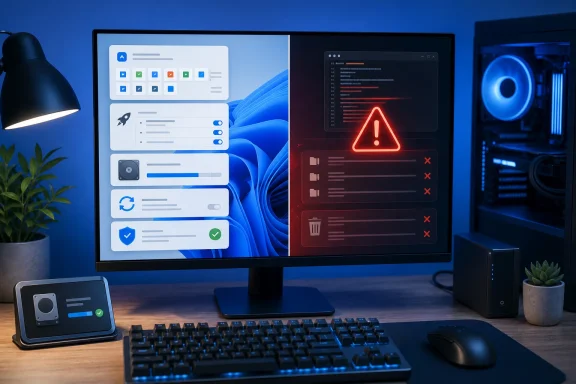 Remove software before removing system components
Unused applications are the clearest cleanup target. Trialware, old games, vendor utilities, duplicate PDF tools, development runtimes, launchers, and one-off utilities all consume disk space and can add services, update agents, shell extensions, or scheduled tasks that remain active long after the app stopped being useful.Windows 11’s Settings app remains the safest first stop: Settings > Apps > Installed apps lets users sort by size or install date and uninstall software through its supported removal path. For a system with years of accumulated applications, XDA Developers recommends BCUninstaller, an open-source bulk removal tool that can detect conventional installed programs, Microsoft Store apps, Chocolatey packages, some portable software, and leftovers from removed applications.
BCUninstaller’s strength is also its risk: it makes it easy to act on many entries at once. On a personal PC, that can save time after carefully reviewing each selection. On an enterprise device, administrators should treat it like any other software-removal mechanism: validate the target list, preserve any line-of-business dependencies, and avoid bulk removal without a recovery path.
The practical rule is simple: uninstall software because it is unused or unwanted, not because its name looks obscure. Hardware control utilities, audio packages, VPN clients, backup agents, printer software, and OEM power-management components can all look expendable until a feature stops working.
Before beginning, make a restore point and ensure important files are backed up. A cleanup that removes the wrong application is usually recoverable; a cleanup that coincides with an untested driver or policy change can take longer to unwind.
Startup tasks are where “sluggish” often begins
The most immediately visible improvement from an annual checkup often comes from startup management. Microsoft’s own guidance notes that Task Manager shows both enabled startup apps and their estimated startup impact, giving users a quick way to identify the most obvious boot-time offenders.Open Task Manager with Ctrl+Shift+Esc, select Startup apps, and review what launches at sign-in. Messaging clients, game launchers, cloud-sync utilities, RGB controllers, Adobe helpers, updaters, and OEM companion apps are common candidates for review. Disabling an entry does not uninstall it; it simply stops Windows from launching it automatically.
That reversibility is important. A user can disable Teams, Discord, Steam, Spotify, or a peripheral-management utility, restart, and decide whether the lost background behavior is worth the faster sign-in. If it is not, re-enable the item.
XDA Developers also points readers toward Task Scheduler, which is a reasonable advanced step but not a broad cleanup destination. Windows, Microsoft 365, browsers, security software, OEM utilities, and applications all use scheduled tasks for maintenance, updates, licensing, and telemetry. Deleting tasks solely because they trigger at logon is not a performance strategy.
For experienced users, Task Scheduler is best used as an investigation tool: identify unfamiliar tasks that wake a system, launch a persistent application, or point to a missing executable. Record the task name and publisher, disable rather than delete where possible, and test after a reboot. For everyone else, the Startup apps list delivers most of the value with much less chance of collateral damage.
Storage cleanup is valuable, but it is not a tune-up cure
Temporary-file cleanup has a concrete purpose: it returns disk capacity to the system. Microsoft says low free space can affect performance and interfere with Windows updates, particularly on smaller SSDs. It does not follow that deleting caches on a drive with ample free capacity will transform a slow PC into a fast one.Windows 11 already includes the right basic tools. Under Settings > System > Storage, the Temporary files category identifies content such as update cleanup data, thumbnails, Recycle Bin contents, and temporary application files. Storage Sense can automate selected cleanup operations over time.
The one category that deserves special attention is Downloads. Selecting it in Temporary files can remove the entire contents of the Downloads folder, not merely redundant data. XDA Developers correctly advises manually reviewing that folder first—old ISO files, installers, ZIP archives, videos, and duplicate downloads can consume far more space than Windows caches.
Browser cleanup should be equally selective. Clearing cached images and files can resolve odd page-loading behavior and release space, but deleting cookies, saved sessions, or passwords can create unnecessary disruption. A browser cache is not inherently junk; it exists to speed up repeat visits. Delete it when space is tight or troubleshooting warrants it, not as a reflex.
The same caution applies to Windows.old after a feature update. Microsoft allows its removal to free space, but doing so removes the local rollback path to the previous Windows version. That may be entirely reasonable after a stable upgrade, but it should be a conscious decision rather than an automatic checkbox.
Updates and malware checks belong in the same maintenance window
A yearly cleanup is also a useful moment to verify that the PC is receiving Windows, application, and firmware updates normally. Windows Update handles the bulk of routine servicing, while Advanced options > Optional updates may expose driver packages that are not automatically deployed.That does not mean every optional driver should be installed immediately. For graphics drivers, Intel, AMD, and Nvidia provide direct update channels, while laptop and desktop makers typically validate BIOS, chipset, audio, networking, and power-management updates for their specific models. Manufacturer support pages remain the preferred route for firmware.
Avoid generic third-party “driver updater” programs. They often blur the line between a recommended update and an unnecessary replacement, and they are poorly suited to machines with vendor-customized drivers. If hardware is stable and Windows Update reports no issue, an annual driver sweep should be deliberate rather than aggressive.
XDA Developers recommends Malwarebytes for an occasional scan, and Malwarebytes confirms that its free Windows offering can scan a system but reserves always-on real-time protection for paid plans. It is a legitimate second-opinion option, particularly after a suspicious download or browser incident.
But Windows Security should be the first stop for most users. Microsoft Defender Antivirus can run a Full scan, and Microsoft Defender Offline restarts into the recovery environment to make it harder for persistent malware to hide. A full scan is a sensible part of yearly maintenance; an offline scan is more appropriate when there is a credible reason to suspect compromise.
Debloat scripts change the job from cleanup to configuration management
The most contentious part of XDA Developers’ checklist is its recommendation to revisit a Windows debloat script, specifically Chris Titus Tech’s Windows Utility. The tool is actively maintained, open source, and capable of managing Windows settings, privacy-related tweaks, application installations, and update behavior. Its own documentation warns that disabling Windows Update leaves a system without security patches and carries significant security risk.That warning should set the boundary. Removing unwanted apps and disabling nonessential startup entries are ordinary maintenance. Changing telemetry settings, disabling services, altering update policies, and removing integrated Windows components are system-configuration decisions that can affect future feature updates, supportability, security tooling, and application compatibility.
For a technically confident home enthusiast with a current backup and a willingness to troubleshoot, a carefully reviewed script can be useful. For a family PC, a business endpoint, a school machine, or anything managed by IT, the safer approach is to leave debloating alone unless the exact change is understood, documented, and reversible.
The annual routine that matters most is therefore not a one-click purge. It is a controlled review: remove software you no longer use, reduce startup clutter, retain sufficient free storage, verify updates, and run a security scan. If Windows 11 remains slow after that, the likely next suspect is not leftover thumbnails—it is memory pressure, aging storage, thermal throttling, a failing drive, unwanted background software, or hardware that has simply outgrown the workload.
References
- Primary source: XDA
Published: 2026-08-01T13:30:10+00:00
Loading…
www.xda-developers.com - Related coverage: support.microsoft.com
Loading…
support.microsoft.com - Related coverage: support.microsoft.com
Loading…
support.microsoft.com - Related coverage: techcommunity.microsoft.com
Loading…
techcommunity.microsoft.com - Related coverage: learn.microsoft.com
Loading…
learn.microsoft.com