
Speaking on the Windows Central Podcast, Ash said the familiar Control Panel problem is not simply a matter of designers recreating pages in Settings. Drivers, customer workflows, and old dependencies can rely on legacy functionality, he said, so Microsoft intends to deprecate individual Control Panel locations only after their Settings replacements can carry that functionality forward. He also said Microsoft is evaluating how to approach tools including Registry Editor and is building out WinUI 3 and related frameworks to make more migrations practical.
The important detail is what Microsoft did not announce. There is no commitment to remove Control Panel, no promised Registry Editor redesign, and no statement that a particular Windows 11 release—whether 26H2 or another future update—will eliminate a defined set of classic interfaces. Ash’s comments establish an internal direction: reduce the amount of legacy UI users encounter day to day while keeping it where a customer still needs it.
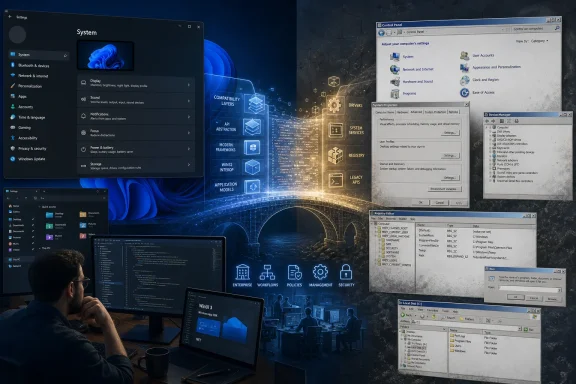 Control Panel is a compatibility surface, not merely an old menu
Windows 8 introduced PC Settings in October 2012, nearly 14 years before Ash’s interview, and the coexistence of Settings and Control Panel has become the most visible evidence of Windows’ unfinished visual transition. The usual complaint is valid: a user can begin in a Windows 11-style Settings page and, after following an advanced link, land in a dialog that appears largely unchanged from an earlier Windows generation.
Yet the long overlap is not explained by visual inertia alone. Microsoft’s own developer documentation still maintains canonical names for Control Panel items, which allow software and management policies to launch or hide particular areas programmatically. It also documents remappings for old names specifically to retain backward compatibility when a function moves, is renamed, or is consolidated. That is the architecture Ash is describing: a page can look obsolete, but its entry point, identifiers, behaviors, and dependencies may reach beyond the page itself.
For IT departments, this is more consequential than an inconsistent dark mode. Many Windows management scripts, deployment packages, help-desk runbooks, OEM utilities, and line-of-business installers were built around known Control Panel modules, executable names, file associations, or dialogs. A replacement has to cover both the user-facing task and the ways software reaches it. Recreating a “Devices” page in Settings is easy compared with proving it behaves correctly across old drivers, device configuration utilities, Group Policy environments, and enterprise support scenarios.
Ash’s formulation—that Microsoft will deprecate a legacy location when the Settings version has the necessary function—therefore reads as a deliberately narrow promise. It does not mean every Control Panel item will receive a one-for-one visual port. Some may be redirected, combined, retained for specialist scenarios, or continue as a fallback. Microsoft has used all of those approaches before.
WinUI 3 is part of the answer—and a limit on the pace
Ash told Windows Central that the work requires more than designing a new front end. Microsoft must improve the tools and UI frameworks that teams use to build the replacement, test it, and preserve capabilities and performance. Specifically, he named WinUI 3, the modern native Windows UI layer delivered through the Windows App SDK.
Microsoft’s developer guidance supports the broader point: UI migration is not a cosmetic swap. Current WinUI migration documentation tells developers to rework window handles, dispatching, pickers, dialogs, XAML resources, and application patterns. Its migration decision guide also warns that COM interop, older .NET dependencies, third-party UI controls, and Visual Basic projects can all complicate a move to WinUI 3.
There is a revealing wrinkle in the official record. Microsoft’s current compatibility documentation says some UWP features and controls still do not have stable WinUI 3 equivalents, including a first-party DataGrid control. It also says that, as of the Windows App SDK 2.0 documentation, WinUI applications can have slower launch performance, greater RAM use, and larger installation size than their UWP counterparts. Those limitations concern app developers rather than every piece of Windows shell code, but they undercut any assumption that moving an old dialog to WinUI automatically produces a lighter or more capable replacement.
That helps explain the caution, while also setting a standard Microsoft now has to meet. If the company replaces a simple, instantaneous Win32 administrative tool with a more attractive interface that consumes more memory, starts more slowly, or loses an edge-case control, it will have modernized the screenshot while degrading the workflow. Ash’s insistence on compatibility is therefore sensible; the relevant test will be whether Windows’ own teams apply that discipline consistently.
The distinction is particularly sharp for Registry Editor. Ash said Microsoft is beginning to examine how it could “attack” modernization of Regedit while preserving compatibility. That is exploratory language, not a product commitment. Registry Editor is a low-level tool used by administrators, developers, support personnel, and recovery guides precisely because it exposes obscure and sometimes dangerous parts of Windows directly. A dark theme, updated layout, search improvements, and safer navigation would be welcome, but a redesigned editor cannot conceal or reinterpret registry semantics without creating a new class of support problems.
File Explorer shows why Microsoft is working by journey
Ash said Microsoft chooses modernization work from usage data, telemetry, feedback, and framework readiness, then evaluates entire user journeys rather than picking isolated dialogs. File Explorer was his example: users do not experience its command bar, folder options, property sheets, copy dialogs, and extension-provided context-menu entries as unrelated components. They encounter them as one task.
That is the right unit of work, and it exposes why Explorer remains difficult even after years of visible improvement. Windows 11 has added tabs, a revised command bar, a refreshed Home view, and more modern visual elements, while the underlying shell must still host file operations, namespace extensions, preview handlers, icon overlays, shell verbs, network locations, archive handlers, older property pages, and a large population of third-party integrations. A new Explorer toolbar does not replace the infrastructure those components use.
Microsoft’s Settings documentation itself still distinguishes “classic” File Explorer settings and identifies state that has been migrated from legacy setting frameworks. That is an unusually direct sign that Windows is bridging systems rather than flipping a switch from old to new. It also explains why users can still find old Explorer-adjacent dialogs, especially in advanced configuration and administrative paths.
The practical consequence is that Windows users should expect uneven progress. Microsoft can update high-traffic controls and the most visible daily journeys first, while less-common dialogs stay untouched because their replacement would require a disproportionate amount of testing for relatively few users. That may be frustrating, but it is preferable to the alternative: removing an advanced function because it is not attractive enough to prioritize.
The rollout is still undefined
Ash’s interview gives Windows enthusiasts a clearer explanation than Microsoft has offered in many past UI discussions, but it does not convert the company’s modernization campaign into a roadmap. No affected-build list was published. No current Insider build was identified as the vehicle for the work. No inventory was offered for remaining Control Panel applets or legacy dialogs. And Microsoft did not define which compatibility guarantees would keep an interface alive versus which would be satisfied through redirects or compatibility shims.
That missing detail matters most to IT professionals. A redesign of Settings can alter support documentation, endpoint-management training, screenshots in internal procedures, and the location of controls users rely on. A revised Registry Editor or File Explorer may affect tool discoverability, but it should not be treated as a deployment or policy change until Microsoft identifies the shipped build and publishes the relevant documentation.
For now, the evidence supports a more restrained conclusion than “Microsoft is finally killing legacy Windows.” Microsoft is building a longer-term path to reduce legacy UI, and it has acknowledged that Control Panel-style surfaces will remain wherever their replacements cannot safely take over. The company’s own WinUI 3 documentation shows why that handoff is technically nontrivial—and why a visible redesign should not be mistaken for a completed migration.
Windows 11 will continue to carry both eras for the foreseeable future. The measurable milestone is not another pledge to modernize; it is the first set of specific legacy components Microsoft actually retires, with replacement behavior documented well enough that administrators can verify nothing important disappeared with the old dialog.
Update: Windows Central identifies specific WinUI interface overhauls in progress (August 6, 2026)
A follow-up report from Windows Central identifies several Windows 11 surfaces now being rebuilt or planned for modernization with WinUI, adding concrete examples that were absent from Microsoft design chief Marcus Ash’s earlier comments.
According to Windows Central, recent preview builds expose early work on a modern File Properties dialog, initially visible for Recycle Bin items, while a redesigned AutoPlay interface and a WinUI-based replacement for the legacy MMC Print Management tool are also in development. The report says the latter is notable because it would be the first visible modernization of an MMC-style administrative console.
Microsoft has already previewed a redesigned Run dialog, and Windows Central reports that it will initially remain optional. The new version adds dark-mode support, recent-item icons, and PowerToys-inspired shortcuts. The outlet also says Microsoft is rewriting Start with WinUI primarily for responsiveness and lower resource use, rather than planning a major visual redesign.
The report further says compact, customizable context menus are planned for release later in 2026. These items do not amount to a retirement timetable for Control Panel or other classic tools, but they provide the first more specific picture of which legacy interfaces may be replaced next.
