
That distinction matters more now than it did when Windows 11 launched. Windows 10 Home and Pro reached end of support on October 14, 2025, so a Windows 10 PC that fails the Windows 11 check is no longer merely missing a feature upgrade. For most home and business devices outside a paid extended-support arrangement, it is running an operating system that no longer receives free Microsoft security fixes.
Microsoft’s published floor remains 1 GHz or faster, two or more CPU cores, 4 GB of RAM, 64 GB of storage, a DirectX 12-capable GPU using a WDDM 2.0 driver, UEFI with Secure Boot capability, TPM 2.0, and a 720p display larger than nine inches. SlashGear accurately lists those baseline specifications. The practical error is treating them as a complete yes-or-no checklist.
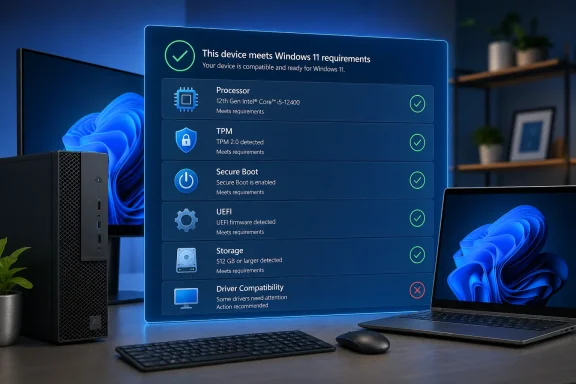 The CPU requirement is an approved-model requirement
A 64-bit, dual-core processor that runs above 1 GHz does not automatically qualify. Microsoft’s own system-requirements documentation says the CPU must also appear on its approved processor list. That remains the hard stop for many older desktop and laptop systems that look perfectly serviceable on paper.
The rule is often misunderstood because a CPU’s generation gives only a rough indication. Many Intel Core processors from the eighth generation onward are included, alongside some older workstation and specialty models; Microsoft’s supported lists also include numerous AMD Ryzen, Athlon, EPYC, and embedded parts. But the actual model matters. A PC owner should identify the processor in Settings or System Information and compare its full model designation against Microsoft’s current Intel, AMD, or Qualcomm list rather than relying on a family name such as “Core i7” or “Ryzen 5.”
For IT administrators, that means inventory reports need the processor model, not merely the manufacturer, architecture, or nominal speed. A deployment decision based on “all endpoints have 64-bit dual-core CPUs” will overstate the eligible fleet. Microsoft’s supported-processor documentation also notes that its lists can lag newly released hardware between Windows general-availability updates, so newly deployed hardware should be checked against the applicable Windows 11 release documentation rather than an old purchasing spreadsheet.
TPM 2.0 and Secure Boot are often configuration issues
The two security requirements responsible for many failed checks are TPM 2.0 and Secure Boot. Neither necessarily means the hardware is absent. On PCs built in the last several years, the capability may exist but be disabled in UEFI firmware.
Microsoft’s TPM guidance says users can run tpm.msc from the Run dialog to inspect the module. If Windows reports that the TPM is ready for use, the important field is Specification Version: it must say 2.0. If Windows says no compatible TPM can be found, Microsoft says the TPM may be disabled rather than missing.
The firmware setting is vendor-specific and can appear under labels including Security Device, TPM State, Intel Platform Trust Technology, Intel PTT, AMD fTPM, or AMD PSP fTPM. Microsoft directs users to the UEFI firmware settings through Windows Recovery, but this is one area where home users and unmanaged small businesses should proceed carefully. Changing firmware security settings without understanding existing BitLocker, recovery-key, or corporate-management arrangements can create a recovery problem that is more urgent than the upgrade itself.
Secure Boot is a separate test. A system must boot using UEFI firmware and be Secure Boot capable; legacy BIOS/CSM configurations can therefore block an upgrade even when the motherboard itself supports modern firmware. Microsoft describes Secure Boot as protection against malicious software loading during startup. It is not an optional performance feature that can be ignored simply because the PC reaches the desktop normally.
Minimum capacity is not a practical configuration target
The 4 GB memory and 64 GB storage figures are installation floors, not sensible targets for a PC expected to remain usable through feature updates. Microsoft explicitly warns that storage needs can rise over time for updates and optional Windows capabilities. On a 64 GB eMMC laptop or tablet, the nominal requirement can be met while routine feature servicing becomes difficult because the device has little room for temporary setup files, applications, user profiles, or rollback data.
The same restraint applies to memory. Windows 11 can install with 4 GB, but that leaves little headroom for a browser with multiple tabs, endpoint protection, Teams or another conferencing client, and line-of-business software. The specification says the OS can run; it does not promise a pleasant or durable workload experience.
SlashGear also correctly notes that a DirectX 12-capable graphics device and WDDM 2.0 driver are required. Readers should not translate that into a promise that every modern graphics feature will work. Microsoft lists separate hardware requirements for several capabilities: Auto HDR needs an HDR display, DirectStorage needs an NVMe SSD and a compatible DirectX 12 GPU with Shader Model 6.0, and Windows Hello biometrics require an infrared camera or fingerprint reader. Hyper-V additionally requires a supported Windows edition and CPU virtualization features such as second-level address translation.
Those differences are important when refreshing systems for a specific role. A basic office PC can meet the Windows 11 floor without being suitable for local virtual machines, DirectStorage gaming workloads, biometric sign-in, or Wi‑Fi 6E.
Use PC Health Check before installation media
Microsoft’s recommended first step for an existing Windows 10 installation is the PC Health Check app, not a manual comparison against a generic specifications article. The tool evaluates the device and reports why it does or does not meet the Windows 11 baseline. Windows Update can also assess eligibility, though its absence of an upgrade offer does not always mean the hardware fails.
Microsoft says it can place a safeguard hold on an otherwise eligible PC when it has identified a compatibility issue that could disrupt the upgrade experience, such as a problematic application or driver. In that case, the right response is usually to update the current Windows installation, firmware, and relevant drivers, then wait for the hold to be removed—not to force setup from a USB installer.
A practical pre-upgrade sequence is short:
- Run PC Health Check and record its specific failure reason before changing firmware settings or buying components.
- Confirm the exact CPU model against Microsoft’s supported list if the processor is flagged.
- Check TPM status with
tpm.msc, and consult the PC maker’s documentation before enabling anything in UEFI. - Make a tested backup and ensure there is significantly more than the 64 GB minimum available for a feature upgrade.
- Let Windows Update offer the upgrade after eligibility changes, because its compatibility checks account for more than the static hardware floor.
Unsupported installs carry a support warning
Microsoft still permits ways to install Windows 11 on hardware that fails its minimum requirements, but it does not support that configuration. Its support documentation says those devices are not guaranteed to receive updates, including security updates, may encounter compatibility problems, and can display an unsupported-hardware watermark or notification.
That wording is more serious in August 2026 than it was when Windows 11 was new. An unsupported Windows 11 installation is not a dependable substitute for a supported Windows 10 machine, because Windows 10’s ordinary support period ended on October 14, 2025. It is a device outside Microsoft’s promised servicing path.
For a compatible PC, the requirements themselves have not materially changed: the correct path is to verify the processor, TPM 2.0, Secure Boot capability, storage, and driver readiness through Microsoft’s own tools, then take the Windows Update offer. For an incompatible machine, the decision is now about risk and replacement planning—not whether a 1 GHz dual-core CPU happens to be able to launch the installer.