
The practical recommendation is sound for a stationary desktop and many home PCs: reducing the number of apps and services able to request a machine’s position is a reasonable privacy choice. Microsoft’s own documentation confirms that, when Location services is enabled, Windows can determine a device’s position from GPS where available, nearby Wi‑Fi access points and routers, cellular towers, IP address, and a configured default location. Microsoft also says it sends de-identified location information and nearby network data to its service, and shares data with its current location-service partners, HERE and Skyhook.
But the MakeUseOf article, published August 9, presents Location services as simply switched on by default across Windows 11, then argues users sacrifice almost nothing by disabling it. The first point is not established by Microsoft’s records; the second depends heavily on the device, the account type, and whether recovery after theft matters.
More importantly, the article says users can enable Location services remotely after losing a laptop and then use Find my device. Microsoft says the opposite: Find my device must have been enabled before the device is lost, and device location must be on for it to work. A Microsoft account, internet connection, and sufficient battery are also required. That makes Location services a recoverability decision, not merely a convenience setting that can be restored after the fact.
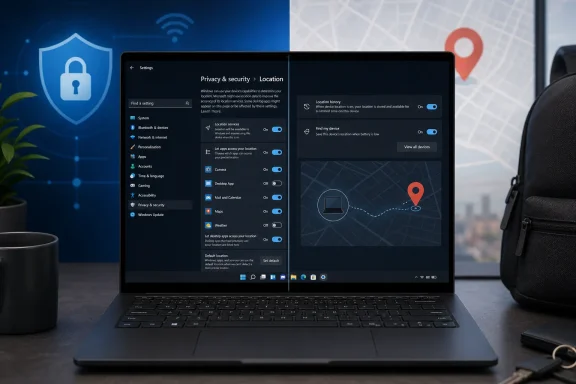 Microsoft’s location setting is not one universal “default on” switch
Microsoft’s current support documentation tells people setting up a new Windows device that they can choose whether Find my device is on or off. Its location documentation also distinguishes among a device-wide location setting, a per-user setting, and individual app permissions. On managed PCs, an administrator can control whether the service is available at all.
That does not mean a Windows 11 installation necessarily arrives with location disabled. It means the state varies according to setup choices, organization policy, device management, and the account in use. The MakeUseOf claim that Windows 11 has Location services enabled “by default” is too broad to serve as a reliable basis for a privacy recommendation.
For a home user, the relevant check is straightforward: open Settings > Privacy & security > Location and inspect the actual status rather than assuming it. The page reveals whether Location services is enabled for the device, whether apps can use location, which apps are allowed precise location, and when supported apps last requested it.
For an IT administrator, that distinction has operational consequences. The underlying controls are not simply a personal preference when the PC is enrolled in Intune, governed by Group Policy, shared among users, or issued by an employer. Microsoft’s policy documentation allows organizations to leave Windows apps under user control, force access on, or force it off. A blanket instruction to disable the feature can therefore conflict with a company’s endpoint-management policy or a business application’s documented requirements.
What Microsoft says is sent — and what remains unclear
MakeUseOf is right to highlight that Windows location is more than a GPS toggle. Most Windows desktops do not have a GPS receiver, so Wi‑Fi access points, routers, IP data, and other network signals can be used to estimate location. Microsoft says that when Location services is on, the device transmits its location information alongside nearby Wi‑Fi access points, routers, cellular towers, and IP address after data identifying the person or device has been removed.
Microsoft also says its location-services database can include the MAC addresses of wireless routers and nearby network devices. Those MAC addresses are used to build the company’s location database, and Microsoft provides an opt-out process for Wi‑Fi access-point owners who do not want their access point used in it.
The privacy concern is legitimate: a device position combined with a local network survey is sensitive telemetry, even when Microsoft says it is de-identified. De-identification is a data-handling claim, not a promise that the information is meaningless. A device that repeatedly reports nearby network infrastructure can contribute to a detailed mapping system; a user should decide whether the associated Windows features justify that contribution.
However, MakeUseOf says Windows transmits Wi‑Fi network names along with nearby MAC addresses. Microsoft’s location-service documentation confirms the use of nearby access points and router MAC addresses, but does not make the same explicit claim about SSID or network-name collection in the material it publishes for this feature. That is a meaningful distinction. The public record supports concern about access-point identifiers; it does not support casually expanding the claim to every nearby network name.
Microsoft also changed the storage model in March 2025. Its documentation says local location-history storage and its associated controls were removed then. If the user is signed into a Microsoft account and Location services is enabled, location “may be periodically saved” to Microsoft’s cloud. That is a more qualified description than MakeUseOf’s assertion that Windows 11 now saves location history to the cloud whenever a Microsoft account is used.
The difference is not semantic. Users should treat cloud retention as a real possibility and check their Microsoft Privacy Dashboard, but should not infer from the Settings toggle alone that Windows is continuously building a complete personal travel log.
The Find my device claim reverses the real trade-off
The largest practical error in the MakeUseOf article concerns lost-device recovery. It says Location services can be re-enabled remotely after a laptop has gone missing, provided the owner can sign in to a Microsoft account and the PC is online. Microsoft’s Find my device support page says the recovery service works only when device location is turned on, and the feature itself must be enabled before it is needed.
That makes the decision much less theoretical for laptop owners. A stolen PC that is powered off, out of battery, wiped, offline, or disconnected from the network is already difficult to locate. Disabling location in advance removes another condition required for Windows to report a position once it reconnects.
Microsoft also says users at the device see a notification when someone attempts to locate it. This is not a covert tracking function. Still, for a traveler, student, contractor, or anyone carrying a high-value Surface or work laptop, the recovery feature can be worth preserving.
There is a defensible middle ground. Leave Location services and Find my device enabled on a portable computer, but turn off location access for apps that do not need it. On a desktop that rarely or never leaves one building, setting a default location manually may be more useful than allowing routine device-location lookups. Microsoft specifically recommends a default location for desktop PCs and machines without Wi‑Fi because it gives apps and services a fallback without requiring a live position fix.
App permissions are better than an all-or-nothing privacy posture
MakeUseOf accurately notes that Windows provides per-app controls for location-aware applications and that desktop software is not always presented with the same individual toggles as packaged Windows apps. That interface limitation is worth knowing: the cleanest app-by-app privacy model applies to apps that integrate with Windows’ permission system.
But the article goes too far when it implies traditional desktop applications can simply collect Windows location with no visibility or restraint. Microsoft’s own documentation says that when Location services is off, Windows and apps cannot access device location through the Windows location service. It further warns that turning off the system setting does not eliminate every way software might infer a location — for example, from an IP address or other independently available signals — which is a broader issue than Windows’ built-in location permission.
That is the more useful privacy lesson. Disabling Windows Location services blocks the operating system’s approved location pathway. It does not make a PC geographically anonymous. A browser can still expose an approximate region through network connections; websites can request location through browser permissions; corporate security agents, VPNs, mobile-device management platforms, and network logs can all establish where a machine is operating from by different means.
For individual users, the best first step is not necessarily to shut everything off. Review the Location settings page, disable precise access for apps that lack a clear need, and only retain the global service where a feature has a value you actually use. Edge, for example, asks for permission before a website receives precise location, supplying another decision point separate from the Windows-wide setting.
For organizations, the better question is which approved workflows rely on location. Automatic time-zone adjustment, travel workflows, mapping software, emergency-address features in communications tools, field-service applications, geofencing, and asset recovery may all be affected. Those dependencies should be tested before a policy forces Location services off fleet-wide.
Clearing data and choosing a workable configuration
Microsoft says users can clear cloud-stored location activity associated with a Microsoft account through the Privacy Dashboard. That action is sensible for anyone who has used Location services and wants to reduce retained account data. It should not be mistaken for a deletion request directed at every application that previously received location data; Microsoft explicitly warns that an app may have stored information elsewhere under its own policies.
A privacy-conscious Windows 11 configuration is therefore more nuanced than the MakeUseOf article suggests:
- Turn off Location services on fixed desktops where automatic time zones, local search results, and recovery tracking have no value.
- Keep Location services and Find my device enabled on portable machines if post-loss recovery is a priority, because neither can reliably be retrofitted after the laptop disappears.
- Review precise-location permissions app by app and revoke access from software that cannot explain why it needs it.
- Clear Microsoft account location activity separately if cloud retention is a concern, then review browser and third-party application permissions as well.
The bottom line is that Windows location data has a real privacy cost, and Microsoft’s own description of network-based positioning gives users reason to scrutinize it. But the feature is not universally “on by default,” and disabling it is not consequence-free for laptops. The decision that matters is whether you are willing to give up a preconfigured recovery tool and location-dependent workflows in exchange for reducing Windows’ ability to determine and share the device’s position.
References
- Primary source: MakeUseOf
Published: August 9, 2026 at 4:00 PM UTC
Loading…
www.makeuseof.com - Related coverage: support.microsoft.com
Loading…
support.microsoft.com - Related coverage: support.microsoft.com
Find and lock a lost Windows device | Microsoft Support
Use Find my device to locate and lock your lost or stolen Windows devices.support.microsoft.com - Related coverage: learn.microsoft.com
Loading…
learn.microsoft.com - Related coverage: learn.microsoft.com
Loading…
learn.microsoft.com - Related coverage: makeuseof.com