
For Windows 11 users, this batch is a reminder that the operating system’s “small” apps have become independently serviced products. Notepad is no longer simply a static text editor bundled with Windows. Calculator is no longer merely a keypad. Media Player is an actively maintained local-library application, and Clock now includes productivity and location-aware features that demand more than basic alarm functionality.
That evolution has brought clear benefits, particularly faster fixes and more responsive feature work. It also comes with a basic expectation: Microsoft must protect the dependable, lightweight character that made these tools useful in the first place.
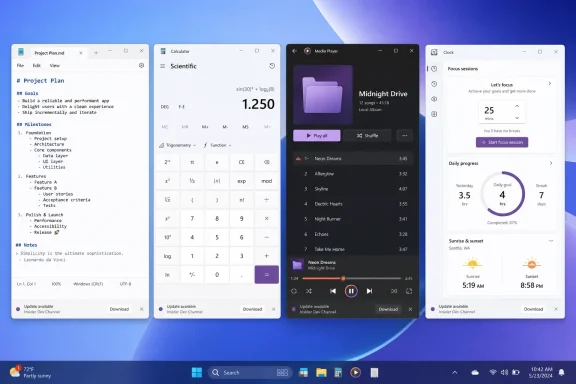 Overview: A Quality-First Windows 11 App Update
The July releases are defined less by headline features than by workflow reliability. Rather than announce a broad visual redesign or a new AI-powered function, Microsoft is cleaning up defects in core actions: opening a text file, copying a list, clearing a calculation, sorting a music library, completing a focus task, or checking the sunrise in a northern location.
The rollout includes the following app versions:
- Notepad 11.2606.15.0
- Calculator 11.2606.0.0
- Media Player 11.2606.19.0
- Clock 11.2606.11.0
Notepad, Calculator, and Media Player version 11.2606 builds are rolling out to Experimental, Experimental (26H1), Experimental (Future Platforms), Beta, and Release Preview participants. Microsoft’s Notepad notes, Calculator notes, and Media Player notes each list that same channel coverage. Clock’s July documentation, meanwhile, currently calls out the three Experimental variants, meaning users should not assume that Clock’s fixes have reached every Release Preview machine at the same time. Microsoft’s Clock release notes make that distinction explicit.
That channel nuance matters. Release Preview is the strongest signal that an update is approaching broader availability, but it is not identical to a public release guarantee, and separate Store-delivered app packages can land on different schedules. Microsoft describes Release Preview as an advanced option for customers and Insiders seeking production builds shortly before broader release, while Beta is designed for features expected to ship in the relatively near term. Microsoft’s revised Windows Insider channel explanation outlines those roles.
The practical takeaway is simple: these fixes are real, actively rolling out, and likely to matter beyond the Insider community. But the date on which every standard Windows 11 installation receives them depends on Microsoft Store and servicing cadence rather than a single Windows cumulative update.
Notepad: Markdown and Multi-Window Workflows Receive Attention
Notepad receives the most substantial set of fixes in this release, even though none qualifies as a flashy new capability. That makes sense. As Microsoft continues to make Notepad more capable for plain text and lightweight formatted documents, consistency becomes more important than novelty.
Correct formatting for .md and .markdown
The highest-profile Notepad correction addresses formatting behavior across both common Markdown filename extensions: .md and .markdown. Microsoft says formatting is now applied properly when working with files using either extension. The July Notepad changelog also pairs that repair with better copying and pasting of indented and nested lists.
This is a small entry in a release log, but it touches an important compatibility issue. Markdown is intentionally simple: its usefulness comes from being portable between editors, repositories, documentation systems, static-site generators, and collaboration platforms. When a text editor treats equivalent file extensions inconsistently, users can lose confidence in what they see on screen.
For users who open notes, project documentation, README files, changelogs, and technical drafts in Notepad, the correction should reduce friction in several scenarios:
- Moving content between Markdown-aware applications.
- Pasting multi-level task lists or outline structures.
- Editing documentation stored under a
.markdownextension rather than the much more common.md. - Switching between raw Markdown and a formatted interpretation without unexpected visual results.
The key strength here is that Microsoft is addressing interoperability, not trying to redefine Markdown. Windows 11 does not need a proprietary markup language for casual documents. It needs the built-in editor to respect the conventions users already encounter elsewhere.
Nested lists are a serious text-editing test
Copy-and-paste support for indented and nested lists may sound almost trivial, but structured lists are where many rich-text and Markdown editors expose weaknesses. A plain list is easy. A list with multiple levels, mixed bullet styles, indentation, continuation paragraphs, and code-like spacing is where formatting rules begin to collide.
Notepad’s June update had already fixed an issue in which paragraphs after an indented list could inherit incorrect indentation. Microsoft’s prior Notepad release notes document that earlier repair. The July list improvements suggest Microsoft is continuing to harden the same general area rather than treating each bug as unrelated.
That is good engineering practice. List behavior often involves a connected set of parsing, display, editing, and clipboard rules. Fixing only one visible symptom can produce a fresh problem in another part of the workflow. A continued focus on lists indicates that the app team understands this is not merely cosmetic polish.
Better printing and faster launch behavior
The Notepad update also improves support for concurrent print jobs across its windows and tabs, improves launch performance, and fixes cases in which underscore characters rendered incorrectly. Microsoft’s July release notes list all three changes.
Concurrent printing is particularly relevant for users who keep multiple notes or documents open and print them in quick succession. While printing may no longer dominate routine personal computing, it remains common in schools, offices, home administration, and technical environments where snippets of documentation, checklists, logs, and instructions still need a physical copy.
Launch performance carries broader symbolic importance. Notepad has historically been valued because it opens quickly and stays out of the way. As it adds tabs, spell-checking, formatting, search refinements, and other modern conveniences, Microsoft has to prevent the app from losing that identity.
The risk is not that Notepad should never evolve. The risk is feature accumulation without performance discipline. Every added layer—format parsing, rendering, synchronization hooks, menus, and optional intelligence—raises the chance that the fastest tool in Windows becomes merely another app. This release points in the right direction because it acknowledges speed as a feature worth protecting.
Calculator: Correct State Matters More Than It Sounds
Windows Calculator’s July update targets a narrow but meaningful scientific-mode issue. Pressing Clear (C) or Clear Entry (CE) now resets the notation toggle correctly and returns the display to fixed-point notation. Microsoft’s Calculator release notes confirm the behavior change.
Why the scientific-mode repair matters
Scientific calculators have a surprisingly high bar for predictable state management. Users do not just enter numbers—they move between fixed-point, scientific, and engineering representations while performing chains of operations. If the display mode does not reset when a user clears a calculation, the interface can create confusion about whether a previous setting still affects the current value.
This is especially important in educational settings, engineering work, lab environments, programming, and financial analysis. Even where the numerical result remains mathematically correct, an unexpected notation state can make a result harder to read, harder to compare, or easier to misinterpret.
Microsoft’s fix restores a principle that applies to all utility software: clear should mean clear. The command must reset the relevant visual and interaction state in a way that matches user expectation.
The calculator team’s recent work shows that this is not an isolated concern. June’s Calculator update addressed rare square-root precision leftovers, high-contrast text color problems, right-to-left layout behavior, and cases where legacy settings could prevent the app from launching after upgrades. Microsoft’s June Calculator notes demonstrate a broader focus on accuracy, accessibility, localization, and upgrade resilience.
Keyboard access and screen-reader improvements
The update also resolves an access-key conflict between Clear all history and Clear all memory, listed as Alt+Y and Alt+R in Microsoft’s notes, while also improving screen-reader support. Microsoft’s Calculator documentation identifies both changes.
Keyboard conflicts can appear minor in a mouse-first interface, but they are especially disruptive for keyboard-centric workflows and assistive technology users. A shortcut that appears to represent one action but triggers another defeats the point of having access keys.
The screen-reader work is equally important, even if Microsoft has not detailed every altered announcement or control label. Accessibility fixes often do not produce an immediately visible change for all users, yet they can determine whether an application is independently usable for someone relying on spoken feedback. The correct standard for Windows inbox apps is not simply that accessibility exists in a checklist sense; it is that routine functions remain reliable when used through alternative input and output methods.
Media Player: Local Libraries Get a More Respectful Experience
Media Player’s update is perhaps the most quietly user-friendly of the four. The app now looks for common cover-image files in an album folder before searching online when an album lacks embedded artwork. It also explains when a library has been disabled instead of making it look empty, and it improves track-list rendering during sort-order changes. Microsoft’s Media Player release notes confirm those three improvements.
Local album art should come before online guesses
The local artwork behavior solves a familiar irritation for people with carefully maintained music libraries. Album art may exist as cover.jpg, folder.jpg, or a similar image stored alongside audio files, while the tracks themselves may not contain embedded artwork metadata. In that case, an online lookup can return a generic image, a wrong edition, a different release, or no useful result at all.
By checking the folder before searching online, Media Player gives priority to the image the library owner intentionally placed with the album. That is a sensible local-first approach.
It carries several advantages:
- More accurate presentation for ripped CDs, live recordings, bootlegs, compilations, and personal collections.
- Less dependence on online metadata for a library that already has usable organization.
- Better privacy posture in principle, because a local result can reduce the need to seek an external match.
- More consistent artwork across albums with alternate covers or region-specific editions.
Microsoft does not specify the full list of file names and image formats recognized by the new behavior, so users should avoid assuming every custom artwork convention will work identically. Still, the central direction is sound: local media software should respect local media files.
Disabled libraries no longer masquerade as empty libraries
The “disabled” message for turned-off libraries may be the most valuable usability fix in the Media Player release. Before a message like that exists, an empty panel can mean several things: no content is present, scanning is incomplete, a path is unavailable, a filter is active, or the library has been disabled.
A direct status message reduces diagnostic guesswork. That is a basic but powerful interface rule: when an application knows why a view has no content, it should tell the user.
Microsoft had already improved Media Player’s explanation of background work in June by adding an indexing banner to the play queue when a media library was still being scanned. The same June release also improved caption customization, file recognition, playlist behavior, queue stability, and missing-codec guidance. Microsoft’s June Media Player update history shows that the team has been working not just on playback, but also on making the app’s status clearer.
That matters because media-library problems often feel like missing-data problems. In reality, the files may be present, but the user lacks enough information to understand what the app is doing.
Clock: Focus Sessions and High-Latitude Accuracy
Clock’s July update is brief, but it reaches into two very different uses of the application. Completed tasks no longer disappear in Focus Sessions, and sunrise and sunset calculations have improved, with Microsoft specifically noting benefits at high latitudes. Microsoft’s Clock release notes document both fixes.
Completed tasks should not vanish without context
The Focus Sessions adjustment highlights a recurring tension in productivity software. Once a task is completed, removing it can reduce clutter. But removing it too abruptly can make users wonder whether the completion action actually registered.
Microsoft’s wording—tasks “no longer disappear upon completion”—suggests the July release prioritizes confirmation and continuity over aggressive cleanup. That is a practical choice. In a focused work session, a completed task can serve as a small but meaningful record of progress.
Clock’s June release had included a separate change intended to reduce clutter by ensuring previously completed tasks did not remain in the active Focus Session task list. Microsoft’s Clock update history describes that earlier behavior. Taken together, the two notes imply a refinement of when and where completion is represented rather than a complete reversal of the productivity model.
The details of the final interface behavior will matter. Good task software needs to make completion visible long enough to reassure the user, while keeping the active task list focused on work that remains.
Better sunrise and sunset calculations are more than a novelty
Improved sun-time accuracy is especially relevant for users at high latitudes, where seasonal daylight can become unusual and conventional assumptions about sunrise and sunset break down. In these locations, small calculation errors are more noticeable, and certain parts of the year can involve extremely long daylight or darkness periods.
Clock already received several polar-region and world-clock corrections in June, including a fix for an incorrect moon icon during all-day daylight, a correction for Newfoundland’s time zone, and updates to location names. Microsoft’s June Clock notes show that the July sunrise and sunset improvement is part of a continuing effort to make the world-clock experience more geographically dependable.
This is exactly the kind of refinement that can seem peripheral from a temperate, urban perspective but matters deeply to people who rely on local daylight information for travel, outdoor work, personal planning, or everyday routine.
Microsoft’s Evolving Approach to Inbox Apps
The larger story is not a single Notepad bug or Calculator shortcut. It is Microsoft’s decision to give built-in Windows apps dedicated, discoverable release notes and a more visible independent update rhythm.
Microsoft announced in June that Windows 11 inbox apps would receive their own release-note section in the Windows Insider documentation hub, with dedicated pages for individual applications as updates roll out. The company’s Windows Insider announcement framed the change as an effort to make app updates easier to find.
That is a welcome improvement. Historically, users often had to infer what changed in Store-delivered Windows apps from vague Microsoft Store entries, build announcements centered on unrelated operating-system features, or third-party coverage. Dedicated changelogs establish a stronger accountability loop:
- Users can identify whether an issue has been acknowledged.
- IT professionals can track version-specific behavior.
- Insiders can test a defined change rather than guessing what arrived.
- Microsoft can make incremental quality work visible instead of reserving attention for large features.
The renewed Insider structure supports this model. Microsoft now positions Experimental as its earliest venue for features under active development, while Beta is intended for work closer to shipment. Release Preview remains an advanced option associated with production builds nearing broader release. Microsoft’s channel overview explains the revised terminology and channel purposes.
For Windows enthusiasts, that should make app testing easier to interpret. For mainstream users, it should ultimately mean that the most mundane failures are more likely to be fixed before they become widespread frustrations.
The Strengths—and the Risk of Overcomplication
There is a strong case for this kind of update. Windows is judged not only by its headline features but also by whether its everyday tools behave competently. A broken nested list in Notepad, a misleading empty music library, or an unreliable keyboard command may not dominate a keynote, but each can waste time and erode trust.
The strongest aspects of the July updates are clear:
- They prioritize reliability over novelty.
- They include accessibility and keyboard usability, not just visual polish.
- They improve transparency, particularly in Media Player’s library states.
- They respect local content, most notably with album-folder artwork.
- They continue work across releases, rather than presenting quality as a one-off event.
There are risks, too. As inbox apps gain capabilities, they can become harder to reason about. Notepad’s Markdown support must remain predictable for users who only want plain text. Clock’s productivity components should not become so elaborate that simple alarms and timers feel buried. Media Player must balance online discovery with respect for locally curated files and metadata.
The way Microsoft addresses those risks is more important than whether it adds another feature. The best Windows 11 inbox apps should remain fast, optional in their advanced behavior, transparent about status, compatible with established conventions, and dependable without requiring users to understand a complicated update channel or app-version history.
A Small Update With the Right Priorities
The July Windows 11 app updates will not transform the desktop, and that is precisely why they are easy to underestimate. They fix the rough edges users encounter while writing technical notes, working through a calculation, organizing a personal music collection, or planning a day around time and focus.
Notepad’s Markdown repairs reinforce the importance of standards and speed. Calculator’s corrections preserve confidence in its scientific workflow and accessibility. Media Player becomes more respectful of local libraries and more honest about disabled content. Clock continues to mature as both a productivity tool and a global time utility.
Microsoft’s challenge now is consistency. Publishing dedicated app release notes and shipping focused fixes are meaningful steps, but the real measure is whether this discipline continues: fewer regressions, clearer states, faster tools, and updates that make Windows 11’s built-in apps feel more dependable rather than merely more ambitious.
