 Background
Microsoft released the optional preview update identified as KB5067036 on October 28, 2025, delivering OS builds 26200.7019 and 26100.7019 for Windows 11 versions 25H2 and 24H2. The package was presented as a preview (non-security) cumulative update that bundles visible user-experience changes — a redesigned Start menu, updated taskbar battery icons, File Explorer recommendations, Copilot-related improvements — alongside a number of reliability fixes, including an internal change to Task Manager’s process grouping logic.
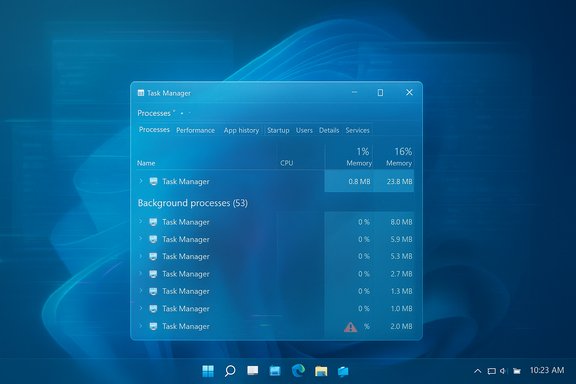
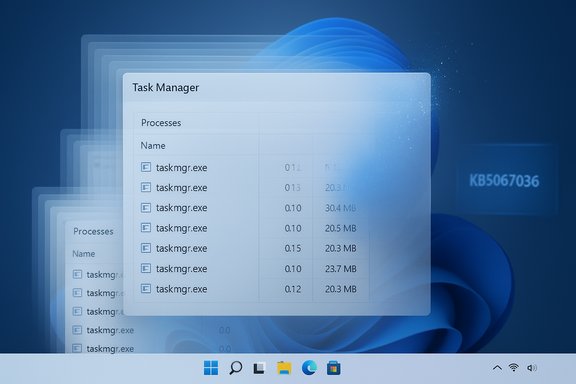
Within days of the staged rollout, independent testers and community members reproduced a reproducible lifecycle regression: when Task Manager is closed using the top-right X control, the UI disappears but the underlying process (taskmgr.exe) sometimes continues running. Reopening Task Manager spawns a new visible instance while prior instances remain resident. Repeating this open→close cycle creates multiple running taskmgr.exe processes.
What’s happening (clear symptoms)
- Open Task Manager with Ctrl+Shift+Esc (or via the Quick Link menu).
- Click the top-right Close (X) button.
- Reopen Task Manager.
- If affected, you will see additional “Task Manager” entries in the Processes tab and multiple taskmgr.exe entries in the Details tab.
Practically, each orphaned Task Manager process commonly consumes roughly 20–30 MB of memory and often shows negligible CPU (typically 0–2% when it polls), but dozens of such processes add up. Community stress tests that repeatedly opened and closed Task Manager recorded aggregated memory use that scaled into the gigabytes in extreme cases — a contrived scenario but one that proves the problem is real and measurable.
This is not a cosmetic duplication: the orphaned processes are reported by PowerShell (Get-Process), tasklist, Process Explorer, and the Task Manager Details view. A system reboot clears the orphaned instances; they are not persistent across restarts.
Scope: who’s affected and why it matters
- Impacted OS versions: Windows 11 24H2 and 25H2 machines that have installed the optional KB5067036 preview.
- Not every device with the update exhibits the problem. The regression appears in a subset of systems, consistent with a staged rollout and the variety of hardware/software permutations in the wild.
- Typical consumer impact: low when only a couple of orphaned instances exist. The trouble scales when Task Manager is opened frequently or when a device sees long uptimes with repeated use.
- Enterprise impact: in managed environments where engineers and IT staff repeatedly open Task Manager for diagnostics, the bug can accumulate background processes and contribute to memory pressure, slower performance, and battery drain on mobile devices.
Why this is important: Task Manager is a diagnostic tool that system administrators and power users rely on to find and kill misbehaving processes. A regression that turns Task Manager itself into a source of background load undermines troubleshooting workflows and can mislead diagnostic efforts if not recognized.
Verified technical details and current vendor posture
- The KB entry for KB5067036 lists the update release date (October 28, 2025) and the OS builds it delivers (26200.7019 and 26100.7019). It also lists the set of improvements and reliability fixes included in the preview. The release notes mention fixes related to Task Manager’s process grouping behavior.
- Community and independent outlets reproduced the orphaned-taskmgr behavior and reported per-instance footprints around 20–30 MB and small CPU usage. Those reproductions used standard tools (Task Manager, tasklist, Get-Process, Process Explorer).
- Vendor acknowledgement: Microsoft’s official KB release notes initially did not list the duplicate Task Manager behavior as a known issue. Some outlets report that Microsoft provided a statement describing the symptom and advising on mitigations; other coverage noted that an explicit known‑issue acknowledgement on the KB or Release Health dashboard had not yet appeared at the time of early reports. In short: the change to Task Manager internals is documented in the KB, the symptom has been widely reproduced, and Microsoft’s public notifications around a formal known‑issue acknowledgement were, at the time the reports circulated, incomplete or evolving.
(Readers should check Microsoft’s release notes and the Windows Release Health dashboard for the most current vendor statements and any out‑of‑band patch releases.
Reproduction checklist and quick verification
- Press Windows+R, type winver, and check your OS build. Look for 26100.7019 or 26200.7019 if you installed KB5067036.
- Press Ctrl+Shift+Esc to launch Task Manager.
- Click the Close (X) button.
- Reopen Task Manager and inspect Processes → Background processes. Alternatively, open an elevated PowerShell or Command Prompt and run:
- PowerShell: Get-Process -Name taskmgr
- Command Prompt: tasklist /FI "IMAGENAME eq taskmgr.exe"
- If you see more than one taskmgr.exe after a close/reopen cycle, the device exhibits the orphaning behavior.
Immediate mitigations and safe workarounds
Until Microsoft publishes a definitive patch, the following mitigations will remove orphaned instances or avoid creating them:
- Use Task Manager’s End task or End process menu item instead of clicking the window Close (X) button. Ending the running process avoids leaving a ghosted instance.
- Use a single command to terminate all Task Manager processes at once:
- Open an elevated Command Prompt or PowerShell and run:
- taskkill /im taskmgr.exe /f
- PowerShell alternative:
- Get-Process -Name taskmgr | Stop-Process -Force
- Rebooting clears all orphaned taskmgr.exe instances and is a safe short-term remedy.
- If you do not require preview features, avoid installing optional preview updates on production or critical devices. Preview updates can be useful for early access, but they are staged and may include regressions.
- For managed environments, defer KB5067036 in WSUS, Microsoft Endpoint Configuration Manager, or use Group Policy/Intune to pause optional preview channels until the issue is resolved.
Caveat: Do not attempt to use aggressive process-monitoring scripts that automatically kill taskmgr.exe on a schedule — that risks interfering with legitimate diagnostics and may complicate troubleshooting. Use the command-line kill only when you have confirmed orphaned instances exist.
Step-by-step instructions: kill all Task Manager instances
- Open Start, type cmd, right-click Command Prompt, and choose Run as administrator.
- At the prompt, type:
- taskkill /im taskmgr.exe /f
- Press Enter. All active taskmgr.exe processes will be forcibly terminated.
Alternative (PowerShell):
- Open Start, type PowerShell, Run as administrator.
- Enter:
- Get-Process -Name taskmgr | Stop-Process -Force
This is safe for reclaiming leaked resources; it terminates Task Manager and any orphaned instances immediately. A reboot is another simple way to reset process state.
Recommended guidance for users and administrators
- Home users: If you installed KB5067036 and notice duplicate Task Manager processes, apply the command-line fix above or reboot periodically. If you do not need preview features, skip optional updates and wait for the next cumulative preview or final release that resolves the regression.
- Power users / enthusiasts: Report a reproducible Feedback Hub entry. Attach a short screen recording showing the open→Close (X)→ reopen sequence plus a winver screenshot with the build number. Community repros help prioritize vendor triage.
- Enterprise admins: Block or delay optional preview updates on production endpoints. Use targeted pilot rings (test/dev) to expose regressions. If your support team uses Task Manager heavily, consider temporarily restricting KB5067036 to pilot machines until a vendor patch is confirmed.
- Support teams: When investigating unexplained memory pressure, include Get-Process -Name taskmgr in triage scripts to detect duplicate Task Manager processes as part of post-update diagnostics.
Technical analysis: likely causes and QA lessons
The timing and symptoms suggest a narrow regression introduced while altering Task Manager’s process-grouping logic. When UI code that manages process lifecycle or window messages is modified, it's possible to inadvertently change how the process is asked to exit. A few plausible technical failure modes:
- The close (WM_CLOSE/WM_DESTROY) handler may be returning early or failing to call ExitProcess due to altered process-grouping state.
- A newly-added background thread or reference may keep the process alive after the main window is destroyed, preventing clean-up.
- A race condition in process lifecycle code may have been introduced, where the UI is closed but the core process isn't signaled to terminate.
These are hypotheses consistent with the pattern (visible window disappears; process remains). Only an engineering post‑mortem from the vendor will verify the root cause.
Quality assurance and rollout considerations:
- Preview channel updates exist to catch regressions, but staged rollouts and device heterogeneity mean bugs still reach early adopters. This case underlines the importance of thorough regression testing for diagnostic utilities like Task Manager.
- Task Manager is a critical diagnostic tool; regressions in such components have outsized user impact. Prioritizing tests that exercise lifecycle behavior and the interaction between UI and process termination would reduce risks.
- When visible fixes change internals (process grouping), a safety‑first approach (feature gating, telemetry-focused pilots) helps reduce collateral regressions on production systems.
Risk assessment: performance, security, and operational impact
- Performance: The immediate risk is modest for casual users but meaningful in diagnostic-heavy workflows. A few orphaned instances are trivial; dozens create cumulative memory and CPU usage, potentially degrading performance and battery life.
- Security: There’s no indication this is a security vulnerability or that the bug enables privilege escalation. The issue is a functional regression leaving legitimate OS processes running.
- Operational risk: For IT teams, the regression may complicate incident response. If Task Manager’s output is no longer reliably a single process, investigations that rely on it could misinterpret results unless teams are aware of this regression.
Overall, the regression is low-severity from a security perspective but medium-severity from an operational and usability perspective for some user cohorts.
Historic context and precedent
Task Manager has been the subject of rare regressions after servicing updates in the past. Preview updates that touch diagnostic components sometimes cause lifecycle or display anomalies; Microsoft has previously patched similar regressions in subsequent servicing releases. That track record suggests that, once confirmed in vendor telemetry, such regressions are typically resolved via a follow-up update or out‑of‑band patch.
What users should watch for next
- A formal known‑issue acknowledgement (KIA) on the KB or Windows Release Health dashboard describing the Task Manager duplication symptom and listing recommended mitigations.
- A follow-up preview or out‑of‑band fix that patches the lifecycle regression and removes the need for the manual workarounds.
- Any signs that the issue is being included in the next cumulative update or preview patch; enterprises should watch for update metadata that lists a Task Manager fix or lists a code‑level rollback for the process‑grouping change.
Final assessment and editorial take
This regression is an instructive example of how tightly coupled UI changes and process‑lifecycle logic can produce surprising side effects. The practical impact for most users will be small, but for power users, IT staff, and people who keep long uptimes or open Task Manager frequently, the cumulative resource consumption can become noticeable.
Actionable takeaways:
- If you rely on preview updates for early features, be prepared to tolerate and triage regressions or run previews only in test rings.
- If you saw duplicate Task Manager processes after October 28, 2025, use the command-line taskkill or Task Manager End task to reclaim resources and consider deferring KB5067036 on production systems until a confirmed fix is released.
- Support teams should add a quick process-check for taskmgr.exe to their post-update triage checklist and escalate reproducible diagnostics to vendor support with attached traces.
The immediate pain point — a tool meant to help you diagnose problems becoming a source of them — is fixable, but it’s a reminder that even the most core utilities need careful end-to-end lifecycle testing. Users and administrators who follow the mitigations above can contain the issue while waiting for a permanent vendor correction.