
C:\Users during the out-of-box experience, avoiding the truncated, Microsoft-account-derived profile names that have frustrated clean-install users for years. But the important correction to WinCentral’s August 29 report is timing: Microsoft first exposed the graphical option to Windows Insiders in March, documented it for production Windows 11 24H2 and 25H2 in late May, and shipped it with the June 2026 servicing cycle.
The feature is real, useful, and already broadly relevant to anyone preparing a new PC or reinstalling Windows. It is not a change that repairs an existing profile folder, and it is not a setting that appears after setup has finished. For an established installation, C:\Users\alexj remains C:\Users\alexj unless the user performs a migration or one of the more hazardous profile-renaming procedures that Windows administrators generally avoid.
Microsoft’s May 26 preview notes for KB5089573 described the new control plainly: on the Device Name page of Windows Setup, a user can select a custom name for the user folder. Microsoft repeated the feature in the June 9 cumulative update, KB5094126, for Windows 11 versions 24H2 and 25H2. The company’s current out-of-box-experience update stream is also still servicing those versions; KB5122035, released August 27, superseded the preceding OOBE cumulative update.
That sequence matters because a report framed as a newly discovered late-August change can lead users to assume an ordinary Windows Update will modify their existing account path. It will not.
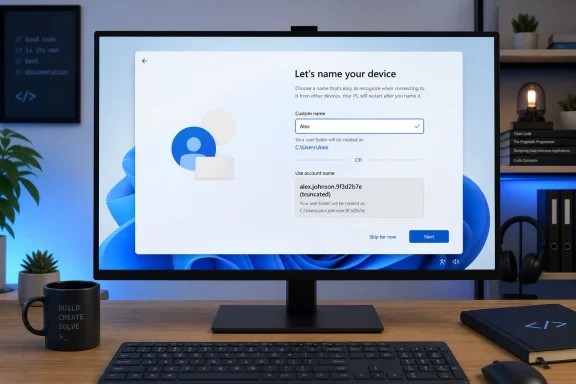 The new field solves a setup-time problem
Windows user profiles are more than a visible folder in File Explorer. A typical profile lives at a path such as C:\Users\Alex, containing Desktop, Documents, Downloads, AppData, NTUSER.DAT, application configuration, and the local data used by numerous desktop programs.
When setup creates an account associated with a Microsoft account, Windows has historically derived the profile directory from account information rather than giving the owner a clean choice. The result could be a short, awkward identifier that did not match the person’s display name, preferred handle, device-management convention, or development environment.
That looks cosmetic until paths become part of day-to-day work. Scripts, build tools, virtual environments, package caches, source checkouts, backup jobs, documentation, and older applications can all expose the profile path. A developer may not care what is printed on the sign-in screen but care very much whether local workspaces sit under a predictable path. The same applies to IT staff preparing standard machines for small offices, labs, or power users.
Microsoft’s answer is deliberately narrow: choose the directory name before Windows creates the profile. The field is placed on the Device Name page during OOBE, rather than buried in Accounts settings after the fact. If it is skipped, setup retains its default naming behavior and proceeds normally.
That is the right boundary. Once a profile has been created, its path can be referenced by the ProfileList registry entries, installed software, scheduled tasks, application settings, permissions, OneDrive configuration, and assorted hard-coded paths. Changing a display name is comparatively harmless; renaming the actual profile directory is a different operation.
Microsoft moved from an Insider workaround to a supported interface
The option did not arrive from nowhere this week. Microsoft’s Windows Insider team announced the graphical experience in Dev Channel build 26300.8068 and Beta Channel build 26220.8062 on March 13, 2026. Both releases said the feature was an expansion of work that had begun rolling out to Insiders the previous autumn.
Before that UI arrived, Microsoft had offered a much more technical route in preview builds: open Command Prompt during the Microsoft-account sign-in portion of OOBE with Shift+F10, change to the OOBE directory, and run SetDefaultUserFolder.cmd with the intended folder name. That was effective for enthusiasts who knew it existed, but it was hardly a normal setup workflow.
Pureinfotech independently documented both methods in May and reported that the graphical method arrived with the June Windows 11 updates. Its walkthrough also captures the practical difference: the setup-page control is for an uncomplicated fresh install, while the command method was an interim escape hatch for people willing to alter OOBE from a terminal.
Microsoft’s release notes make no promise that every image, offline deployment, or disconnected installation will present the same experience. This is significant because OOBE itself is serviced independently. Microsoft’s June 23 OOBE update, KB5095189, said it was downloaded and installed automatically during setup when an internet connection is available; KB5122035 replaced it on August 27 for Windows 11 24H2 and 25H2.
For a machine being installed from older USB media without internet access, the setup screens can therefore lag behind the experience shown in current screenshots. An organization that needs predictable OOBE behavior should validate its installation media and connectivity path rather than assume a post-install cumulative update will retrofit a skipped profile-name choice.
The claimed local-account limitation is not established
WinCentral says the option does not apply when a local account is created. Microsoft’s public release notes do not state that limitation. They describe a custom user-folder name on the Device Name page during Windows Setup, with no Microsoft-account-only qualifier.
The placement of the control also makes the claim difficult to reconcile with the documented flow. The Device Name page precedes the later account-creation choices in the standard OOBE sequence, and Windows has long allowed the name entered for a local account to determine that account’s profile directory. Pureinfotech likewise notes that local-account setup was already one way users could avoid the unwanted Microsoft-account-derived folder name.
The safer conclusion is that Microsoft is addressing the Microsoft-account scenario that created the most complaints, but its documentation does not say the graphical field disappears for local-account setups. Readers should not treat the reported Microsoft-account-only limitation as settled fact without testing the specific Windows image and OOBE path they intend to deploy.
There is a related distinction that is easy to miss: this feature changes the folder name, not necessarily every account identity shown elsewhere. A Microsoft account’s display name, sign-in address, Windows user name, device name, and profile directory can be related but are not interchangeable. Choosing C:\Users\Alex does not turn it into a general-purpose account-renaming tool.
What fresh-install users should do
For a new Windows 11 24H2 or 25H2 setup, the practical procedure is straightforward. During OOBE, reach the Device Name page, expand or select the user-folder naming control, enter the preferred name, and continue with setup. Microsoft says the name must meet standard Windows naming requirements; invalid names will be rejected.
For people who care about reproducible paths, the best choice is usually short, stable, and plain ASCII. Avoid spaces, punctuation that may complicate scripting, names likely to change with a job title or relationship status, and clever folder names that will look confusing in logs two years later. A simple identifier such as alex, jdoe, or devuser is usually easier to live with than a full legal name or an email-derived abbreviation.
The option deserves attention from users who routinely reset machines, build developer workstations, or maintain a collection of scripts that assume a profile location. It is less consequential for ordinary users who never see C:\Users and rely on known folders such as Documents and Pictures. Windows applications should use known-folder APIs and environment variables such as %USERPROFILE%, rather than assume a particular user name, but real software and personal scripts do not always follow that rule.
Do not attempt to obtain the same result by renaming an active profile folder in File Explorer. If an existing profile name is genuinely untenable, creating a new account with the desired profile path, signing in to initialize it, and migrating data is usually safer than editing profile mappings in place. It is more work, but it avoids leaving registry references and application data pointing at a directory that no longer exists.
Microsoft has finally turned a longstanding setup annoyance into a supported, one-time configuration choice. The consequence is simple: on the next clean installation, choose the profile directory deliberately—because once OOBE passes that screen, Windows still treats the name as effectively permanent.
