
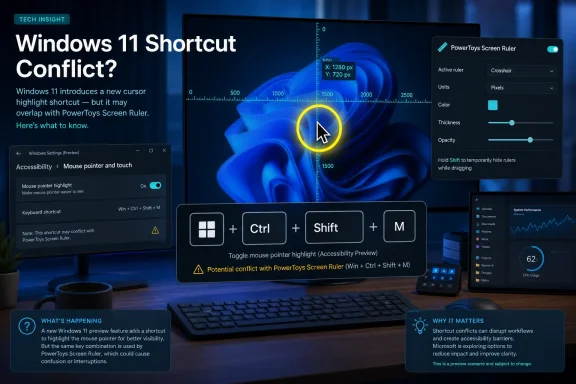
Windows Latest first reported the change after Windows enthusiast PhantomOfEarth spotted it in an unreleased Windows 11 implementation. According to that report, pressing Ctrl would continue to briefly locate the mouse pointer, while Win+Ctrl+Shift+M would invoke a version that remains visible until the shortcut is pressed again, the user presses Esc, or clicks the mouse.
Microsoft has not publicly announced the mouse-indicator work, named an Insider build containing it, or said which Windows 11 release might receive it. The company’s August 21 Insider build notes did announce a redesigned AutoPlay experience for the Experimental channel, but did not mention the pointer indicator. No other outlet has independently reported a rollout timetable or confirmed which Insider channel can currently enable the feature.
That leaves this as a credible preview discovery rather than a feature Windows 11 users should expect to find today.
 The old Ctrl-key ring is still a legacy control
The existing pointer-location setting predates Windows 11 by many years. In current public builds, it still lives in the classic Mouse Properties dialog under the Pointer Options tab, labeled “Show location of pointer when I press the CTRL key.” Triggering it produces a rapidly animated ring centered on the cursor.
It is a useful feature with a poor path to discovery. Windows 11’s modern Settings app exposes pointer size, color, touch feedback, and related accessibility options, but the Ctrl-key locator remains tied to the older control-panel-era mouse configuration. That split is important: Microsoft would not merely be repainting an animation if it moves the feature into a modern Settings surface. It would finally put a practical accessibility and multi-monitor aid alongside the controls users already look for.
Windows Latest describes the new visual as smoother and built with newer UI technology, but Microsoft has not documented its rendering stack or accessibility behavior. The useful part of the reported change is the persistent option. A brief ring helps when the cursor is simply misplaced; a retained marker can be more practical during presentations, remote support, screen sharing, or work across large and high-resolution displays.
The distinction also matters for people who rely on the feature as an accessibility tool. A transient animation demands that a user notice the cursor immediately. A locator that stays up until dismissed gives the user time to visually reacquire it without repeatedly pressing Ctrl.
PowerToys already offers the stronger cursor finder
Microsoft’s own PowerToys suite has offered a more capable “Find My Mouse” utility for years. It can spotlight the pointer against a dimmed desktop, activate through a double press of Ctrl, a custom shortcut, or a mouse shake, and dismiss through a click or keypress. Its settings also let users tune the effect and exclude applications, which matters for full-screen software and games.
That makes the Windows 11 work look less like an attempt to replicate every PowerToys mouse utility and more like an effort to replace the bare minimum legacy locator with something that behaves sensibly on modern desktops. The built-in feature would remain useful because it does not require an extra package, background PowerToys process, or per-user configuration.
Still, Microsoft should be clear about what the new indicator is and is not. PowerToys’ full-screen spotlight intentionally makes the pointer the visual focal point by darkening the rest of the display. The reported Windows 11 indicator appears to be a persistent locator animation, not a full PowerToys-style spotlight. Users who need high contrast, a configurable overlay, custom trigger options, or support for unusual multi-monitor layouts may still prefer PowerToys.
For managed PCs, that division could be welcome. Organizations that do not deploy PowerToys would gain a basic built-in way to help users recover a lost pointer, while users with specialized needs could continue using the utility suite.
The reported shortcut is already reserved by PowerToys
The shortcut is the immediate problem. Microsoft’s current PowerToys documentation assigns Win+Ctrl+Shift+M to Screen Ruler, the utility that measures pixels and object boundaries on screen. It is not an obscure or unassigned key combination.
Windows Latest reports that the same chord activates the new persistent mouse indicator. If that behavior reaches public Windows 11 unchanged, systems with PowerToys’ Screen Ruler enabled would have two components trying to act on the same global shortcut. Which tool opens could depend on implementation order, installed version, or whether Microsoft adds explicit conflict detection.
That would be an avoidable own goal. PowerToys has recently improved its own shortcut-conflict warnings precisely because the growing number of Windows and PowerToys hotkeys creates collisions. Reusing a PowerToys default inside Windows would turn what should be a small quality-of-life improvement into a support nuisance for developers, IT staff, designers, and enthusiasts.
Until Microsoft documents the behavior, users should not change their PowerToys Screen Ruler shortcut or alter registry settings in expectation of the pointer feature. There is no public build number, feature flag, or supported configuration path attached to the discovery. A hidden implementation can change, disappear, move to another key combination, or ship only after a broader Settings redesign.
A small feature exposes a larger Windows 11 problem
The pointer indicator is minor by itself, but it illustrates why Windows 11 still feels uneven despite years of visual modernization. Core workflows often cross a modern Settings page, a WinUI dialog, an old Control Panel property sheet, and an optional PowerToys utility — sometimes for variations of the same task.
Microsoft’s recent Insider work on AutoPlay, File Explorer context menus, and other system surfaces shows that the company is still addressing those seams. The mouse locator is a better candidate for modernization than it may initially seem because it touches accessibility, display scale, multi-monitor work, and remote assistance. Its value is practical, not cosmetic.
For now, the reliable options remain the legacy Ctrl-key locator in Mouse Properties or PowerToys Find My Mouse. If Microsoft ships the newer indicator, the release notes need to answer three straightforward questions: where the toggle lives, which Windows 11 builds receive it, and whether Win+Ctrl+Shift+M will displace or coexist with PowerToys Screen Ruler.