
The projects are real, their source is public, and all four had current development or releases during 2026. But “free and open source” is a licensing and auditability fact, not a guarantee that a tweak improves performance, preserves enterprise controls, or survives the next Windows feature update. The usable takeaway is narrower: pick one tool for a defined problem, document every setting changed, and retain a recovery path before granting it administrator rights.
Desde Linux is correct to place these utilities in the same broad category. It is wrong to treat them as interchangeable cleaners. Two are chiefly configuration and debloat engines, one is a wide-ranging PowerShell administration front end, and one is a conventional cleaner, registry scanner, uninstaller, and tweak utility. Running all four produces duplicated actions: telemetry changes, service-startup changes, app removals, and Registry edits can overlap, conflict, or make a later failure difficult to trace.
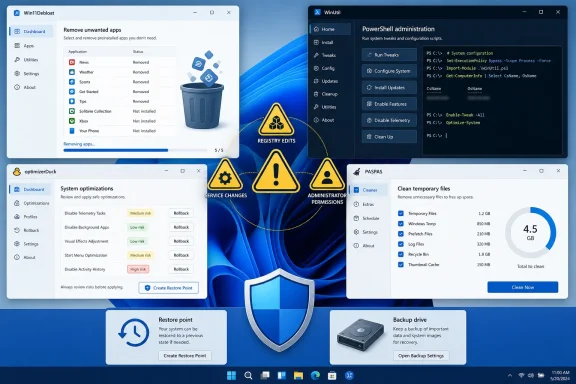 Win11Debloat is the most focused option for removing Windows baggage
Raphire’s Win11Debloat remains the clearest fit for administrators or advanced home users who have a specific decluttering target. The project describes itself as a lightweight PowerShell tool for removing preinstalled applications, disabling selected telemetry-related settings, removing interface elements, and applying other customization changes. It supports command-line operation, Windows Audit Mode, changes for other user accounts, and import/export of preferred settings.
Those deployment-oriented features set it apart from a simple “one-click speedup” utility. A technician preparing a controlled set of similarly configured PCs can export a known configuration rather than repeat checkbox selections by hand. The same capability means a bad selection can be reproduced at scale, which is why Win11Debloat belongs in a documented build procedure—not in an ad hoc cleanup session on a user’s production machine.
The project’s latest public release, dated July 11, 2026, added options including disabling Windows notifications and blocking automatic driver companion-app installation, alongside fixes for Windows 10, domain-account, reboot-warning, and script-launch problems. That release cadence is a better sign of maintenance than an old listicle’s generic claim that a debloat script is “safe.” It does not make every option safe for every device.
There is also a subtle but important distinction between removing unwanted consumer software and reducing resource use. Removing a preinstalled app can free disk space and clear Start menu clutter. Disabling services, notifications, recommendations, or telemetry-related components may change behavior or privacy posture. Neither action necessarily produces measurable CPU, RAM, gaming latency, or boot-time gains on modern hardware. Treat the tool as a customization engine whose results need to be verified, rather than as a performance benchmark in executable form.
WinUtil has the largest operational footprint
Chris Titus Tech’s WinUtil is the broadest and potentially most consequential of the four. Its PowerShell interface combines software installation, tweak presets, repair routines, update management, Windows component options, and tools for creating customized Windows 11 media. The project’s release history in 2026 shows continuing changes to Game Mode, Windows AI settings, BitLocker-related tweaks, service handling, debloat presets, application catalogs, and its Windows 11 creator.
That scope can be useful for a lab machine, a fresh Windows 11 deployment, or a technically literate user who wants a single interface for routine post-install work. It also makes WinUtil a poor choice for someone whose only goal is deleting temporary files. A tool that can alter update behavior, power plans, services, installed apps, Registry settings, and Windows setup media requires a tighter change-control standard than a disk cleanup utility.
WinUtil’s own documentation identifies a limitation missing from the submitted roundup: Windows 10 is no longer supported by WinUtil, because Microsoft ended Windows 10 support on October 14, 2025. That is material in August 2026. Users may find old tutorials and reports of Windows 10 use, but the project’s current documentation does not position Windows 10 as a supported target. IT staff should not infer compatibility from an archived guide, an older screenshot, or the fact that a PowerShell script happens to launch.
The project also acknowledges known issues. Its documentation says that a Start menu revert option stops working beginning with Windows 11 update KB5089573, released in May 2026. That is precisely the kind of detail that makes a one-size-fits-all “optimizer” recommendation misleading: a tweak can apply correctly, later Windows servicing can change the relevant behavior, and the rollback path can be the part that breaks.
WinUtil’s convenience command fetches and immediately executes the latest script from the internet. That workflow is common in the PowerShell community, but it is a poor default for managed endpoints because each run can retrieve a different revision. For repeatable deployments, download a named release, preserve its hash and configuration, test it on representative hardware, and log the changes. “Latest” is useful for troubleshooting; it is not a change-management policy.
optimizerDuck makes reversibility more visible, but remains an unsigned administrator tool
optimizerDuck is the newest-looking and most consumer-oriented entry. Its GitHub project describes a portable Windows 10 and Windows 11 application with more than 30 tweaks across six categories, risk labels, local revert files, a one-click rollback interface, and a prompt to create a restore point. It uses a WPF interface on .NET 10 rather than requiring users to work directly in PowerShell.
The project deserves credit for exposing risk ratings and for designing around individual rollback records. Those are better guardrails than a script that applies a preset with little explanation. Its documentation also states that no changes run by default and that its releases are built through GitHub Actions from the public source. For a home user who wants to inspect a proposed setting before applying it, that is a more approachable model than editing the Registry or Group Policy manually.
But the project also states that its executable is not code-signed and tells users that SmartScreen or Microsoft Defender warnings may appear for that reason. An unsigned application is not automatically malicious; small open-source projects commonly cannot justify the cost and administrative burden of code-signing certificates. Still, SmartScreen’s warning is a signal about reputation and publisher verification, not an obstacle to click past because a README says to do so.
The project’s own warning to build from source or independently examine the binary if concerned is the right instinct. In practical terms, a Windows enthusiast should download releases only from the project’s official GitHub repository, scan the downloaded file, compare published release information where available, and test on a noncritical device first. A business should decide whether an unsigned, elevated third-party optimizer meets its application-control policy before a help-desk technician makes it part of a standard image.
optimizerDuck also acknowledges that Windows feature updates may reset Registry values and service configurations. That means a visible “optimization” may be temporary by design. Reapplying tweaks after every feature update is not evidence that Windows has become slower; it is evidence that the tool is overriding Microsoft defaults repeatedly.
PASPAS combines cleanup with the riskiest legacy category: registry cleaning
PASPAS is the entry that most closely resembles the traditional Windows maintenance suite. Its GitHub repository lists temporary-file cleanup, a registry scanner, batch program uninstallation, and system tweaks that include disabling Windows telemetry and Defender sample submission, clearing user activity history, and shifting selected services to manual startup. It supports Windows 10 version 17763 and later, requires administrator privileges, and published versions 2.0.0.0 and 2.0.1.1 on July 14, 2026.
The application’s cleanup functions are straightforward: temporary files, logs, memory dumps, prefetch data, cached data, and potentially old Windows installation files can consume storage. Softpedia’s independent review characterizes PASPAS as a relatively simple cleaner that can dispose of temporary files, logs, caches, memory dumps, prefetch data, and old Windows-installation remnants. That use case has an obvious, verifiable outcome—recovering disk space.
The Registry scanner is different. PASPAS says it scans nine categories for orphaned entries and invalid file paths, requires manual review before deletion, and excludes critical operating-system and common hardware-vendor entries. Those controls are better than blind deletion, but an orphaned Registry reference is not automatically a performance problem, and registry cleaning is rarely the answer to a slow Windows PC. The benefit is difficult to measure; the downside is an application, shell extension, driver component, or configuration association that later fails in a way the cleaner cannot reconstruct.
PASPAS’s Defender sample-submission toggle requires special scrutiny on business devices. Microsoft Defender submissions can support cloud-delivered protection and malware analysis; changing that policy is a security tradeoff, not routine housekeeping. It should be governed by an organization’s endpoint-security policy, not bundled into a “make Windows faster” checklist.
Recovery needs to come before the first tweak
Microsoft’s current support guidance says System Protection is not enabled by default and recommends enabling it. Restore points capture system files, installed applications, Registry state, and system settings, providing a way to return the device to a prior stable configuration without affecting personal files. Microsoft also warns that newer point-in-time restore can roll back recent security updates, so Windows Update must be checked after recovery.
Before using any of these projects, create a restore point, export any Registry areas that will be edited, and write down the exact tool version plus each selected option. On a managed computer, also record the existing device-management policies, security-product configuration, BitLocker status, and update deferral settings. A rollback feature inside the same tool is useful; it is not the only backup worth having.
The strongest recommendation from this four-tool roundup is therefore not a tenth-item winner. Use Win11Debloat for narrowly defined app removal and interface cleanup; use WinUtil only when its broader management functions are actually required; use optimizerDuck when you want individually rated and reversible tweaks; and use PASPAS primarily for space recovery, not automatic Registry “repair.” Choose one, test it, and leave the rest installed nowhere near the endpoint.