
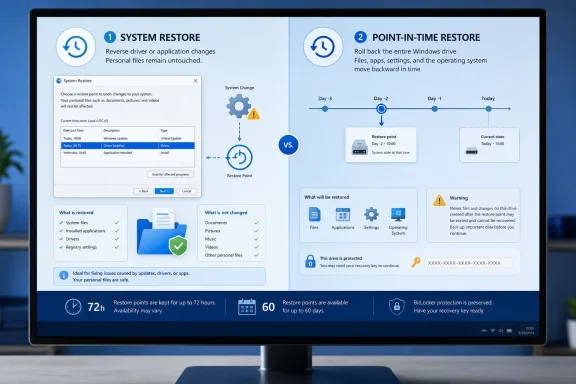
ZDNET’s August 5 walkthrough of Windows 11 System Restore remains sound advice for undoing a bad driver, application install, Registry change, or configuration tweak. But it arrives just after Microsoft made a far more consequential recovery feature generally available: Point-in-time restore, a Windows 11 24H2-and-later tool that can roll back local files as well as apps, settings, and the operating system.
The distinction is important before anyone treats “create a restore point” as a complete recovery plan. System Restore preserves Windows system state while deliberately leaving ordinary personal files alone. Microsoft’s new point-in-time restore captures the whole state of the Windows drive, including those files, but retains it for only a short period and demands a BitLocker recovery key on encrypted PCs.
ZDNET’s Lance Whitney correctly frames System Restore as a free, built-in escape hatch rather than a backup. Microsoft’s own support guidance backs that up: the feature can revert installed programs, device drivers, system files, settings, and the Registry without rolling back a user’s documents, photos, or email. It is a repair mechanism for a recent bad change, not protection against drive failure, ransomware, or an accidentally deleted file.
The missing context is that Windows 11 now has two similarly named rollback mechanisms with sharply different data-loss behavior. Choosing the wrong one in a hurry could either leave a needed file untouched—or erase work created after the selected recovery point.
The System Restore procedure ZDNET outlines is familiar: open Create a restore point, enable protection for the Windows drive, choose a storage ceiling, then create a named restore point before a meaningful system change. When Windows becomes unstable, run System Restore, select a point, use Scan for affected programs, and reboot into the selected prior state.
That “scan” step is the most valuable part of the old interface and should not be skipped. It identifies applications and drivers expected to be removed or restored, giving the operator a chance to stop before rolling back a line-of-business application, a VPN client, a GPU driver, or a package manager’s dependencies. It does not turn System Restore into a full inventory or guarantee every application will emerge cleanly, but it is the best preflight check Windows exposes.
System Restore is particularly useful after an event with a clear boundary: a driver update, a utility installer that changed shell integration, a failed tuning tool, or a Windows setting change that makes the machine unreliable. Microsoft also supports running it from the Windows Recovery Environment, or WinRE, when the desktop will not load. That means the feature can still be relevant in a boot failure—the exact moment when a restore point created before a risky change earns its keep.
For organizations, this is also why System Restore should be considered a local, user-initiated remediation option rather than an endpoint-management strategy. It cannot replace tested device recovery media, backed-up user data, application deployment, configuration baselines, or a documented rebuild path. A restore point stored on the same physical drive cannot help if that drive is failing or has been wiped.
Where System Restore leaves personal files alone, point-in-time restore deliberately returns the Windows system drive to its complete earlier state. That includes local files, installed apps, settings, passwords, certificates, and keys. Files in cloud services such as OneDrive are not rolled back, though a restored device may need to resynchronize them.
This makes point-in-time restore a potentially better first move after a broad local failure—provided the problem occurred within its retention window and the user understands the cost. Microsoft’s default cadence is approximately one snapshot every 24 hours, with points kept for up to 72 hours. It is designed for rapid recovery from a fresh failure, not for returning to a stable configuration from several weeks ago.
The feature has other practical limits that are easy to miss. It is turned on by default only for unmanaged Windows Home devices and unmanaged Windows Pro devices with an OS volume of at least 200 GB. Enterprise and Education machines, along with domain-joined or organization-managed Pro devices, have it disabled by default until Windows 11 version 26H2. Administrators can enable it, but they need to make that choice rather than assume every managed endpoint is already protected.
Recovery currently starts locally in WinRE through Troubleshoot > Point-in-time restore. On a BitLocker-protected device, the operator needs the recovery key. That requirement should be folded into help-desk runbooks now: a recovery feature that is technically available but blocked by an unavailable BitLocker key does not shorten an outage.
Yet Microsoft’s current point-in-time restore support page compares its 72-hour retention period with System Restore retention described as “indefinite,” subject to disk space. Those statements cannot both serve as a reliable planning rule for a Windows 11 24H2 machine. The specific 24H2 update note is the narrower, version-specific record, so administrators should plan for a 60-day maximum, not assume that available disk capacity will preserve an older System Restore point indefinitely.
There is a second restriction that matters on current builds. Microsoft’s updated System Restore technical documentation says that, after the July 2026 Windows security update, Windows 11 versions 24H2, 25H2, and 26H1—and Windows Server 2025—can use restore points with Virtualization-Based Security enabled only if those points meet required security checks. Where Windows cannot compare the relevant VBS Code Integrity policy version, the restore point must fall inside a 60-day limit.
Microsoft describes that restriction as a security measure designed to block rollback to an unsafe VBS state. The operational consequence is simple: an old restore point may appear to be the answer during incident response but be unavailable when VBS is running. Disabling VBS can expose older points on affected systems, but that is a security-sensitive change and should not become an improvised standard procedure for managed devices.
A user whose device has suffered a broad failure within the past three days may be better served by point-in-time restore, if it is enabled. It can return the whole Windows drive to a known state without a reinstall, but every local change after that point is at risk. That calls for an explicit warning to users: save or synchronize current work first whenever the machine is still usable.
The practical hierarchy is therefore narrower than the familiar “restore point equals backup” advice suggests:
ZDNET’s Lance Whitney correctly frames System Restore as a free, built-in escape hatch rather than a backup. Microsoft’s own support guidance backs that up: the feature can revert installed programs, device drivers, system files, settings, and the Registry without rolling back a user’s documents, photos, or email. It is a repair mechanism for a recent bad change, not protection against drive failure, ransomware, or an accidentally deleted file.
The missing context is that Windows 11 now has two similarly named rollback mechanisms with sharply different data-loss behavior. Choosing the wrong one in a hurry could either leave a needed file untouched—or erase work created after the selected recovery point.
 System Restore still fills the longer-window repair role
The System Restore procedure ZDNET outlines is familiar: open Create a restore point, enable protection for the Windows drive, choose a storage ceiling, then create a named restore point before a meaningful system change. When Windows becomes unstable, run System Restore, select a point, use Scan for affected programs, and reboot into the selected prior state.That “scan” step is the most valuable part of the old interface and should not be skipped. It identifies applications and drivers expected to be removed or restored, giving the operator a chance to stop before rolling back a line-of-business application, a VPN client, a GPU driver, or a package manager’s dependencies. It does not turn System Restore into a full inventory or guarantee every application will emerge cleanly, but it is the best preflight check Windows exposes.
System Restore is particularly useful after an event with a clear boundary: a driver update, a utility installer that changed shell integration, a failed tuning tool, or a Windows setting change that makes the machine unreliable. Microsoft also supports running it from the Windows Recovery Environment, or WinRE, when the desktop will not load. That means the feature can still be relevant in a boot failure—the exact moment when a restore point created before a risky change earns its keep.
For organizations, this is also why System Restore should be considered a local, user-initiated remediation option rather than an endpoint-management strategy. It cannot replace tested device recovery media, backed-up user data, application deployment, configuration baselines, or a documented rebuild path. A restore point stored on the same physical drive cannot help if that drive is failing or has been wiped.
Microsoft now offers a full-device rollback with a three-day horizon
Microsoft announced the general availability of point-in-time restore for Windows 11 on June 23, positioning it as a faster response to update failures, configuration mistakes, driver regressions, and similar disruptions. Microsoft’s support documentation says the feature is available on Windows 11 24H2 and later, uses Volume Shadow Copy Service snapshots stored locally, and restores the PC from WinRE.Where System Restore leaves personal files alone, point-in-time restore deliberately returns the Windows system drive to its complete earlier state. That includes local files, installed apps, settings, passwords, certificates, and keys. Files in cloud services such as OneDrive are not rolled back, though a restored device may need to resynchronize them.
This makes point-in-time restore a potentially better first move after a broad local failure—provided the problem occurred within its retention window and the user understands the cost. Microsoft’s default cadence is approximately one snapshot every 24 hours, with points kept for up to 72 hours. It is designed for rapid recovery from a fresh failure, not for returning to a stable configuration from several weeks ago.
The feature has other practical limits that are easy to miss. It is turned on by default only for unmanaged Windows Home devices and unmanaged Windows Pro devices with an OS volume of at least 200 GB. Enterprise and Education machines, along with domain-joined or organization-managed Pro devices, have it disabled by default until Windows 11 version 26H2. Administrators can enable it, but they need to make that choice rather than assume every managed endpoint is already protected.
Recovery currently starts locally in WinRE through Troubleshoot > Point-in-time restore. On a BitLocker-protected device, the operator needs the recovery key. That requirement should be folded into help-desk runbooks now: a recovery feature that is technically available but blocked by an unavailable BitLocker key does not shorten an outage.
Microsoft’s own documentation exposes a retention contradiction
System Restore has also become less open-ended than many long-time Windows users expect. Microsoft’s June 2025 Windows 11 24H2 security-update documentation says that restore points are retained for up to 60 days, and that points older than 60 days are unavailable. The company says the limit applies to future Windows 11 24H2 releases as well.Yet Microsoft’s current point-in-time restore support page compares its 72-hour retention period with System Restore retention described as “indefinite,” subject to disk space. Those statements cannot both serve as a reliable planning rule for a Windows 11 24H2 machine. The specific 24H2 update note is the narrower, version-specific record, so administrators should plan for a 60-day maximum, not assume that available disk capacity will preserve an older System Restore point indefinitely.
There is a second restriction that matters on current builds. Microsoft’s updated System Restore technical documentation says that, after the July 2026 Windows security update, Windows 11 versions 24H2, 25H2, and 26H1—and Windows Server 2025—can use restore points with Virtualization-Based Security enabled only if those points meet required security checks. Where Windows cannot compare the relevant VBS Code Integrity policy version, the restore point must fall inside a 60-day limit.
Microsoft describes that restriction as a security measure designed to block rollback to an unsafe VBS state. The operational consequence is simple: an old restore point may appear to be the answer during incident response but be unavailable when VBS is running. Disabling VBS can expose older points on affected systems, but that is a security-sensitive change and should not become an improvised standard procedure for managed devices.
The recovery choice should follow the failure, not the tool’s age
A Windows 11 user who has just installed an unstable driver or desktop utility should still create and use System Restore points. Unlike point-in-time restore, System Restore can preserve user documents while unwinding the system-level change, and it offers a longer recovery range on current Windows 11 versions—even if that range is now capped at 60 days on 24H2-class systems.A user whose device has suffered a broad failure within the past three days may be better served by point-in-time restore, if it is enabled. It can return the whole Windows drive to a known state without a reinstall, but every local change after that point is at risk. That calls for an explicit warning to users: save or synchronize current work first whenever the machine is still usable.
The practical hierarchy is therefore narrower than the familiar “restore point equals backup” advice suggests:
- System Restore is for reversing system and application changes while keeping ordinary personal files in place.
- Point-in-time restore is for returning the entire Windows drive to a recent state, accepting the loss of newer local data.
- Windows Backup, OneDrive, File History, an image backup, or an organization’s managed backup service is for preserving data when the device itself cannot be trusted.
References
- Primary source: ZDNET
Published: 2026-08-05T13:26:25+00:00
Loading…
www.zdnet.com - Related coverage: support.microsoft.com
Loading…
support.microsoft.com - Related coverage: support.microsoft.com
Loading…
support.microsoft.com - Related coverage: learn.microsoft.com
Loading…
learn.microsoft.com - Related coverage: learn.microsoft.com
Point-in-time restore for Windows | Microsoft Learn
documentation for point-in-time restore featurelearn.microsoft.com - Related coverage: windowscentral.com
"Minimize downtime and simplify troubleshooting": Microsoft's powerful new recovery tool is quietly fixing System Restore. Here's how it actually works. | Windows Central
System Restore has long been the go-to option for Windows recovery, but it's certainly not perfect. Microsoft's new Point-in-Time Restore aims to fill in the blanks.www.windowscentral.com - Related coverage: windowscentral.com
Windows 11 will soon be able to reinstall itself and your drivers without a USB drive via new 'Cloud Rebuild' recovery method | Windows Central
A new recovery option coming to Windows 11 will let you reinstall the OS and your drivers using the internet without a USB key, even when Windows itself is unbootable.www.windowscentral.com - Related coverage: techcommunity.microsoft.com
Loading…
techcommunity.microsoft.com - Related coverage: techcommunity.microsoft.com
Loading…
techcommunity.microsoft.com