
Published August 26, TweakTown’s guide is a sprawling but generally restrained walk through Windows 11 25H2 customization, from startup apps and Widgets to Memory Integrity, Fast Startup, DNS-over-HTTPS, WSL, and Group Policy. Its strongest advice is also the least glamorous: do not use opaque, one-click debloat scripts, and change one setting at a time.
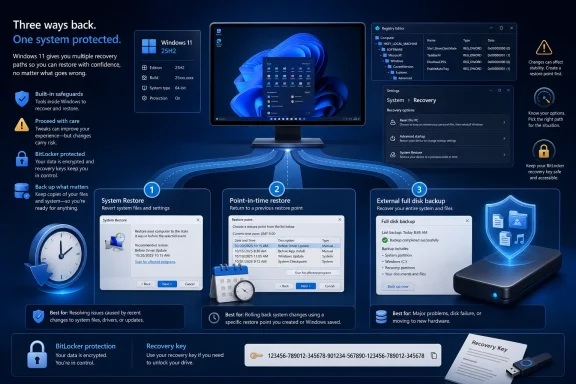
Microsoft’s own current documentation backs much of that caution. It also exposes a practical gap in the usual “create a restore point” advice. On supported consumer PCs, Point-in-time restore can now roll an entire Windows installation back — applications, settings, local files, passwords, certificates, and keys included — to a snapshot from the previous 72 hours. System Restore cannot do that. It rolls back Windows components, the registry, drivers, and installed programs while leaving personal files alone.
That difference is no longer academic. It determines whether a rollback rescues a broken configuration or silently deletes the work created after the snapshot.
 Windows 11 25H2 is a moving target, even within build 26200
TweakTown says its paths and settings were checked against Windows 11 version 25H2 and the 26200 build family. That is a useful baseline, but it is not a sufficiently precise one for an article built around interface locations and policy behavior.
Microsoft’s August 11, 2026 security release put Windows 11 25H2 at build 26200.9168 in the General Availability Channel. Meanwhile, Microsoft has also issued newer 26200-series builds to the Release Preview Channel. The same broad build family can therefore contain staged features, renamed Settings pages, or controls that are absent until a cumulative update reaches a particular machine.
That is especially relevant to the guide’s discussions of the redesigned Start menu, Smart App Control, Energy Saver, and Point-in-time restore. Microsoft increasingly delivers interface and feature changes through controlled rollouts rather than making every newly documented option visible on the same day to every eligible PC. A path that is correct on one fully patched 25H2 machine may simply not exist on another.
The operational rule should be: document the Windows version and full OS build before applying a tweak, then verify the result after the next cumulative update. A setting that survives a reboot is not necessarily a setting that survives servicing.
TweakTown is right to warn against scripts that make dozens of changes at once. On a modern Windows build, the bigger problem is not just that a script may be malicious; it is that it may encode assumptions about a Settings page, package name, registry value, or service behavior that has already changed.
Point-in-time restore changes the rollback calculation
Microsoft’s new Point-in-time restore is the most consequential item in TweakTown’s guide because it creates a recovery option between traditional System Restore and a full external image backup.
On eligible unmanaged Windows 11 Home and Pro systems with a 200GB-or-larger OS volume, Microsoft says Point-in-time restore is enabled by default. It creates snapshots at roughly 24-hour intervals and retains them for up to 72 hours. Restoration happens from the Windows Recovery Environment, and encrypted PCs will require the BitLocker or device-encryption recovery key before the rollback can proceed.
TweakTown correctly describes it as a short-term undo mechanism rather than a backup. But readers should take the warning literally: a Point-in-time restore reverts everything on the Windows system drive to the selected point. A document saved locally after that point, a password changed yesterday, a newly generated certificate, or a recently installed application can all be lost in the rollback. OneDrive-synced files are treated differently because the cloud copy is not rolled back with the PC.
That makes a clean separation of roles essential:
- System Restore is useful when a driver, registry edit, Windows setting, or installed program needs to be reversed without deliberately reverting a user’s personal files.
- Point-in-time restore is the faster, broader recovery option for a recent system-wide failure, but it can roll back local data created after the snapshot.
- A full disk image or an independently maintained file backup is still necessary for drive failure, theft, ransomware, failed storage hardware, or recovery beyond the short Point-in-time restore window.
TweakTown recommends third-party imaging tools and bootable rescue media, which remains sensible. Microsoft’s Windows Backup and OneDrive integration can protect files and restore selected settings, but they are not equivalent to a bootable bare-metal recovery plan. For a desktop with multiple internal drives, this distinction becomes even more important: Point-in-time restore targets the Windows volume, not every disk attached to the machine.
The practical result is less exciting than a debloat script but far more valuable. Before removing a package or applying a registry policy, confirm that System Protection is enabled, locate the encryption recovery key, and make sure important files exist somewhere other than the disk being tuned.
The low-risk tweaks are mostly the ones Windows already exposes
The guide is strongest when it keeps readers inside supported controls. Disabling unnecessary startup apps in Task Manager, checking Storage Sense, setting active hours, removing optional apps through Settings or Winget, reviewing app permissions, enabling Memory Integrity where compatible, and using DNS-over-HTTPS are all concrete changes that can be observed and reversed.
TweakTown’s advice on Fast Startup also deserves attention, particularly on dual-boot systems. Fast Startup uses a hibernated kernel session rather than performing the completely fresh shutdown many users assume they selected. That can complicate access to Windows partitions from Linux and can preserve driver or hardware states that a proper restart would clear. On an NVMe-equipped desktop, the boot-time benefit is often too small to justify the added ambiguity.
The guide’s update advice is similarly sound: pause updates temporarily if a known issue affects a machine, uninstall the specific update that introduced a fault, and avoid optional preview patches on systems that cannot tolerate downtime. Disabling Windows Update outright is a different proposition. It breaks the normal servicing model and leaves the machine missing the security fixes needed to repair and protect itself.
One limitation deserves more emphasis. Registry policies that suppress web search results, suggestions, taskbar behavior, or other interface components should be treated as conditional, not permanent. They are often undocumented for consumer configuration, can be ignored by a future feature update, and may affect only one surface of a product that Microsoft has split across Start, Search, Widgets, Edge, and Copilot. If Windows offers a current Settings or Group Policy control for the outcome you want, use that before reaching for an old registry recipe.
Security hardening should not become security subtraction
TweakTown’s bluntest warnings are its best. Do not disable Microsoft Defender to chase an unmeasured performance gain. Do not turn off the Windows Update service. Do not indiscriminately disable services because a decade-old optimization list claims they are unnecessary.
Those habits made more sense when Windows PCs routinely ran on slow hard disks and minimal memory. They are a poor fit for current Windows 11 installations, where many services start on demand and modern security controls depend on interlocking components. A “telemetry” tweak can create an update failure; a service change can disrupt printing, network access, audio, or device enrollment long after the person who made it has forgotten why.
The better approach is measurement. Task Manager, Resource Monitor, Reliability Monitor, Windows Security, Storage settings, and Windows Update history give administrators a record of what is actually consuming CPU time, storage, battery, bandwidth, or stability. That is more useful than assuming every preinstalled component is a performance problem.
For users who manage less common utilities, Smart App Control and Controlled Folder Access also require a trial mindset. They can add meaningful protection against untrusted code and ransomware, but legitimate unsigned utilities, older drivers, backup software, and niche development tools may need exceptions or may be blocked outright. Security controls should be enabled with an understanding of how to diagnose a block, not switched on blindly and abandoned at the first inconvenience.
The best takeaway from TweakTown’s 2026 guide is not a particular registry value or command. It is the discipline of treating Windows customization as a sequence of reversible experiments.
Windows 11 25H2 at build 26200.9168 is not the static platform implied by old tweaking lists. Microsoft is adding recovery features, shifting controls into Settings, retiring older utilities, and delivering some changes gradually. The safest “debloat” is still uninstalling only the applications you can identify, disabling only the startup tasks you do not need, and keeping enough recovery coverage to undo the next change without gambling the machine.
