
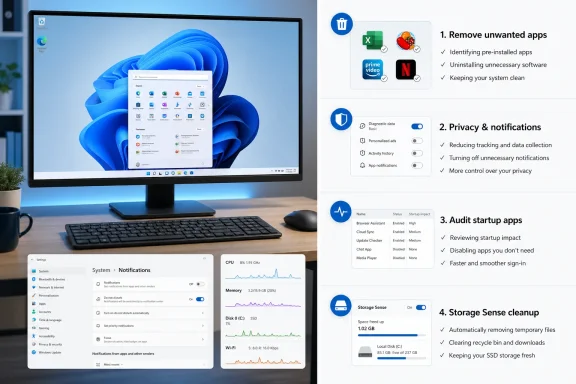
MakeUseOf’s new post-install checklist argues that the fastest Windows 11 PC is often the one that gets a small amount of attention before its owner begins piling on browsers, games, productivity suites, sync clients, and RGB utilities. Its four steps are straightforward: remove unwanted bundled apps, turn down promotional and diagnostic settings, audit startup entries, and enable Storage Sense.
That is not a promise to transform a modern NVMe-equipped PC into a different class of hardware. It is, however, a sensible way to prevent a clean Windows installation from inheriting clutter, unnecessary sign-in work, and an eventual low-space problem. For home users, the changes are manageable through Settings and Task Manager. For IT pros, the same list is a useful dividing line between harmless user preference tuning and changes that should instead be handled through deployment policy.
The most valuable part of the MakeUseOf advice is its restraint. It does not recommend disabling Windows Update, removing Microsoft Defender, shutting off services indiscriminately, or running a mystery “debloat” script with administrator rights. Those moves can produce a temporarily quieter system while creating a less supportable and less secure one.
Windows 11 installations increasingly arrive with a mixture of inbox apps, Microsoft Store packages, service promotions, trial-style entry points, and cloud-connected defaults. Some are installed applications; others are merely promoted shortcuts or recommendations that download an app only after a user clicks them. That distinction matters when estimating the performance benefit from removing them.
MakeUseOf points to familiar examples such as Clipchamp, Outlook, and Spotify entries. Removing an application a user never intends to launch can cut visual clutter in Start and eliminate the chance it becomes a background or startup participant later. But uninstalling a dormant Store app does not automatically mean a major reduction in idle CPU usage or memory consumption. The immediate gains are often usability and future maintenance rather than a dramatic benchmark result.
Windows supports ordinary removal through Settings > Apps > Installed apps, which is where most users should begin. Microsoft’s own support guidance treats that as the standard route for applications and programs. If Uninstall is unavailable, the package may be protected, managed by an organization, or installed as part of the Windows image.
The PowerShell command cited by MakeUseOf —
That distinction is not academic on shared PCs, lab machines, and business endpoints. Microsoft has added policy-based methods for organizations running supported Windows 11 releases to remove certain pre-installed Microsoft Store apps at scale. For managed fleets, that is preferable to asking technicians to manually execute consumer-oriented PowerShell snippets after every deployment.
The safe rule remains simple: remove applications because they are unwanted, not merely because their names appear on a debloating list. Microsoft Store, Windows Security, Photos, Calculator, codecs, language components, and framework packages can have dependencies that are not obvious from the app list. A restore point and a documented baseline are prudent before making system-wide package changes.
This is the part of the checklist where the payoff is more about control than raw performance. Microsoft says diagnostic data helps it understand device configuration, update reliability, crashes, compatibility, and other system-health issues. Required diagnostic data cannot be wholly switched off on a normal consumer installation, but optional diagnostic data can be disabled.
Microsoft also documents that tailored experiences can use diagnostic data to surface personalized tips, ads, and recommendations for Microsoft experiences. Turning down those settings is therefore a valid way to reduce Windows-generated suggestions and promotional surfaces. It should not be described as a complete telemetry shutdown, and it should not be confused with blocking all communication between a Windows device and Microsoft services.
The recommendation to visit Settings > System > Notifications > Additional settings is particularly practical. Disabling setup-completion prompts and tips removes the repeated nudges to finish configuring Windows or try features a user has already decided against. On a newly deployed machine, fewer interruptions may be more noticeable than any measurable reduction in processor activity.
Administrators should be cautious about treating privacy preferences as a universal performance policy. Diagnostic data can be useful in enterprise support workflows, especially where Windows Update, driver, and reliability issues must be diagnosed across a fleet. An organization should choose a documented telemetry and feedback posture through Group Policy, Microsoft Intune, or its endpoint-management platform—not through a technician’s one-off settings tour.
MakeUseOf recommends Settings > Apps > Startup or Task Manager’s Startup apps tab. Microsoft confirms both interfaces control the same category of registered startup tasks, while Task Manager provides the better triage view: its startup-impact field estimates the CPU and disk activity an app consumed during sign-in.
Microsoft defines a high-impact startup app as one that uses more than one second of CPU time or more than 3 MB of disk I/O during startup. That is not a perfect judgment of whether an entry is necessary, but it is far better than disabling software based solely on an unfamiliar name.
A good first pass is to disable optional auto-launchers: game launchers, creative-suite helpers, chat clients that are not needed at login, printer promotions, browser preloaders, and peripheral software whose background features are unnecessary. Disabling a startup entry does not uninstall the application; it simply stops Windows from automatically launching it at sign-in.
The exceptions deserve emphasis. Security software, password-manager integrations, VPN clients needed for work, backup agents, accessibility tools, touchpad drivers, graphics-control software, and audio enhancements can all have legitimate startup roles. If the publisher and function are not clear, Task Manager’s “Search online” option is a safer starting point than a blind disable.
For performance troubleshooting, startup auditing should also precede more invasive changes. If a machine is sluggish after a fresh setup, measure boot behavior, check Task Manager’s Processes tab after sign-in, and identify actual CPU, memory, disk, or network consumers. Evidence beats a ritualized debloat script.
The practical benefit is not that clearing temporary files makes a healthy PC inherently faster. Rather, free space helps Windows breathe. A nearly full system drive can complicate feature updates, leave too little room for application caches and virtual memory, and turn routine maintenance into a manual cleanup exercise.
MakeUseOf suggests setting Storage Sense to run weekly and emptying the Recycle Bin after 30 days. Those are defensible choices for a personal PC, provided the user understands that Recycle Bin contents are meant to be recoverable until that deadline. The Downloads option deserves much more caution. Installers, tax documents, firmware files, exported photos, and other important material frequently live there longer than users realize.
Microsoft’s documentation notes that Storage Sense does not touch Downloads or cloud content unless the user explicitly configures it to do so. Keeping Downloads set to Never is the safer default for most people. On devices with OneDrive Files On-Demand, administrators should also account for the setting that makes inactive local cloud files online-only; it does not delete them, but it can affect availability when the device is offline.
For managed systems, Storage Sense can be configured through Intune, making it a reasonable part of a standard endpoint baseline for capacity-constrained devices. A 64 GB or 128 GB laptop needs a different cleanup policy from a 2 TB desktop workstation.
The durable version of this checklist is modest: uninstall what is genuinely unwanted, reduce promotional noise according to personal or organizational policy, keep startup focused on software needed at sign-in, and reserve disk capacity automatically. Then let the PC run for several days before deciding it needs deeper intervention.
That approach will not make every Windows installation feel identical, because hardware, drivers, device-management policies, cloud accounts, and installed software still determine much of the real-world outcome. It will, however, leave a new Windows 11 system with fewer self-inflicted bottlenecks—and with enough free space and traceability to handle the next major update without turning maintenance into a recovery project.
The most valuable part of the MakeUseOf advice is its restraint. It does not recommend disabling Windows Update, removing Microsoft Defender, shutting off services indiscriminately, or running a mystery “debloat” script with administrator rights. Those moves can produce a temporarily quieter system while creating a less supportable and less secure one.
 A clean install is not a blank slate
Windows 11 installations increasingly arrive with a mixture of inbox apps, Microsoft Store packages, service promotions, trial-style entry points, and cloud-connected defaults. Some are installed applications; others are merely promoted shortcuts or recommendations that download an app only after a user clicks them. That distinction matters when estimating the performance benefit from removing them.MakeUseOf points to familiar examples such as Clipchamp, Outlook, and Spotify entries. Removing an application a user never intends to launch can cut visual clutter in Start and eliminate the chance it becomes a background or startup participant later. But uninstalling a dormant Store app does not automatically mean a major reduction in idle CPU usage or memory consumption. The immediate gains are often usability and future maintenance rather than a dramatic benchmark result.
Windows supports ordinary removal through Settings > Apps > Installed apps, which is where most users should begin. Microsoft’s own support guidance treats that as the standard route for applications and programs. If Uninstall is unavailable, the package may be protected, managed by an organization, or installed as part of the Windows image.
The PowerShell command cited by MakeUseOf —
Get-AppxPackage *AppName* | Remove-AppxPackage — removes an Appx package for the current user. That scope is important. Microsoft’s deployment documentation separates removing an app for a user from removing a provisioned package from the Windows image. A package removed only from one profile can still be present for other profiles or return when a new user signs in, depending on how the device was provisioned.That distinction is not academic on shared PCs, lab machines, and business endpoints. Microsoft has added policy-based methods for organizations running supported Windows 11 releases to remove certain pre-installed Microsoft Store apps at scale. For managed fleets, that is preferable to asking technicians to manually execute consumer-oriented PowerShell snippets after every deployment.
The safe rule remains simple: remove applications because they are unwanted, not merely because their names appear on a debloating list. Microsoft Store, Windows Security, Photos, Calculator, codecs, language components, and framework packages can have dependencies that are not obvious from the app list. A restore point and a documented baseline are prudent before making system-wide package changes.
Privacy toggles reduce prompts more reliably than they boost speed
The second item in the MakeUseOf checklist is to disable personalized offers, advertising-related controls, Start and Search improvement options, Settings recommendations, optional diagnostic data, inking and typing improvement, and feedback prompts. In current Windows 11 builds, many of those controls sit under Settings > Privacy & security, with names that can vary by release.This is the part of the checklist where the payoff is more about control than raw performance. Microsoft says diagnostic data helps it understand device configuration, update reliability, crashes, compatibility, and other system-health issues. Required diagnostic data cannot be wholly switched off on a normal consumer installation, but optional diagnostic data can be disabled.
Microsoft also documents that tailored experiences can use diagnostic data to surface personalized tips, ads, and recommendations for Microsoft experiences. Turning down those settings is therefore a valid way to reduce Windows-generated suggestions and promotional surfaces. It should not be described as a complete telemetry shutdown, and it should not be confused with blocking all communication between a Windows device and Microsoft services.
The recommendation to visit Settings > System > Notifications > Additional settings is particularly practical. Disabling setup-completion prompts and tips removes the repeated nudges to finish configuring Windows or try features a user has already decided against. On a newly deployed machine, fewer interruptions may be more noticeable than any measurable reduction in processor activity.
Administrators should be cautious about treating privacy preferences as a universal performance policy. Diagnostic data can be useful in enterprise support workflows, especially where Windows Update, driver, and reliability issues must be diagnosed across a fleet. An organization should choose a documented telemetry and feedback posture through Group Policy, Microsoft Intune, or its endpoint-management platform—not through a technician’s one-off settings tour.
Startup apps are where responsiveness becomes visible
Of the four actions, auditing startup applications is the one most likely to improve the experience a user can immediately feel. Every app that launches at sign-in competes for processor time, storage I/O, memory, and network access while the shell is trying to become usable. A machine may technically reach the desktop quickly and still feel slow for the next minute because sync clients, launchers, updaters, chat tools, and vendor utilities are all arriving together.MakeUseOf recommends Settings > Apps > Startup or Task Manager’s Startup apps tab. Microsoft confirms both interfaces control the same category of registered startup tasks, while Task Manager provides the better triage view: its startup-impact field estimates the CPU and disk activity an app consumed during sign-in.
Microsoft defines a high-impact startup app as one that uses more than one second of CPU time or more than 3 MB of disk I/O during startup. That is not a perfect judgment of whether an entry is necessary, but it is far better than disabling software based solely on an unfamiliar name.
A good first pass is to disable optional auto-launchers: game launchers, creative-suite helpers, chat clients that are not needed at login, printer promotions, browser preloaders, and peripheral software whose background features are unnecessary. Disabling a startup entry does not uninstall the application; it simply stops Windows from automatically launching it at sign-in.
The exceptions deserve emphasis. Security software, password-manager integrations, VPN clients needed for work, backup agents, accessibility tools, touchpad drivers, graphics-control software, and audio enhancements can all have legitimate startup roles. If the publisher and function are not clear, Task Manager’s “Search online” option is a safer starting point than a blind disable.
For performance troubleshooting, startup auditing should also precede more invasive changes. If a machine is sluggish after a fresh setup, measure boot behavior, check Task Manager’s Processes tab after sign-in, and identify actual CPU, memory, disk, or network consumers. Evidence beats a ritualized debloat script.
Storage Sense protects the update budget
Storage Sense is the least glamorous item in the MakeUseOf list, but it may be the most useful over the lifetime of a smaller SSD. The feature can remove temporary files and aged Recycle Bin contents automatically, and it can be configured to manage Downloads and locally available cloud files. Microsoft says Storage Sense is off by default, though Windows may enable it in certain low-space situations.The practical benefit is not that clearing temporary files makes a healthy PC inherently faster. Rather, free space helps Windows breathe. A nearly full system drive can complicate feature updates, leave too little room for application caches and virtual memory, and turn routine maintenance into a manual cleanup exercise.
MakeUseOf suggests setting Storage Sense to run weekly and emptying the Recycle Bin after 30 days. Those are defensible choices for a personal PC, provided the user understands that Recycle Bin contents are meant to be recoverable until that deadline. The Downloads option deserves much more caution. Installers, tax documents, firmware files, exported photos, and other important material frequently live there longer than users realize.
Microsoft’s documentation notes that Storage Sense does not touch Downloads or cloud content unless the user explicitly configures it to do so. Keeping Downloads set to Never is the safer default for most people. On devices with OneDrive Files On-Demand, administrators should also account for the setting that makes inactive local cloud files online-only; it does not delete them, but it can affect availability when the device is offline.
For managed systems, Storage Sense can be configured through Intune, making it a reasonable part of a standard endpoint baseline for capacity-constrained devices. A 64 GB or 128 GB laptop needs a different cleanup policy from a 2 TB desktop workstation.
The four steps work best as a baseline, not a purge
MakeUseOf mentions tools such as Winhance and BloatyNosy as graphical ways to apply similar changes. They can save time for enthusiasts who understand every switch they enable, but they should not replace judgment. A tool that groups privacy options, application removal, service changes, and policy edits behind a single “optimize” button makes rollback and troubleshooting harder.The durable version of this checklist is modest: uninstall what is genuinely unwanted, reduce promotional noise according to personal or organizational policy, keep startup focused on software needed at sign-in, and reserve disk capacity automatically. Then let the PC run for several days before deciding it needs deeper intervention.
That approach will not make every Windows installation feel identical, because hardware, drivers, device-management policies, cloud accounts, and installed software still determine much of the real-world outcome. It will, however, leave a new Windows 11 system with fewer self-inflicted bottlenecks—and with enough free space and traceability to handle the next major update without turning maintenance into a recovery project.
References
- Primary source: MakeUseOf
Published: 2026-08-01T22:00:12+00:00
I do these 4 things after every Windows install to keep it running fast
What I wish someone told me after my first Windows install. www.makeuseof.com
- Related coverage: support.microsoft.com
Diagnostics, feedback, and privacy in Windows | Microsoft Support
Learn how Microsoft collects and uses different kinds of diagnostic information to help fix problems quickly and improve your Windows experience, and how to control the data you share.support.microsoft.com - Related coverage: support.microsoft.com
Windows app diagnostics and privacy | Microsoft Support
Learn more about what diagnostic info is shared between apps and how you can control which apps have access to this info.support.microsoft.com - Related coverage: learn.microsoft.com
- Related coverage: learn.microsoft.com
Remove-AppxPackage (Appx) | Microsoft Learn
Removes an app package from one or more user accounts.learn.microsoft.com - Related coverage: blogs.windows.com
Strengthening Windows trust and security through User Transparency and Consent
Today, Windows 11 powers over a billion devices and supports millions of apps across business, creativity, education, gaming and productivity. For decades, our commitment to openness and compatibility, in partnership with our global community of deveblogs.windows.com - Related coverage: techcommunity.microsoft.com