
But XDA’s conclusion that Microsoft has left users with only an all-or-nothing indexing choice does not hold up against Microsoft’s own documentation. Classic indexing has long allowed users to add individual folders through the Indexing Options dialog; the new switch automates some of that selection. The meaningful limitation is not the absence of a middle setting. It is that Windows still makes users understand the distinction between where Search looks and what it can retrieve once it gets there.
Microsoft shipped the feature in KB5120998, released to the Windows Insider Release Preview Channel on August 14 for Windows 11 24H2 (Build 26100.9267) and 25H2 (Build 26200.9267). The company says availability is gradual, so even Release Preview participants may not see it immediately. It is not a broadly available stable-channel promise yet.
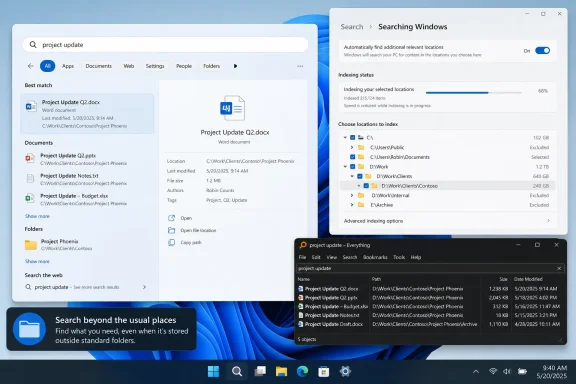 Automatic locations reduce setup, not indexing trade-offs
Microsoft’s new setting sits under Settings > Privacy & security > Search as “Automatically find additional relevant locations.” The company says Windows will index frequently used folders so files stored there can turn up in later searches. Windows Latest first detailed the work in early August, and Microsoft subsequently included it in the Release Preview release notes.
That is a practical improvement for ordinary PC use. A folder such as D:\Projects, a custom Downloads directory, or a working folder inside a source tree often sits outside Classic search’s defaults. A user might find it easily in File Explorer but get no result from Start search, then conclude Search is broken when it is actually following a deliberately limited index scope.
XDA is correct on the narrower point that automatically adding a folder cannot fix every missing-file complaint. If a folder is selected but the expected file still does not turn up, scope is no longer the only suspect. Indexing may still be underway, paused to save battery, slowed during active use, or configured to search only file properties rather than file contents for a particular extension.
Microsoft’s support documentation says a fresh or rebuilt index can take hours to finish, and its troubleshooting guidance says a full rebuild may need as long as 24 hours. On a laptop, the indexer can defer work while the device is busy or running low on charge. That behavior protects foreground performance, but it also makes a search result look unreliable when someone expects a newly added location to be instantly complete.
The “no middle ground” claim misses the existing controls
Windows presents two broad modes under Find my files. Classic indexes a limited default set of user locations. Enhanced indexes the PC more comprehensively and can consume more resources. That part of XDA’s description is accurate.
The article’s central claim—that users must either accept the narrow Classic defaults or index every drive—is not. Microsoft explicitly documents the middle path: keep Classic selected, choose Customize search locations, open Modify, and select the specific folders to add. The same legacy Indexing Options panel can remove locations as well.
This is more than a technical quibble. It changes the recommendation for users with a second SSD, a development workspace, a local photo archive, or a data folder outside their user profile. They do not need to choose Enhanced just to make one work directory searchable. They can include the directory they need and leave build outputs, virtual-machine disks, installer caches, game libraries, and other high-churn locations outside the index.
Microsoft also exposes a separate set of controls under Advanced indexing options > File Types. Administrators and power users can choose whether a given extension is indexed as properties only or as properties and file contents. A document whose filename does not contain the desired word may therefore be absent even when its parent folder is indexed, if its file type is set to properties only or lacks a suitable content handler.
The practical point is simple: a folder-selection problem and a content-indexing problem require different fixes. The new automatic-location feature addresses the first one. It does not claim to solve the second, and Microsoft has not represented it as a complete redesign of Windows Search.
Search’s 2026 changes are mostly about finding the right result sooner
The location setting arrives alongside a wider Windows Search refresh that Microsoft has been testing through Insider channels. The company says Search now supports two-character local file queries, is more tolerant of mistyped or partial app names, gives greater prominence to strong local matches, and labels whether a result is an app, setting, file, web result, or Microsoft Store suggestion.
Microsoft has also added a setting that lets users decide whether web and Microsoft Store suggestions appear beside local results. That does not improve the index itself, but it gives users who want a strictly local launcher-and-file-search experience a way to remove some of the distracting material that has accumulated in the search interface.
Those changes matter most at the query and presentation layers. A search beginning after two characters is more responsive than one that makes users type three; fuzzy matching makes app launching less brittle; clearer result provenance reduces the chance of opening a web query when the intended target was a local file. None of them ensures that the file is in the searchable corpus to begin with.
The Release Preview notes also say feature delivery varies by device and market. That should temper expectations around the new behavior. There is no published explanation of the precise signals Windows uses to decide a folder is “relevant,” how much usage is required before it is added, or whether certain folder types are excluded. Microsoft has supplied the control and the basic promise, but not a detailed operational model.
For managed machines, that lack of detail matters. Enterprises commonly direct data to network shares, OneDrive folders, redirected profile locations, application-specific repositories, or developer volumes. IT staff should not assume a consumer-oriented activity signal will choose the locations their users need, or that it will align with an organization’s storage and privacy policies.
A better troubleshooting order for missed files
When Windows Search misses a file, changing to Enhanced mode is a blunt first move. It can increase disk activity and database size while indexing locations that have no value to the user. Microsoft notes that index size can grow significantly with very large numbers of small files, including code-heavy directories.
A more disciplined approach is to check the exact failure mode first:
- Confirm that the file’s parent folder is selected under Classic indexing before expanding coverage to the entire PC.
- Check the indexing status in Windows Search settings and allow a new or rebuilt index to finish, preferably while the PC is connected to power.
- Review the affected file extension in Advanced indexing options if searches should match words inside documents rather than only names, paths, and metadata.
- Exclude folders such as dependency caches, generated build output, VM images, and bulky archives when broad indexing is necessary but result quality is degrading.
- Rebuild the index only after verifying scope and file-type settings, because rebuilding a misconfigured index merely reproduces the same omissions more slowly.
This is also where Microsoft’s automatic folder discovery may genuinely help. It can lower the odds that an individual user forgets to add a work folder in the first place. It cannot tell an administrator which directories should be excluded from a large development machine, nor can it decide whether indexing source-code contents is appropriate for every device.
Everything remains a useful complement, with different limits
XDA recommends Voidtools’ Everything as an alternative, and that recommendation is sensible for people whose primary task is locating a file or folder by name. Everything builds its own database rather than using the Windows Search index. By default, it indexes fixed NTFS and ReFS volumes, and Voidtools says it keeps those indexes current using filesystem change tracking.
That design explains why Everything often feels immediate on a machine with files spread across multiple local drives. It starts from the volumes instead of from Windows Search’s selected-location policy. It is especially useful for locating installers, project folders, executable files, logs, and documents when the user knows all or part of the filename.
It is not a wholesale replacement for Windows Search in every workflow. Voidtools describes Everything primarily as a filename search engine; searching file contents is a separately configurable feature and carries a different resource cost. Network locations, removable media, FAT volumes, and offline storage also require additional configuration such as folder indexing or file lists. Windows Search, meanwhile, remains integrated with Start, Settings, File Explorer, Outlook and other applications that rely on Microsoft’s search infrastructure.
The sensible outcome is coexistence, not an ideological choice. Use Windows Search when integrated Windows results, settings discovery, and content indexing are useful; use Everything when fast, comprehensive local filename discovery matters more than polished integration.
Microsoft’s new automatic-location setting should make Classic indexing less punishing for users who save files outside the standard profile folders. The immediate fix for a file that remains missing, however, is still to inspect the selected location, indexing status, and file-type rules—not to assume that Windows has only two choices or that an automatic folder picker has rebuilt Search’s underlying model.
