
The useful distinction is between a measured bottleneck and a Windows component that merely appears in Task Manager. A sluggish machine needs evidence: sustained disk saturation, committed memory near its limit, a CPU-bound process, thermal throttling, or a startup queue full of third-party software. Disabling services first can remove features, interfere with update delivery, or make troubleshooting harder while doing little for normal performance.
Microsoft’s own current performance guidance backs three of MakeUseOf’s recommendations outright: reducing visual effects, controlling app background permissions, and changing power mode when maximum performance is required. It also tells users to inspect Task Manager’s Processes, Performance, and Startup apps tabs—an order that should come before changing Windows services.
 Search indexing should be narrowed before it is disabled
MakeUseOf argues that Windows Search indexing is not worth its background overhead and recommends replacing it with Voidtools Everything. There is a real technical case for Everything if the goal is instant filename-and-path lookup across local NTFS or ReFS volumes. Voidtools says Everything’s default index centers on names and paths, rather than maintaining a full-text catalog; that narrower job is why it can return filenames almost immediately.
But replacing Windows Search is not the same thing as replacing everything Windows Search does. Microsoft documents that Windows indexes file properties and, for supported text files, contents. File Explorer, Edge history suggestions, and offline Outlook search can use that index. Everything is excellent at locating
invoice-final.docxor a lost folder, but it is not a drop-in substitute for searching for a phrase inside a document or email.
The submitted article also overstates the default scope. On a typical Windows installation, Microsoft’s Classic indexing mode covers the Desktop plus Documents, Pictures, and Music—not every file on every drive. The more resource-intensive Enhanced setting indexes the whole PC. A user who has selected Enhanced indexing, works with large source trees, or constantly adds and removes many small files can absolutely see indexing activity become noticeable, particularly on a machine with a hard disk drive or limited CPU headroom.
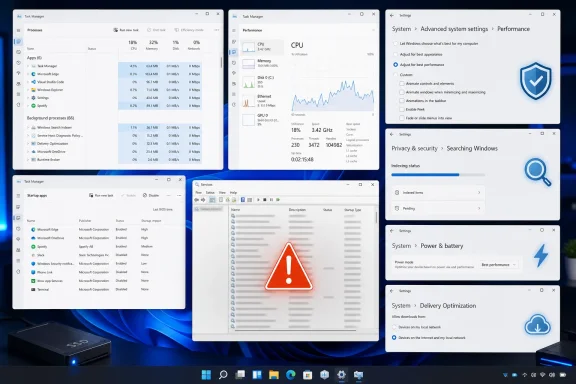
The better remedy is to reduce the index to the locations and file types that earn their place. In Windows 11, go to Settings, Privacy & security, Searching Windows, and use Classic mode if it is not already selected. From Advanced indexing options, remove archive folders, virtual-machine directories, game libraries, software build trees, and other locations that do not need content search. The same advanced pane allows per-file-type choices between indexing properties only and indexing properties plus contents.
That preserves fast Start menu, Explorer, and Outlook searches where they matter while removing the expensive parts of the workload. Full service disablement makes sense only for a user who has deliberately accepted those trade-offs and verified Windows Search is the process driving sustained resource use.
Visual effects and startup applications are the lowest-risk wins
The visual-effects advice is sound, even if its expected payoff needs perspective. Selecting “Adjust for best performance” removes animations, shadows, transparency-related effects, and other presentation features. On an older integrated GPU, entry-level laptop, remote desktop session, or virtual machine, that can make interface interactions visibly more immediate. Microsoft specifically includes this setting in its Windows performance guidance.
On a recent desktop with adequate graphics hardware, turning off animations is more likely to improve perceived responsiveness than application throughput. It will not make a CPU-bound video export, a saturated SSD, or a game limited by its GPU suddenly fast. Users who dislike the stripped-down result should use the Custom option and restore font smoothing first; legible text is a better trade than reclaiming a marginal amount of rendering work.
Startup cleanup has a stronger record because it targets software that often has no reason to load at sign-in. Microsoft confirms that startup applications affect both boot speed and overall system performance, and Task Manager exposes an estimated startup impact for each entry. Updaters, chat clients, RGB controller suites, game launchers, cloud-sync tools, and vendor utilities can accumulate quietly over years of installations.
The practical rule is to disable automatic launch before uninstalling anything. Leave security software, disk-encryption management, touchpad or audio control software, backup agents, and corporate management tools alone until their function is known. A disabled startup entry can be turned back on in seconds; a removed driver helper or endpoint-management component can create a much larger support problem.
MakeUseOf is also right that startup entries are only one part of the equation. Some applications remain active through the notification area or keep helpers running after their main window closes. The important caveat is that Windows 11’s background-permissions control does not manage every app. Microsoft notes that traditional Win32 desktop programs are generally not governed by the Installed apps background-permission setting; they must be configured inside the application itself or through its startup, tray, and service settings.
In other words, do not expect setting a Microsoft Store-style app to “Never” in Settings to stop Discord, Steam, Adobe Creative Cloud, Dropbox, or a motherboard utility if that software installed its own background processes. Confirm the result in Task Manager after signing out and back in.
Balanced mode is not a permanent performance mistake
The article correctly notes that Windows offers a Best performance power mode. Microsoft says it allows the CPU to operate at higher performance when needed, and it is an appropriate choice for rendering, compiling, gaming while connected to AC power, or other workloads where wall power, fan noise, and heat are acceptable costs.
Calling Balanced a default that “holds your PC back,” however, misses why it exists. Balanced mode lets modern processors boost aggressively for short bursts and reduce power during idle periods. For web work, office tasks, and many games, changing the Windows selector may not improve the limiting component at all. A laptop restricted by GPU thermals, a desktop with an underpowered graphics card, or a PC waiting on a hard drive will not be fixed by a more aggressive CPU power policy.
Best performance has a clearly stated cost: higher power consumption, faster battery drain, and potentially more heat. Those costs matter on thin laptops, compact desktops, and systems already running close to their thermal limits. If the machine becomes hotter and its fans run harder without a measurable gain in the application that matters, Balanced was the better setting.
The recommendation to enable the hidden Ultimate Performance plan deserves even more restraint. Microsoft introduced that plan primarily for workstation-class systems where it can reduce small power-management latencies. It is not a universal “full capacity” switch, and forcing it onto a laptop does not override firmware thermal controls, OEM performance profiles, graphics limits, or battery protection logic. Use Windows’ Best performance mode for a specific task first; if it changes nothing, look at the active process, temperatures, storage health, and graphics utilization rather than escalating to an obscure plan.
The services list is where a sensible tune-up becomes risky
Do not blanket-disable Windows services. MakeUseOf places Delivery Optimization alongside SysMain, Windows Search, Error Reporting, and telemetry as obvious services that can be shut down “without consequences.” Microsoft’s service-configuration guidance says otherwise.
Delivery Optimization, whose service name is DoSvc, is explicitly marked “Don’t disable” in Microsoft’s current service guidance. It handles Windows and application-content delivery optimization. Administrators who want to prevent peer-to-peer sharing have a supported option: configure Delivery Optimization’s download mode to disable peer sharing rather than disabling the service itself. Microsoft also warns administrators not to use its deprecated Bypass mode because some content downloads can fail.
This is more than a semantic distinction. Disabling a service removes its ability to participate in supported Windows update behavior. Configuring its peer-to-peer policy addresses the actual concern—unwanted local-network or internet peer use—without treating Windows Update plumbing as disposable background noise.
SysMain is more nuanced than the article suggests. Microsoft has documented a specific issue in which SysMain can cause a CPU spike for one to two minutes when a particular kind of older 64-bit application is running. That proves SysMain can be the culprit on an affected system; it does not prove that disabling it improves every PC. If Task Manager repeatedly shows the SysMain-hosting service consuming CPU or driving an older HDD to 100 percent active time during the same workload, temporarily stopping it is a reasonable diagnostic test. If the symptom disappears and application launches do not get worse over several days, disabling it may be justified for that machine.
Windows Error Reporting is also not a constant performance drain. Its job is to gather crash information and offer problem reporting or solutions when programs fail. Turning it off can be a privacy or policy decision, but describing it as a default service that sits around consuming meaningful CPU is unsupported. The real cost is lost diagnostic evidence when an application, driver, or Windows component begins crashing.
“Telemetry” needs an exact service name before anyone changes it. Windows includes the Connected User Experiences and Telemetry service, DiagTrack, and Microsoft’s configuration documentation identifies it as a service that can be disabled in certain managed or specialized deployments. That is a decision about connected experiences and diagnostic data, not a general performance prescription. A home PC should not be tuned by applying a service list copied from an IoT image, gaming guide, or privacy script.
Start with the process that is actually slow
The strongest version of the MakeUseOf advice is a staged one: reduce startup clutter, trim visual effects if the hardware is weak, narrow an oversized Search index, and use Best performance only when the workload and power budget justify it. Each change is reversible and maps to a recognizable symptom.
Services should come last, after Task Manager has identified a repeat offender and after the service’s function has been checked. Microsoft’s own optimization material marks several services as safe to disable only in feature-specific cases, while warning against disabling others that support updates, diagnostics, security, device setup, networking, and background tasks.
For Windows enthusiasts and IT pros, the durable performance gain is not a stripped-down Services console. It is a machine where every automatic program and background task has a known owner, a stated purpose, and measurable resource use.