
The important practical finding is narrower: the laptop was almost certainly leaving substantial performance on the table somewhere between its wireless adapter, driver configuration, and connection to the router. A machine a few feet from the access point that achieves 330 Mbps while other local devices test faster warrants investigation. It does not, however, establish that every Windows laptop has a Vista-era throttle holding it near 120 Mbps, or that disabling four defaults is a safe universal tune-up.
The most consequential discrepancy is easy to verify in the command shown in the report. The article says it disabled the registry value
NetworkThrottlingIndex, then instructs readers to run:
netsh interface tcp set global autotuninglevel=normal
That command does not modify NetworkThrottlingIndex. It changes TCP receive-window autotuning, a separate Windows networking feature. No registry command, Registry Editor path, backup procedure, or actual
NetworkThrottlingIndexvalue appears in the instructions. Readers following the published step therefore did not disable the feature the article describes.
Microsoft documents
autotuninglevel=normalas the standard TCP receive-window autotuning mode and provides it as a remedy where autotuning has been disabled or restricted. In other words, the command can help a system whose TCP settings were previously altered, but it is not evidence of an active Windows cap on a modern Wi‑Fi connection. The report’s own results point in that direction: its average declined from 765 Mbps after the preferred-band change to 703 Mbps after the command, before later retests varied from 650 Mbps to 1.0 Gbps.
That makes the headline’s “four Windows settings” claim misleading. One reported change was a power-management checkbox; a second was a preferred-band adjustment; a third was roaming aggressiveness; and the fourth was a TCP setting that the article misidentified as a registry throttle. The article also mentions “Wireless Mode” but explicitly says the author left it unchanged.
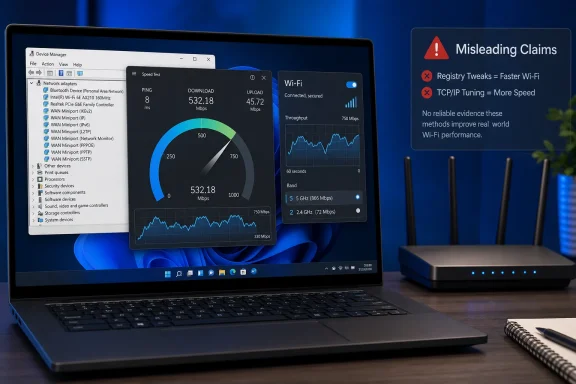 The power-management checkbox is not a universal throughput switch
The first change — clearing “Allow the computer to turn off this device to save power” in the Wi‑Fi adapter’s Device Manager properties — produced the article’s largest reported jump, from 330 Mbps to 730 Mbps. It may have coincided with a real recovery, particularly if the laptop’s driver had entered a bad state or the change forced the adapter to reinitialize. But Microsoft’s Wi‑Fi power-management documentation describes several distinct mechanisms, including active power-save behavior managed through the wireless driver, connected idle, Modern Standby, and device power states.
The checkbox’s label specifically concerns Windows’ ability to place the device into a lower power state. It is not a documented master switch for all active Wi‑Fi radio power saving. On Modern Standby-capable systems, Microsoft expects the Wi‑Fi driver to support power-save behavior even while the device is active and connected, depending on the hardware, access point, and power policy.
That distinction matters for diagnosis. An Intel, MediaTek, Qualcomm, Realtek, or OEM-customized driver can expose different controls and interpret them differently. Some current Windows systems do not display the Power Management tab at all. A performance gain after toggling the checkbox is a reason to check the driver and reproduce the test, not proof that Windows was intentionally cutting active throughput to save battery.
The unpublished details are the ones that would determine whether this was a genuine adapter-specific fix: the exact Wi‑Fi card, driver version, Windows build, router model, channel width, negotiated transmit and receive rates, and whether the laptop was on AC power. None appears in the MakeUseOf report. Without them, readers cannot tell whether they share the condition that caused the result.
Preferred band can help, but it does not force a better link
The preferred-band adjustment is the most technically credible of the remaining changes. Intel’s own adapter documentation says the option is intended to let users prefer 5 GHz rather than 2.4 GHz in environments where interference or competing radios make that useful. A laptop attached to a congested 2.4 GHz channel can indeed test far below a nearby device using a wider 5 GHz or 6 GHz channel.
But “Prefer 5 GHz” means preference, not a guarantee. The router’s band steering, the adapter driver, signal quality, supported channel widths, regulatory domain, and security configuration still decide the final connection. A Wi‑Fi 6E-capable laptop and router will not use 6 GHz merely because a menu offers the preference if the SSID or security settings are incompatible. Likewise, forcing a distant laptop toward 5 GHz can reduce reliability where 2.4 GHz is the stronger usable signal.
The relevant evidence should be collected before and after the change. Windows can show the adapter’s radio type, channel, BSSID, signal percentage, and current receive/transmit rates with:
netsh wlan show interfacesIf the reported 330 Mbps baseline was associated with 2.4 GHz and the 730 Mbps result followed a move to 5 GHz or 6 GHz with a sharply higher negotiated link rate, that would support the preferred-band explanation. If the radio band and link rate never changed, the claimed cause lies elsewhere.
A wired Ethernet test is also essential. If Ethernet cannot approach the service’s advertised gigabit rate at the same time, the fault may sit with the ISP path, gateway, router CPU, or another local bottleneck rather than Windows Wi‑Fi. The report says other devices were faster, which is useful comparative evidence, but it does not provide their results or explain whether they used the same band, channel, and test endpoint.
Lowest roaming aggressiveness can be wrong for mesh networks
The report also recommends setting Wi‑Fi “Roaming aggressiveness” to its lowest value. Intel describes this setting as the signal-strength threshold at which an adapter begins scanning for another candidate access point. Its documented default is Medium, and Intel recommends returning to that default if another setting shows no improvement.
On a single-router home network, lowering roaming sensitivity may reduce unnecessary scans or prevent a driver from chasing marginal candidates. It is unlikely to transform steady-state throughput in the way the headline implies. On a mesh deployment, office WLAN, or house with extenders sharing an SSID, the same setting can leave a laptop stuck to a weaker access point longer than it should.
That is the hidden cost of treating adapter settings as one-size-fits-all “performance” switches. Roaming is a mobility decision. A stationary desktop at one edge of a mesh network and a laptop carried between access points need different behavior. Lowering the threshold may improve one room while causing poor handoffs and worse performance elsewhere.
The sensible method is to change one property, record the associated BSSID, band, signal level, negotiated link rate, latency, and several test results, then restore the previous value if it does not produce a repeatable improvement. The Windows WLAN report, generated with
netsh wlan show wlanreport, can help identify repeated disconnects, connection failures, and roaming events over recent days.
Fast.com results are useful, but they are not a controlled Wi‑Fi benchmark
MakeUseOf correctly notes that speed tests use multiple transfers and that local traffic affects the result. It also correctly notes that Fast.com measures throughput to Netflix infrastructure. Netflix says Fast.com performs downloads and uploads to its servers to estimate the maximum speed available at that moment; it is designed as a consumer estimate, not enterprise-grade service certification.
That makes Fast.com a reasonable streaming-path check. It does not isolate the laptop’s Wi‑Fi link from the router, the router’s WAN path, the ISP’s interconnection with Netflix, or variation in the selected content-delivery server. Ookla’s Speedtest similarly uses adaptive parallel connections, while the selected server and route can affect its result. Testing with both services is better than relying on one, but neither replaces a local test.
The report’s measurement sequence also confounds causation. Its preferred-band test produced four values from 520 Mbps to 920 Mbps — a range large enough to show substantial variation before another setting was changed. The later five-test series after the final changes ranged from 650 Mbps to 800 Mbps, averaging 750 Mbps; including the reported 1.0 Gbps spike would raise the six-test mean to about 792 Mbps. Those are encouraging results, but they do not separate a configuration change from normal short-term fluctuations.
A more persuasive test would use a local
iperf3server connected by Ethernet to the router or switch. That removes the ISP and remote speed-test server from the equation. Run repeated timed tests at the same location, record Wi‑Fi link statistics, test on AC and battery, then roll back each change to see whether the throughput loss returns. That A/B reversal is what the reported experiment lacks.
Check the adapter and TCP state before changing anything
For Windows users seeing a similar gap between one laptop and other devices, the first action should be evidence collection rather than registry tuning. Check the adapter model and driver date in Device Manager, then obtain the newest driver from the laptop manufacturer or wireless-card vendor where appropriate. OEM drivers can include platform-specific power and coexistence work that a generic Windows driver does not.
Next, confirm whether the system has an actual TCP autotuning problem:
netsh interface tcp show globalIf Receive Window Auto-Tuning Level is already
normal, rerunning the MakeUseOf command should not be expected to create a new performance gain. If it is disabled or restricted, restoring
normalis a legitimate, documented repair step. It is still unrelated to
NetworkThrottlingIndex.
The report’s 330 Mbps-to-730 Mbps recovery is worth taking seriously as an adapter-specific troubleshooting lead. Its broader prescription is not. The evidence supports checking a bad Wi‑Fi configuration or driver, not disabling four supposed Windows limits.