
But the experiment does not establish that 80 MHz is the right setting for every quiet neighborhood, or even that channel width alone caused every bit of the improvement. The author changed both the width and the operating block, settling on the 149–161 range. That matters: a Wi-Fi test that changes channel placement and width simultaneously cannot cleanly isolate one variable. A congested 20 MHz channel can lose badly to a clean 80 MHz channel, while a clean 20 MHz channel may outperform a crowded 80 MHz block in an apartment building.
The useful conclusion is narrower and more actionable than the usual “make the channel wider” advice. On a lightly used 5 GHz band, 80 MHz is often worth testing. On a crowded one, the Windows user who wants reliable performance needs to measure the airtime and interference around the whole channel block, not chase the largest number in the router’s settings page.
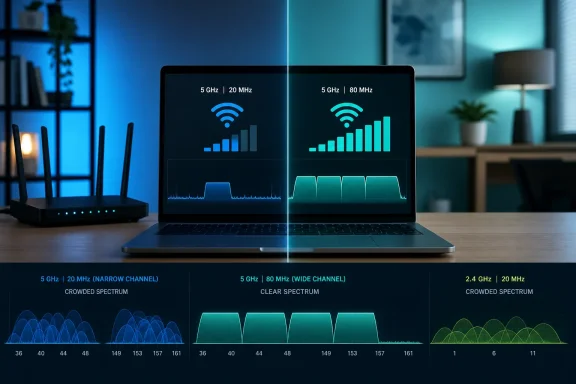 The speed increase is plausible, but the test changed more than bandwidth
An 80 MHz Wi-Fi channel combines four 20 MHz channels. With a capable Wi-Fi 5, Wi-Fi 6, or Wi-Fi 6E client on 5 GHz, that wider allocation raises the potential physical link rate substantially compared with 20 MHz. Cisco’s wireless documentation supports the basic mechanism: 5 GHz equipment can use 20, 40, 80, and in some cases 160 MHz widths, with channel bonding increasing available throughput when radio conditions permit it.
That is the part MakeUseOf got right. A Windows laptop or desktop adapter negotiating a 20 MHz connection may leave a great deal of its capability unused, particularly when the router, client, and broadband plan are all newer than the original wireless configuration. Many ISP-supplied routers and mesh systems still favor conservative automatic settings, either to preserve compatibility or to avoid instability in mixed-device homes.
The gap between the author’s 20 MHz and 80 MHz results is also believable because Wi-Fi speed tests are rarely steady. Signal strength changes with distance, reflections, client power-saving behavior, other household traffic, interference, test-server load, and the device’s selected modulation rate. A one-off peak above 325 Mbps should not be treated as the new guaranteed connection speed. The repeatable evidence is the higher floor: if multiple tests at the same place rise from approximately 90 Mbps to well above 125 Mbps, there is a practical improvement.
Still, the article’s setup leaves out the measurements that would show why it improved. It does not identify the router model, Wi-Fi standard, client adapter, Windows driver, link speed, channel utilization, signal level, or whether the original 20 MHz setting used the same primary channel. Those omissions make the test useful as a home-network case study, not a universal tuning recipe.
Channel 149–161 was a sensible U.S. choice
The most valuable technical detail in the MakeUseOf report is the use of the 5 GHz block built from channels 149, 153, 157, and 161. In the United States, that is one of the conventional non-DFS 80 MHz channel groups. The other familiar non-DFS 80 MHz group is channels 36, 40, 44, and 48.
Those ranges avoid Dynamic Frequency Selection, or DFS. FCC rules require Wi-Fi equipment using certain 5 GHz ranges to detect radar and move away when radar activity is detected. The requirement exists because Wi-Fi shares portions of this spectrum with radar systems. A DFS-capable router may need to check a channel before using it, and it can force connected devices to change channels if it detects a radar signature.
Avoiding DFS can be a reasonable home-network preference when stable availability matters more than squeezing every possible 5 GHz channel out of the band. It can eliminate the possibility of a radar-triggered move on those channels. It does not, however, make the 149–161 block automatically cleaner than the rest of 5 GHz. In many U.S. neighborhoods, those higher channels are popular precisely because they avoid DFS and are supported broadly by consumer hardware. A wireless scan may reveal that 36–48 is less busy, or that a DFS range is the least contended option.
The author’s wider claim that moving to 80 MHz “almost always” means spanning DFS channels is too broad for U.S. home networks. Both 36–48 and 149–161 provide 80 MHz options without DFS. The available channels and power rules do vary by country and by router regulatory domain, so readers outside the United States should not copy a channel number blindly.
Wider channels spend spectrum faster
The weakness of a wide channel is not that it creates interference by itself. The problem is that it occupies more of the finite 5 GHz spectrum and therefore has more opportunities to overlap with competing Wi-Fi networks. In a detached home with weak neighboring signals, the trade-off may be excellent: a wider channel produces higher throughput with little contention.
In a dense building, an 80 MHz channel can turn four otherwise usable 20 MHz segments into one shared battleground. A nearby access point operating anywhere in that bonded block can raise channel utilization, cause retransmissions, and reduce the consistency of latency-sensitive traffic. Video calls, remote-desktop sessions, cloud gaming, VPN work, and large file transfers tend to expose this instability before a single speed-test number does.
Cisco’s enterprise wireless guidance is notably more cautious than consumer-router marketing. Its documentation emphasizes channel planning, interference avoidance, and the limited number of usable non-overlapping channels rather than treating the broadest width as a default performance setting. In managed environments with many access points and many clients, 20 MHz or 40 MHz can be chosen deliberately because frequency reuse and predictable airtime matter more than a larger headline link rate.
That same principle applies to a Windows PC at home. A 20 MHz connection that holds 95 Mbps with low packet loss may be preferable to an 80 MHz connection that swings from 300 Mbps to unusable whenever nearby networks become active. The correct measure is performance during the tasks that prompted the change, at the time of day when the household and neighbors are busiest.
Keep 2.4 GHz at 20 MHz
MakeUseOf’s warning about 2.4 GHz deserves stronger wording: for most U.S. households, do not force 40 MHz on 2.4 GHz.
The band has only three standard non-overlapping 20 MHz channels in the United States: 1, 6, and 11. Cisco’s current wireless reference material continues to recommend that plan and notes that channel bonding in 2.4 GHz is generally not recommended in enterprise deployments because the usable spectrum is too limited. Cisco’s small-business access-point documentation goes further, restricting 2.4 GHz to 20 MHz while permitting 20, 40, or 80 MHz choices on 5 GHz.
A 40 MHz 2.4 GHz configuration consumes most of the band and can make neighboring networks worse for everyone, including the person who enabled it. It can also make a problem look deceptively successful in a quiet test: a device near the router might report a higher peak rate, while range, consistency, and coexistence deteriorate afterward.
Windows users should regard 2.4 GHz as the compatibility and reach band for older smart-home devices, printers, and distant low-bandwidth clients. Put performance-sensitive PCs, consoles, and modern phones on 5 GHz or 6 GHz where possible. If a device has Wi-Fi 6E or Wi-Fi 7 capability and a compatible access point, 6 GHz offers substantially more spectrum and avoids the 5 GHz DFS question, though its shorter effective range remains a real limitation.
Test the router setting with the Windows client, not only a web speed test
A useful home test takes less than half an hour and reveals more than changing a width setting permanently after one favorable result.
- Record the current 5 GHz channel, width, router location, and the Windows PC’s connection speed before making changes.
- Run several internet speed tests at the same location, but also transfer a large file to or from a wired PC, NAS, or local server if one is available. A local transfer separates Wi-Fi performance from broadband and remote-server variability.
- Check the Windows connection details with
netsh wlan show interfaces, which reports the connected radio type, channel, receive rate, transmit rate, and signal. The negotiated rates are not real throughput, but they can show whether the adapter moved from a narrow to a wider operating mode. - Repeat the test during a busy evening, not only at a quiet time. If latency spikes or transfer rates collapse then, reduce the width to 40 MHz or try another channel block.
- Leave 2.4 GHz at 20 MHz and use channels 1, 6, or 11 unless there is a specific, measured reason to do otherwise.
One further Windows-specific check is worth making before blaming the router. Adapter drivers and advanced properties can affect roaming behavior, preferred band selection, transmit power, and supported channel widths. Laptop vendors sometimes lag behind Intel, Qualcomm, MediaTek, or Realtek on driver updates, but installing a generic driver is not always safe or supported. Start with Windows Update and the PC maker’s driver package, then verify that the adapter is actually associating with the intended 5 GHz network.
MakeUseOf’s test is a good reminder that a conservative router default can leave speed on the table. It is not evidence that 20 MHz was universally “wrong,” nor that 80 MHz should become an unquestioned default. On 5 GHz, channel width is a local RF decision: use 80 MHz when repeated testing shows sustained gains without added contention, step down to 40 MHz when the neighborhood is crowded, and keep 2.4 GHz narrow so the remaining spectrum can still work.