
Microsoft originally introduced the restored seconds option through Windows 11’s taskbar work in 2023 after removing it from the initial Windows 11 release. The control has since moved: older instructions that send you to Personalization > Taskbar > Taskbar behaviors describe the earlier placement, while Microsoft’s current documentation places it under Time & language > Date & time. That change is why the setting can seem to have disappeared even on a fully updated PC.
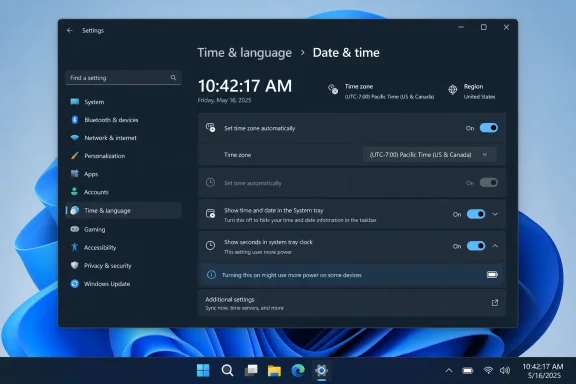 Turn on seconds in the Windows 11 taskbar clock
Open Settings with Windows + I, then select Time & language and open Date & time.
Scroll to the system-tray clock section and make sure Show time and date in the System tray is turned on. Expand that section if Windows displays it as a collapsible row, then enable Show seconds in system tray clock (uses more power).
The clock at the right side of the taskbar should immediately change from a format such as 10:42 AM to 10:42:17 AM. There is no Apply button, sign-out step, or File Explorer restart required. The setting changes the visible clock only; it does not alter your time zone, regional format, synchronization source, alarms, or scheduled tasks.
You can reach the same Date & time page more quickly by right-clicking the taskbar clock and selecting Adjust date and time. This is the most reliable shortcut when the Settings navigation has changed between Windows 11 feature updates.
Why current instructions differ from older Windows 11 guides
The location of this option is the confusing part, not the feature itself. Microsoft’s Windows Insider documentation initially placed the checkbox in Settings > Personalization > Taskbar, inside Taskbar behaviors. Microsoft later moved it to Settings > Time & language > Date & time, under the expanded system-tray clock controls.
So, if a guide tells you to expand Taskbar behaviors and you cannot find the seconds checkbox, do not assume your installation is broken. Use the current route instead:
- Open Settings > Time & language > Date & time.
- Find Show time and date in the System tray.
- Turn on Show seconds in system tray clock (uses more power).
Microsoft’s current support guidance confirms that seconds are controlled from this Date & time area. The older Taskbar settings route remains useful for changing taskbar alignment, auto-hide behavior, badges, and multi-monitor taskbar behavior, but it is no longer the primary home for the clock’s seconds setting.
If “Show seconds in system tray clock” is unavailable
First, confirm that the main Show time and date in the System tray setting is enabled. The seconds checkbox belongs to that clock feature; if the date and time are hidden from the taskbar, Windows cannot display seconds there.
Next, verify that you are actually using Windows 11 and that the device has installed its available Windows updates. The built-in seconds control arrived after the original Windows 11 release, so an older or unusually restricted installation may not expose it. Open Settings > Windows Update, select Check for updates, install applicable updates, and restart if Windows requests it. Afterward, return to Time & language > Date & time rather than relying on an old Taskbar behaviors tutorial.
On a work or school PC, the missing option may be intentional. Microsoft documents Group Policy settings that can remove the system clock from the notification area or lock taskbar settings. An organization that applies one of those policies can prevent users from changing related taskbar controls. If the clock is missing entirely, greyed out, or reverts after you enable it, contact the administrator rather than trying registry changes that may conflict with managed policy.
Also check whether you are looking at the correct clock. The relevant display is the system tray clock at the far right end of the taskbar, near the network, volume, battery, and notification indicators. Windows 11’s notification center and the Clock app are separate interfaces. Adding seconds to the system-tray clock does not automatically change every time display across Windows.
The “uses more power” note is not decorative
Microsoft labels the checkbox “uses more power” because the taskbar clock must visibly refresh every second instead of changing only when the minute rolls over. Microsoft does not publish a battery-life estimate for the setting, and the real effect will vary by hardware, display configuration, power mode, and what else is running.
On a desktop PC, the extra refresh activity is unlikely to be a meaningful concern. On a laptop, tablet, or handheld Windows device used on battery for long periods, it is reasonable to leave seconds off unless the precision is useful. The practical trade-off is visual: a constantly changing seconds value can be convenient for time-sensitive work, but it also adds motion to an area of the screen many people check frequently.
Seconds are especially useful when you are:
- Watching the start or end of a meeting, test, stream, or timed process without opening another app.
- Comparing a visible event with timestamps in a log window, terminal, or monitoring dashboard.
- Confirming that the Windows clock is advancing after a time-service or synchronization issue.
- Performing a short manual task where minute-level time is too coarse.
They are less useful if you only glance at the clock for appointments or general time awareness. In that case, the default hours-and-minutes display is cleaner and avoids the additional taskbar refresh Microsoft calls out.
Turn seconds off again
To return the clock to its default format, open Settings > Time & language > Date & time, expand Show time and date in the System tray, and clear Show seconds in system tray clock (uses more power).
Windows removes the seconds immediately and keeps the date and regular time visible. Do not turn off the parent Show time and date in the System tray switch unless you want to hide the entire taskbar clock and date display; that is a separate customization choice.
The useful takeaway is that Windows 11 now treats seconds as a supported preference rather than a hidden tweak. Use the Date & time page for the current control, update Windows if the checkbox is absent on a personal PC, and treat a missing or locked clock on a managed device as an administrator policy issue rather than a reason to modify the registry.