
dwm.exe, is supposed to use the GPU. It composes every visible desktop window into the final image sent to each display, so a brief rise while moving windows, playing video, using a high-refresh monitor, or gaming in borderless mode is normal. The problem worth fixing is sustained GPU use while the desktop is otherwise idle, especially when it brings stutter, heat, fan noise, slow window movement, screen flashes, or battery drain.
Microsoft’s Desktop Window Manager documentation explains why dwm.exe can appear expensive: applications render to off-screen surfaces in video memory, then DWM composes those surfaces for display. That means DWM often receives the blame for GPU work initiated by a browser tab, a game overlay, an HDR display mode, a recorder, or a graphics-driver problem. Killing the process is not a repair; it merely interrupts the Windows compositor and can leave the desktop unstable until it restarts.
This guide uses Task Manager to establish whether the activity is real, then removes the common triggers in an order that preserves a working driver and makes each test meaningful.
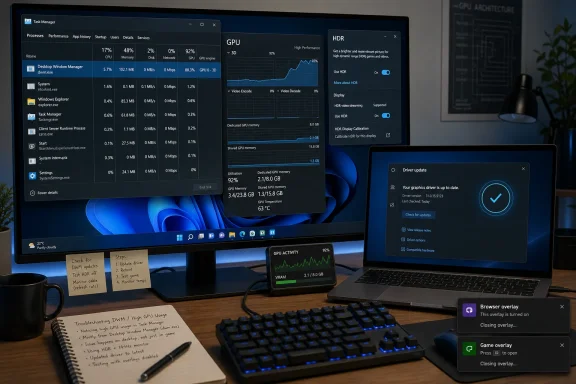 Establish a clean DWM baseline in Task Manager
Open Task Manager with Ctrl+Shift+Esc. If it opens in the compact view, select More details, then use the Processes tab to find Desktop Window Manager. Watch the GPU column for at least a couple of minutes with no game, video stream, screen share, recording session, or animated application running.
Do not diagnose the problem from one percentage reading. On a multi-GPU laptop, DWM may be working through the integrated GPU even while a game uses the discrete GPU; a percentage on GPU 0 is not automatically evidence of a fault. Start by noting which GPU shows activity under the Performance tab, along with the display refresh rate, number of connected displays, whether HDR is enabled, and the driver version.
For more useful detail, open the Details tab, right-click a column heading, choose Select columns, and enable GPU, GPU engine, and Power usage if available. The GPU engine field can help distinguish ordinary 3D composition from video decode, copy activity, or a workload assigned to a specific adapter. Microsoft describes Task Manager as Windows’ built-in tool for process and resource troubleshooting; use it to compare processes rather than treating dwm.exe as the root cause on sight.
Run two simple checks before changing settings:
- Minimize or close one suspected workload at a time, such as a browser with video tabs, a game launcher, a live wallpaper utility, a screen recorder, or a chat client with animated content.
- Observe whether DWM usage falls immediately or after the app is closed. If it does, reopen only that app and reproduce the spike before changing another setting.
A reliable drop-and-return pattern is more valuable than an online “fix.” It identifies the condition producing the compositing work.
Separate normal display load from a fault
DWM’s GPU demand rises with the amount of desktop Windows must compose. A 4K display at 144 Hz asks for far more frequent, larger frames than a 1080p display at 60 Hz. Multiple monitors, mixed scaling, transparent windows, video playback, browser animations, and overlays can all add surface updates that DWM must combine.
Microsoft’s DWM guidance also notes that blur and changing content underneath it carry CPU and GPU costs. This does not mean that every translucent interface element is a bug. It means the correct test is to reduce variables and see whether the desktop returns to a low, steady state.
First, disconnect nonessential external displays or temporarily set up a single-display test. If the GPU use falls sharply, reconnect displays one at a time. Then test a lower refresh rate through Settings > System > Display > Advanced display. Do not leave a lower refresh rate in place as a “solution” unless it is the tradeoff you actually want; this step is meant to reveal whether the problem appears only at a particular resolution-and-refresh combination.
If the display becomes briefly unresponsive, black, or flickers, press Win+Ctrl+Shift+B once. Microsoft documents this shortcut as a way to reset the graphics driver during display problems. If it temporarily clears the high-GPU behavior, treat that as evidence to inspect the driver rather than as a permanent fix.
Do not make registry edits to force DWM onto a different GPU, disable the integrated GPU in Device Manager, or install “optimizer” tools at this stage. Hybrid laptops commonly use the integrated GPU for the internal display, and forcing a global change can create new power, sleep, external-display, or application-routing problems while hiding the original trigger.
Update or roll back the display driver safely
A graphics driver is the most consequential variable in this problem because DWM, HDR, video acceleration, and every graphics-heavy app depend on the Windows Display Driver Model. Microsoft’s display troubleshooting guidance explicitly recommends rolling back the display driver when an issue began after Windows Update; otherwise, it recommends updating or reinstalling the driver.
Start by recording the installed version. Open Device Manager, expand Display adapters, right-click the active GPU, select Properties, then open the Driver tab. Capture the provider, version, and driver date before changing anything. On a laptop with Intel and NVIDIA or AMD graphics, record both adapters: the display-connected integrated GPU can be just as relevant as the discrete GPU.
Use this sequence:
- Check Settings > Windows Update > Advanced options > Optional updates for a display-driver update offered for your exact device.
- If no appropriate update is present, prefer the PC manufacturer’s support page for laptops, tablets, and prebuilt desktops. Those packages may include platform-specific power, display-routing, and panel behavior that a generic GPU package does not.
- On a self-built desktop or a system whose manufacturer directs users to the GPU vendor, use the current driver published by Intel, AMD, or NVIDIA for the exact adapter.
- Restart Windows after installation, then repeat the same idle-desktop test before reopening your normal collection of apps.
If the problem began immediately after a driver update, use the safer reversal first: Device Manager > Display adapters > GPU > Properties > Driver > Roll Back Driver, then restart. The Roll Back option requires administrator rights and appears only when Windows still has a prior driver package. Microsoft notes that this is specifically useful after an update caused the issue.
Avoid uninstalling a working display driver merely because DWM is using the GPU. Reserve Uninstall device and driver reinstallation for cases where update and rollback did not resolve a reproducible problem, or where the driver installation itself appears damaged. Windows will attempt to reinstall a driver after restart, but having the verified manufacturer package downloaded first is prudent—particularly on a machine used remotely or with a display configuration that is difficult to recover.
Test HDR as a display-pipeline variable
HDR changes the display pipeline: color, brightness, bit depth, and presentation handling all become part of the composition path. Microsoft’s HDR documentation advises using current WDDM graphics drivers and notes that HDR behavior depends on the GPU, the display, the connection, and the selected display configuration.
On Windows 11, open Settings > System > Display, select the affected monitor, then choose HDR. On Windows 10, the equivalent controls may be under Windows HD Color settings. Turn HDR off temporarily, wait for the display mode to settle, and repeat the same idle test. If DWM GPU use normalizes, the finding is not that HDR is “bad”; it identifies the HDR path as the condition to investigate.
Then check the physical and configuration side:
- Confirm that the selected display is actually HDR-capable in Windows’ HDR settings rather than relying on a monitor label alone.
- If a laptop duplicates its screen to an external HDR monitor, change the layout to Extend these displays for testing. Microsoft says HDR is not supported in that default duplicated configuration.
- If an HDR monitor supports both HDMI and DisplayPort, test DisplayPort where practical. Microsoft specifically recommends it where HDMI introduces HDR display issues.
- Test the cable and port used by the display, particularly after a monitor, dock, GPU, or firmware change.
- Restart the affected app after changing HDR brightness or SDR/HDR balance settings, because Microsoft notes some applications do not apply those adjustments until they restart.
If HDR-off fixes DWM usage but you need HDR for games or video, update the display driver and monitor or dock firmware before deciding to leave HDR disabled. If the issue only returns at a specific refresh rate or resolution, test that mode independently. A stable HDR configuration at 4K 60 Hz but not 4K 144 Hz points toward bandwidth, driver, cable, or display-mode negotiation—not a generic DWM defect.
Remove overlays and hardware acceleration one application at a time
Overlays and hardware-accelerated programs can make DWM look guilty because their rendered output still enters the final desktop composition. The practical test is not to disable every accelerated feature permanently; it is to identify whether one application’s GPU rendering, video playback, capture hook, or overlay causes DWM activity to persist.
Close screen recorders, streaming tools, frame-rate overlays, RGB control suites with desktop overlays, live wallpaper utilities, and game launchers. Disable in-game overlays from chat, capture, or GPU-management software, then test at the idle desktop and while reproducing the original workload. Restart the affected app after every change so it fully releases its graphics surfaces.
For browsers, start with the browser that was open when the issue appeared. Firefox’s own support documentation says hardware acceleration uses the GPU for video, games, and animations, and it specifically lists high GPU temperature, display flicker, and graphics-driver-related crashes as reasons to test with acceleration disabled. In Firefox, open Settings > General > Performance, clear Use recommended performance settings, then clear Use hardware acceleration when available and restart Firefox.
Other Chromium-based browsers expose a similarly named graphics-acceleration option in their system settings, though the exact wording varies by version. Change it only as a test, restart the browser, and compare the same webpage or video. If turning it off fixes the problem, update the browser and display driver, then try re-enabling acceleration before accepting a permanent CPU-performance tradeoff.
For an app that needs the discrete GPU, Windows 11 provides per-app choices in Settings > System > Display > Graphics. Microsoft documents these options for apps and games with more than one GPU. Use them to test one demanding app, not dwm.exe itself: assign the application to Power saving, High performance, or Let Windows decide, restart it, and watch which adapter and engine become active.
The decisive outcome is a repeatable one. If DWM stays high with all third-party applications closed, HDR off, one display connected, and a current or rolled-back stable driver, collect the driver versions, monitor model, connection type, refresh rate, Windows version, and Task Manager observations before escalating to the PC or GPU vendor. If the usage falls when one app, overlay, HDR mode, or driver version changes, leave the rest of the system alone and address that verified trigger.