
Start by identifying the exact shortcut or app used before changing folders, permissions, or policies. That one step prevents a common troubleshooting mistake: looking for a disk file after using a shortcut that only copied an image to memory.
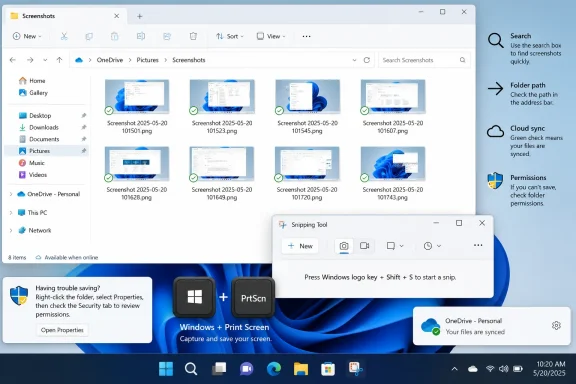 Identify the capture method before hunting for files
Use this short test with a clearly recognizable screen, such as the desktop with the clock visible.
- Press Windows key + Print Screen. The display may dim briefly. Open File Explorer and browse to Pictures > Screenshots.
- Press Print Screen by itself, then open Paint, Word, Outlook, or another application and press Ctrl + V. If the image pastes, the screenshot was captured but was never meant to be automatically saved as a file.
- Press Windows key + Shift + S, make a selection, then look for the Snipping Tool notification or open Snipping Tool. Depending on its settings, the snip may be copied to the clipboard, opened in the editor, and/or automatically saved.
- Open Snipping Tool directly, take a snip, and check the app’s recent captures and save behavior.
This distinction is more than a shortcut trivia issue. An administrator can spend time repairing a Screenshots folder when a user has actually been pressing Print Screen alone. Conversely, a user may successfully paste a screenshot into Teams or email and assume that means a backup copy exists on disk. It does not.
Microsoft Support says Snipping Tool captures are automatically copied to the app’s editing window and that current versions can automatically save them to the Screenshots folder. The same documentation says its automatic-save behavior and default Screenshots folder can be changed in Snipping Tool settings. If the problem affects Snipping Tool but not Windows key + Print Screen, investigate the app configuration first rather than treating it as a Windows folder problem.
Find the real Pictures\Screenshots folder
The familiar Pictures > Screenshots view in File Explorer is a special Windows folder, not a guarantee of one fixed physical path. On an unmanaged PC, it commonly resolves under the signed-in user profile:
C:\Users\<username>\Pictures\Screenshots
But Windows and OneDrive can redirect it. Click the File Explorer address bar while inside Pictures or Screenshots to reveal the actual path. If it begins with C:\Users\<username>\OneDrive\, Windows is writing captures into the OneDrive-backed location. That is expected when OneDrive folder backup has redirected Pictures.
Check these locations in order:
C:\Users\<username>\Pictures\Screenshots
C:\Users\<username>\OneDrive\Pictures\Screenshots
Also search the whole user profile for recent PNG files. In File Explorer, select the user folder, type *.png in the search box, then sort by Date modified. Windows key + Print Screen normally creates PNG files, so this is a practical way to separate “saved elsewhere” from “not saved.”
Do not rely solely on the left navigation pane. It can show a friendly label such as Pictures even after the underlying folder has moved. The address bar, the folder’s Properties dialog, and a search sorted by date provide better evidence of where Windows is writing.
If the Screenshots subfolder is genuinely absent, create a new folder named Screenshots inside the actual Pictures location shown by File Explorer. Then take another Windows key + Print Screen capture. A newly created folder should inherit normal permissions from Pictures; if it does not, the issue is likely a broader profile or access-control problem.
OneDrive has replaced the old screenshot toggle with folder backup
A substantial source of confusion is outdated advice telling users to turn on or off a OneDrive setting named “Save screenshots to OneDrive.” Microsoft Support now says that dedicated option is no longer available. Screenshot storage now follows the status of the Pictures folder: if Pictures is backed up to OneDrive, the Screenshots folder beneath it follows.
Microsoft’s OneDrive documentation also confirms that OneDrive can include the Screenshots folder in its collection, while Microsoft Learn’s guidance for administrators describes redirection of Pictures, Screenshots, and Camera Roll as part of Windows known-folder management. In practice, that means the path may have changed even though the visible folder name did not.
To check the consumer or small-business configuration:
- Click the OneDrive cloud icon in the notification area.
- Open Settings.
- Select Sync and back up.
- Choose Manage backup.
- Check whether Pictures is being backed up.
If Pictures is backed up, look in OneDrive\Pictures\Screenshots rather than assuming the local profile path is authoritative. A blue cloud icon beside a file means it may be online-only; opening it normally downloads it. A red OneDrive error badge, a paused sync state, or exhausted OneDrive storage can interfere with synchronization, but those conditions do not necessarily mean the local screenshot was never created. Check the local OneDrive path before concluding the capture failed.
Do not abruptly move or delete the OneDrive Pictures folder to “fix” the issue. That can leave applications and Windows itself pointing to a missing special folder. If the goal is to return Pictures to local storage, use OneDrive’s folder-backup controls where they are available, allow the sync state to settle, and verify the destination before moving existing files. On a work or school device, the option may be unavailable because the organization controls it.
Repair access to the folder, not the entire user profile
If Windows key + Print Screen causes the screen to dim but no new PNG arrives in either the local or OneDrive path, test whether the account can create a file in the active Screenshots folder.
In File Explorer, open the actual Screenshots folder, right-click empty space, and choose New > Text Document. If Windows cannot create the test file, delete it if created and inspect the folder’s permissions:
- Right-click the Screenshots folder and select Properties.
- Open the Security tab.
- Select the signed-in account and confirm that Write or Modify is allowed.
- Use Advanced only if the inherited permissions are clearly broken or the folder belongs to another account.
For a standard personal Windows installation, the user should be able to create files in their own Pictures folder. A denied write test can result from a manually copied folder, a restored backup with altered ACLs, a folder owned by a different Windows account, security software, or an organization’s device configuration.
Avoid taking ownership of C:\Users\<username>\Pictures as a first response. Taking ownership or broadly granting Everyone full control may appear to solve one screenshot failure while weakening protections on personal files. Repair permissions on the affected Screenshots folder, and preserve inheritance from the user’s Pictures folder whenever possible.
Also check free space on the drive containing the profile and OneDrive folder. A nearly full system drive can block writes, while an unavailable removable drive or disconnected network location can leave a redirected Pictures folder inaccessible.
Managed PCs can block the tool or screen capture itself
On company-managed Windows devices, a missing screenshot may be policy by design rather than corruption. Microsoft Learn documents a policy named Do not allow Snipping Tool to run. It maps to the Tablet PC > Accessories policy area and, when enabled, prevents Snipping Tool from launching. If the tool opens but behaves unexpectedly, an IT administrator should also review the organization’s App Privacy policy named Let Windows apps take screenshots of various windows or displays.
That second policy is aimed at Windows apps using programmatic graphics capture. A forced-deny configuration can prevent such apps from taking screenshots, and Microsoft notes that an affected app or the device may need restarting after a policy change. It is not a general explanation for every failed Windows key + Print Screen capture, but it is relevant when an enterprise app, a packaged screen-capture utility, or Snipping Tool no longer works after management changes.
Administrators can check the local policy state with Group Policy Management, Local Group Policy Editor where available, or the device’s MDM/Intune policy reports. The key point is to distinguish a capture restriction from a save-location issue:
- If Snipping Tool will not open and displays a restriction message, investigate the Snipping Tool policy or application-control rules.
- If a capture succeeds but the file is missing from the expected local folder, inspect OneDrive known-folder redirection and the active Screenshots path.
- If a program cannot capture selected windows or displays while Windows key + Print Screen still works, review App Privacy graphics-capture policy and any application-specific controls.
Users should not attempt registry edits to bypass corporate screenshot controls. Screenshot restrictions can exist for compliance, confidential-data handling, or remote-work security requirements, and changing a local value may be overwritten by the next device-management sync anyway.
Reset Snipping Tool only after proving the folder works
Once the folder location and write permissions are confirmed, test Snipping Tool separately. Open the app, select the three-dot menu, choose Settings, and verify that automatic saving is enabled if that is the desired behavior. Check the configured default Screenshots folder there as well.
If Snipping Tool no longer saves despite a working folder, go to Settings > Apps > Installed apps in Windows 11, or Settings > Apps > Apps & features in Windows 10. Find Snipping Tool, open its advanced options, and try Repair first. Repair preserves app data where possible; Reset is the heavier step and can clear app settings. Update the app through Microsoft Store afterward.
The reliable final test is simple: create one screenshot with Windows key + Print Screen and one with Snipping Tool, then verify the full path of each file in File Explorer. Once both tests land where expected, the issue is resolved at the right layer—capture behavior, save destination, access control, or management policy—rather than hidden behind a renamed folder.
