

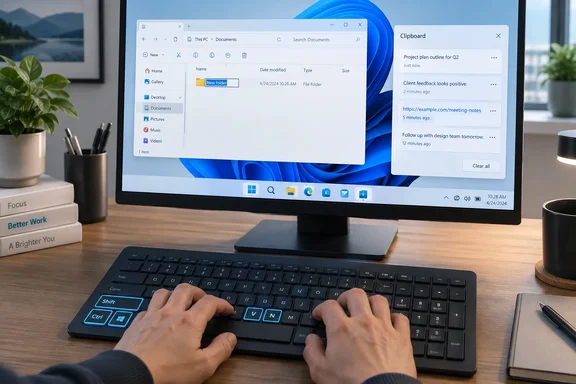
He picks his shortcuts with a principle borrowed from an old boss: give the hard workflow to the laziest person in the office, because that person will find the easiest way to do it. That is a sound way to choose shortcuts. The goal isn't to memorize a long list. It's to swap a slow habit for a faster one until you stop thinking about it.
Shortcut 1: Ctrl + Shift + N creates a new folder in File Explorer
Microsoft's "Keyboard shortcuts in Windows" reference lists Ctrl + Shift + N as "Create a new folder" in its File Explorer section. That placement matters. This is a File Explorer command, not a system-wide one.
How to use it
- Open File Explorer (Windows key + E works).
- Go to the folder where the new folder should go. The shortcut uses whatever location is currently open, so it can't pick a destination for you.
- Press Ctrl + Shift + N.
- Type a name and press Enter.
Hein says the new folder shows up with its name field already active, so he can start typing straight away. That lets him create several folders in a row for images, drafts and research without touching the mouse.
What it replaces
Microsoft's "Create a new folder" help page, which covers Windows 10 and Windows 11, describes the mouse route: go to the location, choose New > Folder, type a name and press Enter. The shortcut replaces the menu step. You still have to navigate to the right place first.
Common snags
- Nothing happens, or something else opens: check that File Explorer has focus. In most web browsers, including Edge and Chrome, the same keys open a private browsing window. That's general knowledge rather than something in Microsoft's Explorer documentation, but it explains why the shortcut can seem to do the wrong thing.
- The folder appears in the wrong place: you were in a different folder than you thought. Glance at the address bar before you press the keys.
- The name won't save: Windows doesn't allow certain characters in folder names. If Enter doesn't work, look at what you typed.
Section summary: Ctrl + Shift + N creates a folder in the File Explorer location that's open, and you name it straight away. Navigate first, then press the shortcut.
Shortcut 2: Windows key + number opens or switches to taskbar apps
Hein says this is his newest addition and one he now can't do without. Windows numbers your taskbar apps by position from left to right. Win + 1 goes to the first app, Win + 2 to the second, and so on. Word is sixth on his taskbar, so Win + 6 takes him to Word if it's open and launches it if it isn't.
Microsoft's shortcut reference describes the same behavior. The shortcut opens the app pinned at that numbered position, and if the app is already running, it switches to it instead. The Windows 11 list covers number keys 0 through 9. In practice 0 usually means the tenth position, though that's our reading rather than Microsoft's wording.
Set it up in three steps
- Pin the apps you use every day. Microsoft's "Customize the Taskbar in Windows" page covers two ways: right-click the app in Search and choose Pin to taskbar, or right-click the icon of an open app on the taskbar and pin it there.
- Put them in a sensible order. Microsoft says you can drag taskbar icons into any order. The shortcut follows that order, so if you rearrange the icons, the numbers change too.
- Check the mapping yourself. Hein counts from the first app after the Virtual Desktop (Task View) button on his taskbar. Taskbars differ, so press Win + 1, Win + 2 and so on to see what each number opens on your PC. Hein's Win + 6 for Word only applies to his layout.
Related shortcuts from Microsoft's list
These aren't among Hein's three picks, but they're worth knowing once the basic one sticks:
| Shortcut | What it does (per Microsoft) |
|---|---|
| Win + Shift + number | Starts a new instance of the app at that position |
| Win + Ctrl + number | Switches to the app's last active window |
| Win + Alt + number | Opens the app's Jump List |
| Win + Ctrl + Shift + number | Opens a new instance as administrator |
If you want a keyboard-only way to rearrange icons, Microsoft's taskbar shortcut list includes Alt + Shift + Arrow, which moves a focused taskbar icon in the direction of the arrow.
Section summary: Win + number launches or switches to the app at that taskbar position. Keep your pinned apps in a fixed order and the numbers soon become automatic.
Shortcut 3: Windows key + V opens Clipboard History
Hein's example will be familiar to anyone who does research. You copy a URL, then some text, then realize you need the URL again. Normally that means going back to the browser to copy it a second time. Win + V opens Clipboard History, a list of things you've copied recently, so you can pick the earlier item instead of switching windows.
Turning it on
Clipboard History is off by default, according to Microsoft's shortcut reference. You can enable it in two ways:
- Press Win + V and select the prompt to turn it on.
- Or go to Settings > System > Clipboard and switch Clipboard history on.
Limits worth knowing
Microsoft's own guidance says clipboard history holds 25 copied entries, and older items drop off automatically to make room, unless you have pinned them. There is also a size cap: Microsoft sets it at 4 MB per item, and lists Text, HTML and Bitmap as the supported formats.
That leads to three common "why isn't it working?" moments:
- A large screenshot is missing from the list. Anything over the cap is left out of history. One analysis of Microsoft's documentation notes that larger copies can remain the live Ctrl+V payload. They do not join the panel. Very high-resolution captures and multi-monitor screenshots are the usual cause.
- A copied file doesn't appear. Copying a file is not the same as copying its contents. The file itself does not land in clipboard history.
- Everything disappeared overnight. Everything in clipboard history is cleared when you restart your PC. Everything except pinned items. Pinning keeps an item. Choosing Clear all at the top of the panel removes everything else, and pinned items are not deleted.
You also can't raise the 25-item limit in any supported way. The Settings page does not expose a maximum-count field, and registry tweaks posted online aren't documented by Microsoft. If 25 slots isn't enough for your work, a third-party clipboard manager is the honest answer.
Privacy and sync
Cross-device sync is a separate switch in Settings > System > Clipboard. It's tied to your Microsoft account or work account and isn't on by default. Microsoft separates manual sync, where you choose individual items, from automatic sync of copied text. One practical warning: enabling this option sends your copied data to Microsoft's servers. Best avoided if you copy passwords or sensitive information. IT administrators should keep that in mind on shared or regulated machines. Even without sync, pinned items survive a restart, so don't pin anything secret.
Section summary: Win + V gives you up to 25 recent clips of text, HTML or images, each 4 MB or smaller. Unpinned items are wiped at restart. Turn sync on only if you actually need it.
Why these three are the right ones to learn
There's some sense in how these three fit together. Each one handles a different step of ordinary desk work: filing things (folder creation), moving between apps (taskbar numbers), and reusing what you've already copied (Clipboard History). All three are built into Windows, and only Clipboard History needs a one-time setting. That makes them easier to adopt than a wall of forty shortcuts nobody remembers.
A caveat, though. Hein's time savings are personal experience, not measurements, and the gain depends on how you work. Someone who creates two folders a week won't notice much from Ctrl + Shift + N. A writer or developer building project folders all day will. The same goes for Win + number: it's great with a stable taskbar and confusing if you rearrange icons often.
Windows 10 users should know that Microsoft's shortcut reference still covers Windows 10, including the taskbar-number and clipboard shortcuts. However, Microsoft notes that Windows 10 support ended on October 14, 2025. The shortcuts still work there, but the operating system underneath no longer gets free security fixes.
Quick-start checklist
- Today: press Win + V once and turn on Clipboard History.
- This week: pin your five to eight most-used apps and fix their order on the taskbar.
- Every time you create a folder: navigate in File Explorer, press Ctrl + Shift + N, type the name, press Enter.
- Next step: try Win + Alt + number for Jump Lists, and pin the snippets you paste every day.
If these become muscle memory, you'll stop thinking of them as shortcuts. Got a favorite that deserves a place in this list? Tell the rest of the forum.
References
- These 3 Windows shortcuts stopped me from wasting time on unnecessary clicks How-To Geek · 2026-09-27T17:00:14+00:00
- History of the Windows clipboard (Win + V): Limited to 25, Pin, text and image... utexsave.com
- Create a new folder | Microsoft Support support.microsoft.com