

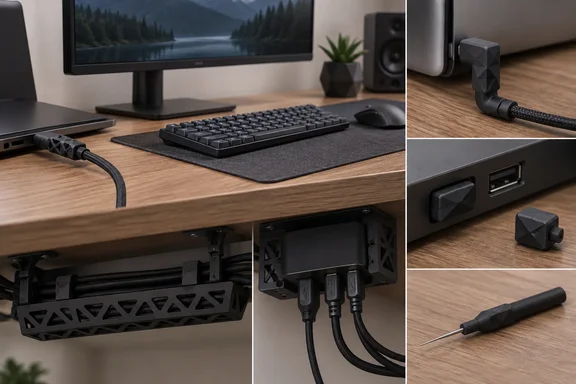
Tim Brookes’ September 21 feature for How-To Geek brings these six categories together. MakerWorld listings independently document examples of dust covers, customizable cable-management channels, and hub mounts, but their availability does not establish how much longer a cable or port will last. Treat these as fit-dependent accessories, not proven protection against every kind of damage.
1. Cable protectors support the connector junction
A cable protector fits around the transition between the connector housing and the flexible cable. Its purpose is to support that junction rather than leave the cable bending immediately behind the plug.
According to How-To Geek, available designs include USB-A and USB-C protectors, Apple-specific versions, and models intended for flexible TPU filament. That variety is important: choosing a USB-C model alone does not establish that it fits a particular cable’s connector housing.
The practical selection question is where support is needed. A protector around the plug addresses the junction; it does not control a long cable hanging from a desk or secure a hub that moves whenever someone plugs in a peripheral. Those situations call for the guides and mounts discussed below.
How-To Geek cautions against tugging on a cable even with a protector installed. Its “nine times out of ten” description of failures at the joint is not accompanied by failure-rate data, so it should not be treated as a measured statistic. The supported takeaway is narrower: these designs target a specific flex point, without establishing a quantified lifespan improvement.
2. Printed port cleaners need a higher safety threshold
The cleaning tool highlighted by How-To Geek has a hooked end and a pointed end intended to remove debris from a USB-C charging port. Brookes presents it primarily as a smartphone accessory, where pocket lint can collect in the opening.
This is the one category that should not become a blanket recommendation for PC ports. PLA alone is not a safety guarantee. The feature’s suggestion that the material is soft enough to avoid damaging charging contacts is not supported by a documented compatibility or damage test.
The available evidence does not establish a safe insertion depth, allowable force, or cleaning technique for the different ports a reader might own. It therefore cannot support a universal procedure for scraping inside USB-C connectors.
For readers deciding what to print, the consequence is straightforward: do not choose a pointed cleaning tool merely because it is quick to make. A tool that enters the connector requires device-specific cleaning guidance and a verified fit. An external organizer or a cover for an unused port serves a different purpose and does not validate the cleaner’s safety.
3. Port covers are preventive, model-specific accessories
Port covers occupy unused sockets to help keep debris out. How-To Geek highlights collections spanning USB, HDMI, DisplayPort, Lightning, Ethernet, and audio connectors, along with designs that provide a more accessible removal grip.
There is direct evidence that small USB dust-cover designs are available. Island3D’s MakerWorld listing, “USB cover dust - USB a Male,” describes a USB-A cover with a grip for removal. Its listed PLA print profile uses a 0.2 mm layer height, two walls, and 10% infill, with an estimated 11-minute print time and 1 gram of material.
A separate 3DSEARCH listing for MakerWorks3D’s “PortGuard Mini – USB Dust Blocker” describes a low-profile, snap-fit blocker intended for unused USB ports on devices including laptops and desktops. Those are the designer’s stated uses, rather than independent confirmation of fit or protection.
A useful distinction is between the connector standard and the printed part’s actual fit. Island3D claims compatibility with USB-A ports on all devices, but the listing does not establish universal compatibility through testing. A removal grip is a practical feature to prioritize because the cover must come out when the port is needed.
Licensing also affects what readers can do with a downloaded model. Island3D’s listing uses a Standard Digital File License that prohibits distributing or selling the digital files, printed objects, or derivative works without permission. A freely downloadable file is not automatically permission to print stock for sale or distribute copies around an organization.
4. Right-angle strain relievers guide an existing cable
According to How-To Geek, printable cable benders are available for approximately 90-degree turns, with 180-degree versions for routing a cable back on itself. Unlike a protector around the connector junction, these parts guide a section of cable along a chosen path.
The important distinction is mechanical: the cable remains the same straight-ended cable. The print does not replace its connector with an electrically connected right-angle plug.
That makes a bender a possible routing aid when an existing cable needs a more orderly turn. However, the turn angle alone says little about how tightly the cable bends. The evidence provides no universal bend radius or cable-diameter range for the highlighted designs, so “90 degrees” should not be read as a compatibility specification.
Use this category to solve a routing problem only when the design accommodates the cable. It should not be treated as proof that any cable can safely be folded into a smaller space.
5. Fixed cable guides have the strongest customization options
For cables that stay in place, How-To Geek suggests anything from a screw-in holder to an under-desk system such as Underware or openGrid. The goal is to give the cable a defined route rather than leave it moving across the desk or hanging loosely beneath it.
The Underware 2.0 MakerWorld listing provides substantially more detail than a generic cable-clip recommendation. Its channel generator supports adjustable width and height, straight sections, curves, branches, corners, and cable-entry cutouts. Mounting options include wood screws, adhesive, magnets, and connections to a supporting grid.
Here, parametric means the model can be generated from dimensions and options rather than edited manually in CAD software. The documented workflow is:
- Select Customize on the Underware 2.0 model page.
- Choose the component type to generate.
- Adjust the available dimensions and options.
- Generate a preview to inspect the resulting shape.
The project describes its files as printable without supports. It also documents meaningful limits: taller channels have reduced holding strength because they flex, and mounting hardware can affect clearance between channels and the supporting grid.
Underware 2.0’s listing now points new users toward openGrid and Underware for openGrid, which the project describes as a newer single-piece cable-management approach. Readers starting from scratch should distinguish those components from the Multiboard-oriented Underware 2.0 system rather than assume every mounting connection is interchangeable.
A single holder may be sufficient for one fixed cable. The customizable channel system earns its extra complexity when several routes, branches, or mounting positions need to work together.
6. Hub mounts secure the device as well as its cables
An under-desk hub mount addresses movement of the hub itself. How-To Geek proposes both floating brackets and supported mounts, including parametric designs that can be adjusted to hardware dimensions.
A concrete example is Beerman’s MakerWorld design, “Ugreen USB 3.0 Hub under desk mount,” which identifies a UGREEN four-port USB 3.0 hub as its intended device. The creator describes using the version with a one-metre cable to reach the PC. Its listed print profile specifies a 0.2 mm layer height, three walls, and 15% infill.
Those details establish a particular mounting example, not a universal UGREEN-hub bracket. The practical fit check must account for the hub’s enclosure, where its cables leave the housing, and whether the bracket leaves the ports accessible.
Mount location also needs to serve the cable route. As How-To Geek advises, the hub should sit where attached cables are less likely to catch, with the rear cable run managed as part of the installation. Simply hiding a hub beneath the desk does not accomplish that by itself.
For a fixed PC setup, a mount and cable guide can therefore complement each other: one supports the hub, while the other defines the route back to the computer. Choose the print that addresses the actual movement or exposure problem—and keep unverified tools out of the connector interior.
References
- 6 tiny 3D prints that save your USB ports and cables from an untimely demise How-To Geek · 2026-09-21T16:30:15+00:00
- USB cover dust - USB a Male - Free 3D Print Model - MakerWorld makerworld.com
- Underware 2.0 - Infinite Cable Management! - Free 3D Print Model - MakerWorld makerworld.com