

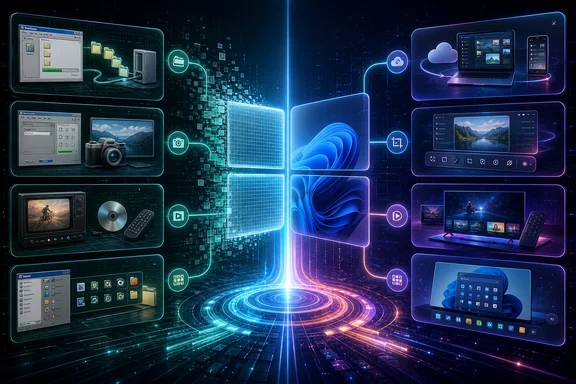
Windows 11 does cover pieces of those jobs. But a feature-by-feature comparison can be misleading. A backup system is not necessarily a migration system; a newer media player is not necessarily a DVR interface; and deprecation is not the same thing as removal. Looking closely at four familiar tools shows where the real gaps are, where Windows still has an answer, and where the evidence is less decisive than it first appears.
1. Easy Transfer’s model remains hard to replace
Windows Easy Transfer represented a straightforward consumer promise: collect the important parts of an old PC and carry them to a replacement machine. The appeal was its independence. A user could rely on local media or a direct connection, rather than treating a personal Microsoft account and online storage as the primary migration vehicle.
Windows 11’s current Windows Backup approach addresses part of that need, but through a different model. It is aimed at consumer devices using a personal Microsoft account. Selected folders synchronize through OneDrive, while restorable preferences can include installed-app lists, accessibility settings, Wi-Fi information, personalization, language preferences, and other Windows settings.
That means it is wrong to dismiss Windows Backup as only a file backup feature. It can preserve meaningful parts of a user’s Windows experience, and restoring settings alongside files may make the first session on a new PC feel substantially less like starting from zero.
It is also not the same thing as a self-contained external-drive transfer. Its file component depends on OneDrive folder synchronization, and the account-based design has practical consequences. Users with large local collections, limited upload bandwidth, tight cloud-storage capacity, or a preference not to place data in cloud storage may find it poorly matched to their move.
Microsoft does document a current built-in manual route for moving files between Windows PCs without using the cloud. Users can use File Explorer to copy files from an old PC to a USB drive, SD card, or external hard drive, then copy them from that storage to the new PC. This is an important offline, external-storage option, especially where network access or cloud capacity is a concern. But it is a manual file-copy procedure, not an Easy Transfer replacement: it does not automate a combined migration of files and Windows settings through one portable transfer package.
For a brief period, Microsoft had another answer. Windows Backup included a phased PC-to-PC Migration experience that transferred files and settings directly from an old computer while a new Windows PC was being set up. It used the same Wi-Fi network or a LAN rather than an external drive. That history matters because it disproves the broad assertion that Windows 11 had no modern Easy Transfer-style capability at all.
Microsoft’s stated current status, in its September 10, 2026 Windows 11 Release Preview announcement, is that PC-to-PC Migration is “no longer available.” Its support material is in a contradictory transitional state: it carries that unavailability notice but also retains instructions for selecting a transfer option, pairing the computers, and copying files, settings, and preferences across a local network. Those instructions should not be treated as evidence that the feature can still be enabled today.
The announcement does not, by itself, establish identical withdrawal timing for every Windows 11 servicing channel, build, or device. It does establish that Microsoft has publicly declared the phased feature unavailable, while the still-live support page has not been fully aligned with that status. Anyone encountering the old instructions should therefore regard them as stale operational material unless Windows Backup actually presents the option on their own hardware.
Even the retired direct-transfer path was narrower than a full machine clone. Microsoft described exclusions including installed applications, saved credentials, OneDrive files, and BitLocker-encrypted drives unless those drives had first been decrypted. That is an important expectation-setting point for anyone planning a new-PC purchase: a migration generally preserves data and chosen configuration, not every application and every secret required to resume work instantly.
There is still a Microsoft migration tool with far more reach: the User State Migration Tool, or USMT. It works with Windows 10 and Windows 11, can perform offline migrations, and can capture accounts, files, operating-system settings, and application settings. The catch is audience and usability. Microsoft positions USMT for administrators running large-scale, automated deployments. It is evidence that Windows retains serious migration infrastructure, not evidence of a friendly, interactive Easy Transfer replacement for a household moving one computer.
The careful conclusion is therefore narrower than “Windows 11 cannot migrate a PC.” It offers Windows Backup for cloud-linked file and settings restoration, File Explorer for manual external-storage file transfers, and USMT for administrator-led migrations. The direct PC-to-PC option existed and Microsoft now states it is unavailable. What Microsoft does not document is a current consumer-facing, integrated Easy Transfer-style workflow that moves files and settings through a portable transfer package.
2. Steps Recorder is deprecated, not documented as gone
Steps Recorder, commonly known by its PSR abbreviation, solved a problem that screenshots alone do not solve: showing another person the precise sequence that produces a fault. A step-by-step recording can be particularly useful for help-desk requests, family support, software bug reports, and any issue where the critical detail is which menu, button, or dialog was used.
The status of PSR needs precision. Microsoft classifies it as deprecated. A February 2024 Windows 11 update added a banner inside the tool, and Microsoft’s lifecycle material says PSR will be removed in a future Windows release. Those statements do not support saying that it has already disappeared universally from Windows 11.
That distinction matters to users and to organizations. A deprecated component might still be present on a particular installation, but it is no longer a safe foundation for a support process that must work consistently across future Windows releases. Conversely, a user who cannot find it on one computer should not generalize that observation into a definitive statement about every Windows 11 edition or servicing state. The available record does not establish exactly where it is already absent.
The larger issue is not whether a recording tool exists somewhere in Windows, but whether the replacement provides the same low-friction explanatory workflow. Microsoft documents alternatives for PSR, so it would be too categorical to declare that Windows 11 has no substitute at all. Yet “equivalent” is a usability judgment, not a fact that can be settled just by listing features. A substitute may capture a screen or support a conversation while still requiring more explanation, more setup, or a different format from the person asking for help.
For practical support, the sensible move is to stop standardizing on PSR now. Teams that currently ask users for a PSR package should define another repeatable procedure before future Windows releases remove the tool. The best procedure will depend on whether the priority is visual evidence, written reproduction steps, privacy controls, or a remote-assistance session. The essential point is to test it with nontechnical users, rather than assuming a nominal alternative preserves PSR’s particular convenience.
3. Media Center’s missing role was larger than DVD playback
Windows Media Center was not merely an application for playing a video file. It was a PC entertainment environment associated with stored media, DVD playback, live television, recorded television, and a full-screen, “ten-foot” interface intended for use away from a desk.
Microsoft excluded it from Windows 10. At the time, a Microsoft spokesperson attributed the decision to decreased usage. Eligible people upgrading certain Windows 7 or Windows 8 editions that included Media Center were instead offered the standalone Windows DVD Player application after moving to Windows 10.
That replacement illustrates the difference between filling one narrow function and replacing a product category. A DVD player addresses DVD playback. It does not recreate the integrated TV-tuner, recording, and living-room-control role that gave Media Center its identity.
Windows 11 still includes an optional Windows Media Player Legacy feature, but Microsoft explicitly says DVD playback is not included there. Its presence should not be confused with the return of Media Center. Nor does the available evidence provide a formal Microsoft feature matrix that would settle every conceivable comparison with modern media software. Calling any one program a complete “equivalent” remains subjective.
For current Media Center households, the practical consequence is that a Windows 11 upgrade should be treated as a platform change, not an in-place continuation of a familiar home-theater workflow. Before replacing the existing PC or changing its operating system, users should identify which function actually matters: local media playback, DVD playback, live TV, scheduled recording, remote-friendly navigation, or a combination. Those requirements determine whether a separate application or dedicated device is necessary. They also prevent an unpleasant surprise in which a new media player handles files perfectly well but cannot support the old recording setup.
4. Quick Launch and taskbar toolbars lost a personal workflow
Quick Launch and custom taskbar toolbars can look trivial beside migration or media systems. For some long-time desktop users, though, they were efficient navigation tools: a compact, persistent set of launch targets or an accessible folder menu that did not require rearranging the desktop or changing the Start menu.
A recent response in Microsoft’s Tech Community says that classic Quick Launch and custom taskbar toolbars are not natively available in Windows 11. It further says the Windows 10 option to create a new taskbar toolbar was removed during the Windows 11 taskbar redesign and cannot be restored using a supported Windows setting.
This is useful corroboration, but it is not the same as a formal product commitment. Microsoft’s official taskbar documentation, in the evidence available here, does not expressly document the removal. Readers should therefore avoid turning a community response into a claim that Microsoft has permanently ruled out every future change.
Still, the present implication is clear enough for deployment planning: users should not expect to restore classic folder toolbars through a built-in toggle. Windows 11’s taskbar can support modern pinning and Start-menu-based workflows, but those are different interaction patterns. A pin is a fixed shortcut; a custom toolbar can expose a changing folder structure. For someone who used a toolbar as a lightweight file launcher, that difference can affect speed and muscle memory every day.
Organizations updating a standardized desktop should account for such small losses during pilot testing. They may not be blockers for most staff, but they can matter disproportionately to users who have refined a workflow over many years. The appropriate response is not necessarily to preserve every legacy behavior. It is to identify the actual task—rapidly opening a shared folder, launching a small set of utilities, or navigating project files—and verify that the new workflow is acceptable before broad rollout.
The common thread: Windows now favors different assumptions
None of these examples proves that Windows 11 is broadly less capable than earlier Windows releases. Windows Backup preserves more than files, File Explorer supports manual local file copying, USMT remains powerful for managed migrations, Windows Media Player Legacy is still available, and Windows continues to evolve its taskbar and support tools.
But the old utilities reveal a real design shift. Their value often came from local control, single-purpose clarity, and an immediately visible workflow. Newer replacements tend to separate those roles: cloud-backed settings restoration and manual external-drive copying rather than a portable combined transfer package; general support alternatives rather than one step recorder; standalone media functions rather than a unified television hub; pinned apps rather than user-created taskbar folder toolbars.
That is why upgrade advice should begin with jobs, not app names. Before moving to a new Windows 11 PC, inventory what the old machine actually does that is easy to overlook: how files move, how problems are reported, how media is watched and recorded, and how frequently used resources are launched. Then distinguish what Windows supplies today, what has been deprecated, and what needs a new process. That approach is more useful than either assuming every classic utility has vanished or assuming that a modern feature with a similar label preserves the same experience.