

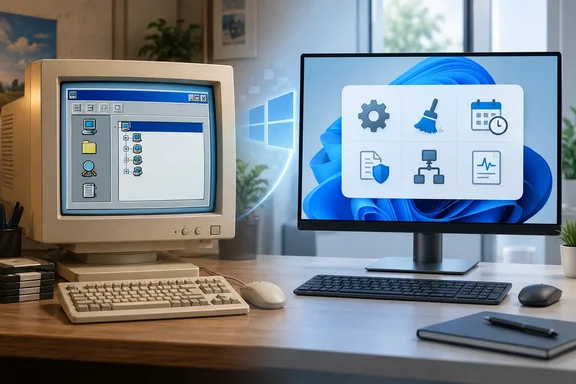
The article works best as a practical guide with some history attached. Below, each tool gets its backstory, what it does today, and the mistakes people commonly make with it.
PowerToys: from engineers' side projects to a supported suite
PowerToys began informally. In an account on his long-running Old New Thing blog, Microsoft veteran Raymond Chen explains that engineers working on Windows 95 wrote small side programs to test features or try out ideas. After Windows 95 shipped, some of those programs became the first Windows 95 PowerToys collection. His list of first-edition toys includes CabView, CDAutoPlay, DeskMenu, FlexiCD, QuickRes, Command Prompt Here, Explore From Here, Round Clock and Shortcut Target Menu.
Chen says he doesn't know how the name came about. His guess is that somebody made it up because it "sounded neat." According to Chen, the second edition was built deliberately as PowerToys and added FindX, Send To X, the Telephony Locator Selector, XMouse and Tweak UI. The kernel team then released its own Windows 95 Kernel Toys. Chen also recalls that publishing a download back then needed no digital signatures, no virus checks and no paperwork, which would be unthinkable now.
Today's PowerToys is a separate, installable suite. Microsoft's documentation sets these minimum requirements:
- OS: Windows 11, or Windows 10 version 2004 (20H1, build 19041) or newer
- CPU: 64-bit x64 or ARM64
- Runtime: the setup bootstrapper installs Microsoft Edge WebView2 Runtime
- Install options: the GitHub releases page or Microsoft Store, which Microsoft recommends, or WinGet with
winget install --id Microsoft.PowerToys --source winget. Community package managers such as Chocolatey and Scoop also work.
The GitHub installer comes in two versions. The per-user installer puts the app under %userprofile%\AppData\Local\Programs. The machine-wide installer goes to %ProgramFiles% and makes PowerToys available to everyone on the PC.
Takeaway: The spirit carries on, but the family tree doesn't. Most of today's PowerToys features are new; they aren't descendants of the 1995 toys.
System Configuration (MSConfig): a tool for isolating problems, not a tune-up
The How-To Geek author uses MSConfig when Windows starts misbehaving and they'd rather not jump straight into the Registry. That matches Microsoft's description of the tool: a utility for troubleshooting Windows startup that can boot the PC with only essential services and programs. It has General, Boot, Services, Startup and Tools tabs. On current Windows, the Startup tab just sends you to Task Manager, which is now where startup apps are managed.
Its best-known use is Microsoft's clean boot procedure for Windows 11 and Windows 10:
- Sign in with an administrator account.
- Search for
msconfigand open System Configuration. - On the Services tab, check Hide all Microsoft services, then choose Disable all and Apply.
- On the Startup tab, choose Open Task Manager.
- On Task Manager's Startup apps tab, disable every enabled item. Write down or screenshot what you disabled, because you'll need to turn it all back on later.
- Close Task Manager, click OK in System Configuration and restart.
If the problem goes away after a clean boot, Microsoft recommends a half-split search. Re-enable half of the services, restart and test, then keep halving the group that contains the culprit. It beats rebooting once per service.
To go back to normal, open MSConfig and choose Normal Startup on the General tab. On the Services tab, clear Hide all Microsoft services and click Enable all. Then re-enable your startup apps in Task Manager and restart.
Common snags:
- "The Windows Installer service could not be accessed." Clearing the "Load system services" box stops Windows Installer from starting. Start it by hand in Computer Management under Services and Applications > Services.
- Managed PCs: Network policies may block these steps. Microsoft also says to change advanced boot options only with guidance from its support staff, because a bad change can leave the PC unusable.
- Missing features: Some things can stop working during a clean boot. That's expected.
Takeaway: MSConfig lets you switch things off in a controlled way and then switch them back on. It's not for "optimizing" your PC by disabling services you don't recognize.
Disk Cleanup: the saved profiles still work
The article says Disk Cleanup arrived with Windows 98. I couldn't confirm that date from primary documentation, but the tool itself is clearly still here. Microsoft's cleanmgr command reference lists it as applying to Windows Server 2025, Windows Server 2022, Windows Server 2019, Windows Server 2016, Windows 11, Windows 10, and Azure Local.
The feature the author likes most is saved cleanup profiles:
- From an elevated prompt, run
cleanmgr /sageset:1. A dialog opens where you pick the cleanup categories to save as profile 1. - Run
cleanmgr /sagerun:1whenever you want to repeat that exact cleanup.
To automate it, Microsoft's support documentation describes running the saved profile from a scheduled task. In its example, you could run the following command after running the cleanmgr /sageset:11 command: cleanmgr /sagerun:11.
Points to watch:
- It covers every drive. With
/sagerun, all drives in the computer will be enumerated, and the selected profile will be run against each drive. The/ddrive switch doesn't apply to/sagerun. - Profile numbers: Many older guides say profile numbers can go up to 65535. Microsoft's current reference gives a range of 0 to 9999, so stay inside that.
- Categories depend on the drive. Selecting the Windows system drive shows more options than selecting a data drive.
- No promises on space. A profile records which categories to clean, not how much space you'll get back. Check for anything you might want to keep, such as Recycle Bin contents, before you schedule it.
Task Scheduler: automation that's older than you might think
How-To Geek traces Task Scheduler to System Agent in the Microsoft Plus! pack for Windows 95. According to the article, it later became Scheduled Tasks and then today's Task Scheduler. That's the author's history; Microsoft's current documentation doesn't cover it.
What Microsoft does document is the modern tool. Task Scheduler is a built-in service that starts with Windows and runs programs when a time or event condition is met, such as a set schedule, a logon or a system event. You can drive it from the graphical interface or through an API. Developers should use Task Scheduler 2.0, available since Windows Vista; the 1.0 interfaces are deprecated.
It pairs naturally with the cleanmgr profile above: one task, one saved profile, and cleanup runs on its own. Just check the task's conditions for power, sign-in state and permissions. A task that exists isn't the same as a task that will run on a laptop that's asleep on battery.
System File Checker: when you suspect Windows itself
sfc /scannow is what you reach for once you start wondering whether Windows broke itself. According to How-To Geek, the Windows 98 version was a graphical tool that could pull replacement files from the installation CD. I couldn't find primary documentation for that version, so treat it as the author's recollection. Today's SFC doesn't need a CD.
Microsoft's current reference covers Windows 11 and Windows 10. sfc /scannow scans protected system files and replaces incorrect versions with the expected ones. You need administrator rights, so run it from an elevated terminal. Other switches can verify files without repairing them or check a single named file.
Microsoft is specific about the limits. SFC may replace critical protected files that fail the check, but protected files that Windows doesn't need to restart aren't repaired. It's a useful check, not a fix for everything.
Device Manager: still showing you the device tree
How-To Geek says Chen called Plug and Play one of Windows 95's "significant accomplishments." I couldn't verify that quote. The engineering point behind it holds up, though. Microsoft's driver documentation says the Plug and Play manager detects and enumerates devices, handles devices being added and removed, installs a matching driver package when it can, and maintains a device tree. Device Manager is the view of that tree most people see.
The pre-Plug and Play work of setting jumpers and assigning IRQs by hand hasn't completely disappeared. Microsoft's guidance lists the resources a device can use: IRQ lines, DMA channels, I/O port addresses and memory ranges. It warns that manually changing a Plug and Play device's resources locks that setting, so Windows can no longer reassign it automatically. Its advice is not to change resource settings unless you really have to.
Takeaway: For current hardware, use Device Manager to look at devices and handle drivers. Don't treat it as a place to hand-assign resources.
DirectX Diagnostic Tool: get the facts before blaming the GPU
According to How-To Geek, DxDiag was Microsoft's way of cutting down the late-'90s detective work of figuring out whether a game's problem came from the graphics driver, the sound card or DirectX. Microsoft Support confirms the tool works on Windows 11 and Windows 10:
- Search for
dxdiagand open it. - If asked whether to check that drivers are digitally signed, say yes, as Microsoft recommends.
- The System tab shows your installed DirectX version.
- Click Save All Information to create a text report you can share with a support forum or a game developer.
One common misconception: DxDiag reports on DirectX, it doesn't update it. Microsoft says Windows 10 and 11 already include the latest DirectX for their release, and updates come through Windows Update.
So was Microsoft really better in the '90s?
It's an opinion, and the nostalgia is doing some of the work. Chen's own account describes a process with no code signing and no virus checks. Most IT admins in 2026 would find that alarming. The same blog post notes that some Windows XP PowerToys were removed for security review and never came back. Some of that '90s charm was a lack of safeguards.
The underlying point still stands. A small tool with a clear job and useful options, like a saved cleanmgr profile, a clean boot in MSConfig or a DxDiag report, has lasted three decades while flashier features came and went. The long-lived utilities weren't always the best-looking ones. They were the ones that solved a single problem well.
Quick reference:
| Tool | Launch | Best current use |
|---|---|---|
| PowerToys | Install via GitHub, Store, or WinGet | Customization and productivity add-ons |
| System Configuration | msconfig | Clean-boot troubleshooting |
| Disk Cleanup | cleanmgr | Repeatable cleanup via /sageset and /sagerun |
| Task Scheduler | Start menu search | Running programs on time or event triggers |
| System File Checker | sfc /scannow (admin) | Checking and repairing protected system files |
| Device Manager | Start menu search | Checking hardware status and drivers |
| DxDiag | dxdiag | DirectX version and diagnostic reports |
References
- Microsoft was better at software in the '90s, and these still-useful Windows utilities prove it - How-To Geek How-To Geek · 2026-09-26T17:00:13+00:00
- The history of the Windows PowerToys - The Old New Thing devblogs.microsoft.com
- How to perform a clean boot in Windows | Microsoft Support support.microsoft.com