

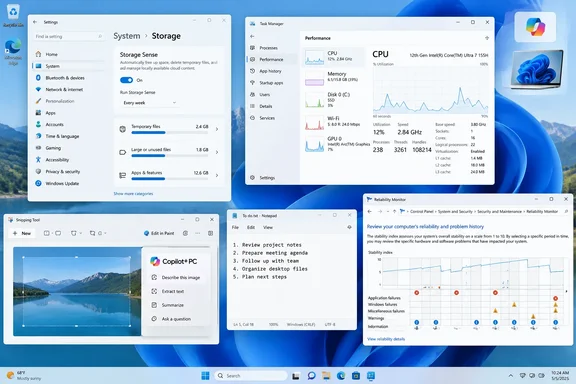
Windows' Built-In Toolkit Covers Five Everyday Jobs With Eight Tools
The XDA piece sorts the tools into five pairs or singles: a storage pair, a performance pair, a screenshot tool, a text editor, and a troubleshooting pair. The author calls these "better" than third-party apps. That is a personal view. No head-to-head testing backs it up, and the writer says he still uses a couple of third-party tools, including ShareX for years.
The stronger version of the argument is about overlap. For each job, Microsoft's own documentation describes a built-in tool that does the core task. The author also suggests that people reach for third-party tools because of marketing more than capability. In his words, a "one-click or AI-powered solution" looks more appealing than a utility "that has looked the same for the last decade." That is his opinion, but it points to a real habit: plenty of people install a cleaner or a capture app without ever opening what Windows already includes.
The sections below cover what each built-in does, where Microsoft limits it, and when a third-party tool still makes sense.
Storage Sense and Disk Cleanup Make Most Cleaner Apps Optional
Storage Sense is Windows' automatic cleaner, and Microsoft's support documentation covers both Windows 10 and Windows 11. It removes files you don't need, such as temporary files and old Recycle Bin items. With default settings it only runs when the drive is low on space. It leaves your Downloads folder and OneDrive (or any other cloud provider) alone unless you tell it otherwise. Microsoft notes that the tool works only on the system drive, usually C:. It can't run unless you are signed in and have been online for more than 10 minutes.
To set it up, go to Start > Settings > System > Storage and turn Storage Sense on. Then select Storage Sense to choose how often it runs, how long files can sit in the Recycle Bin before deletion, and how long unopened files can stay in Downloads. If you're signed in to a cloud account, a separate setting turns inactive files into online-only placeholders. Microsoft says this doesn't permanently delete anything, and files marked "Always keep on this device" are exempt. Starting with Windows 11 version 22H2, OneDrive files not opened for more than 30 days become online-only by default. Settings are per user, so each account on a shared PC manages its own.
Storage Sense is off by default, with one exception. If a PC runs low on space and the user has never touched Storage Sense, Windows may turn it on to clean up selected temporary files and then show a notification. You can switch it off right away.
Disk Cleanup is the older, manual tool. Search for "disk cleanup", pick a drive, and tick the file types you want to remove. Microsoft points out that Downloaded Program Files, Temporary Internet Files and Thumbnails are ticked by default, so untick anything you want to keep. Select Clean up system files to see more categories. Windows 11 also has Cleanup recommendations under Settings > System > Storage, which groups Temporary files, Large or unused files, Files synced to the cloud, and Unused apps, and shows how much space each would free.
One checkbox needs care. Deleting "Previous Windows Installation(s)" removes the Windows.old folder and your ability to roll back. Microsoft says this can't be undone. The option appears when an upgrade happened fewer than 10 days ago. If a feature update is still settling in, wait before you tick it.
For personal files that eat up space, XDA suggests a disk analyzer such as WizTree. Microsoft's built-in alternative is File Explorer's Details view sorted by size. The XDA author also warns that third-party programs that clear data automatically "can sometimes introduce instability", but gives no example. The safer habit is simply to review what any cleaner plans to delete before you confirm.
Task Manager for Quick Triage, Resource Monitor for Diagnosis
Task Manager is the quick-look tool. Microsoft Learn calls it the Windows in-box solution for monitoring application and process performance and resource usage. Open it with Ctrl+Shift+Esc, or right-click Start. If it opens in a small condensed view, select More details. Its tabs cover per-process resource use (Processes), performance graphs (Performance), signed-in users, a full process list with extra columns (Details), and services you can start or stop.
Task Manager goes deeper than most people use it. On the Performance tab, right-click the CPU graph and choose Show kernel times to split the load between kernel and user processes. Choose Change graph to > Logical processors to see each core separately. If an app is frozen, right-click it on the Details tab and choose Analyze wait chain. Task Manager then shows which other processes it is waiting on. Microsoft says you might be able to unblock it by ending one of those dependent processes. You can also right-click a process and choose Create memory dump file to capture its state for a support vendor.
For slow startups, the Startup apps page shows the same list as Settings > Apps > Startup, plus how much each app slows down sign-in. Microsoft defines the impact ratings precisely:
| Rating | Microsoft's definition |
|---|---|
| Low | Under 300 ms of total CPU time and under 292 KB of disk activity |
| Medium | 300 ms to 1 second of CPU time, or 292 KB to 3 MB of disk activity |
| High | More than 1 second of CPU time or more than 3 MB of disk activity |
| Not Measured | Enabled, but no data available yet |
| None | Disabled |
Resource Monitor is the next step when Task Manager tells you something is wrong but not why. Launch it by searching "Resource Monitor", or run resmon or perfmon /res. It opens on an Overview tab, with separate CPU, Memory, Disk and Network tabs that show which process is doing what. Microsoft's own advice for high-CPU problems is to open Resource Monitor's CPU tab and sort by average CPU. The XDA author says the interface only looks intimidating, and that description matches how the tool is laid out.
A word of caution. Find out what a process or startup item is before you end or disable it, because stopping something essential can cause new problems.
Snipping Tool Has Outgrown Its Bare-Bones Reputation, With a Copilot+ Asterisk
Snipping Tool shows the biggest change. The XDA writer, who relied on ShareX for years, now calls Snipping Tool "better than ever". Microsoft's documentation lists it for both Windows 10 and Windows 11. It offers freeform, rectangle, window and full-screen capture. Windows+Shift+S opens the screenshot overlay. For video, you press Windows+Shift+R, select part of the screen and press Start. When you are done, select Stop. At this point you can save the recording as-is or select Edit in Clipchamp to work with it in the Clipchamp video editor.
The editor now handles jobs that used to need a separate app. Once you've captured a snip, select the Text actions button to activate the Optical Character Recognition (OCR) feature. This allows you to extract text directly from your image. From here, you have the option to either select and copy specific text or use the tools to Copy all text or to Quick redact any email addresses or phone numbers in the snip. Microsoft says all text recognition processes are performed locally on your device, which matters for anyone capturing sensitive screens. Markup tools include pen, highlighter, shapes and emojis, eraser, crop, and undo/redo. You can also select Edit > Edit with Paint to use features for sizing, color, text, and many other enhancements. Microsoft's Windows learning-center page adds that when a screenshot contains a QR code, the tool will recognize it and offer to open the link for you.
The XDA article lists a color picker among the new features, and that needs a qualification. Microsoft's current support page says Color picker is only available on a Copilot+ PC. Earlier reporting said the opposite. When the feature launched in July 2025, Windows Central wrote that all Windows 11 PCs, regardless of whether they are Copilot+ PCs or not, now have a color picker within Snipping Tool, and FoneArena also listed it under "all Windows 11 PCs". Microsoft's own documentation is the current record and takes precedence, so on a non-Copilot+ machine the button may simply not be there. PowerToys Color Picker (Win+Shift+C) is the usual free alternative.
Perfect screenshot, which automatically tightens the capture area around on-screen content, is a Copilot+ feature on every account. When Microsoft introduced it in May 2025, the Windows Insider Blog said perfect screenshot in Snipping Tool will be available only on Copilot+ PCs. The practical upshot: OCR, redaction, recording and markup are general features, while the AI-assisted extras depend on your hardware.
Notepad's Spellcheck and Formatting Change What a Plain-Text Editor Is
The XDA author writes his drafts in Notepad. He values how simple it still is and calls most of Microsoft's recent changes real improvements, although he thinks spellcheck needs more work. Two changes stand out, and both came through staged Windows Insider rollouts before reaching everyone.
Spellcheck started rolling out to Windows Insiders in March 2024, according to the Windows Insider Blog. It highlights misspellings, suggests corrections, autocorrects, and supports multiple languages. You can turn it off everywhere, for particular file types, or for the current file. Microsoft enabled it by default for some file types but left it off for log files and other types commonly used for code, which matters to anyone who opens config files or scripts in Notepad.
Lightweight formatting followed. Microsoft announced it to Insiders on May 30, 2025, and extended it to the Beta and Release Preview channels on June 4. It supports bold, italic, hyperlinks, simple lists and headings, stored as Markdown-style text. You can switch between the formatted view and the raw Markdown, or turn formatting off completely.
This is where Notepad differs from what people think of as a plain-text editor. If you use it as a scratchpad for config files, the defaults for code-style files and the formatting off switch keep the old behavior. If you draft prose, it now covers basic structure and spelling that once meant opening WordPad or a third-party editor. Because these features rolled out in stages, check your own Notepad's settings rather than assuming every PC matches.
Start With Reliability Monitor, Then Move to Event Viewer
The last pair doesn't fix anything, as the XDA article says. These tools help you find a cause. Its recommended order, Reliability Monitor first and Event Viewer second, matches how the tools are built.
Reliability Monitor opens with perfmon /rel, a command Microsoft documents for Windows 10, Windows 11 and supported Windows Server versions. It shows app failures, Windows failures and other events on a day-by-day timeline. That makes it easy to spot patterns, such as crashes that started the day a driver or update was installed.
Event Viewer holds the full System, Application and other logs. Microsoft says each record can include the event's source, date and time, an error code and a message. You can filter logs by level, date or keyword and export them for analysis. Microsoft's startup troubleshooting guidance points users to the System or Application log to open individual event details.
The workflow is simple: find the date and failing component in Reliability Monitor, then go to that timestamp in Event Viewer for the detail. Keep one thing in mind. Windows logs plenty of errors and warnings during normal operation, so the first alarming entry you find is a clue to check against what actually happened, not proof of the cause.
What this means for you
If your PC has a third-party cleaner or capture app you installed out of habit, try the built-in version for a week before you decide whether to keep it. For home users and small offices, the built-in set covers routine maintenance and basic diagnosis. Specialized tools still earn their place: a disk analyzer for finding large personal files, PowerToys Color Picker on non-Copilot+ hardware, and ShareX if you depend on its automation or upload workflows.
- Turn on Storage Sense under Start > Settings > System > Storage and review its Downloads and cloud-content settings, since it only works on the system drive.
- Leave "Previous Windows Installation(s)" unticked in Disk Cleanup or Cleanup recommendations until you are sure you won't need to roll back a recent upgrade, because deleting Windows.old can't be undone.
- Use Task Manager's Startup apps impact ratings and its Analyze wait chain option before reaching for a third-party "optimizer", and move to Resource Monitor (
resmon) when you need per-process detail. - Use Windows+Shift+S and Windows+Shift+R for screenshots and recordings, and use Text actions for local OCR and quick redaction; expect Color picker and Perfect screenshot only on Copilot+ PCs.
- Check Notepad's spellcheck and formatting settings on each machine, because both features arrived through staged rollouts and spellcheck behaves differently for code and log files.
- Diagnose crashes by running
perfmon /relto find the date and failing component, then filtering Event Viewer around that timestamp.
The XDA feature's headline miscounts the tools and overstates the case by calling them "better", but its practical advice holds up against Microsoft's documentation. Most everyday cleanup, monitoring, capture and troubleshooting can be done with what already ships on a Windows 10 or Windows 11 PC. Microsoft keeps adding features through app updates, and some of them are tied to Copilot+ hardware. So each time you set up or replace a PC, check which of these built-ins it actually gets before paying for or installing a replacement.
References
- These 7 built-in Windows tools are better than the apps most people install instead XDA · 2026-09-23T00:00:16+00:00
- How to use Windows Snipping Tool | Microsoft Windows microsoft.com
- Manage drive space with Storage Sense | Microsoft Support support.microsoft.com