

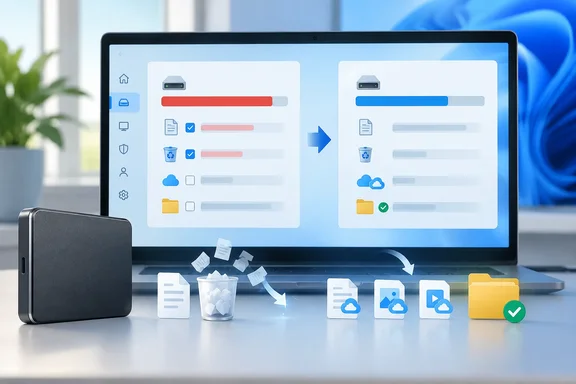
His main point holds up against Microsoft's documentation: Storage Sense only works as well as its settings. Some of his other claims need more care, so here's what Microsoft confirms, what is only one person's experience, and how to set Storage Sense up on Windows 11 and Windows 10.
The setup: a 256GB SSD stuck above 90% full
Mathur's boot drive is a 256GB Samsung 970 EVO NVMe SSD. He says it sat above 90% capacity for a long time. Boot times grew, and the system stuttered when he switched between heavy apps. He decided against third-party "optimizer" tools, which he calls mostly snake oil, and used Storage Sense instead.
After he changed its settings and did some manual cleanup, he says the drive stayed around 60% full. He also reports that app compile times went back to normal and Windows felt smooth again.
Treat those results as his experience, not a promise. He published no benchmarks and no controlled before-and-after tests. He blames the slowdown on a shrinking SLC cache, weaker TRIM and garbage collection, and higher write amplification. Those mechanisms do exist in SSDs, but nothing he provides shows they caused his slow boots, and the Windows documentation doesn't establish it either. Microsoft makes a narrower claim. Its Storage Sense FAQ says low-space warnings appear when the drive is running out of room, and that this can hurt performance and make system upgrades harder to install.
Bottom line: freeing space is worth doing for updates and general health. Don't expect it to fix every slow PC.
Is Storage Sense on by default? Microsoft gives two answers
Mathur calls Storage Sense "off by default." Microsoft's own pages disagree with each other:
- Microsoft Support (consumer page): Storage Sense is off by default. The same FAQ adds that if the PC runs low on space and you've never touched Storage Sense, Windows may turn it on to clean up some temporary files and then notify you.
- Microsoft Learn (admin page): Its "Configure Storage Sense" guide says Storage Sense is enabled by default and set to run when disk space is low.
Both pages agree on what matters most: the default schedule only runs when space is low. Microsoft Support says that if Storage Sense is turned on with the default settings, it will run when your device is low on disk space and will clean up unnecessary temporary files. It also says content from the Recycle Bin will be deleted by default after some time, but items in your Downloads folder and OneDrive (or any other cloud provider) will not be touched unless you set up Storage Sense to do so.
So Mathur's description of a reactive tool is accurate. With default settings, Storage Sense waits until the drive is nearly full before acting.
Some limits to know before you start:
- System drive only. Storage Sense works on your system drive only, which contains the Windows operating system and is usually referred to as C:.
- Settings are per user. Any settings you choose will apply only for you. Other users on your device can manage their own settings. On a shared family PC, each account needs its own setup.
- You must be signed in. Microsoft says Storage Sense can't run unless you're signed in and online for more than 10 minutes. A PC that sits at the lock screen won't clean itself.
How to set up Storage Sense in Windows 11
The steps follow Microsoft's documentation and Mathur's description:
- Open Settings > System > Storage.
- Turn the Storage Sense toggle On.
- Click Storage Sense to open its settings.
- Tick the checkbox for Cleanup of temporary files.
- Turn on Automatic User content cleanup.
- Under Run Storage Sense, pick a schedule. According to Eleven Forum's tutorial, the choices are Every day, Every week, Every month, or During low free disk space (default).
- Set the dropdowns for how long files stay in the Recycle Bin and in Downloads before deletion.
- If you're signed in to a cloud account, set the locally available cloud content threshold. More on that below.
- To test it right away, click Run Storage Sense now. Eleven Forum notes that the Run Storage Sense now button will be grayed out if Storage Sense is not turned on.
What success looks like: when Storage Sense finishes, it shows how much space it freed. Over the following weeks, the capacity bar on the Storage page should stay out of the red. Microsoft says the bar turns red when the drive is low on space.
A warning about Downloads: an aggressive Downloads rule deletes files you haven't opened, including that installer you were saving for later. Choose a retention period you'd be fine losing files to, or move anything you want to keep out of Downloads.
Cloud files: making them online-only is not deleting them
Mathur's biggest complaint is about OneDrive. When you open a cloud-only file, Windows downloads a full copy, and that copy stays on your drive. Storage Sense can turn those copies back into online-only placeholders on a schedule.
Microsoft explains how this works. Starting in Windows 11, version 22H2, the default for OneDrive cloud files is to make files online-only if not opened for more than 30 days. That default only applies once Storage Sense is running. The cloud settings also only appear while you're signed in to the cloud account.
Microsoft also says this setting will not permanently delete any files. Files can be made locally available again if there is free disk space and network connectivity. Any file marked as Always keep on this device is exempted and will not be managed by Storage Sense.
What this means for you:
- Use a short threshold only if you're fine downloading files again when you need them, which requires an internet connection.
- Right-click files you need offline (a project folder, travel documents) and choose Always keep on this device.
- Don't mix up Storage Sense's offloading with File Explorer's Delete. Deleting a synced file can remove the cloud copy too.
Mathur also says Storage Sense supports self-hosted Nextcloud. Microsoft's documentation mentions OneDrive "or any other cloud provider," but it doesn't confirm a Nextcloud integration specifically. Check your own Nextcloud client before relying on it.
What Storage Sense doesn't touch
Mathur rightly calls Storage Sense a partial fix. It handles temporary files, the Recycle Bin, Downloads and cloud copies. It doesn't clean up all of Windows. For the rest, you need other tools:
Temporary files breakdown. Under Settings > System > Storage, categories are listed by size. If Temporary files isn't near the top, click Show more categories > Temporary files. Mathur lists items you can tick there, including Delivery Optimization files, the DirectX shader cache, Windows error and diagnostic files, thumbnails and Recycle Bin contents. Microsoft's Storage settings page also describes Cleanup recommendations, which can flag previous Windows installations, large or unused files, and apps you rarely use.
Disk Cleanup for update leftovers. Open Disk Cleanup from Start, choose the system drive, and click Clean up system files. Mathur says this adds update-related options such as Windows Update Cleanup, Windows upgrade log files and System recovery log files. He suggests creating a restore point first if your build is stable. That's a sensible precaution, but read the description of each item before ticking it. Microsoft's guide to uninstalling updates notes that some updates can't be uninstalled anyway. The documentation doesn't spell out how each cleanup category affects your ability to roll back an update.
Previous Windows Installation(s). After a feature upgrade, Microsoft's FAQ says you can remove the old installation from Temporary files. Once you do, you can't roll back to the previous version. Only do this when you're sure the upgrade is staying.
Hiberfil.sys. Mathur includes hibernation files in the system clutter that automatic cleanup ignores. Microsoft says Hiberfil.sys is roughly the size of your installed RAM. Running powercfg.exe /hibernate off from an elevated Command Prompt deletes it, but there's a cost. Microsoft warns that hybrid sleep stops working, and you may lose data if the power fails while hybrid sleep is enabled. A gentler option is powercfg /hibernate /type reduced, which shrinks the file so it only supports Fast Startup. Microsoft's documentation says you may need to run powercfg /hibernate /size 0 first so Windows manages the file size. On a 256GB drive the space savings can matter, but laptop users who rely on hibernation should leave it alone.
Microsoft's Storage settings page also notes that on SSDs, Drive optimization runs TRIM. That's a better place to look after SSD health than worrying about how full the drive is.
For IT administrators: set it once for every device
This matters most for managed fleets with small drives. Microsoft Learn specifically mentions 64GB student laptops and shared frontline devices. Storage Sense can be configured through an Intune Settings Catalog policy, the Policy CSP, or Group Policy under Computer Configuration\Administrative Templates\System\Storage Sense. The available settings include:
| Setting | Values |
|---|---|
| Allow Storage Sense Global | Allow / Block |
| Temporary files cleanup | Allow / Block |
| Cloud content dehydration threshold | 0–365 days |
| Downloads cleanup threshold | 0–365 days |
| Recycle Bin cleanup threshold | 0–365 days |
| Global cadence | 0 = low disk space (default), 1 = daily, 7 = weekly, 30 = monthly |
Setting the cadence to weekly across the fleet does for every device what Mathur did by hand. Think carefully before forcing a Downloads cleanup threshold on users who treat that folder as permanent storage.
The verdict
Mathur's experience comes down to one useful change: stop waiting for the drive to fill up before cleaning it. Set a weekly or monthly schedule, choose Recycle Bin and Downloads retention periods you're comfortable with, protect important cloud files with Always keep on this device, and use Disk Cleanup and the Temporary files page for what Storage Sense skips.
Will it make your PC feel like new? It might, if a nearly full drive was the real problem. Either way, Windows updates install more reliably with free space, and the cleanup tool is built into Windows, so you don't need a third-party optimizer.
References
- My Windows install stopped bloating once I actually configured Storage Sense properly XDA · 2026-10-07T20:00:17+00:00
- Manage drive space with Storage Sense | Microsoft Support support.microsoft.com
- Manage drive space with Storage Sense support-microsoft-com.translate.goog