

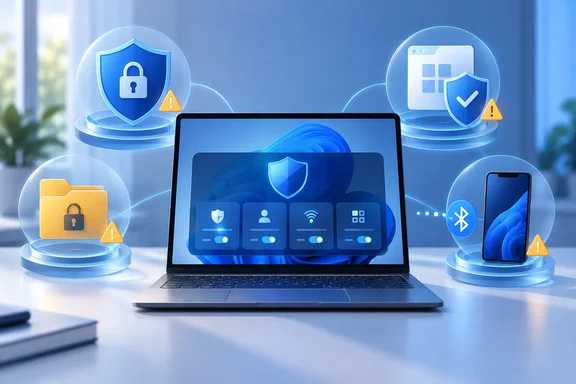
The author said a Microsoft report on malware that posed as popular apps and quietly switched off Windows' defenses was what prompted the review. That report isn't named, so we can't verify it here. The four settings, however, are fully documented by Microsoft. What follows covers what each one actually does, how to turn it on, and what to watch for afterward.
Four settings, four different jobs
These features don't stack into one big shield. Each one handles a different risk:
| Feature | What it protects | Main trade-off |
|---|---|---|
| Tamper Protection | Key Microsoft Defender Antivirus settings | Admins still have to make deliberate changes in the Windows Security app |
| Controlled Folder Access | Files in folders you choose to protect | Can block legitimate apps from saving files |
| Smart App Control | Stops untrusted or malicious apps from running | No per-app exceptions; on or off for everything |
| Dynamic Lock | Locks an idle PC when your phone moves away | Only works if the PC is idle |
None of them replaces updates, backups or the habit of pressing Windows+L when you get up.
1. Tamper Protection: stop apps from switching Defender off
Microsoft's consumer documentation says Tamper Protection helps keep malicious apps from changing important Microsoft Defender Antivirus settings, such as real-time protection and cloud-delivered protection. The Defender for Endpoint documentation gives a longer list of what stays locked when it's on:
- Real-time protection and behavior monitoring stay on.
- Security intelligence updates keep arriving.
- Automatic actions on detected threats keep running.
- Notifications stay visible.
- Defender exclusions can't be added or changed.
- Attempts to change Defender Antivirus settings through the Registry are blocked.
That's narrower than saying it blocks every app from changing every security setting, or that it stops every suspicious Registry edit. It guards Defender's own configuration. It doesn't judge whether an app is safe to install. Microsoft also says it doesn't affect how third-party antivirus products register with Windows Security.
Admins aren't locked out either. If you're an administrator, you can still change these settings in the Windows Security app; other apps can't. One side effect: with Tamper Protection on, you have to turn it off before you can turn off real-time protection. That's the point of the feature.
To enable it:
- Open Windows Security (or go through Settings > Privacy & security > Windows Security).
- Select Virus & threat protection.
- Under Virus & threat protection settings, click Manage settings.
- Turn Tamper Protection on.
If the toggle is greyed out, your device is probably managed by an employer or school. Microsoft notes that on managed devices, the security team controls Tamper Protection through tools such as Intune. Talk to IT; you can't change it locally.
2. Controlled Folder Access: a gatekeeper for your files
Ransomware happens to ordinary people too. In a 2025 Pew Research Center survey of U.S. adults, 10% of respondents said ransomware had blocked use of their computer until they paid. That figure describes what respondents reported. It isn't the share of all Windows users who get hit.
Microsoft describes Controlled Folder Access as protection for valuable data against malicious apps and ransomware. It checks apps against a list of known, trusted apps and blocks unauthorized or unsafe ones from changing files in protected folders. Documents, Pictures, Videos, Music and Desktop are protected by default, and you can add more folders. When an app is blocked, you get a notification.
To enable it:
- Open Windows Security > Virus & threat protection.
- Under Ransomware protection, click Manage ransomware protection.
- Turn Controlled folder access on.
- Use Protected folders to add locations, such as a separate data drive or a tax-records folder.
Common problem: a familiar app suddenly can't save files. Microsoft's advice is to note the blocked app, and allow it through Controlled Folder Access only if you trust it and really need it to write there. Otherwise, save the file somewhere else. Don't approve every blocked program out of habit. Microsoft warns that any app you allow gets access to your protected files, and if that app is ever compromised, those files are at risk.
Remember too that Controlled Folder Access is prevention, not recovery. The same Windows Security page links to OneDrive-based ransomware data recovery. A separate backup is still the thing that saves you when everything else fails.
3. Smart App Control: blocking without asking
Smart App Control works differently from User Account Control. UAC asks whether you want to allow something. Smart App Control just decides. According to Microsoft's FAQ, it first asks Microsoft's cloud security service whether it can make a confident call on the app. If the app looks safe, it runs. If it looks malicious or potentially unwanted, it's blocked. If the service can't decide, Smart App Control checks for a valid signature, and unsigned apps or apps with invalid signatures are blocked. It works alongside Microsoft Defender or another antivirus product, not instead of them. It isn't available on Windows 10.
The catch most guides leave out: there's no allow list. Microsoft's FAQ says there's currently no way to bypass Smart App Control for an individual app. Your choices are to turn the whole feature off or to ask the developer to sign the app. Developers who want their own software to run should sign it with a valid certificate.
Big change in 2026: for years, Smart App Control was effectively one-way. Once it was off, you had to reset or reinstall Windows to get it back. Microsoft's FAQ now says recent Windows updates allow Smart App Control to be enabled without requiring a clean installation. The change started in Insider testing. Windows Report notes that as part of Windows 11 Insider build 26220.7070 (KB5070300) from November, Microsoft finally removed the clean install requirement. The rollout wasn't smooth. DesktopNerds reported that Microsoft pulled the item from the January 2026 KB5074105 notes and said the feature will arrive in a future release instead. Topedia later reported that with the cumulative update KB5083769 from 14 April, Microsoft updated the option to enable Smart App Control without requiring a Windows 11 reinstall. ElevenForum lists the relevant builds as build 26100.8116 (24H2) and build 26200.8116 (25H2).
Be aware that some of Microsoft's own pages haven't caught up. The App & browser control support page still says Smart App Control works only on new Windows 11 installs, and that once the evaluation period ends you can't return to Evaluation mode without a reset. The safest approach is to install current updates and then check what your own PC offers.
To enable it:
- Install the latest Windows and Defender updates.
- Open Windows Security > App & browser control.
- Click Smart App Control settings.
- Choose a mode:
- Evaluation: Windows watches your usage and blocks nothing.
- On: enforcement is active.
- Off: no protection.
If it won't turn on, Microsoft lists several reasons:
- The device is enterprise-managed.
- Developer Mode is turned on.
- The PC is in S mode. You'll need to leave S mode, then reset.
- Optional diagnostic data is turned off. Microsoft says this needs a reset or reinstall where you choose "Send optional diagnostic data" during setup.
If you test a lot of indie tools, unsigned utilities or your own builds, expect friction. For those users, How-To Geek's fallback is sensible: turn on file-name extensions in File Explorer and stay suspicious of anything that looks off.
4. Dynamic Lock: a safety net, not a guarantee
Microsoft defines Dynamic Lock as a feature that locks a Windows device automatically when the Bluetooth signal from your paired phone drops below a threshold. It's aimed at the coffee-shop moment when you walk off and forget to lock the screen.
Microsoft is clear about the limit. Dynamic Lock only locks the PC if the Bluetooth signal drops and the system is idle. If someone starts using the PC before the signal fades, it won't lock. Microsoft calls it an additional barrier and says it doesn't replace locking the computer yourself. In business deployments, Microsoft's default signal settings are tuned so a user can move around an average office or cubicle without triggering a lock. So "walked away" means properly out of range, not two steps from the desk.
To set it up:
- Go to Settings > Bluetooth & devices > Add device and pair your phone.
- Go to Settings > Accounts > Sign-in options.
- Expand Dynamic lock.
- Tick the box that lets Windows lock your device automatically when you're away.
If it never seems to trigger, check that the phone is still paired and that its Bluetooth is on. Also give it time: the PC has to go idle first.
Should everyone turn on all four?
Probably not without thinking about it. Here's how they fit different users:
- Tamper Protection: low friction for almost everyone. It's the easiest recommendation of the four.
- Controlled Folder Access: good for anyone with important local files. Expect a few blocked-app notifications early on.
- Smart App Control: a strong fit for family PCs and less technical users. It's frustrating for tinkerers, though recent updates make trying it much less risky.
- Dynamic Lock: a handy extra for laptop users who work in public. Just don't treat it as a proximity alarm.
Bottom line: Windows 11's built-in protections are capable, but they work best when you know where each one stops. Turn on what suits how you use your PC, read the notifications instead of clicking through them, and keep a backup somewhere ransomware can't reach.
References
- Hidden Windows 11 security settings you should enable right now How-To Geek · 2026-10-01T00:00:14+00:00
- Smart App Control Update: No Clean Install Required - DesktopNerds desktopnerds.com
- Turn On or Off Smart App Control in Windows 11 elevenforum.com