

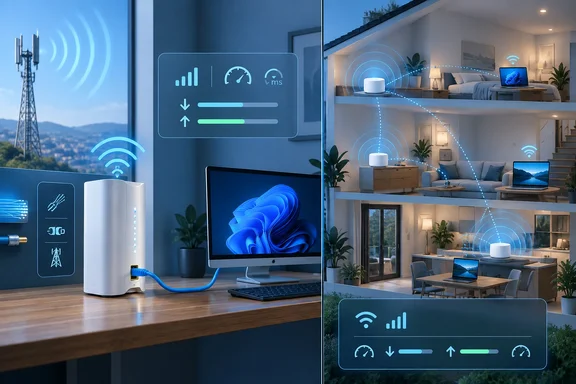
Engadget highlights this often-confused distinction between the incoming internet service and the home network. The practical starting point is to compare the services available at your address, then choose Ethernet or Wi-Fi for each device—not treat “wired” and “wireless” as mutually exclusive household setups. Microsoft’s connectivity guidance likewise treats Ethernet and Wi-Fi as alternative ways to reach your home router.
Understand which connection you are choosing
With wired broadband, the provider’s connection reaches your property through physical infrastructure. Fiber service uses fiber-optic cable; cable broadband uses coaxial cable for its connection into the home; DSL uses copper telephone wiring. These belong to the same broad category, but they are different technologies with different capabilities. AT&T’s network documentation, for example, distinguishes copper-based DSL, hybrid fiber-and-copper service, and fiber delivered directly to the premises.
For this comparison, wireless home internet means cellular fixed-wireless service using 4G LTE or 5G. AT&T Internet Air is one documented example. The provider-to-home connection travels over the cellular network rather than through a new physical broadband line into the property. Other forms of fixed wireless exist, so “fixed wireless” should not automatically be read as “5G.”
Inside the home, the connection can be distributed through Ethernet, Wi-Fi, or both. The T-Mobile G4AR documentation makes that separation particularly clear: its display reports cellular signal strength separately from the number of connected wired and wireless devices. A strong connection between your PC and the gateway therefore tells you nothing conclusive about the gateway’s connection to the provider.
The same distinction explains a familiar Windows symptom: being connected to Wi-Fi without having internet access. Microsoft documents that a PC can reach its local network while being unable to browse websites or use other internet services. Wi-Fi connectivity alone does not establish that your broadband connection is working.
Compare actual plans, not just technology names
Start with address-level availability. The FCC’s National Broadband Map shows fixed-service availability reported by providers for individual locations. Its mobile coverage layer serves a different purpose: it models outdoor or in-vehicle mobile coverage and does not establish indoor broadband availability. A coverage-colored neighborhood is therefore insufficient evidence that a particular home-internet plan will work at your address.
Next, compare the provider’s Broadband Facts labels. The FCC’s labeling framework includes typical download speed, upload speed and latency, giving you a more useful comparison than an advertised maximum download figure alone. Associated pricing and service disclosures help expose differences in fees and plan terms.
Use those details to answer four questions:
- How quickly can the connection receive data? This affects downloads and the amount of incoming traffic the service can accommodate.
- How quickly can it send data? Upload capacity deserves attention when your household sends large files or uses cloud-based services.
- How responsive is it? Latency describes network delay, which affects interactive applications differently from download speed.
- What will it cost under the terms you will actually use? Compare recurring charges, introductory pricing, additional fees and any data allowance.
An equal advertised download speed does not imply an equal connection. A symmetric service has matching upload and download rates; an asymmetric service does not. Where one available plan offers substantially more upload capacity, that can be more useful for a home office than another increase in its download headline. That is a decision based on the plan’s documented rates, rather than its “wired” or “wireless” label.
For gaming and video meetings, compare responsiveness as well as throughput. The FCC explains that latency depends on several factors, including the server’s location, the network route and congestion. A provider’s typical latency figure is useful comparative information, but it is not a promise of the same ping to every game server or work application.
When fixed wireless deserves consideration
Fixed wireless is especially worth investigating when installing a physical connection is impractical or the available wired options are unattractive. It avoids the requirement for a new cable or fiber run to every served property, although service availability still depends on the provider’s network and the particular location.
Its radio connection also makes local conditions important. The FCC identifies device capabilities, cell-site capacity and terrain as factors that can cause real-world mobile-network experience to differ from modeled coverage. For a cellular home-internet purchase, the practical inference is to prioritize address qualification and actual performance at the gateway’s intended location over a general coverage claim.
Do not confuse this with using your phone as a hotspot. AT&T documents Internet Air as a home-internet product delivered over its wireless network, while T-Mobile documents a dedicated gateway with wired LAN connections. Compare the home-internet plan and equipment being offered, rather than assuming that your phone’s service terms or networking capabilities carry over.
Nor should every wired option automatically win. DSL and direct fiber are substantially different services, even though both arrive over physical lines. The sensible choice is the available plan that meets your speed, responsiveness and cost requirements—not whichever description contains the word “wired.”
Test your Windows connection before changing providers
If the problem is poor performance in one room, first establish whether the limitation is inside the home. Microsoft recommends checking Wi-Fi signal strength, comparing another device and testing an alternative connection. Its Ethernet guidance provides a straightforward way to separate a wireless-network problem from a broader connectivity failure.
For a Windows 11 PC, use this comparison:
- Connect an Ethernet cable between the PC and a LAN port on your router or combined gateway. Microsoft specifically warns against using the router’s Internet port, which connects the router to its modem. If the PC lacks Ethernet, a compatible USB-to-Ethernet adapter is an option.
- Open Settings > Network & internet and verify that the Ethernet connection shows “Connected.”
- Try the activity that was failing, then compare it with the Wi-Fi connection. Treat the difference as diagnostic evidence, not an automatic verdict against the provider.
- If Ethernet does not connect, check both cable ends and try another cable before interpreting the result.
- Where possible, repeat the connection check on another PC. If that machine works, Microsoft says the first PC is the more likely source of the problem.
If Windows 11 still cannot connect, Microsoft recommends the Network and Internet troubleshooter in the Get Help app. Network reset belongs much later: it removes installed network adapters and their settings, and can require VPN software or Hyper-V virtual switches to be configured again. It is not an appropriate first response to a weak signal in an upstairs bedroom.
Improve coverage without replacing the internet service
A mesh system can address an in-home coverage problem, but its additional access points still need a usable connection back toward the main router. Google’s Nest Wi-Fi guidance recommends moving a point closer to the router when its mesh connection is weak, keeping equipment in the open, and avoiding obstructions such as thick walls, furniture and appliances. Placing a wireless mesh point deep inside an existing dead zone can leave the connecting link weak.
This gives you two separate placement goals with cellular broadband: obtain a good provider signal at the gateway, and distribute a good local connection to the rooms where you work. T-Mobile’s cellular-signal display and Google’s separate mesh-connection checks illustrate why those should be assessed independently. Moving or adding local Wi-Fi equipment should not be mistaken for improving the provider’s radio connection.
Ethernet is also possible without necessarily running a new long cable through every room. MoCA technology carries networking over existing coaxial cabling and can provide wired connections between parts of a home network, including links supporting Wi-Fi access points. The MoCA Alliance documents that use, but it is an option to assess against your existing cabling—not a guarantee that every television outlet is immediately suitable.
The purchasing sequence is therefore straightforward: qualify the broadband service at your address, compare its documented performance and full terms, and identify whether any existing problem follows the internet connection or only your local Wi-Fi. You can then change the component that needs improvement—without abandoning a suitable provider merely because one room has poor wireless coverage.